How To Give Event Credits
How to recognize external payments and loyalty rewards.
Sometimes you need to give your guests a credit or recognize a payment made outside of Auctria. The approach you choose depends on how you want the transaction to affect your event income reporting.
Record Payment (Positive Amount)
- Use when you've received an actual external payment (cash, check, wire transfer, etc.)
- Enter as a positive amount
- Shows as income in your event totals
- Example: Guest pays $100 via check before the event. This increases Total Income by $100.
Note
If they later spend exactly $100 at your event, Total Income will show $200 even though net revenue is only $100.
Record Credit via Negative Purchase (Negative Amount)
- Use when giving a promotional credit, volunteer credit, or loyalty reward
- Enter as a negative amount using a For Sale item
- Reduces Total Income appropriately
- Example: You give a volunteer a $100 credit. When they spend $100 at your event, Total Income shows $0 ($100 purchase - $100 credit = $0 net), which accurately reflects that no actual revenue was generated.
You can use the Record Sale function and select the Other payment method tab, then select an appropriate type from the drop-down selector. Enter the amount as a positive number.
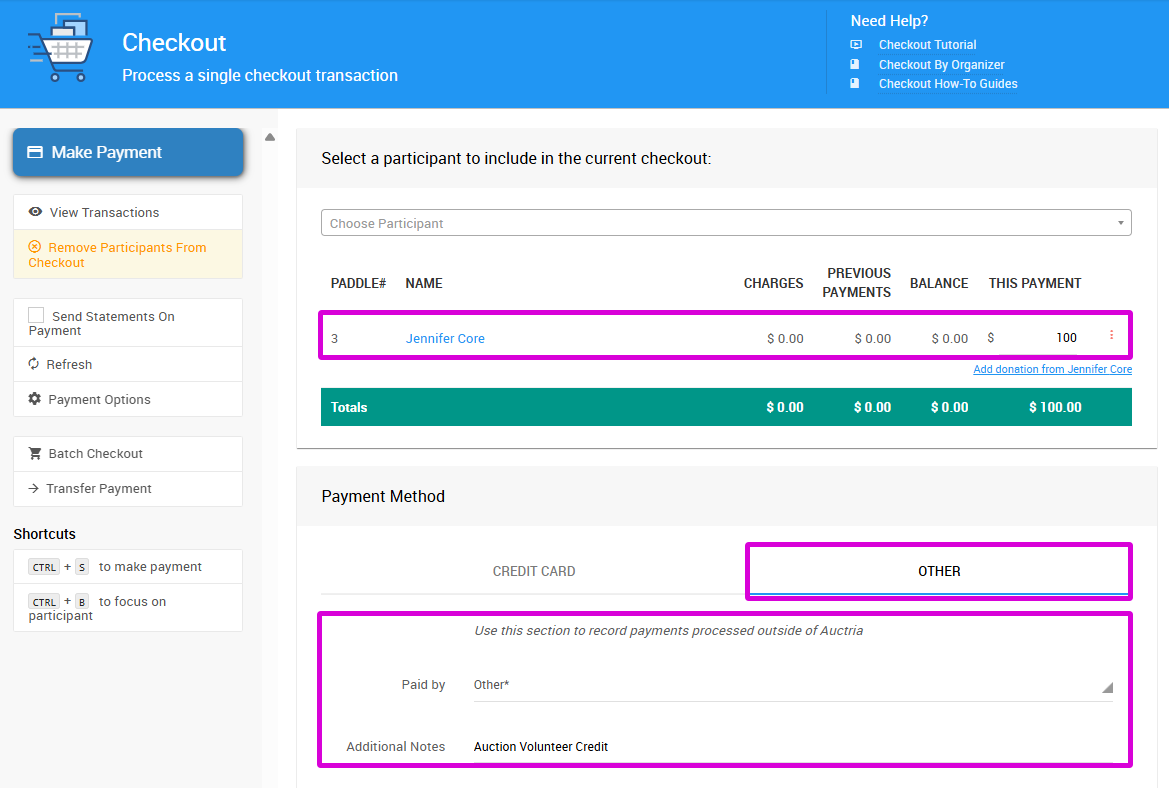
An example from a demonstration event.You can add different payment options as needed; see Checkout Payment Options for more information on adding additional drop-down options to choose from. Adding details to the Additional Notes field can also be a useful reference.
Promotional Credits and Rewards
This approach provides more accurate Total Income reporting when giving promotional credits or rewards, as it offsets the credit against actual purchases.
To apply a credit to a bidder's account, you need to include it as part of a purchase transaction. You cannot add a credit as a standalone action.
- Create a For Sale type item specifically for credits (e.g., "Auction Credit" or "Volunteer Credit")
- When a bidder makes a purchase, use the Record Sale page (left sidebar Sales Record Sales)
- Add both the regular item(s) they're purchasing AND the credit item to the same transaction
- For the credit item, enter a negative amount to offset the purchase total
- Set Payment Method to None (or the appropriate payment method if they're also paying a balance)
- Click Record Sale button to process the transaction
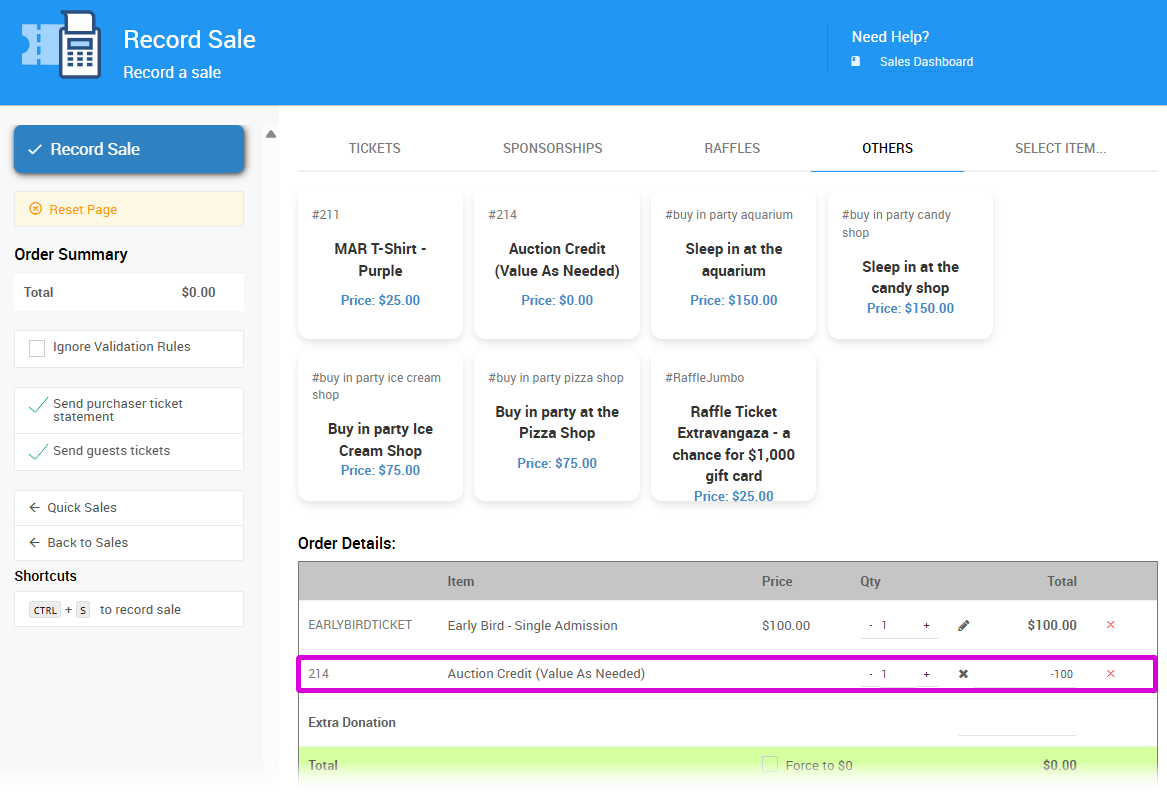
An example showing a credit item with a negative amount added to a purchase.The negative amount will offset the purchase total, effectively applying the credit.
Example: A volunteer purchases a $150 item. You want to give them a $100 volunteer credit. Add both the $150 item and the credit item (at -$100) to the same transaction. The net amount due will be $50.
Ignore Validation Rules
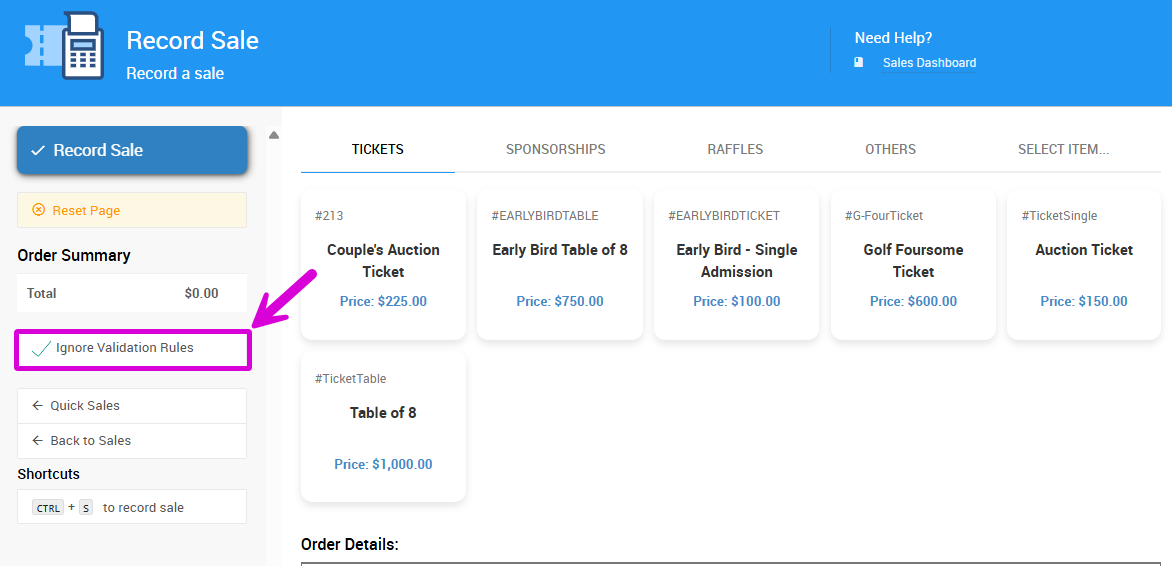
If an error message appears when processing the transaction, check the Ignore Validation Rules checkbox to suppress conflicting validation rules and force the transaction through.
Last reviewed: February 2026