
Learn how to sign out of your current event and switch to a different one in the Auctria mobile bidding app.
If a guest has used the Bidder Mobile App for a previous event and didn't sign out, the app will reopen to that event the next time it's launched.

An example showing a previous event loaded in the mobile app.
Sign Out of the Event
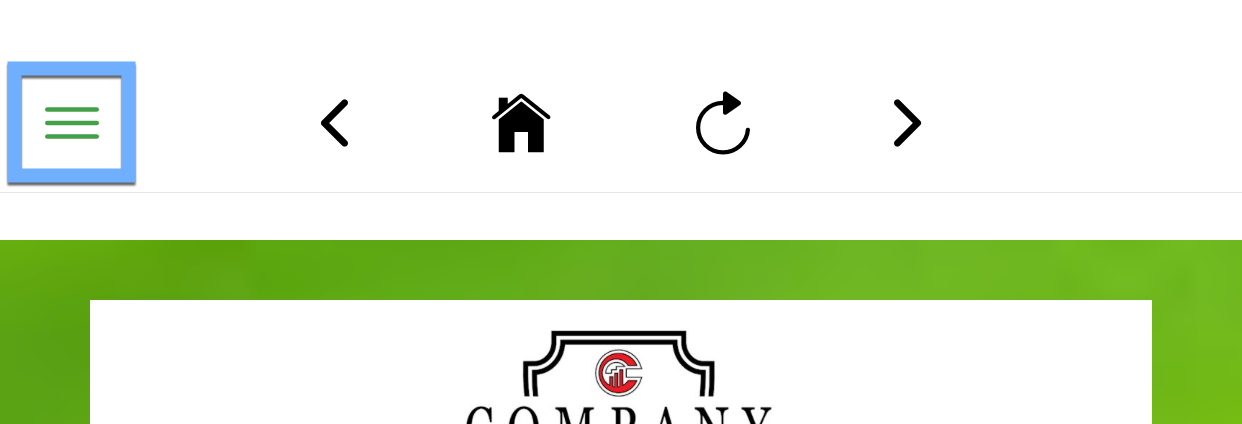
Tap the "hamburger" menu icon in the top-left corner of the screen to open the Mobile App menu.
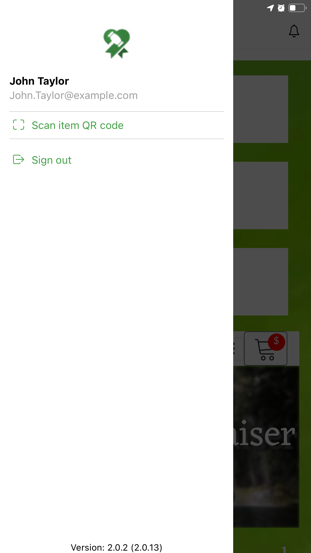
Tap Sign Out from the menu.
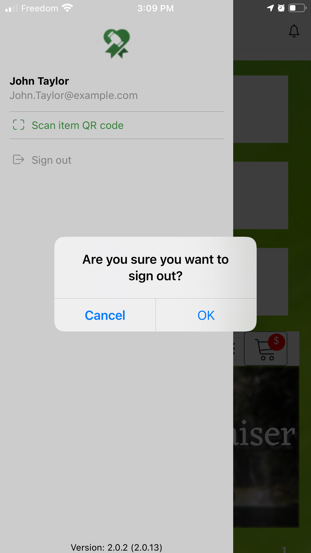
A confirmation prompt will appear — tap OK to confirm. This returns the guest to the visitor view of the event.
Leave the Event
After signing out, tap the hamburger menu again and select Leave Event.
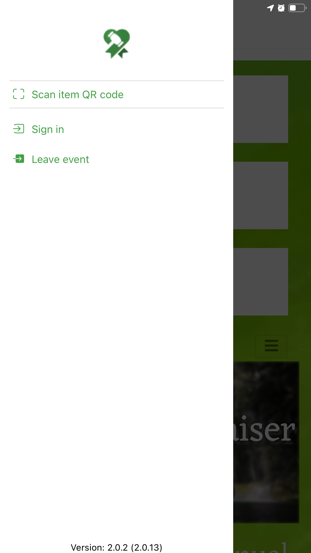
This returns the guest to the app's initial Sign In screen, where they can enter a new event.
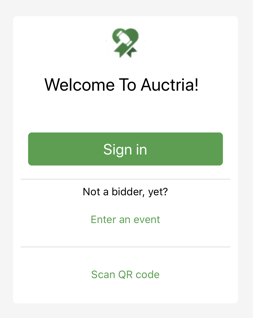
See How Bidders Sign In for details on signing in to a new event.