
Learn how to give users a different permission level for a specific event.
How Event Permissions Work
Every user in your organization has a default permission level that applies to all events. An event permission replaces that default level for one event. It can give a user more access or less.
For example, you can:
- Give a volunteer more access for one event without changing their access everywhere else.
- Limit a user to read-only access for a specific event.
- Set a user's level to None to hide the event from them completely.
Available levels
You can set an event permission to None, ReadOnly, User, or PowerUser. Admin and Owner access can't be given for a specific event.
For a description of each permission level, see User Accounts.
Admin permission required
Only users with Admin permission can add or remove event permissions.
View Event Permissions
Click Event in the left sidebar, then click the Permissions tab.
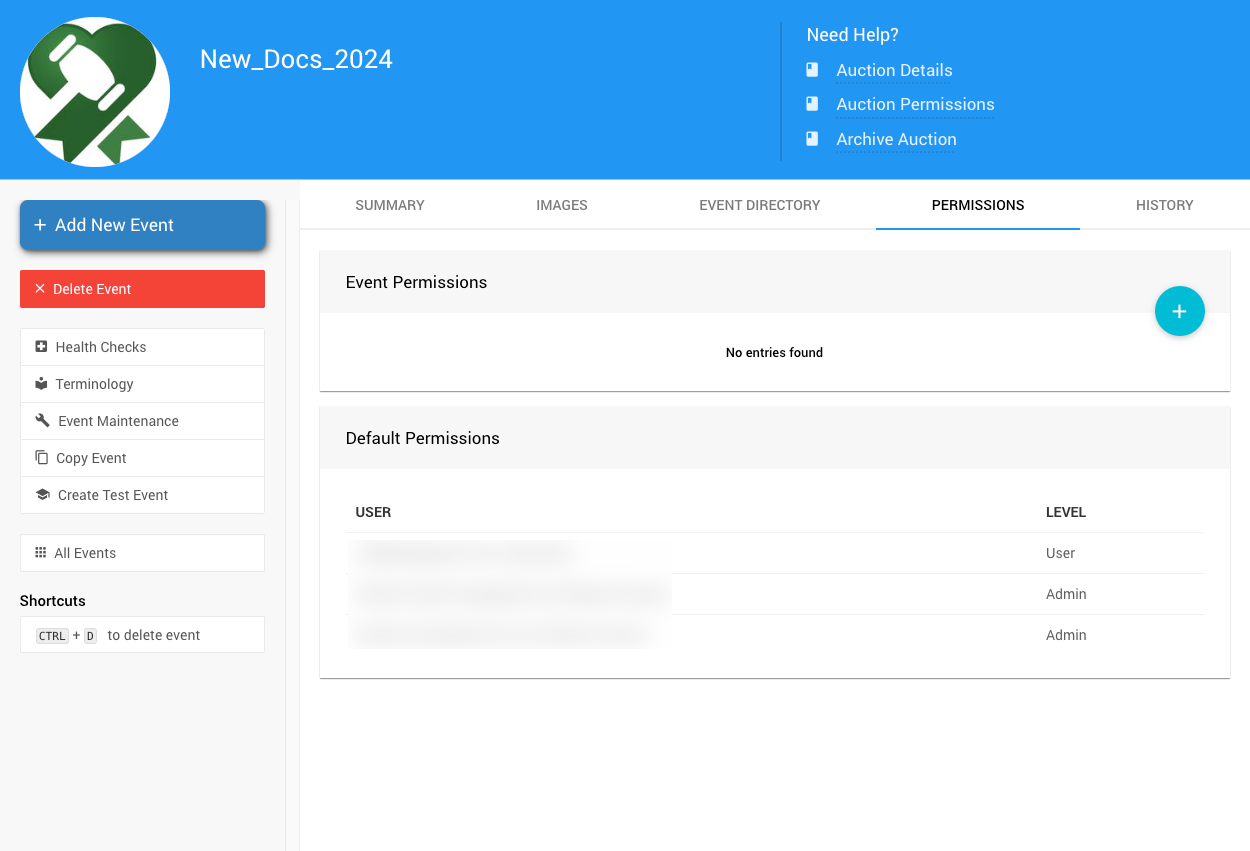
The Permissions tab from a demonstration event.
The tab has two sections:
| Section | Description |
|---|---|
| Event Permissions | Users with a permission level set specifically for this event. This level is the one that applies to the event. |
| Default Permissions | All users in your organization and their organization-wide permission level. Users without a level set show as PowerUser. |
Why does a user appear in both sections?
Default Permissions always shows a user's organization-wide level, even if they have an event permission. When a user appears in both sections, the level under Event Permissions is the one that applies to this event.
Add an Event Permission
- On the Permissions tab, click the
+icon in the Event Permissions section. The Add Event Permission window opens. Its title uses your event's terminology. - Select a user from the User drop-down.
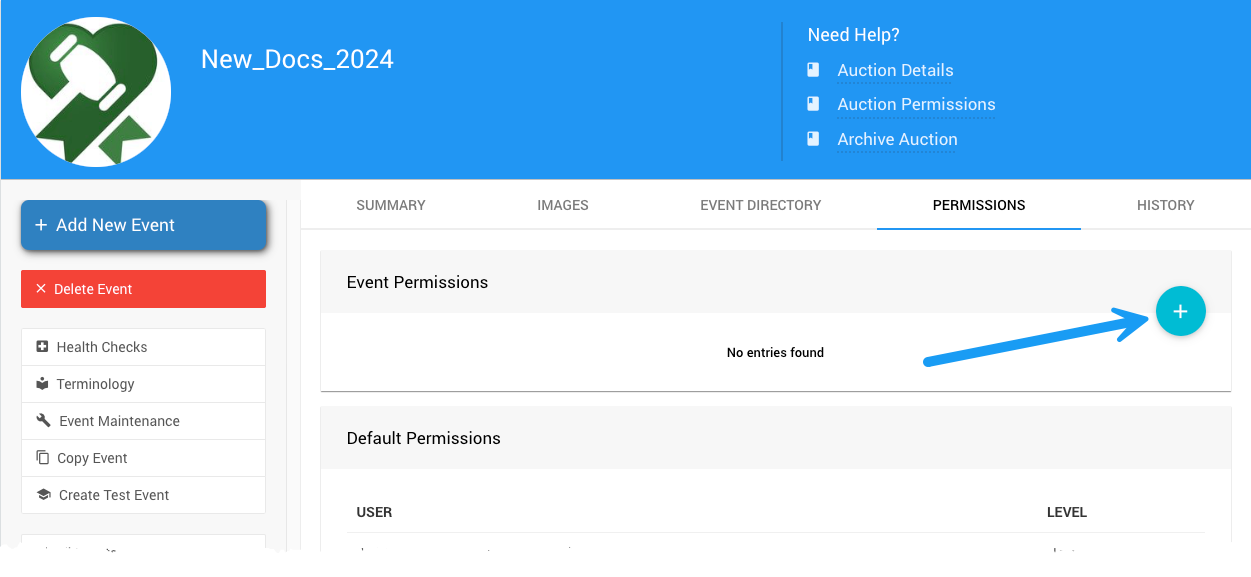
Selecting a user in the Add Event Permission window.
- Select a level from the Permission drop-down.
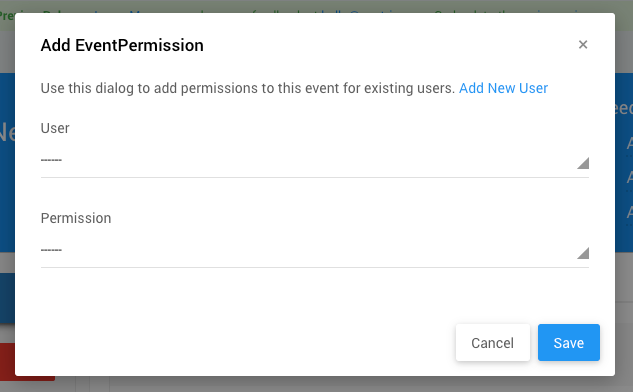
Selecting a permission level in the Add Event Permission window.
- Click Save. Auctria shows a Permission added message.
Adding someone new?
If the person isn't a user in your organization yet, click Add New User. This closes the window and opens your organization's Users page. After you add the user, return to this tab and add their event permission. See Adding Users for details.
Remove an Event Permission
- On the Permissions tab, click the × on the user's row in the Event Permissions section.
- Confirm the Permission Removal prompt.
The user's default permission level applies to this event again.
Change an Event Permission
You can't edit an existing event permission. To change a user's level:
- Remove their event permission. See Remove an Event Permission.
- Add it again with the new level. See Add an Event Permission.
One event permission per user
Each user can have only one event permission per event. Adding a second one for the same user shows an error.