
Learn how to create, configure, and manage your Auctria event website.
Event Websites in Auctria
Your Auctria event website is the public-facing page your guests visit to learn about your event, purchase tickets, place bids, and make donations. You build and manage it entirely within Auctria — no separate hosting or technical setup required.
Each event can have its own website with a unique address. Pages are built from Sections, Rows, and Columns that you fill with content like text, images, item catalogs, and donation forms. The layout and content are managed from the Website Dashboard and the Website Editor.
Website Dashboard
To open the Website Dashboard, click Event Website in the left sidebar, or click the Event Website block on the main Auctria Dashboard.
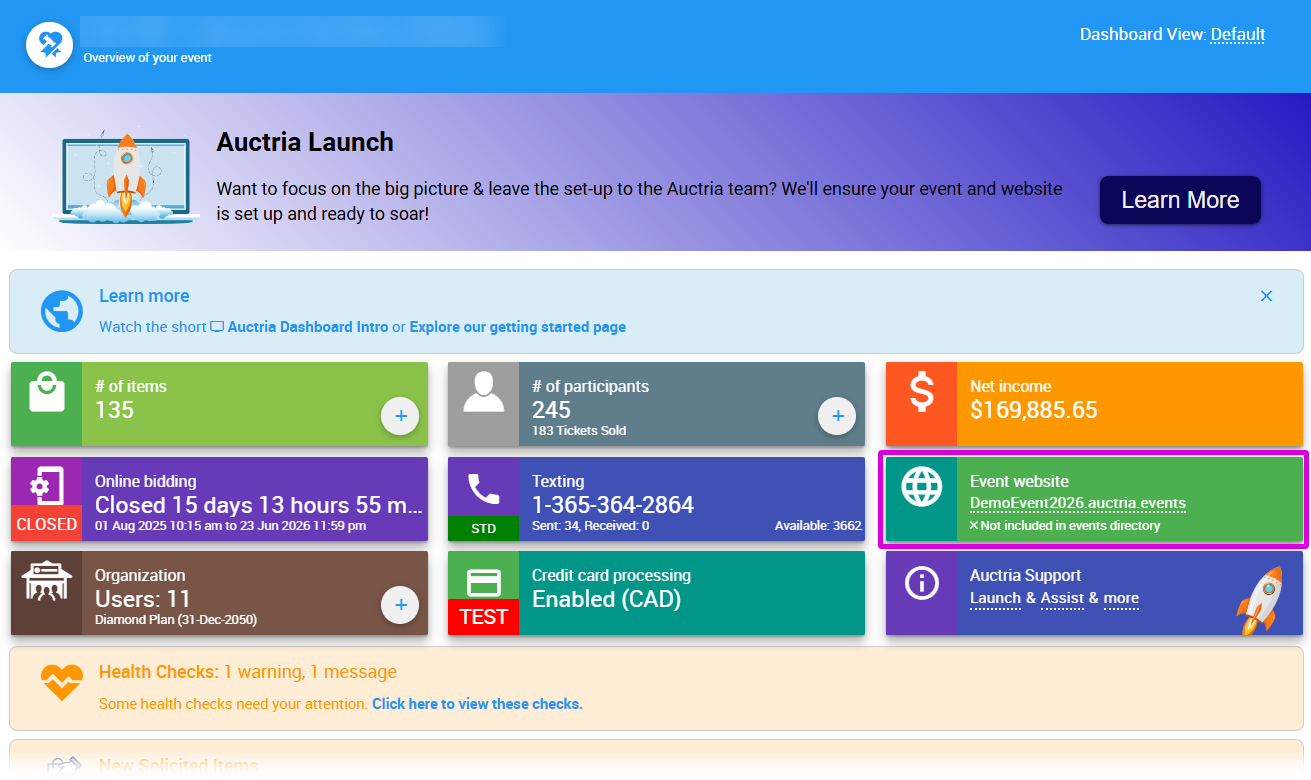
An example from a demonstration event.
The Website Dashboard is your hub for managing your event website — from editing and previewing to analytics, settings, and backup options.
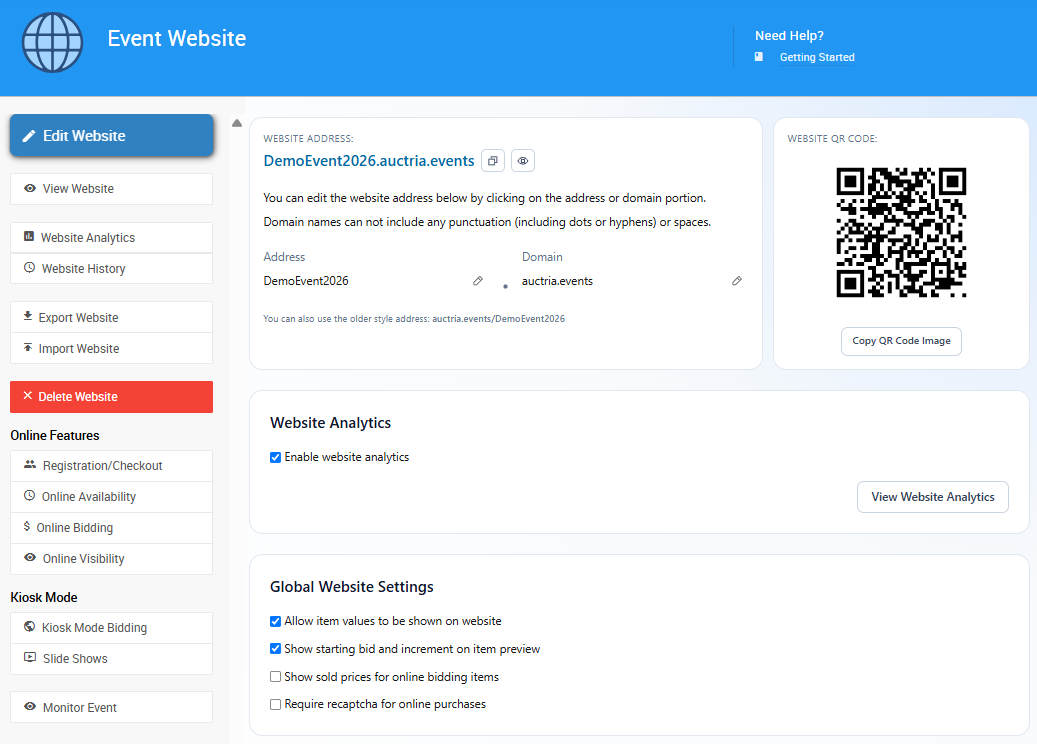
An example Website Dashboard from a demonstration event.
Dashboard Actions
| Action | Description |
|---|---|
| Edit Website | Opens your website in the Introduction to Website Editor for editing. |
| View Website | Opens your event website in a new browser tab, as a logged-in guest would see it. |
| Website Analytics | Opens the Website Analytics page with graphical traffic data for your event. |
| Website Settings | Opens the Website Settings page for the website address, preferred domain, analytics, and global display options. |
| Export Website | Downloads a .dat backup file of your current website. See Saving & Restoring Your Website. |
| Import Website | Uploads a previously exported .dat file to restore or copy a website. See Saving & Restoring Your Website. |
| Delete Website | Permanently deletes the website. Requires typing YES to confirm. This cannot be undone. |
Online Features
The Online Features section links directly to settings that control your guests' online experience. These pages are also accessible from the left sidebar under Online Features when viewing the Website Dashboard.
| Setting | Description |
|---|---|
| Registration/Checkout | Configure how guests register and check out on your event website. See Registration/Checkout. |
| Online Availability | Control when your event website is available to guests. See Introduction To Online Availability. |
| Online Bidding | Manage online bidding settings for your auction. See Online Bidding Settings. |
| Online Visibility | Control what guests can see on your event website. See Introduction To Online Visibility. |
Kiosk Mode
| Setting | Description |
|---|---|
| Kiosk Mode Bidding | Opens the Kiosk Mode dashboard if a kiosk website has been configured. See Kiosk Mode Bidding Setup. |
| Slide Shows | Opens the Kiosk Mode slide show settings. See Kiosk Mode Slide Shows. |
Website Address, QR Code & Domain
Website Address
Your Website Address is the URL guests use to reach your event website. It is displayed at the top of the Website Dashboard and can be edited by clicking the Address field or the pencil icon.
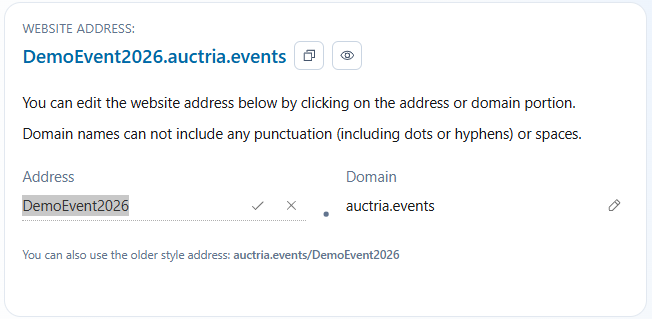
An example of editing an event website address from a demonstration event.
No website address defined?
If your Website Dashboard shows "No website address defined", you'll need to set one before guests can access your site. See How To Create A New Event Website for step-by-step instructions.
QR Code
Once a website address is set, Auctria automatically generates a QR Code that links directly to your event website.
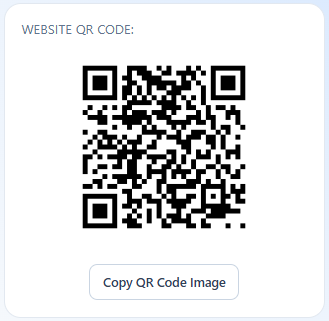
An example QR Code from a demonstration event. Always use the QR Code from your own Website Dashboard.
The QR code can be copied to your clipboard by clicking the Copy QR Code Image button, making it easy to paste into printed materials and event promotions.
See How To Get A QR Code for more details on QR codes for your website or individual Item pages.
Preferred Domain
After setting your website address, you can select a preferred Domain — the domain that appears throughout your event website and in any Auctria system notifications that include your website URL.
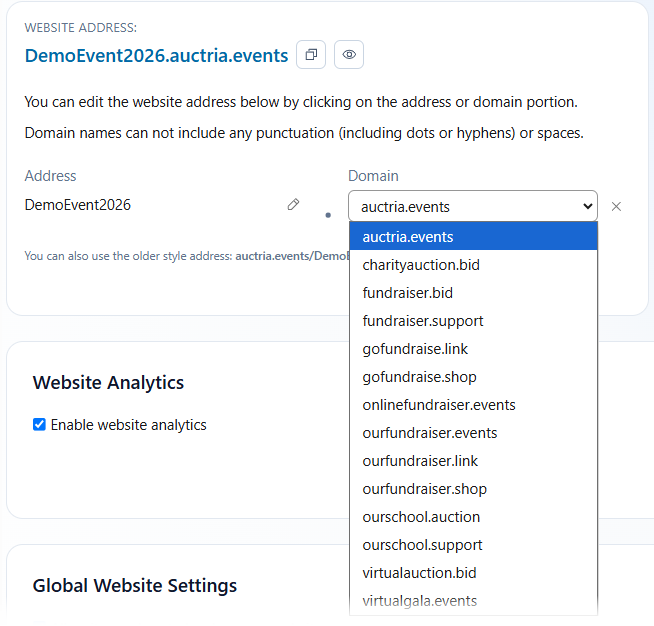
An example of choosing a new Domain from the Website Address section.
Changing your preferred domain updates all automatic references going forward. Any links using a previous domain will continue to work, and the QR code is automatically regenerated to reflect the new domain.
Getting Started
If this is your first time setting up an event website in Auctria, start with these guides:
- How To Create A New Event Website — Create a new website for your event, choose a template, and set your website address.
- How To Get A QR Code — Download your event or item QR codes for use in print and promotions.
- Saving & Restoring Your Website — Export, import, and restore previous versions of your website.
- How To Track Visitors — Monitor visitor traffic on your event website.