
Learn how to use the Event Details page to view and edit your event's information, images, listing, permissions, and history.
To open the Event Details page, click Event in the left sidebar. The page is organized into tabs, with additional actions in the sidebar.
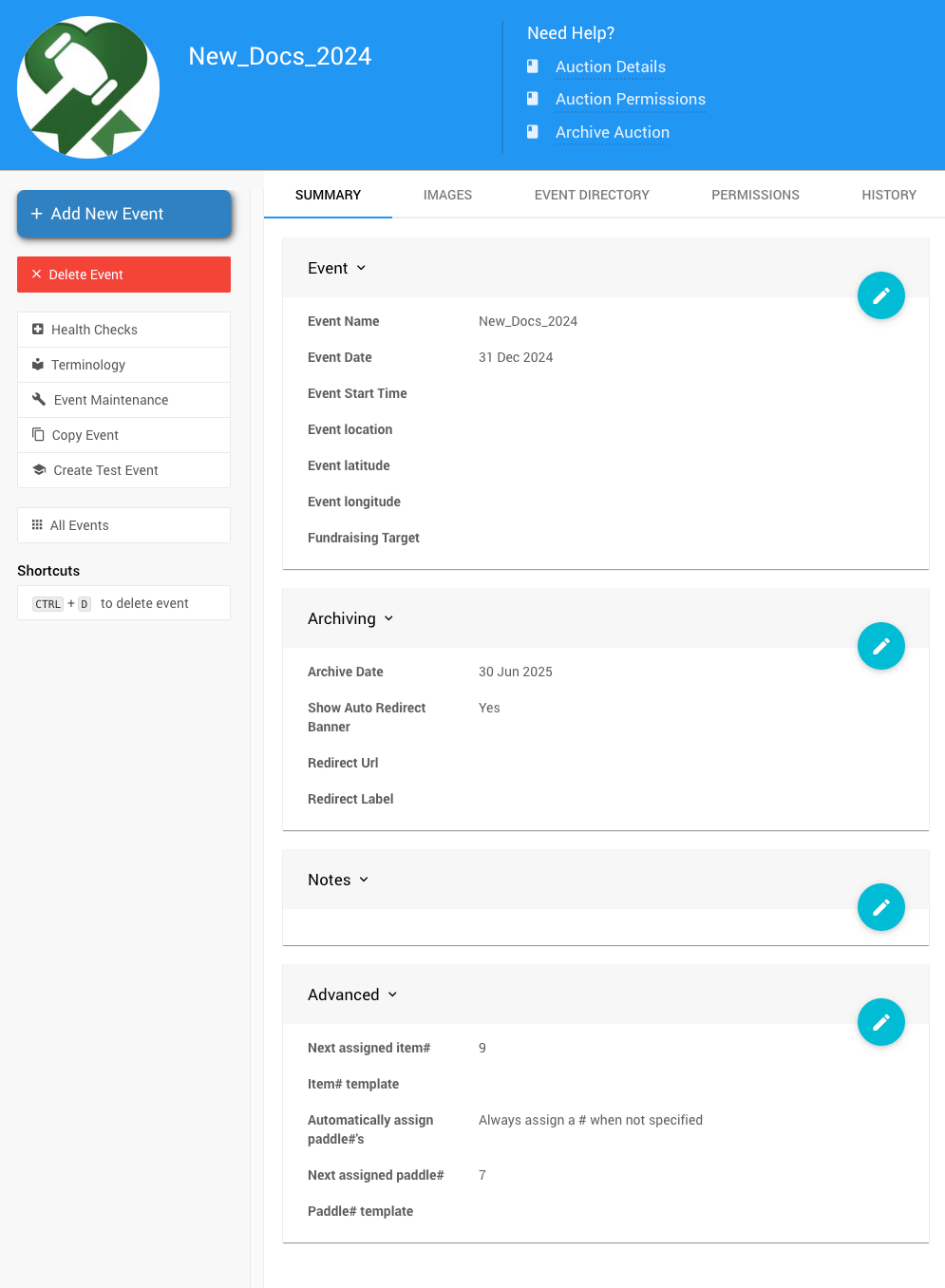
An example Event Details page from a demonstration event.
Summary
The Summary tab holds your event's core information, archiving settings, notes, and numbering options.
Which event opens when you sign in?
Auctria uses the Event Date on this tab to help decide which event to open by default. See Default Event.
Event
| Field | Description |
|---|---|
| Event Name | The name of your event. |
| Event Date | The date your event takes place. For a multi-day event, use the start date. |
| Event Start Time | The time your event starts, in your organization's time zone. Only used for in-person events. |
| Event Location | The event location, shown on tickets exactly as entered. |
| Event Latitude | Used with the longitude to link tickets to the event location. |
| Event Longitude | Used with the latitude to link tickets to the event location. |
| Fundraising Target | The amount you hope to raise at this event. |
Archiving
| Field | Description |
|---|---|
| Archive Date | The date after which participants can no longer see this event online. You can still view it. See Archive Event. |
| Show Auto Redirect Banner | When enabled (the default), shows a banner on this event's website linking to your organization's most recent event. |
| Redirect URL | Replaces the automatic link to your latest event. If set, both the redirect banner and links to this event after it's archived send participants to this URL. If left blank, participants are sent to your organization's latest event. |
| Redirect Label | The text shown for the redirect link in the banner. |
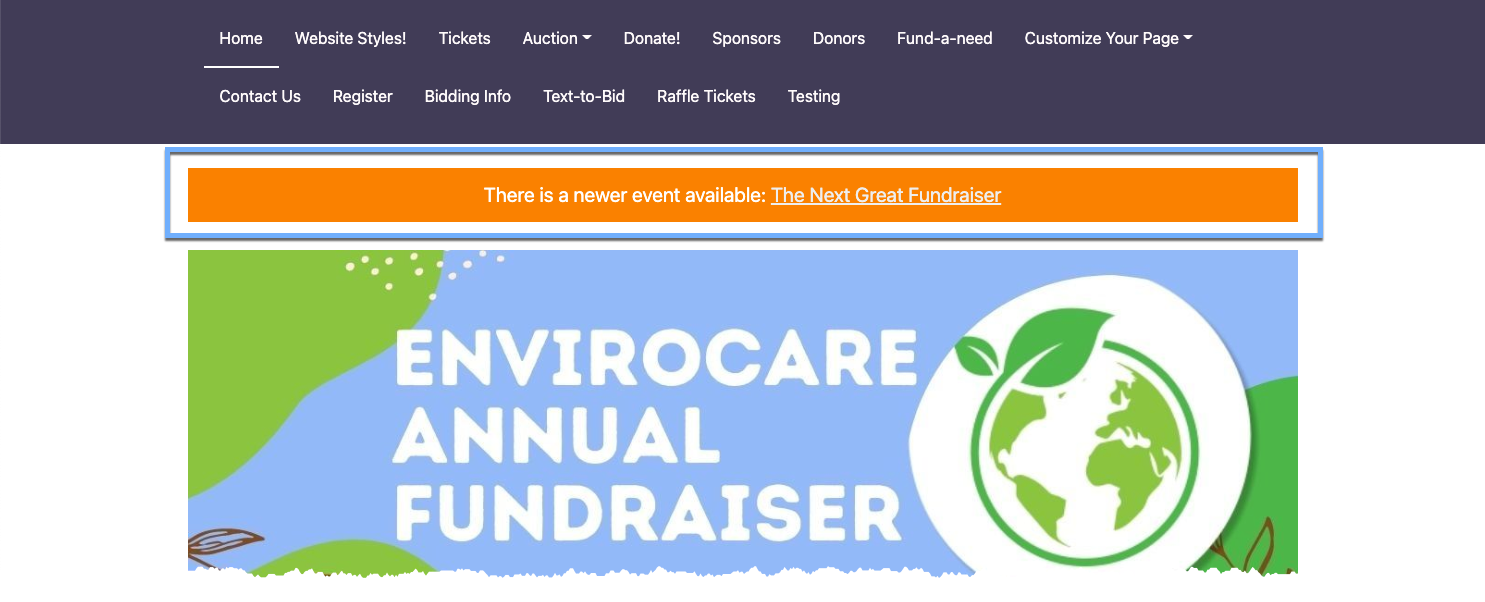
An example redirect banner on a demonstration event website Home page.
Use a full web address
Enter the complete Redirect URL, starting with https://, so participants land on the right page.
Notes
Use this section for internal notes about the event. Notes aren't visible to participants.
Advanced
These options control the numbers Auctria assigns automatically when an item or participant is created without a number.
| Field | Description |
|---|---|
| Next assigned item# | Auctria tries to use this number for the next item#. |
| Item# template | Formats item numbers. Leave blank to use the default format. |
| Automatically assign Paddle#'s | Controls when participants get a Paddle# automatically: Always (the default), Never, or Only on ticket sales. When set to Never, the Next assigned participant# setting isn't used. |
| Next assigned participant# | Auctria tries to use this number for the next Paddle#. |
| Paddle# template | Formats Paddle numbers. Leave blank to use the default format. |
You might change these if you've renumbered your items or participants, or if you want participants who register online to start at a higher number. You don't need to check that the number is available. If it's taken, Auctria moves on to the next free number.
Number Templates
A template shows where the number appears. Use n inside double curly braces as the placeholder. For example, to format Paddle numbers as B1, B2, B3, use:
B{{n}}
To pad numbers to three digits with leading zeros (001, 002, 003), use:
{{n | pad3}}
You can also use pad4, pad5, or pad6 to pad to those lengths.
To count up by a value other than 1, use times. For example, this template assigns 10, 20, 30:
{{n | times:10}}
Images
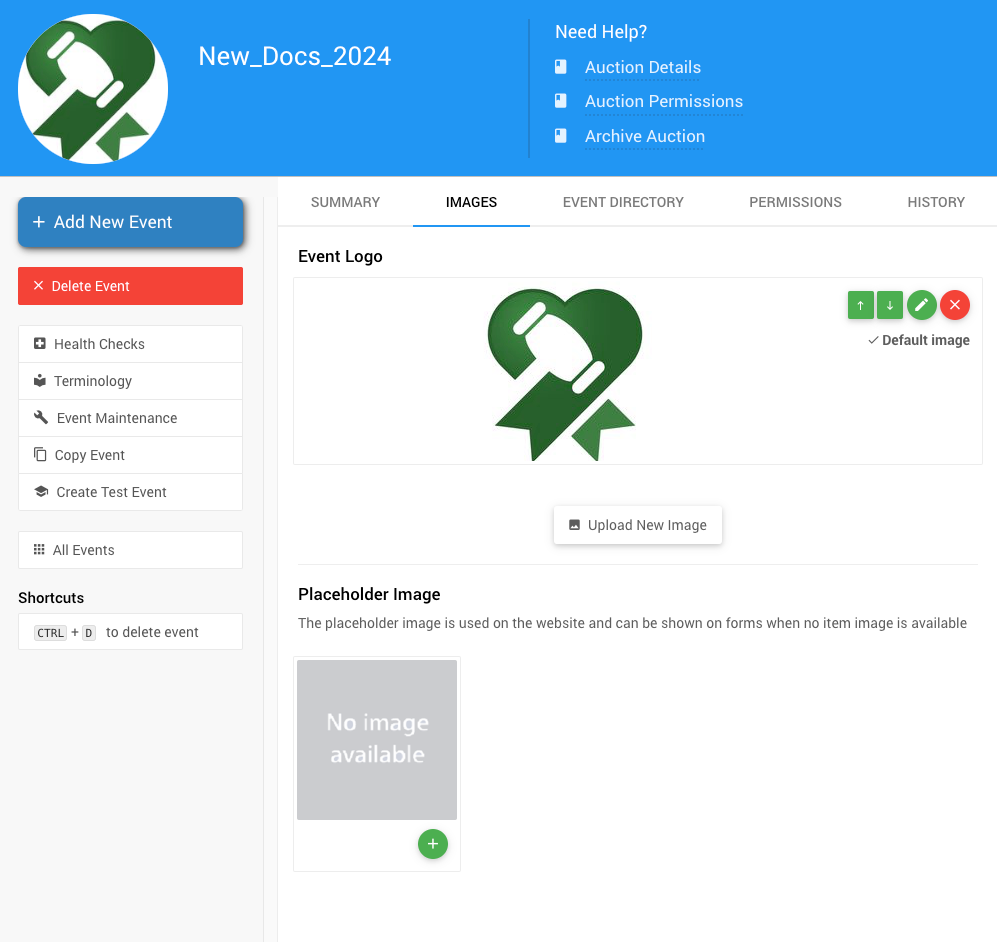
The Images tab from a demonstration event.
Event Logo
Upload, edit, or remove your Event Logo. If set, the logo appears in your system emails and other communications that use a logo.
Image sizes
Exact dimensions aren't critical, since screen sizes vary. These widths work well in most cases:
| Image Type | Recommended Width |
|---|---|
| Full-width photos or images | About 1200px |
| Half-width photos or images | About 600px |
| Page background images | Up to 1600px |
See Adding And Modifying Images for more details.
Placeholder Image
The Placeholder Image is shown on your website and on forms wherever an item has no image.
Event Directory
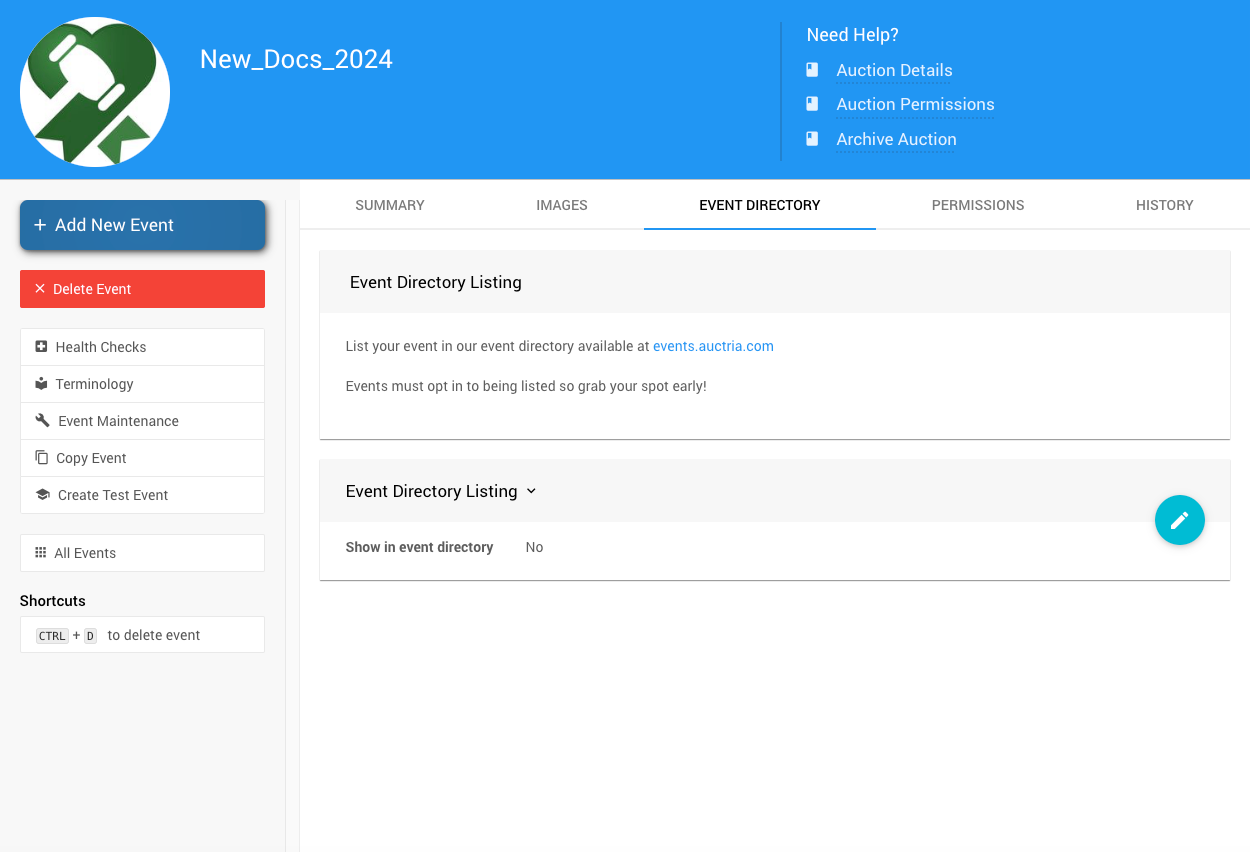
The Event Directory tab from a demonstration event.
Use this tab to list your event on the Auctria Events Listing page. When Event Listing Enabled is turned on, these additional fields appear:
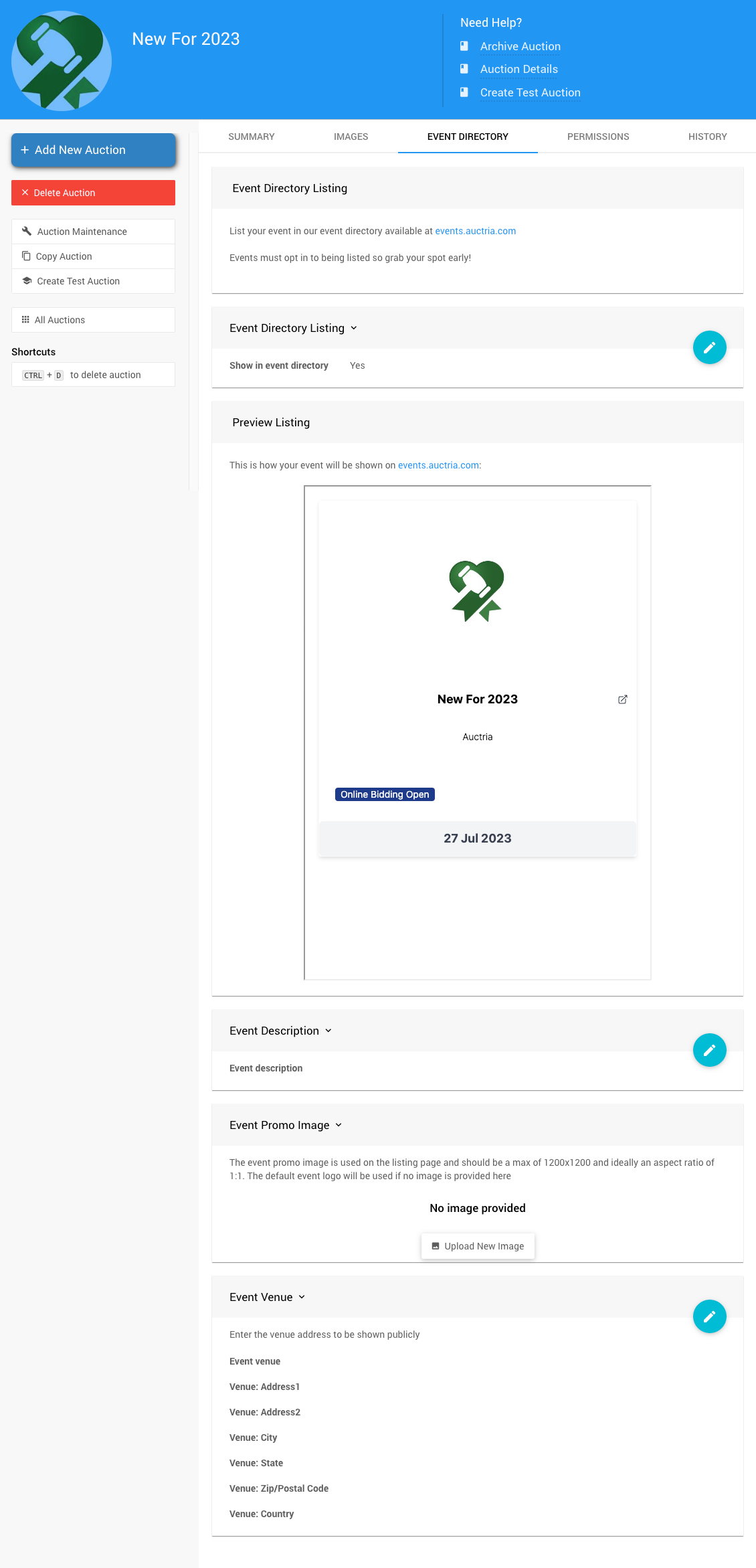
The Event Directory tab with Event Listing Enabled turned on.
| Field | Description |
|---|---|
| Preview Listing | Shows how your event will appear on the Auctria Events Listing page. |
| Event Description | Additional information about your event. |
| Event Promo Image | An image shown in your listing instead of the default event logo. Use a square image (1:1 ratio), no larger than 1200 × 1200px. |
| Event Venue | The venue address shown publicly in your listing, including Address 1, Address 2, City, State, Zip, and Country. |
Don't see the Event Directory tab?
This tab is hidden for new organizations less than three days old.
Permissions
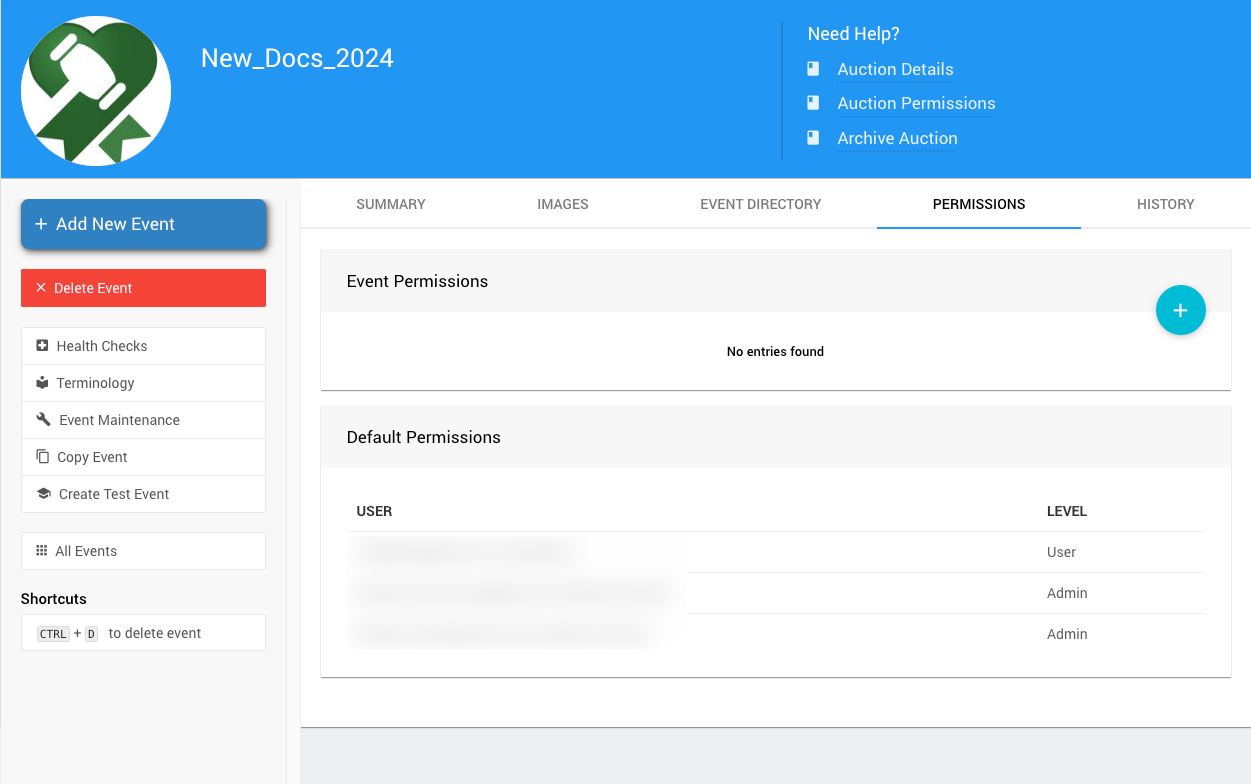
The Permissions tab from a demonstration event.
Event Permissions
Event permissions replace a user's default permission level for this event. They can give a user more access or less.
To add one, click the + icon to open the Add Event Permission window.
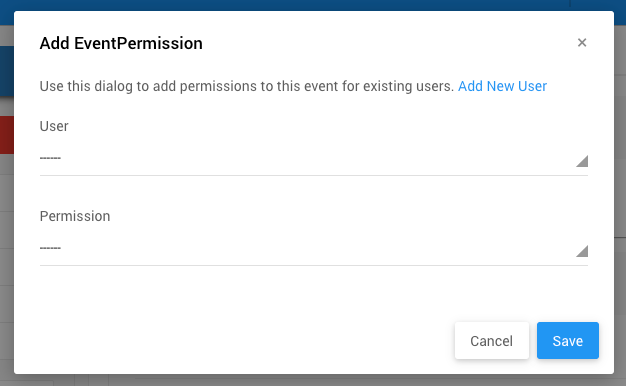
The Add Event Permission window from a demonstration event.
Admin permission required
Only users with Admin permission can add or remove event permissions.
To add someone who isn't a user yet, see Adding Users.
Default Permissions
The Default Permissions section lists your users and their organization-wide User Accounts level. It doesn't show event-level changes.
See Event Permissions for more information.
History
The History tab shows an audit history of changes made to the event.
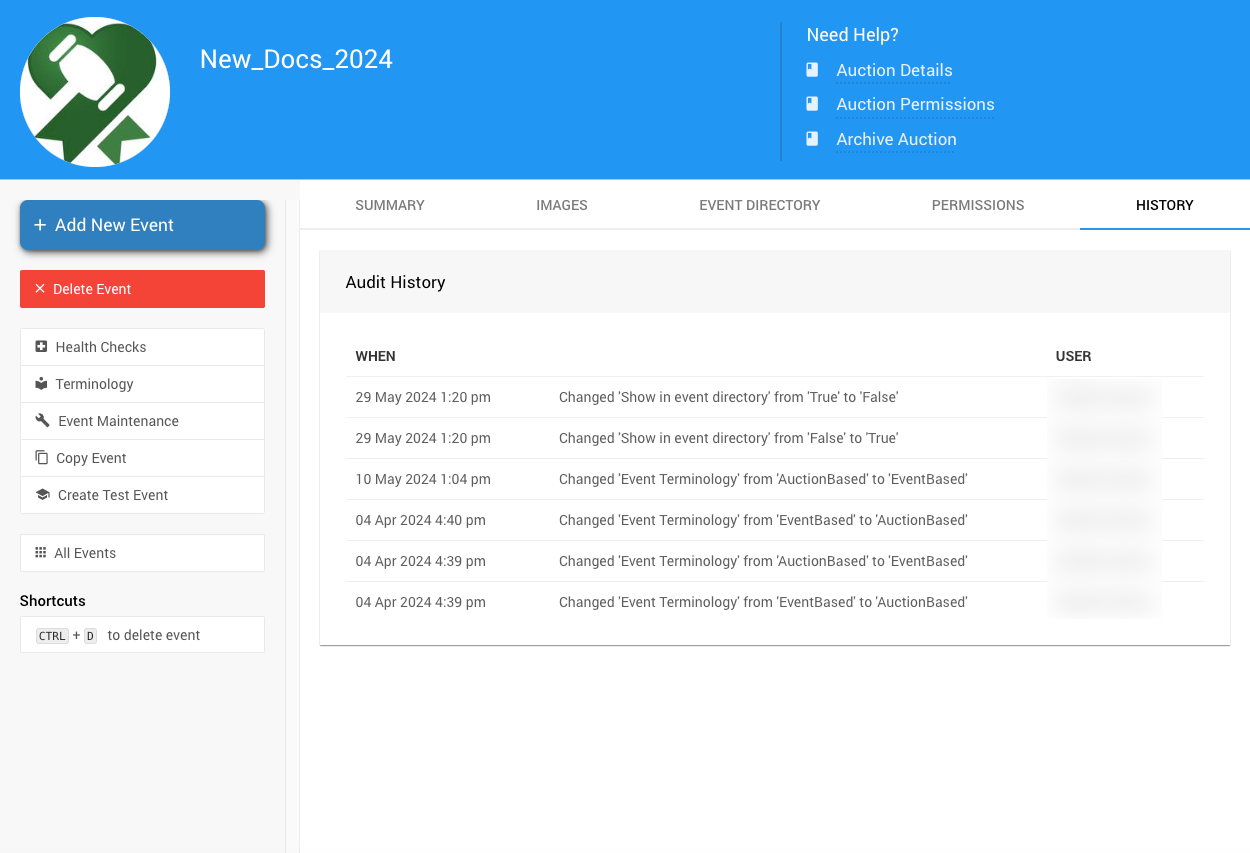
The History tab from a demonstration event.
Sidebar Actions
| Action | Description |
|---|---|
| Add New Event | Creates a new event. See How To Add A New Event. |
| Delete Event | Permanently deletes the current event. See Delete an Event. |
| Copy Event | Creates a new event from the current one. See Copy Event. |
| Create Test Event | Creates a test event. See How To Create A Test Event. |
| All Events | Opens the All Events page. See Change Events. |
| Custom Questions | Adds your own questions to registration, checkout, ticket, and solicited item forms. See Custom Questions and Fields. |
| Custom Fields | Manages the fields that store answers to your custom questions. See Store Answers Using Custom Fields. |
| Health Checks | Found under the Advanced group. Checks your event for issues that may need attention. See Event Health Checks. |
| Terminology | Opens the Terminology page. |
| Auctria Resources | Opens Auctria Resources. |
| Event Maintenance | Found under the Advanced group. Opens the Event Maintenance page. See Event Maintenance. |
Admin permission required
Add New Event, Delete Event, Copy Event, Create Test Event, and Event Maintenance are only available to users with Admin permission.
Delete an Event
Click Delete Event, or press CTRL + D, to open the Delete event? window.
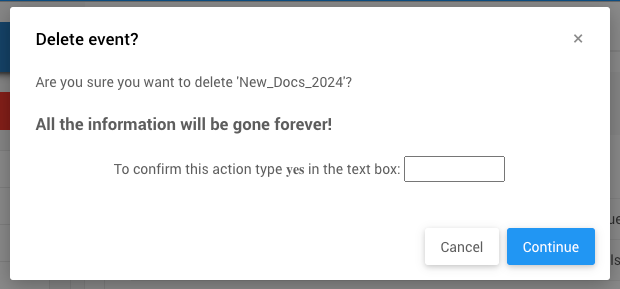
The Delete event? window from a demonstration event.
Type yes and click Continue. A progress window appears while Auctria deletes the event.
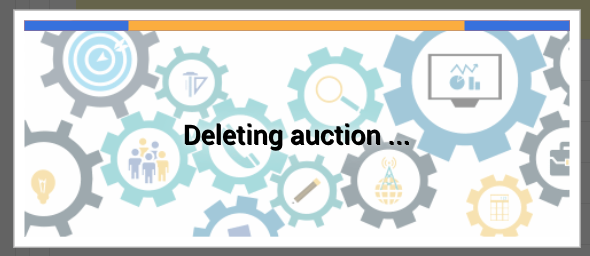
The deletion progress window from a demonstration event.
Deleting an event can't be undone
All of the event's data is permanently removed. If you only want to hide the event from participants, archive it instead.
Event Maintenance
The Event Maintenance page includes the Delete ALL Activity button.
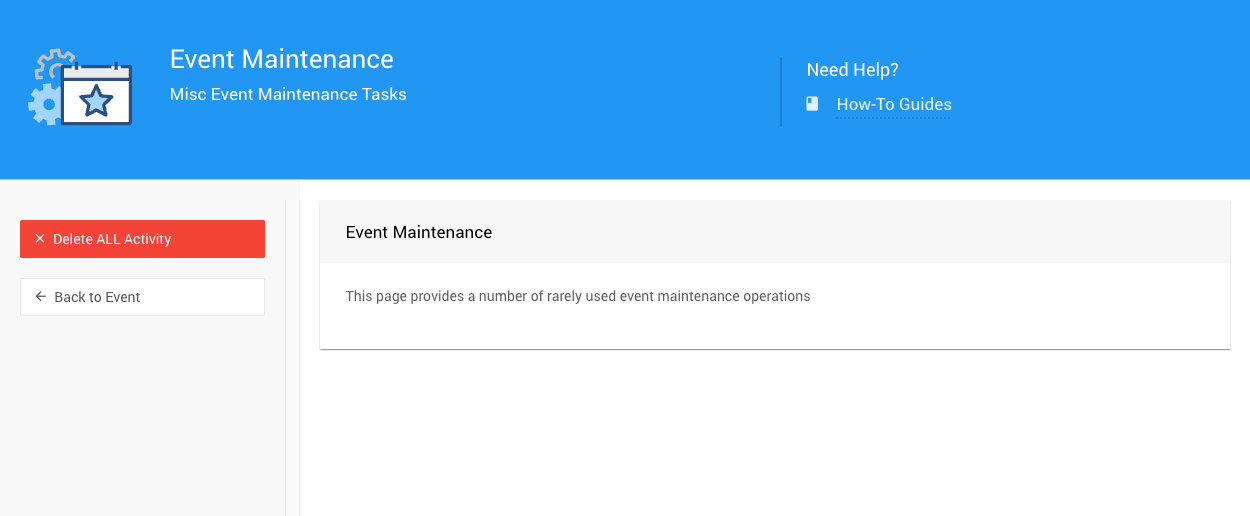
The Event Maintenance page from a demonstration event.
Delete ALL Activity can't be undone
This permanently deletes every bid, purchase, donation, and max bid in this event. Participants, items, tickets, and payments are kept.
Back up first
Use Download Snapshot on the Event Maintenance page to save a copy of your event data before deleting activity.
To delete all activity:
- Click Delete ALL Activity. The Delete ALL participant activity window opens. Its title uses your event's terminology.
- Type
yesand confirm.
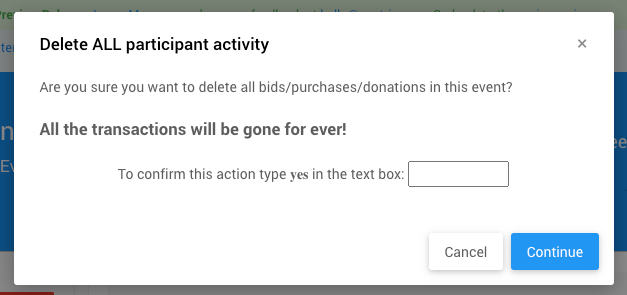
The Delete ALL participant activity window from a demonstration event.
Check balances afterward
Payments already recorded aren't deleted. After deleting activity, participant balances may no longer match their payments.