
Learn how to create your Auctria event website, choose a template, and set your website address.
Navigate to Event Website
From your Auctria dashboard, click Event Website in the left sidebar, or click the Event Website block on the main dashboard.
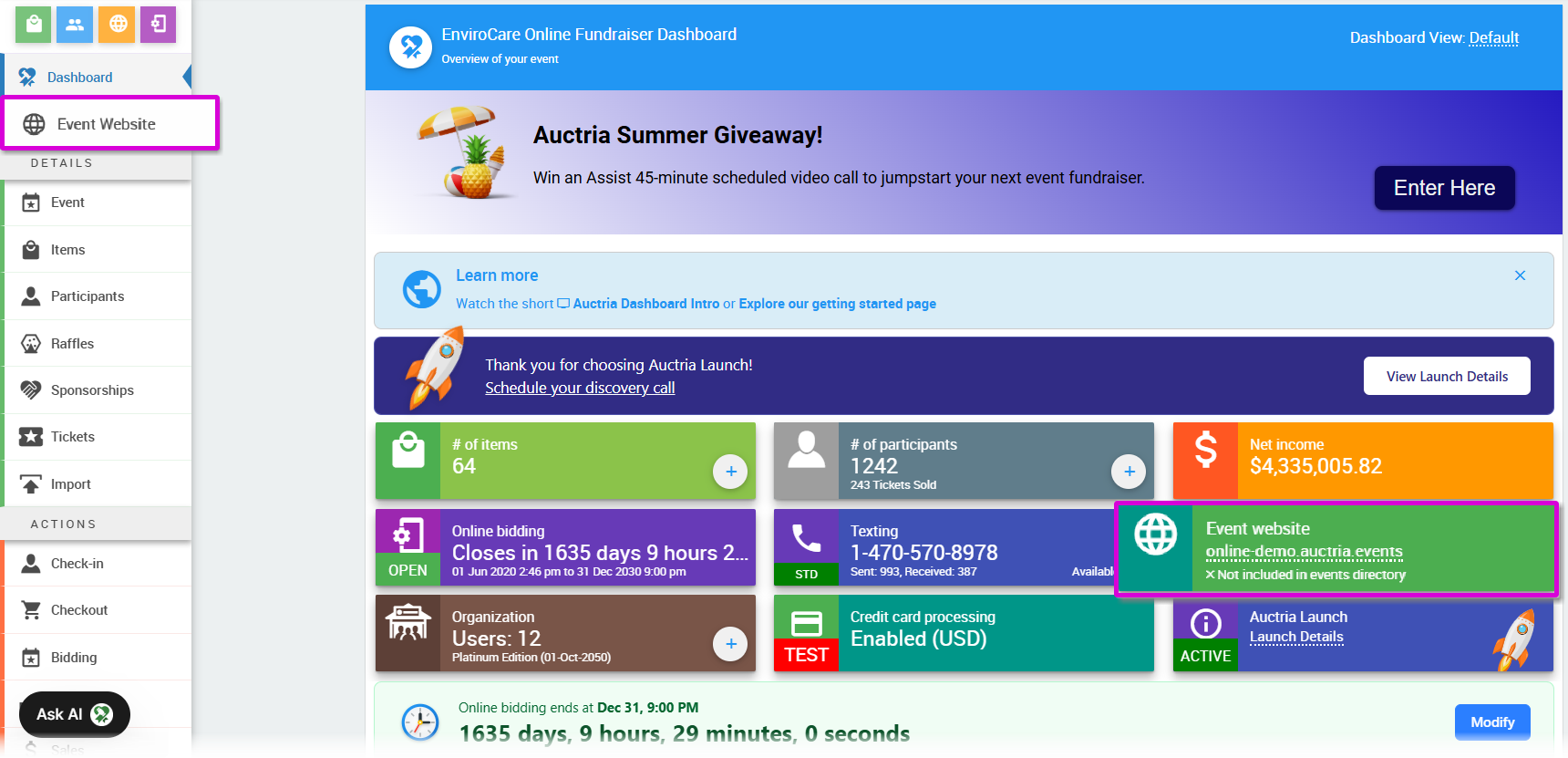
Both options take you to the Event Website dashboard where you can create your website.
If this is your first time creating a website, the Event Website dashboard will prompt you to choose a template.
Choose a Template
Auctria provides pre-built website templates to give your event a professional starting point. Each template includes a set of default pages tailored for common fundraising event needs.
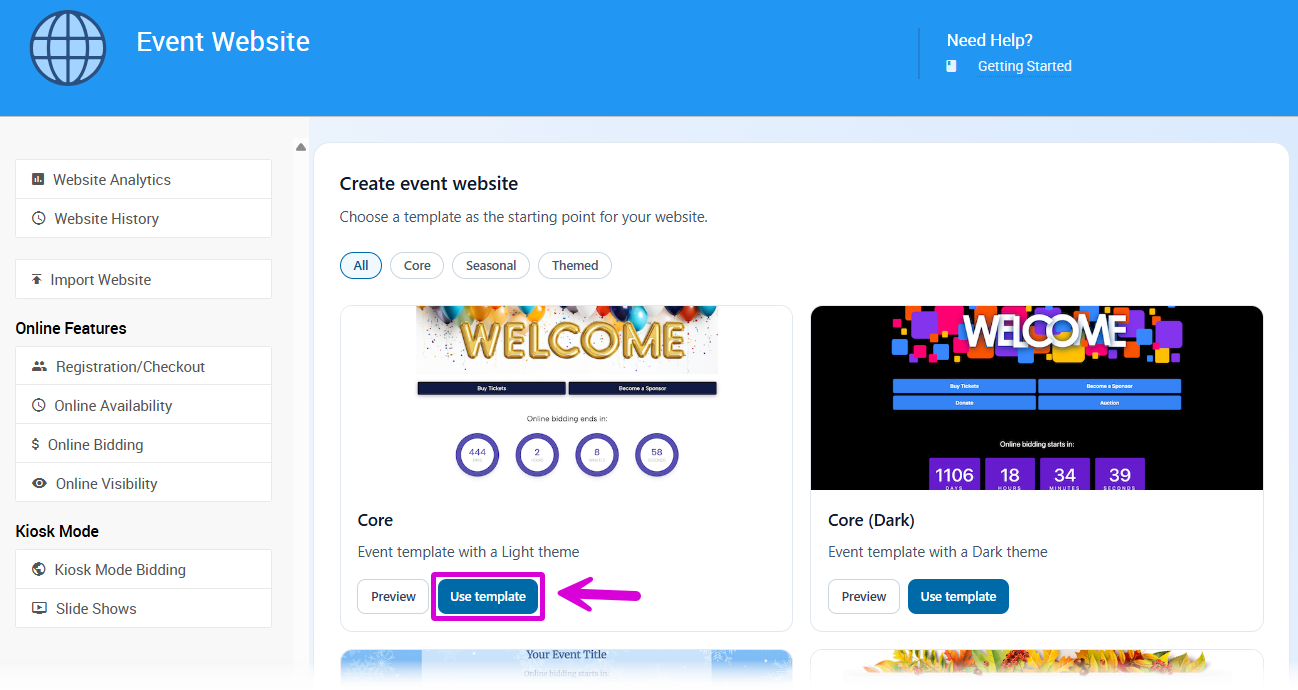
The Create Event Website section on an example Website page.
To preview a template before selecting it, click Preview. When you're ready, click Use Template to proceed.
Changing your template requires deleting your website
Template selection is permanent — you cannot switch templates after your website has been created. To use a different template, you must click Delete Website on the Event Website dashboard and start over.
Deleting your website removes all page content and design customizations. Your event data — Items, Tickets, Bidders, and Sponsorships — is not affected.
Default Template Pages
All Auctria website templates include the following pages by default:
| Page | Description |
|---|---|
| Home | The main landing page, pre-populated with example elements to showcase what can appear on your event website home page. |
| Tickets | Displays Admission Ticket items based on their online visibility and sales times. Hidden automatically if your event has no Ticket items. |
| Auction | Displays your event's online auction catalog using the Catalog element. Hidden automatically if your event has no online auction items. See Item Catalog for more information. |
| Raffles | Displays Raffle items available for purchase. Hidden automatically if your event has no Raffle items. |
| Sponsorships | Displays Sponsorship packages available for purchase. Hidden automatically if your event has no Sponsorship items. |
| Live Auction | Displays Live Auction items. Hidden automatically if your event has no Live Auction items. |
| Donate | Pre-configured with a Donation element. See Donation Element for more details. |
| Sponsors | Displays the names and images of participants who have purchased Sponsorship Items. Hidden automatically if no Sponsorship items have been sold. See Sponsors Row for more information. |
| Donors | Displays the names and images of Item Donors who have contributed auction items or in-kind donations to the event. |
| Contact Us | Configured with the Contact Form element, which sends messages to your organization's email address on record. |
| Register | Configured with the Online Registration element for participants to register and sign in. Participants who purchased Admission Tickets through Auctria are pre-registered and can use their E-Ticket to log in. |
| My Account | Only visible to a logged-in registered bidder of the specific event. Not visible to organization User Accounts unless their email matches a registered bidder. |
| Sign In | Only visible to visitors who are not logged in. Clicking it opens the Sign In window. |
Set Your Website Address
After clicking Use Template, a window will appear asking you to enter your website address.
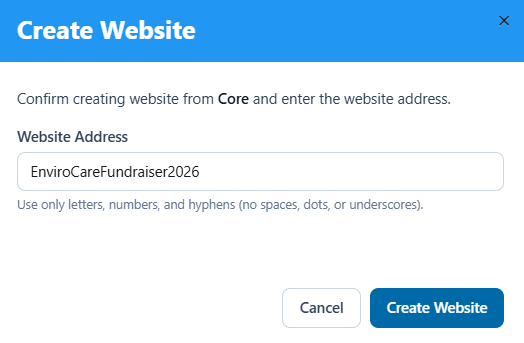
An example from a demonstration event.
Enter a unique identifier for your event — for example, OurGreatFundraiser2026. Use only letters, numbers, and hyphens (-). Spaces, dots, underscores, and other special characters are not allowed.
Click Create Website to confirm. Your website is now created and the Event Website dashboard will load.
Tip
A QR Code linking directly to your event website is automatically generated once your website is created. See How To Get A QR Code for instructions on downloading it.
View and Edit Your Website
Once your website is created, click View Website from the Event Website dashboard to see it in your browser. Your website will display placeholder content until you customize it.
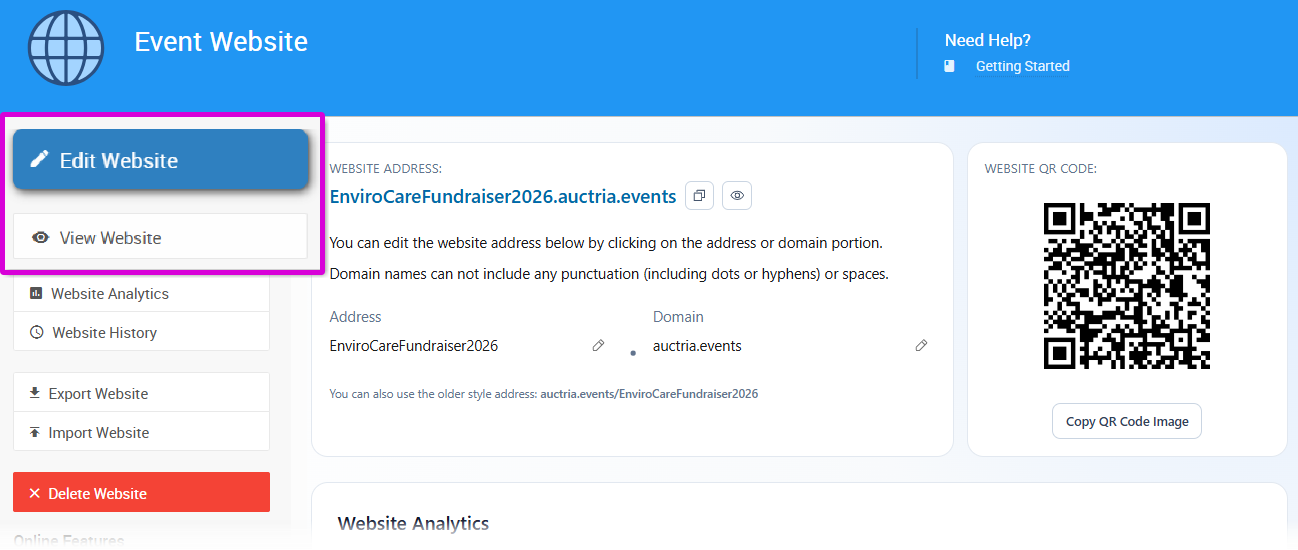
An example from a demonstration event.
To start editing, click Edit Website, or click the edit icon in the lower-left corner when viewing your website. See Introduction to Website Editor for more details.
Updating Your Website Address
You can update your website address at any time from the Website Address section of the Event Website dashboard.
- To change the address, click the Address field or the pencil icon beside it and type your new address. Use only letters, numbers, and hyphens.
- To change the domain, click the Domain field or the pencil icon beside it and select your preferred domain from the dropdown.
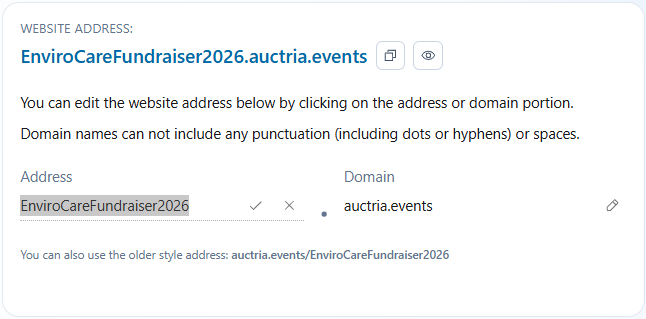
An example from a demonstration event.
Example
If your address is OurGreatFundraiser2026 and your domain is charityauction.bid, your full event website URL is: https://charityauction.bid/OurGreatFundraiser2026
Your preferred domain can be changed at any time without affecting website content. All Auctria domains link to the same event website.
Changing your website address will break existing links
Any links or QR codes you have already shared will stop working if you change your website address. Be sure to inform your guests of the updated URL and save your new QR code.