
Use AI to rewrite your item descriptions one item at a time. You choose the style and length, review every suggestion, and nothing changes until you save.
Item descriptions are often quick notes typed in a hurry during item collection. The Item Descriptions page lets AI turn those notes into polished descriptions for your catalog, bid sheets, and item pages, while you decide what gets saved.
The process has three steps:
- Pick an item.
- Ask for a suggestion.
- Review and save it.
Who Can Use This Feature
You need User access or higher to open the Item Descriptions page and edit descriptions. Suggest is only available with an active license. Without one, a banner on the page explains why it's turned off.
Open the Item Descriptions Page
From Items (left sidebar under Details), click Rewrite Descriptions with AI in the actions sidebar to open the Item Descriptions page.
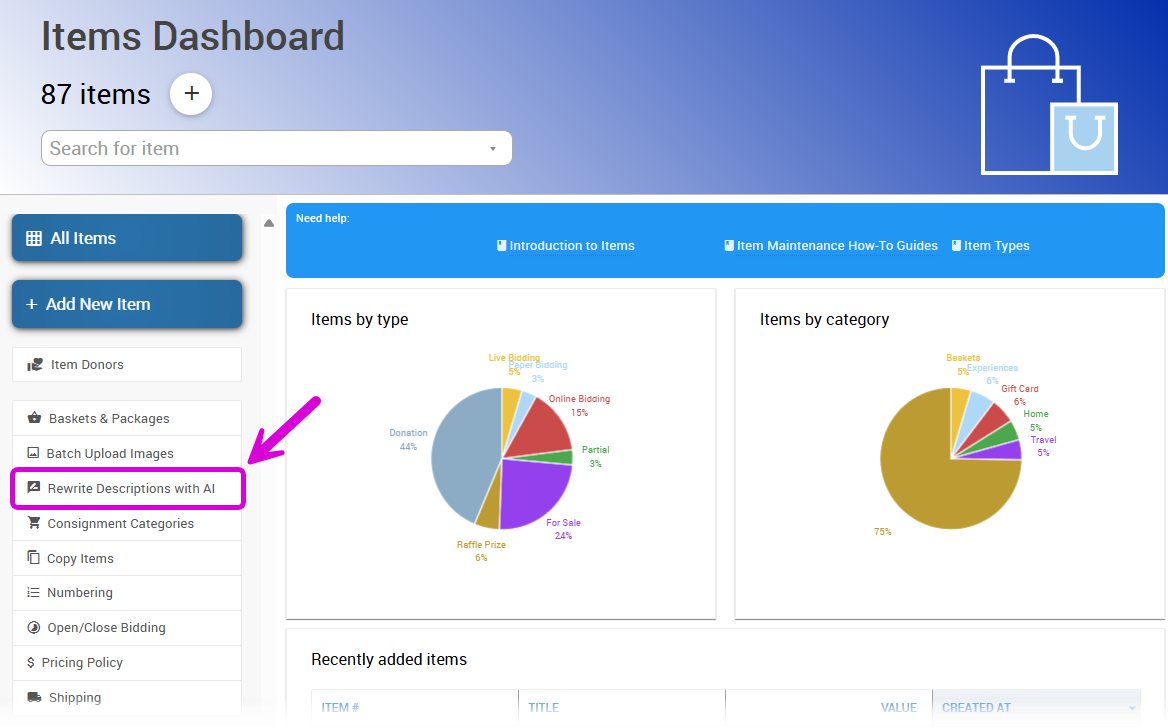
The Rewrite Descriptions with AI action on the Items Dashboard.
Item Descriptions Page
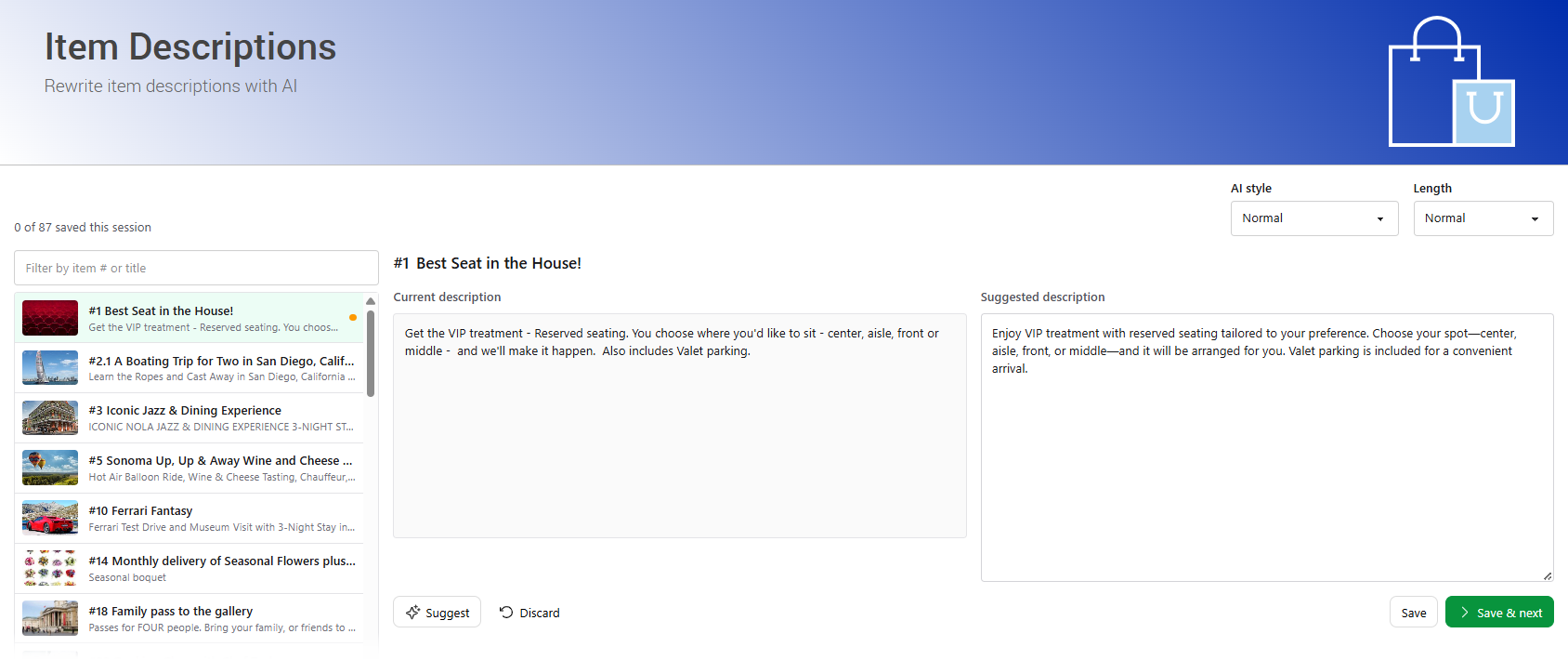
The Item Descriptions page with a Suggested description shown beside the Current description.
| Control | Description |
|---|---|
| Saved counter | Shown at the top of the page, for example 3 of 40 saved this session. |
| Filter by item # or title | Narrows the item list. |
| Item list | Lists the items in your event. Select an item to work on its description, or use the ↑ and ↓ arrow keys to move through the list. |
| Current description | The item's description as it is now. |
| Included in the AI prompt | Shows what AI will use to write its suggestion. See What AI Uses. |
| AI style | The writing style for the suggestion: Normal (default), Enthusiastic, Fun, Nostalgic, Persuasive, Playful, Poetic, Professional, Rhyming, Sea Shanty, or Whimsical. |
| Length | How long the suggestion should be: Very Short, Short, Normal (default), or Long. |
| Suggest | Generates a new AI description. |
| Suggested description | Appears beside the Current description after you click Suggest. You can edit it directly. |
| Discard | Removes the suggestion without changing the item. |
| Save | Saves the suggestion as the item's description. |
| Save & next | Saves the suggestion and moves straight to the next item in the list. |
Step 1: Pick an Item
Select an item from the item list. To find an item quickly, type in the Filter by item # or title box, or use the ↑ and ↓ arrow keys to move through the list.
The item's Current description appears, along with an Included in the AI prompt section showing what AI will use.
What AI Uses
AI writes its suggestion from the details already on the item:
| Item Detail | Description |
|---|---|
| Title | Always included. |
| Value | Included if the item has one. A value of -1 (Priceless) is described to AI as priceless. |
| Current description | Included if the item has one. Items with no description can still get a suggestion. |
| Contents | For baskets and packages, the title, quantity, value, and description of each item in the basket. See Baskets And Packages. |
Better Details, Better Suggestions
A clear, specific title and description give AI more to work with. Quick notes are fine — AI will tidy them up.
Step 2: Ask for a Suggestion
- Choose an AI style and Length.
- Click Suggest.
The Suggested description appears beside the Current description, so you can compare them. Before you click Suggest, the suggestion box shows Click Suggest to have AI write a new description.
Your AI style and Length stay set as you move between items, but go back to Normal each time you open the page.
Not Quite Right?
Change the AI style and click Suggest again for a fresh take.
Step 3: Review and Save
Review the suggestion, then choose what to do with it:
- Edit the suggestion directly to adjust the wording or add details.
- Discard the suggestion to leave the current description as it is.
- Save the suggestion to update the item's description.
Nothing changes on the item until you save. Save and Save & next stay turned off until the suggestion is different from the current description and isn't blank.
Review Before You Save
AI only knows what's already on the item. Add any details it can't know, such as dates, expiry, restrictions, or donor information, and check that the suggestion is accurate before you save.
To work through several items quickly, click Save & next to save the current item and move straight to the next one. If you've filtered the list, Save & next moves to the next item in the filtered list.
Save Before You Leave
Unsaved suggestions are lost when you leave or reload the page, and the page doesn't warn you first. Reloading also clears the ticks and the saved counter.
Writing a Description From Scratch
This page only edits AI suggestions. To write a description yourself, open the item's Item Details page.
Status Indicators
Each row in the item list shows its status at the right end of the row. Hover over an indicator to see its tooltip.
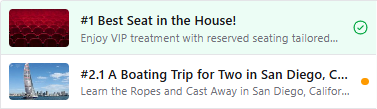
The Unsaved changes dot and Saved tick at the right end of each row in the item list.
| Indicator | Tooltip | Meaning |
|---|---|---|
| Dot | Unsaved changes | The item has a suggestion you haven't saved yet. |
| Tick | Saved | The item's new description was saved this session. |
Custom Form Text
A saved description updates the item's Description field. If the item has custom text in its Form Wording section, that text is still shown instead of the description wherever it's set.
| Field | Replaces the Description On |
|---|---|
| Catalog text | The online catalog. The Item Descriptions page shows a warning when an item has catalog text. |
| Bid sheet text | The bid sheet. |
| Certificate text | The certificate. |
| Display page text | The item's display page. |
| Statement text | Participant statements. |
See Forms for more information.