
Learn how to set the sales tax category on many items at once.
You can set an item's sales tax category when you add the item, on its Item Details page, or in any report that shows the Sales tax category column. If you set up sales tax categories after adding many items, use a mass change to set them all at once.
Create the Category First
The sales tax category must exist before you can assign it to items. See Sales Tax Categories.
Steps
- Open the All Items (Current Event) report (Reports → Item). Use the drop-down selectors to show only the items you want to change.
- In the report toolbar, click Edit.
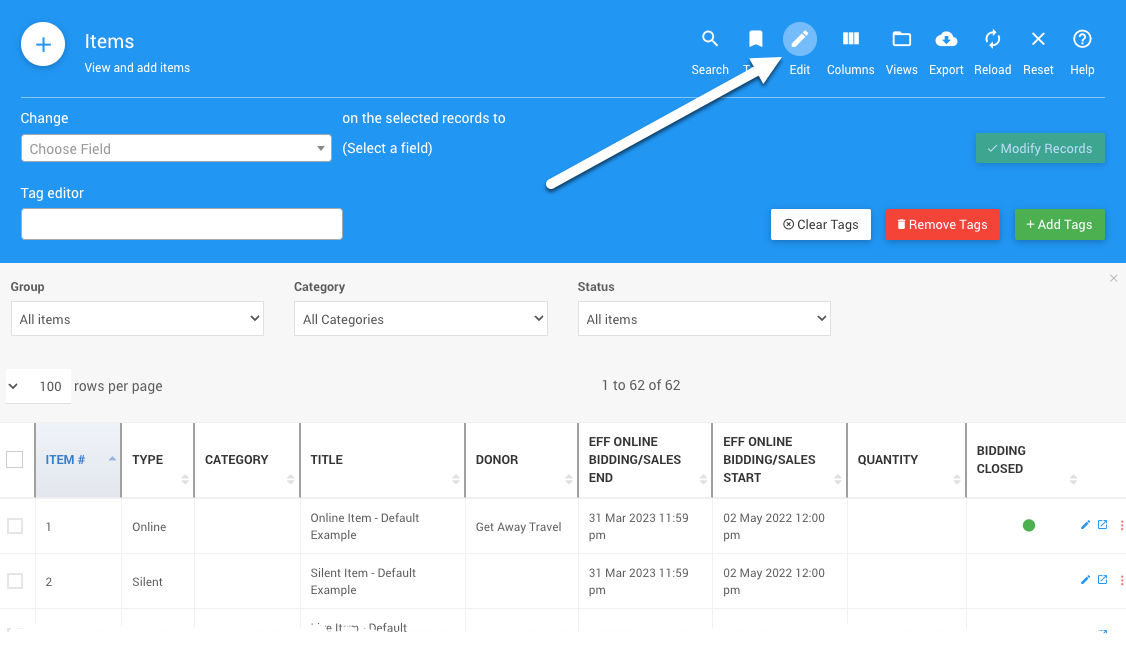
An example from a demonstration event.
- In the Change field, choose Sales tax category.
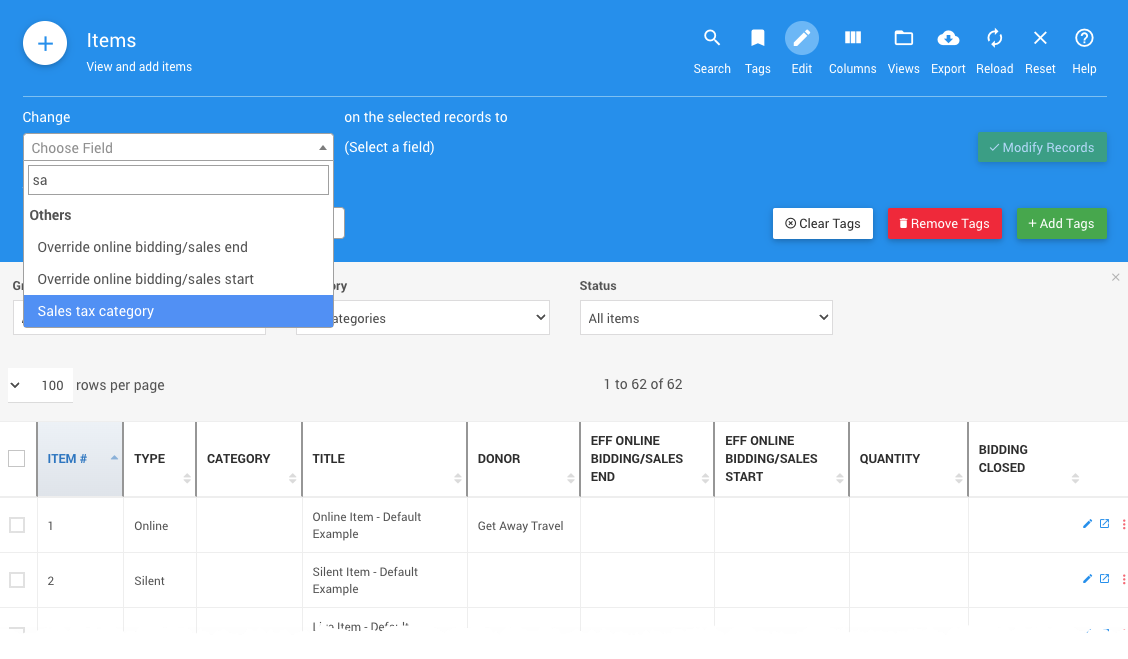
An example from a demonstration event.
- In on the selected records to, choose the sales tax category you want.
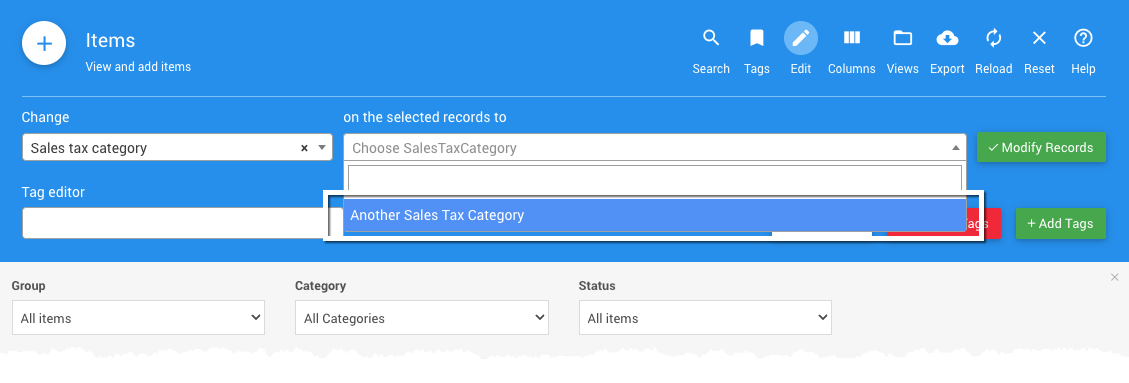
An example from a demonstration event.
- Tick the checkbox beside each item to change. To select every item on the page, tick the checkbox at the top left of the list.
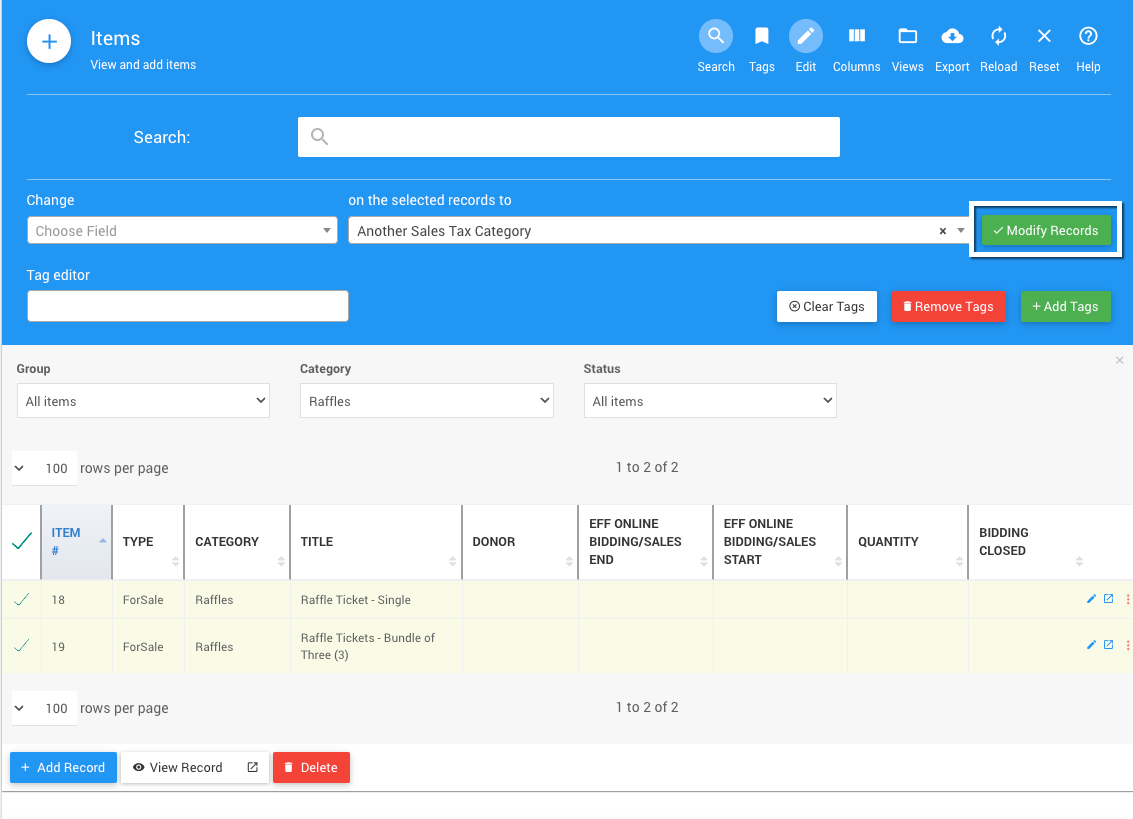
An example from a demonstration event.
- Click Modify Records. In the Change Records box, click Continue.
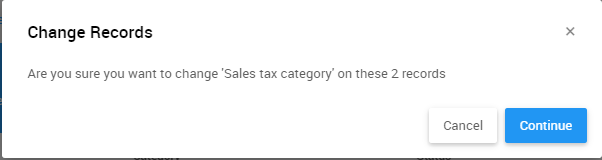
An example from a demonstration event.
For more about mass changes, see How To Bulk Edit Multiple Records.