
Learn how to use Health Checks to find and fix anything in your event that may need attention.
The Health Checks page runs a set of checks on your event and lists anything that may need your attention, such as payment processor or item setup issues.
To open it, click Event in the left sidebar. On the Event Details page, click Health Checks under the Advanced group in the sidebar. You can also click Click here to view these checks when it appears on your dashboard.
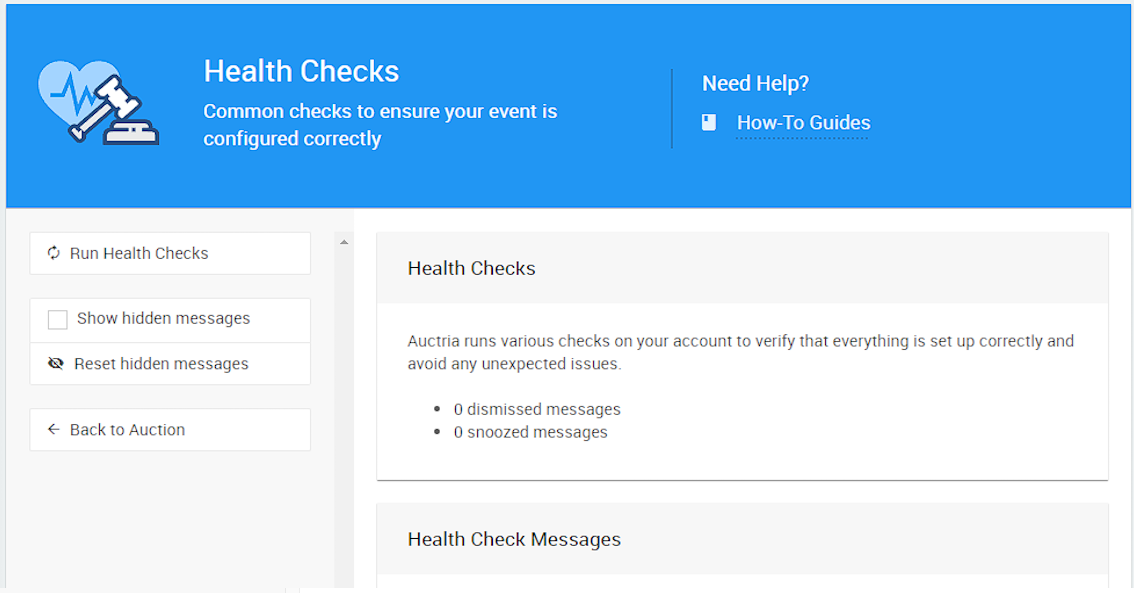
The Health Checks page from a demonstration event.
Run Health Checks
Auctria re-runs health checks automatically after you make changes to your event. To update the results right away, click Run Health Checks.
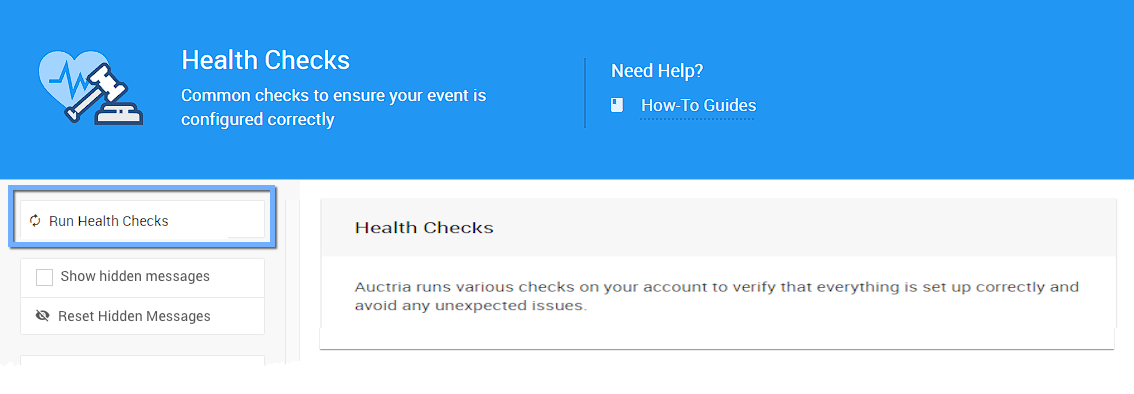
The Run Health Checks button from a demonstration event.
A Re-running health checks progress window appears while the checks run. When they finish, the Health Check Messages panel refreshes. If nothing needs your attention, the panel shows No messages to show.
Review Messages
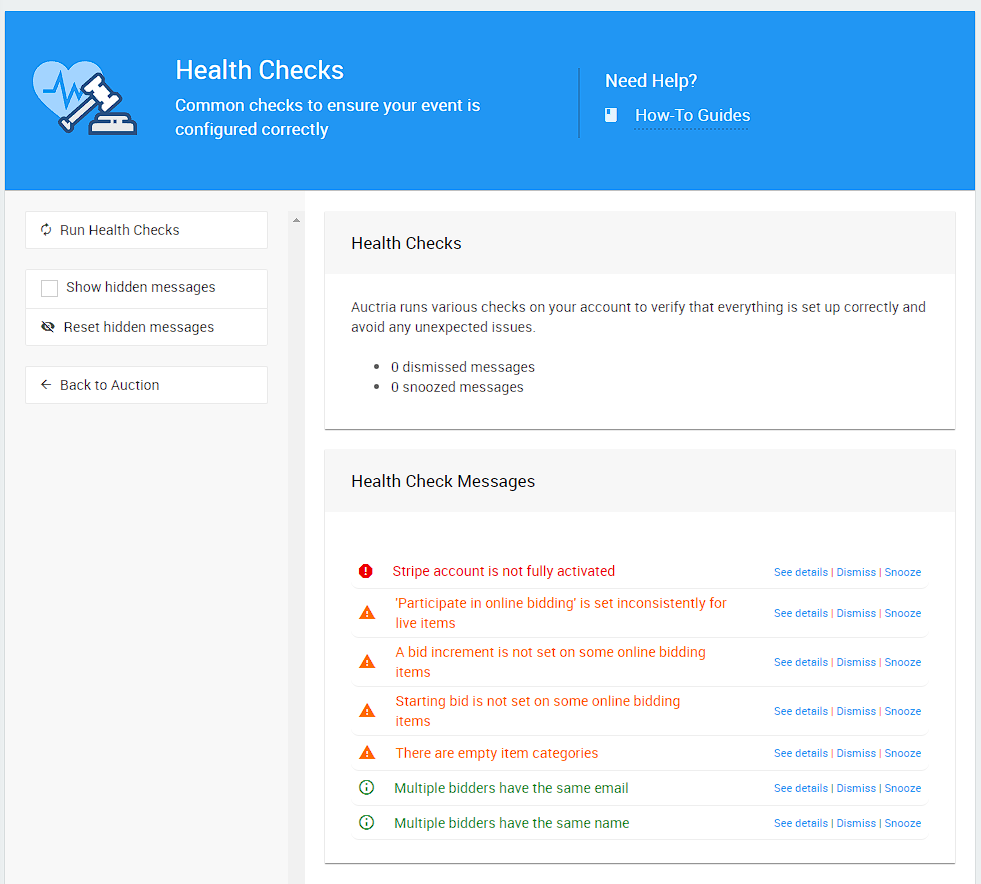
An example Health Check Messages panel from a demonstration event.
Messages are color-coded by severity. Errors are listed first, followed by the other messages in alphabetical order.
| Color | Meaning |
|---|---|
| Red | An error that needs attention. |
| Orange | A warning you should review. |
| Green | Information only. |
Message Actions
| Action | Description |
|---|---|
| See details | Opens the place in Auctria where you can fix the issue. For example, a Stripe issue opens your Stripe.com connection page, and an item issue opens a report listing the affected items. Only shown when the check links to a page. |
| Open in new tab icon | Opens the See details page in a new browser tab. |
| Learn more | Opens the related User Guide article. Only shown when the check has a related article. |
| Dismiss | Hides the message from the panel. |
| Snooze | Hides the message for seven days. After that, it reappears if the issue still applies. |
Fixed issues clear automatically
Once you've fixed an issue, its message is removed the next time health checks run.
Hidden Messages
The card at the top of the page shows how many messages you've dismissed or snoozed. Use these sidebar options to manage them:
| Option | Description |
|---|---|
| Show hidden messages | When checked, shows dismissed and snoozed messages in the panel. |
| Reset hidden messages | Restores all dismissed and snoozed messages to the panel. |
| Back to Event | Returns to the Event Details page. |