
Learn three options to consider when hiding an item in your event.
There are several reasons you might add an item to an event but not want it displayed right away. Auctria offers three ways to handle this — two manual options and one automated approach.
| Method | Best used when... |
|---|---|
| Exclude from Catalog | You want to hide a specific item immediately and re-enable it manually later. |
| Category Not Displayed | You want to hide a group of items by assigning them to a hidden category. |
| Override Visibility Times | You want to automate when an item appears and disappears without manual intervention. |
Exclude from Catalog
The simplest way to hide an item is to enable the Exclude from catalog option in the item's Options section.
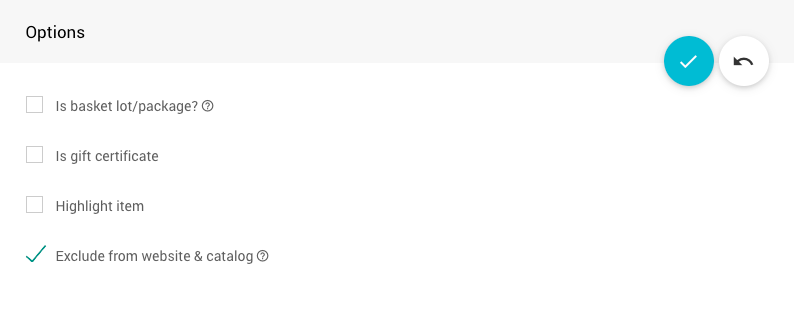
An item's Options section open for editing with Exclude from catalog enabled.
When enabled, the item will not appear in any online auction catalog or printed catalog under their default conditions.
Re-enabling the Item
This setting must be manually disabled on the item before it will appear in any catalog again.
Category Not Displayed
You can hide a group of items by assigning them to a category that is configured not to appear in catalogs. This is useful when you have multiple items you want to manage together.
To set up a hidden category, you'll need to configure it with the following settings disabled:
- Include in printed catalog
- Include in online catalog
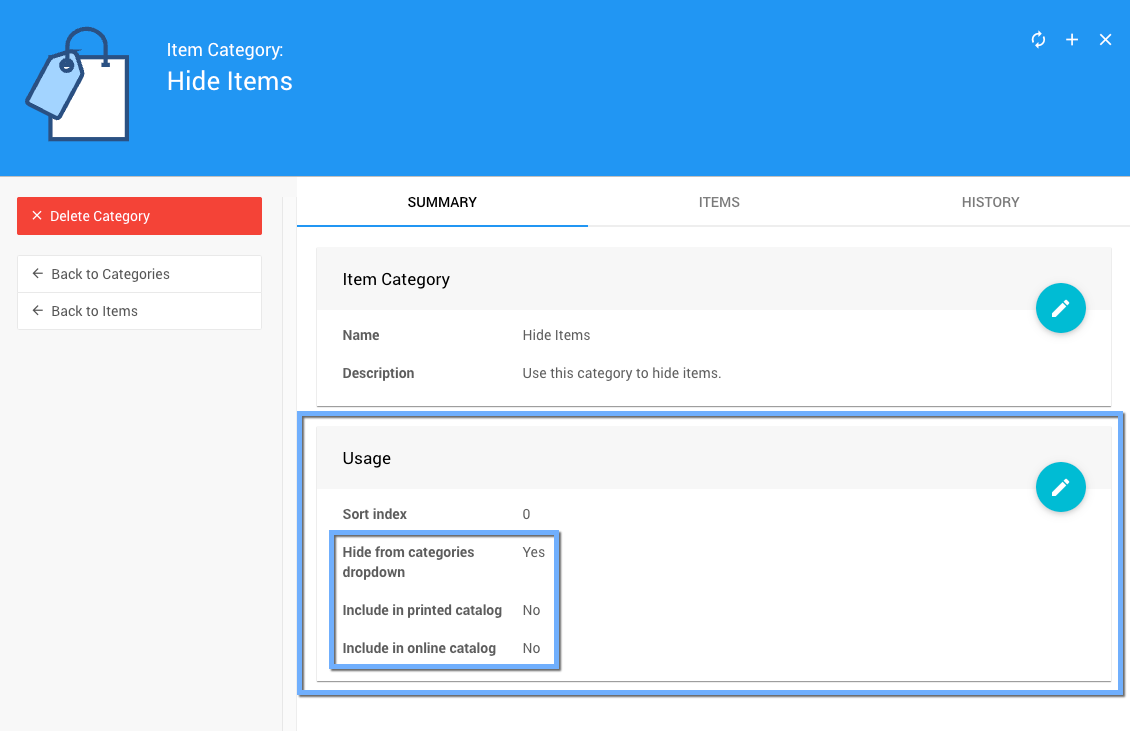
An example of a category configured to hide items.
You should also enable Hide from categories dropdown so the category does not appear in the Item Catalog Show me dropdown selector on the auction website.
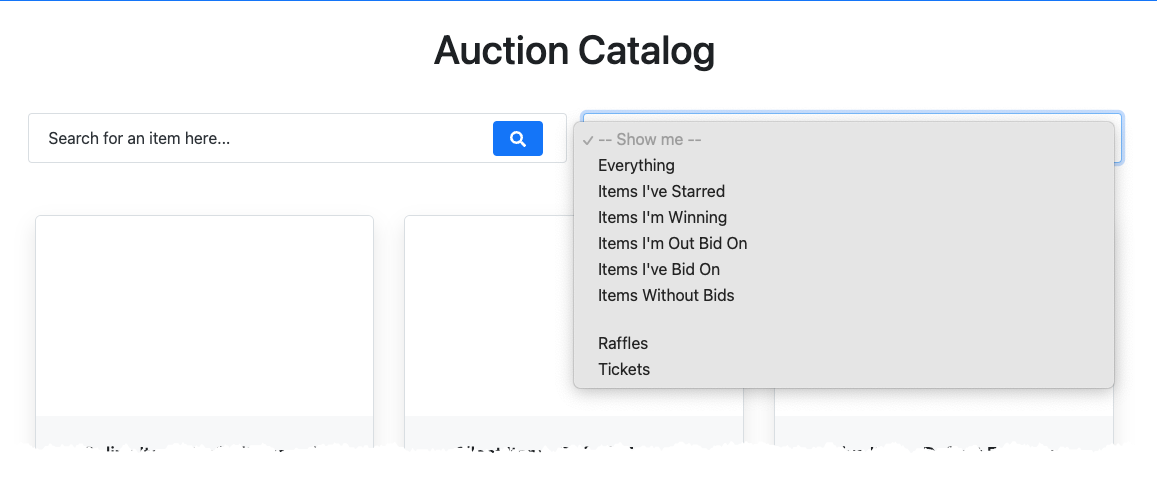
An example of an Auction Catalog and its Show me dropdown selector.
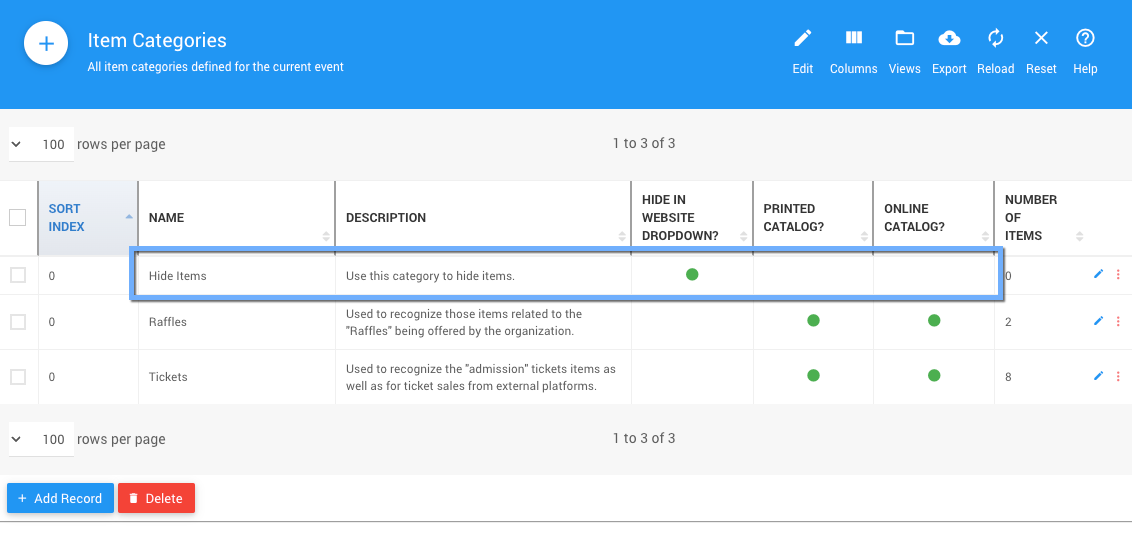
An example category list from a demonstration event.
Re-enabling Items in this Category
The Include in... options must be manually re-enabled on the category before items assigned to it will appear in catalogs again.
Tip
See How To Add A New Item Category for more information on creating and configuring item categories.
Override Visibility Times
For a more automated approach, you can use the Override online visibility start and Override online visibility end times on the item. Once saved, these take effect immediately if the current time falls within the set range.
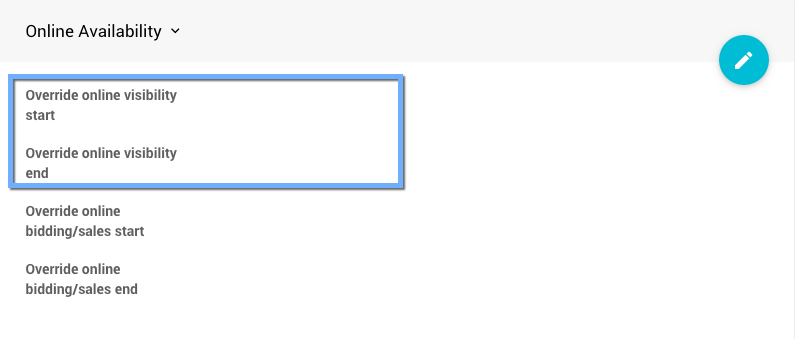
This method controls when the item is visible without requiring you to manually enable or disable any settings — the item will simply appear and disappear according to the times you set. To remove the effect entirely, clear the override times.
Visibility Affects All Item Pages
The Online Visibility settings affect all places where the item is displayed, including its individual Item Details page on the auction website.
Tip
See Introduction To Online Visibility for more information on how visibility settings work.