
Learn how to let guests bid online on your Paper and Live items before your in-person event.
Online pre-bidding lets guests bid on your event website before the in-person event starts. It applies to Paper and Live items. Online items always take bids online during their bidding times.
To set it up, each item needs Participate in online bidding turned on, plus online bidding times.
Before you start
You need:
- An event website. See How To Create A New Event Website.
- An item catalog on the website. See Item Catalog.
- The items you want to open for pre-bidding. See Add New Items to Auctria.
Step 1: Turn On Participate in Online Bidding
Check that Participate in online bidding is turned on for each item:
- When adding an item: it's in the Online Bidding section of the form.
- On an existing item: it's in the Online Bidding Behavior section of the item's Summary tab.
It's on by default for Paper and Live items you add from the dashboard.
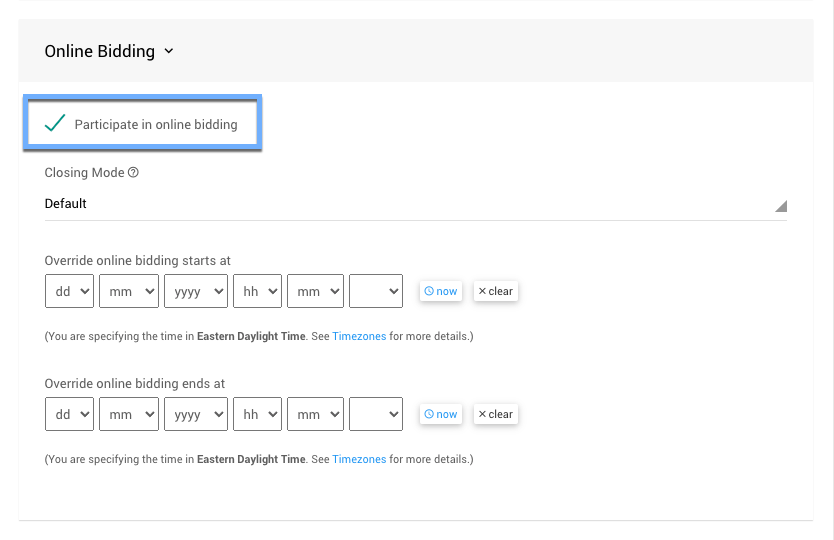
The default Online Bidding settings when adding a Paper or Live item.
Without this option, the item never takes online bids, even during the Online Bidding Period. See Item Details.
Keep the closing mode at Default
The same section has an Online Bidding Closing Mode. If it's set to Timed, the item closes when pre-bidding ends and the highest pre-bidder wins it. That's usually not what you want before an in-person event. With Default, the item stops taking online bids at the end time but stays open for bids at your event.
Step 2: Set the Online Bidding Times
Set the event's default bidding times in Settings → Online Bidding, under Online Bidding Period. Every item that participates in online bidding uses these times.
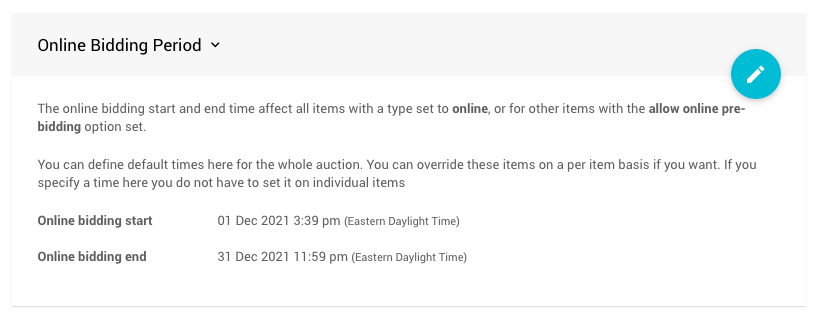
An example Online Bidding Period set as the event default.
To give an item its own bidding window, open the item's Summary tab. In the Online Availability section, set Override online bidding/sales start and Override online bidding/sales end. An item's own times always take priority over the event default.
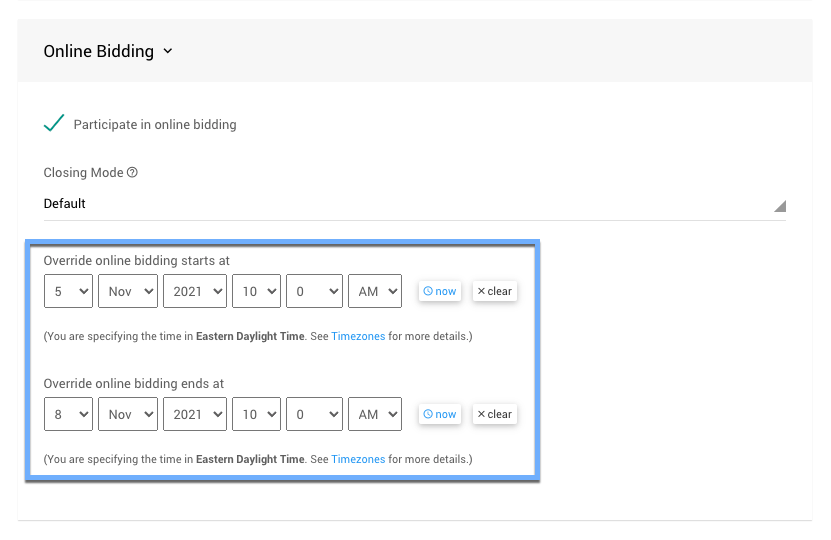
Override times giving an item its own pre-bidding window.
Online bidding needs both a start and an end time
If neither the event nor the item has both times set, the item stays closed to online bids.
End pre-bidding before your event starts
Set the end time for before your in-person event begins, so you can record the remaining bids on paper or with the auctioneer. If items should stay open online during the event, set a later end time on those items.
See Online Bidding Times for more about per-item times.
Step 3: Get Ready for the In-Person Event
| Item Type | What to Do |
|---|---|
| Paper | Print Bid Sheets after pre-bidding ends. By default, each sheet shows the item's winning pre-bid. To change this, use the Show existing bids option in the bid sheet's Content settings. See Paper Bidding Type. |
| Live | Let your auctioneer know which items have pre-bids, so bidding starts from the highest one. Make sure pre-bidding ends before the live auction starts. Otherwise, recording a winner on Record Live Bids won't close the item. See Live Bidding Type and Record Live Bids. |
For Sale and Donation items
For Sale and Donation items don't use bidding times. To sell or collect donations before your event, see Online Availability, How To Add Early Bird Tickets, and Donation Items.