
Learn how to embed a YouTube Live Chat stream on your event website using the YouTube Live Chat element.
The YouTube Live Chat element embeds real-time chat from a live YouTube video directly onto your event website, letting attendees join the conversation without leaving your site.
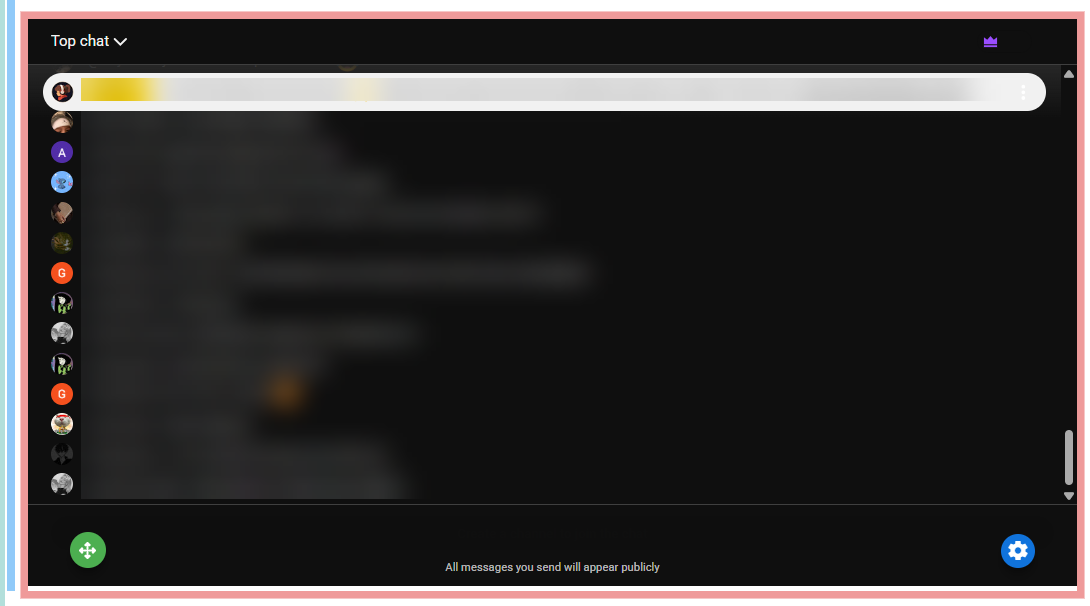
An example of the YouTube Live Chat element with a defined video on the event website in Edit mode..
Displays chat only
This element shows only the chat — not the video itself. To display both the video and chat together, add the Video element to the same page.
Adding YouTube Live Chat to a page
Drag the More Column Content element from the Website Editor Sidebar into a column space, then choose YouTube Live Chat. The element will be added to the page, but will not display chat until a video is connected.
YouTube Live Chat Settings
Clicking the YouTube Live Chat element opens its settings panel in the Website Editor Sidebar.
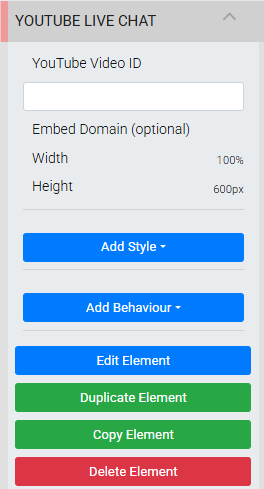
The YouTube Live Chat settings panel in the Editor sidebar.
| Setting | Description |
|---|---|
| YouTube Video ID | The unique ID of the YouTube live video whose chat you want to display. Once entered, the chat appears on the page automatically. |
Finding your YouTube Video ID
The Video ID is the string of characters after v= in your YouTube URL. For example, in https://www.youtube.com/watch?v=dQw4w9WgXcQ, the Video ID is dQw4w9WgXcQ.
Once configured, all messages appear publicly and in real time on both your event website and on YouTube.
See Common Element Actions for more details on managing the YouTube Live Chat element.