
Learn how to set up an online store event in Auctria to sell items year-round.
Auctria isn't only for auctions and galas. You can also use it to run an online store, such as a spirit wear shop, a merchandise store, or a page where supporters can buy items to contribute year-round.
To set one up, you'll create a new event, add items for sale, and build an event website to sell them.
New to Auctria?
If you haven't set up your organization yet, start with Account Setup.
Step 1: Create a New Event
Your online store is set up as its own event in your organization.
- Click Event in the left sidebar to open the Event Details page.
- Click Add New Event in the page sidebar.
- Enter a name for your store, such as
Spirit Wear Store. - Click now next to the Event Date.
- Click Add Event.
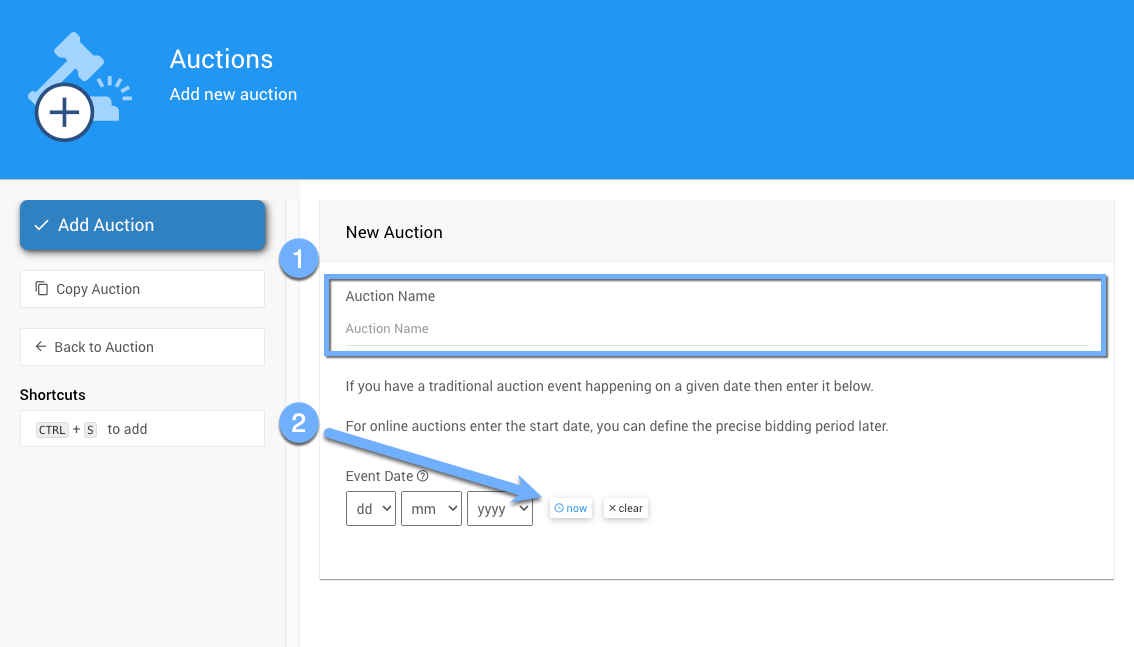
The Add New Event page from a demonstration event.
Admin permission required
Only users with Admin permission can add a new event.
See How To Add A New Event for more details.
Step 2: Keep Your Store Online
New events are archived automatically six months after the Event Date. Once an event is archived, its website is hidden from participants. For a year-round store, change the Archive Date so your store stays online.
- Click Event in the left sidebar.
- On the Summary tab, find the Archiving section.
- Set the Archive Date far in the future.
Don't let your store disappear
If you leave the default Archive Date, your store will go offline after about six months. If you set a nearer date, add a reminder to extend it.
See Archive Event for more about archiving.
Step 3: Set Up a Payment Processor
To accept payments on your store's website, you need a payment processor. Payment processors are set up at the organization level. If your organization already accepts credit cards, you can skip this step.
If you don't have a payment processor yet, you can connect Stripe. See How To Connect A Stripe Account.
Step 4: Add For Sale Items
Add each product you want to sell as a For Sale item. Items can be physical, like T-shirts or caps, or experiences, like a golf mulligan.
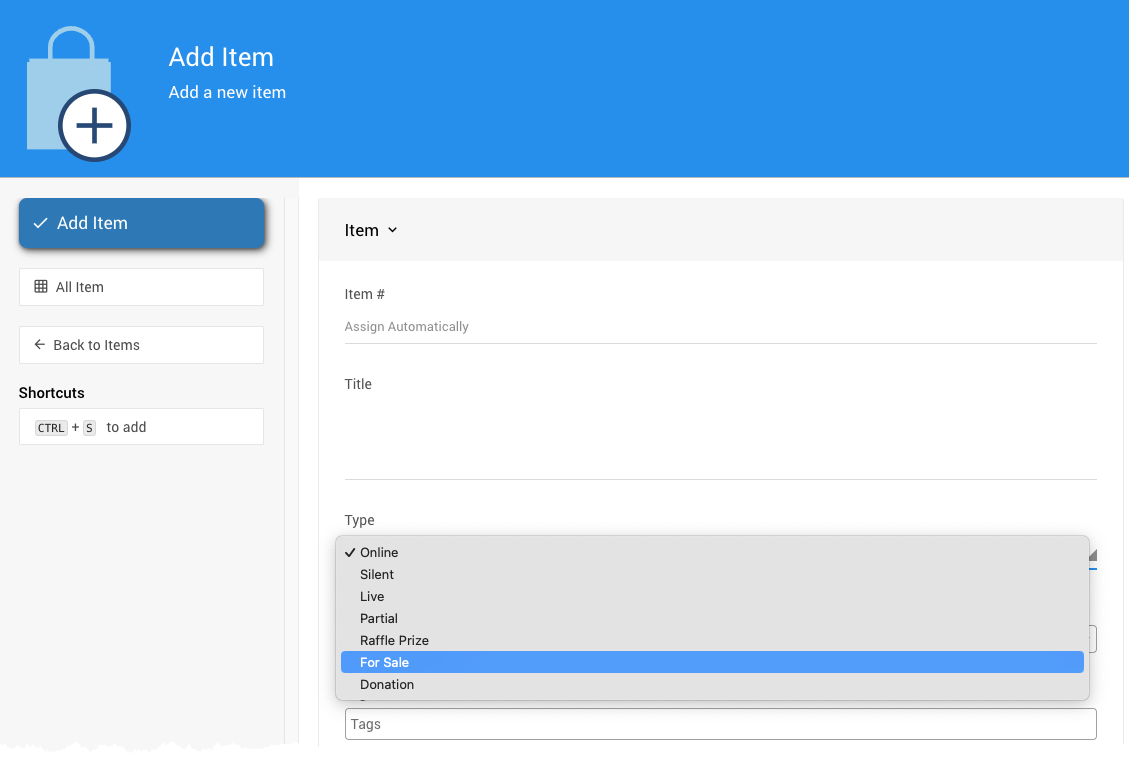
Adding a For Sale item from a demonstration event.
Set the Value for each item
The Value is the item's selling price.
For more ways to sell items, see Sales Dashboard.
Running a seasonal store?
Use the For-sale items visible online from date and its matching end date to control when your items appear online. Both are blank by default, so items are always visible. See Introduction To Online Visibility.
Step 5: Create the Event Website
- Click Event Website in the left sidebar.
- Find the Core template and click Use template.
- In the Create Website window, enter a Website Address for your store. Use only letters, numbers, and hyphens.
See How To Create A New Event Website for more details.
Remove Pages You Don't Need
The template includes pages your store won't use. To remove a page:
- In the Website Editor, click Manage pages.
- Open the page's Actions drop-down and click Delete Page.
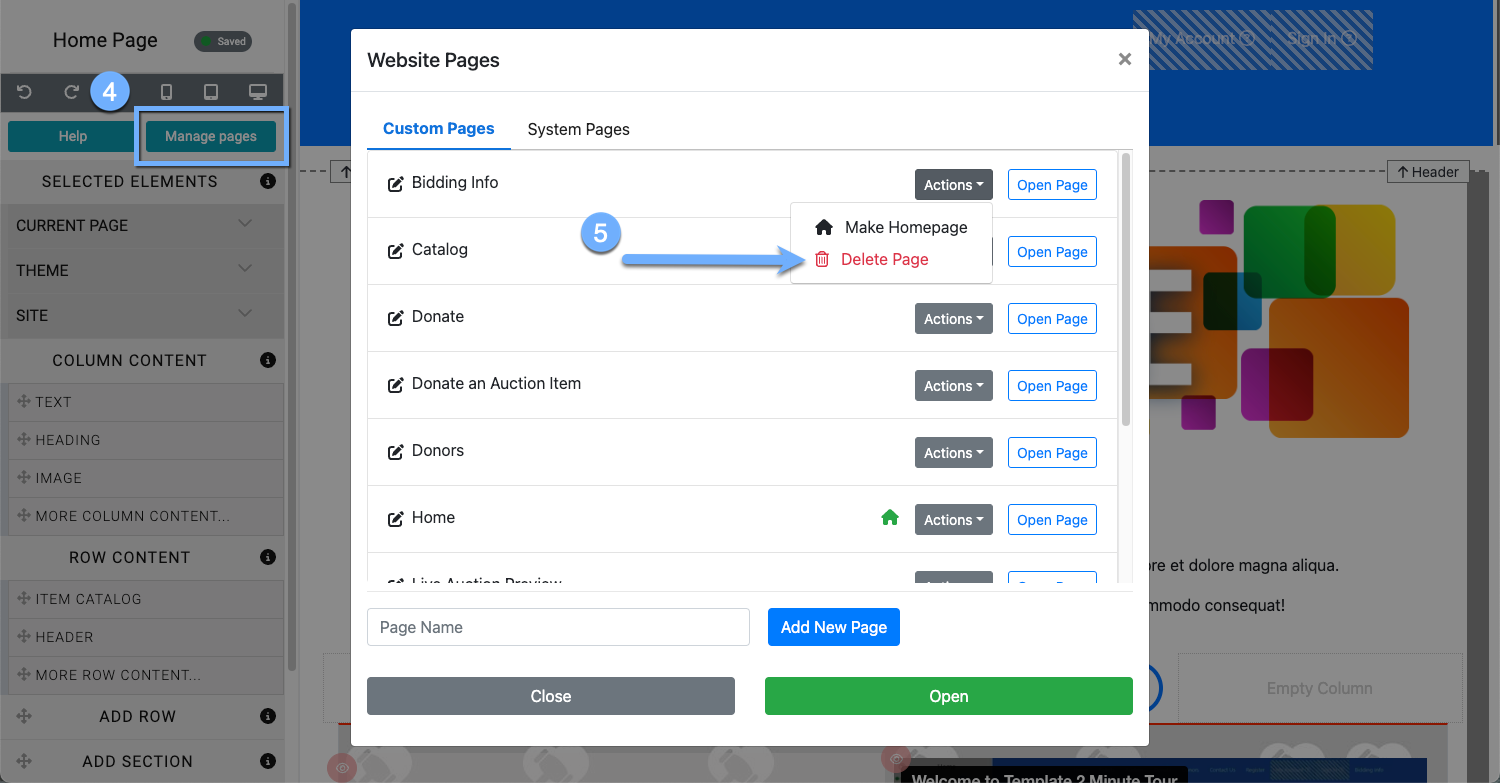
Deleting a page from a demonstration event website.
You may need to make other changes depending on your template. See Manage Pages.
Step 6: Show Your For Sale Items
Depending on the template, your website's Item Catalog may be set to show only biddable items. Change it to show For Sale items.
- In the Website Editor, select the Item Catalog and click Items Displayed. The Select Items window opens.
- In the Items with types filter, remove silent, live, and online, and select For Sale.
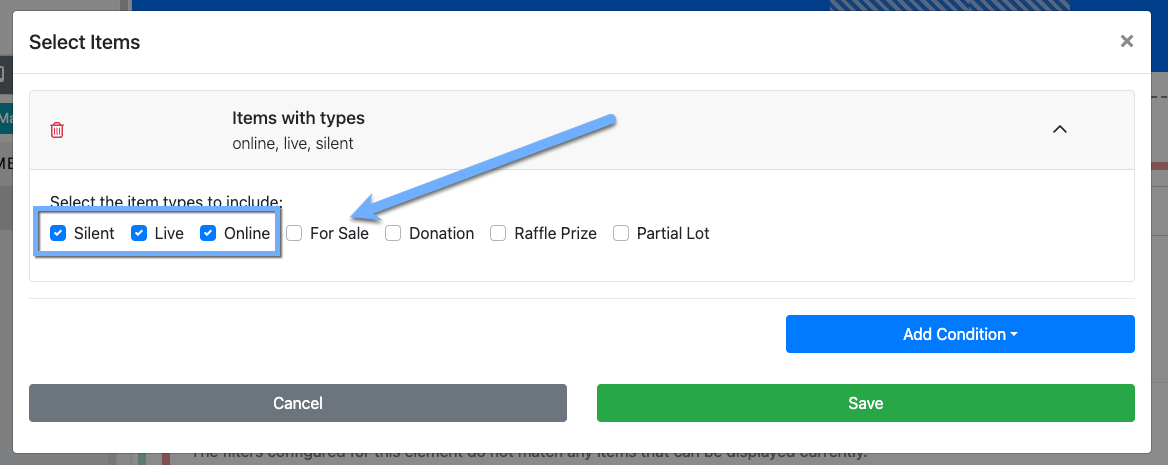
The Items with types filter set to biddable items.
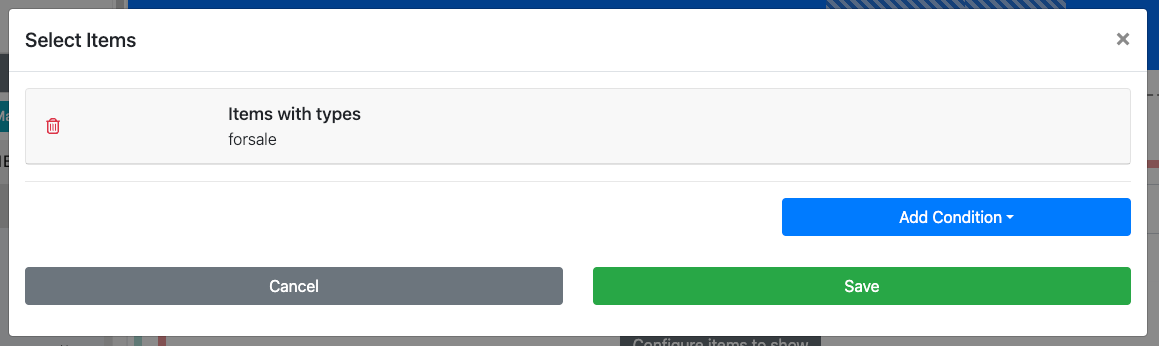
The Items with types filter set to For Sale.
See Configure Items Displayed for more details.
Step 7: Share Your Store
Once your website is set up, your payment processor is connected, and your items are added, you're ready to share your store.
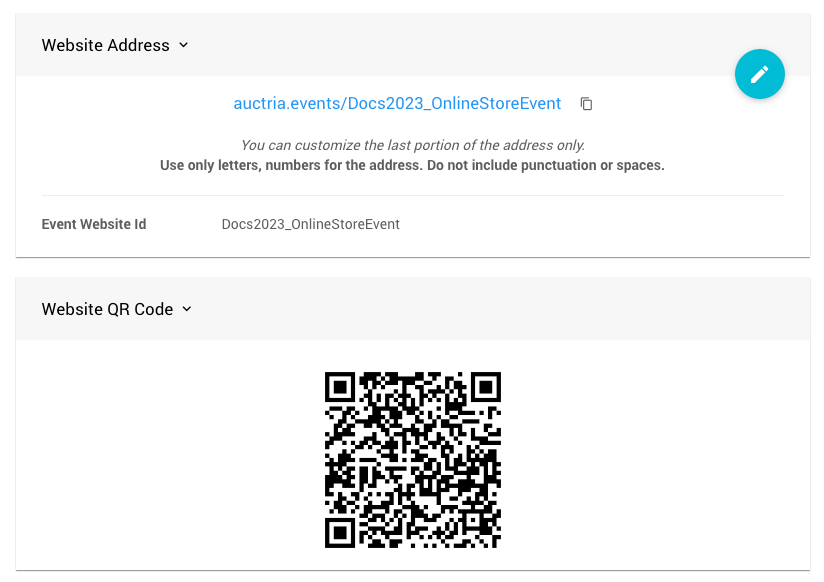
Go to the Website Dashboard to find your Website Address and Website QR Code. Click Copy QR Code Image to copy the QR code.
An example online store website from a demonstration event.
Share them in emails, on social media, on your organization's website, and in printed materials. See How To Get A QR Code for more ideas.