
Learn how to create a custom header for your emails.
By default, Auctria inserts its own logo into the header of your emails. To use your own logo instead, set an Organization Logo or an Auction/Event Logo.
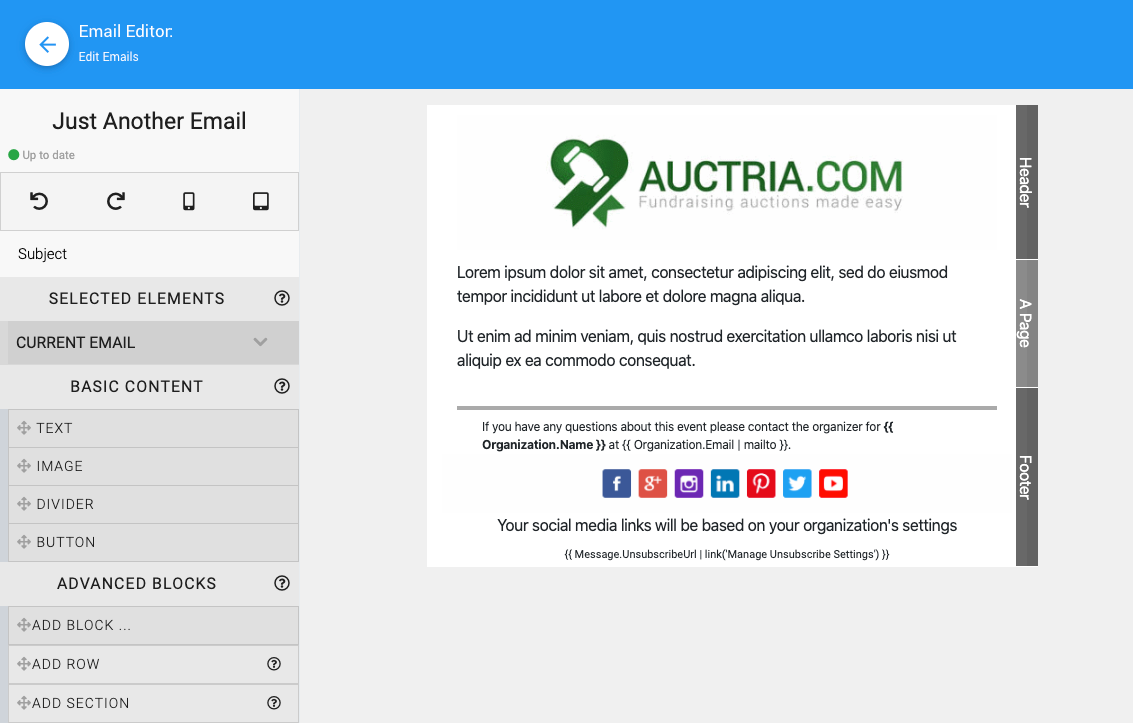
An example email with a custom header from a demonstration event.
Step 1: Edit the Default Header
Changes Apply to All Emails Using the Default Header
Changing the default Header changes the header in ALL emails that use it.
Adding or updating your Organization or Event Logo automatically changes the logo in the default header.
Step 2: Use a Different Header
If you'd like one email to use a different header, you can turn off the default header for just that email and build your own.
The Current Email section lets you set the email Subject and choose whether the email uses the default header and/or footer.
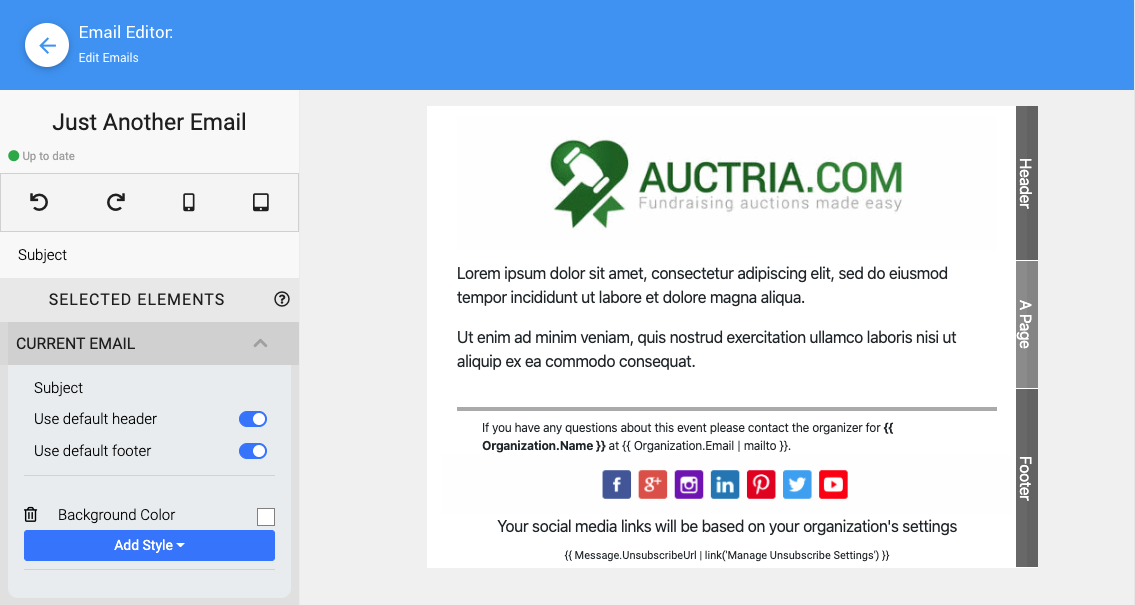
The Current Email section of the Email Editor from a demonstration event.
To build your own header:
- In the Current Email section, toggle Use default header to off.
- Add a new section for your Custom Header.
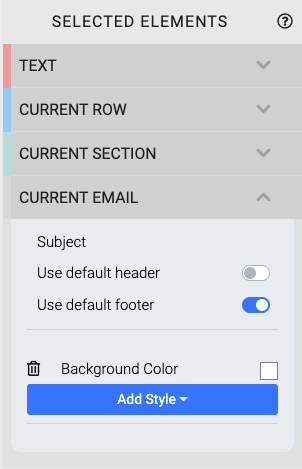
The Use default header option toggled off in the Current Email section.
Adding a Section
Adding a section works the same way in the Email Editor as it does in the Website Editor. See Website Editor Sidebar | Add Section for more information.
The new section is added to the top of the Page area of the email. Any rows and content you add to this section become the new header for this email.
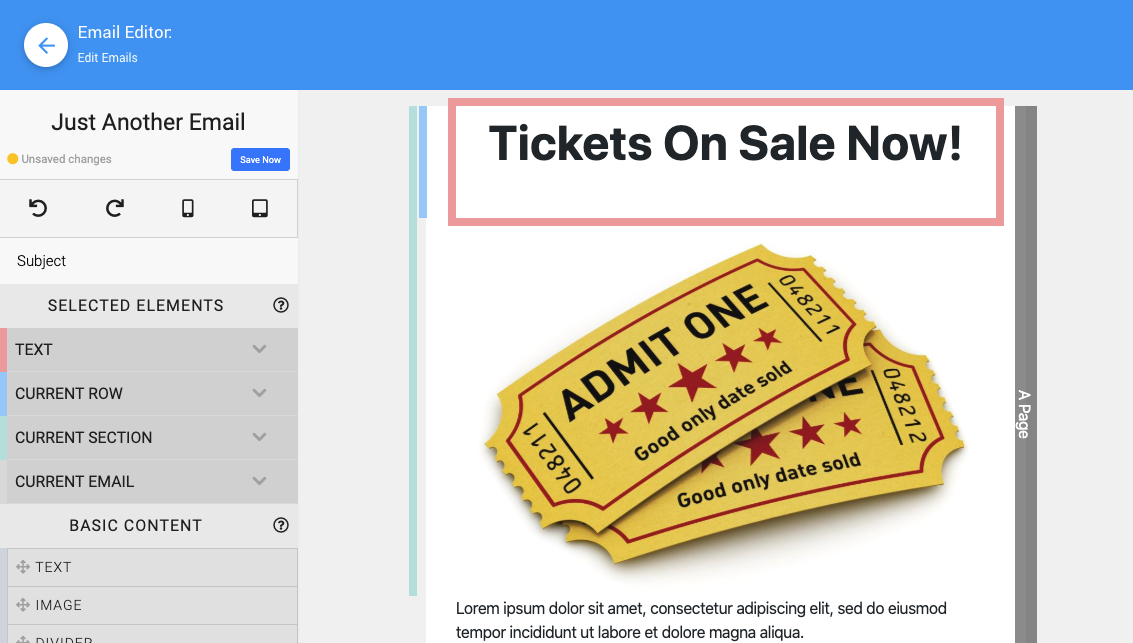
An example of a new custom header section in the Email Editor.