
Choose what the Donate An Item form on your event website asks donors, and whether donors get a receipt when you accept their item.
How Did I Get Here?
From the main event dashboard, click Items → Solicited Items Settings.
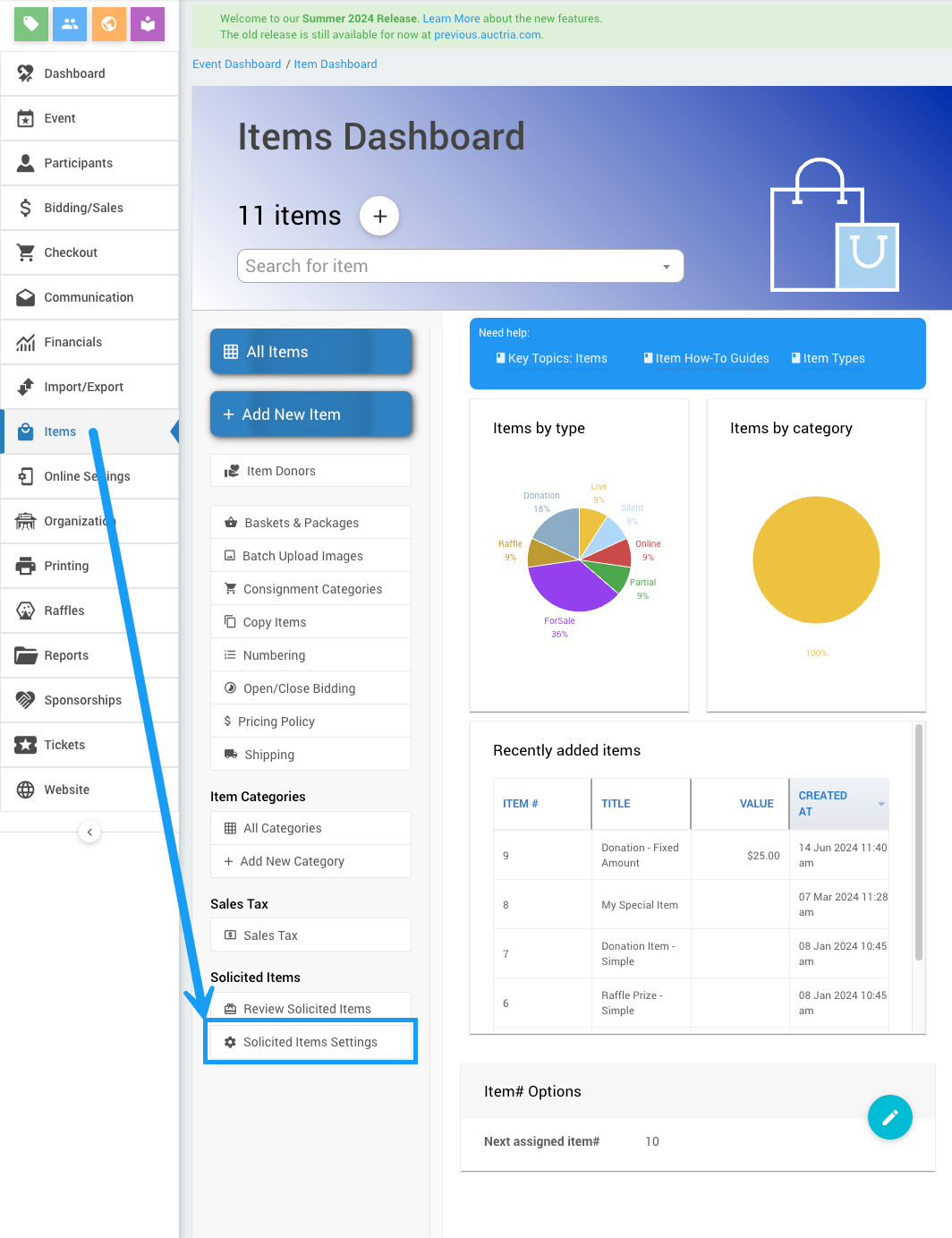
An example from a demonstration event.
The Solicited Items Settings page holds the options used by the Solicit Items row element and system page on your event website.
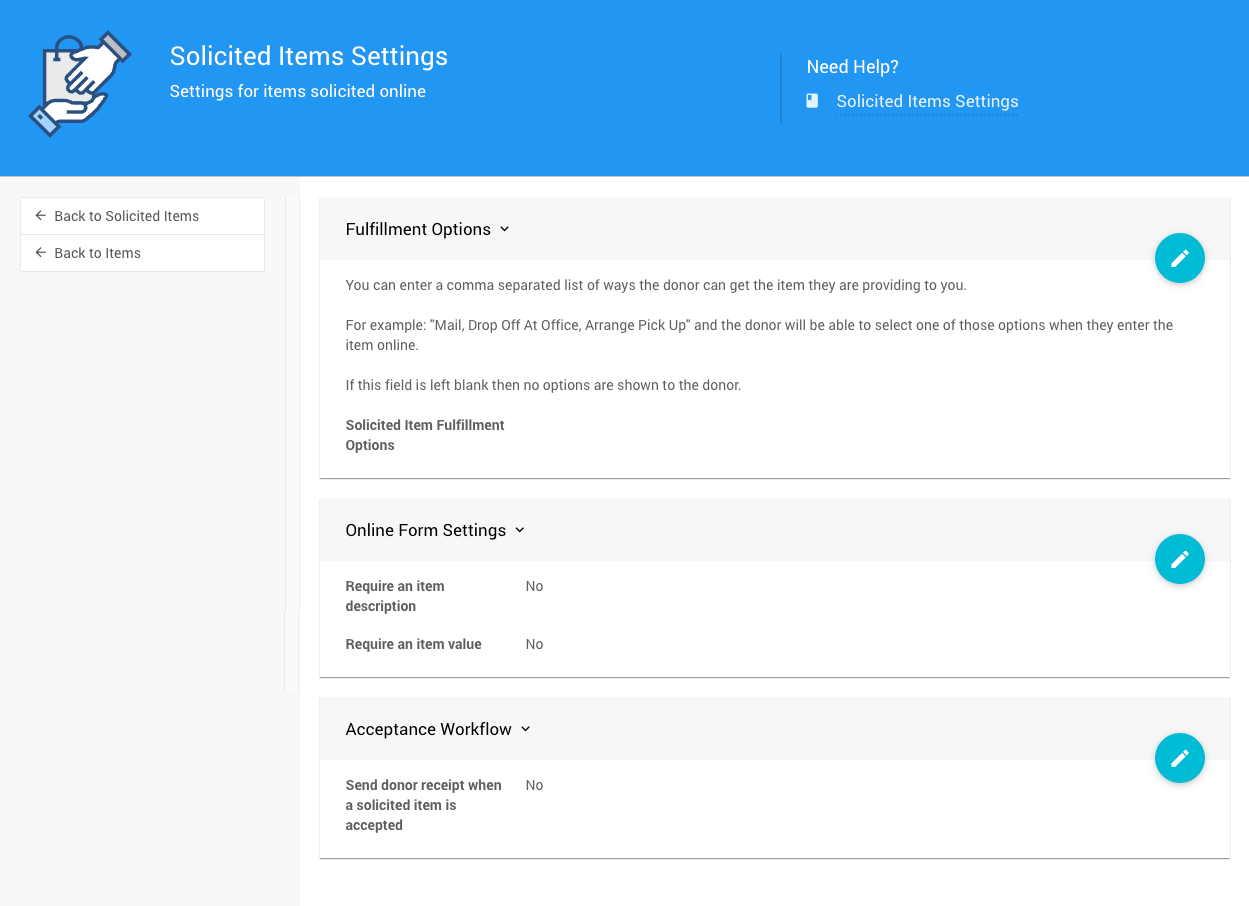
An example showing the default settings for the page.
How To Edit Dashboard Panel Settings
You can edit panel settings by clicking on the pencil icon to open the panel for editing.

Panel in "saved" mode.
Once you have made your changes, click the checkmark icon to save these changes. If you have opened multiple panels in a dashboard, you must click each checkmark to keep their settings.

Panel in "edit" mode.
You can click the return arrow icon if you do not want to save your changes.
Fulfillment Options
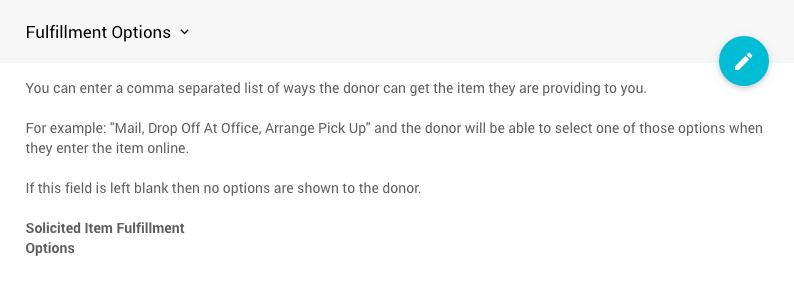
An example from a demonstration event.
Fulfillment Options is a comma-separated list of choices shown to donors on the form. The field only appears on the form after you save values here. The form on your event website may take a few moments to show your changes.
Online Form Settings
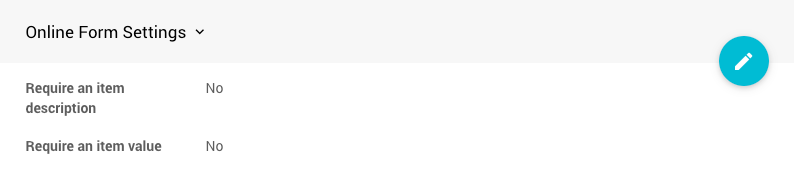
An example from a demonstration event.
| Setting | Description |
|---|---|
| Require An Item Description | When checked, donors must describe the item they're offering. |
| Require An Item Value | When checked, donors must enter a value for the item they're offering. |
Acceptance Workflow
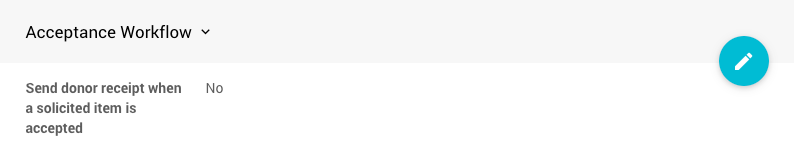
An example from a demonstration event.
The Send donor receipt when a solicited item is accepted toggle controls whether a donor receipt is sent when you accept a donated item on the Solicited Items page. It's off by default and applies only to the current event.
Custom Questions
Use the Custom Questions panel to add your own questions to the Donate An Item form, about the donated item or about the donor. See Custom Questions and Fields for more information.