
Learn how to get and use QR codes for your event website and items in Auctria.
Auctria automatically generates a QR code for your event website once it's created. For specific website pages, you can use your browser's built-in QR code tool or a third-party generator. Item-specific QR codes are available directly from each item's details page.
Your Event Website QR Code
Once your event website is created, Auctria automatically generates a QR code that links directly to it. You can find your QR code on the Website Dashboard by clicking Event Website in the left sidebar.
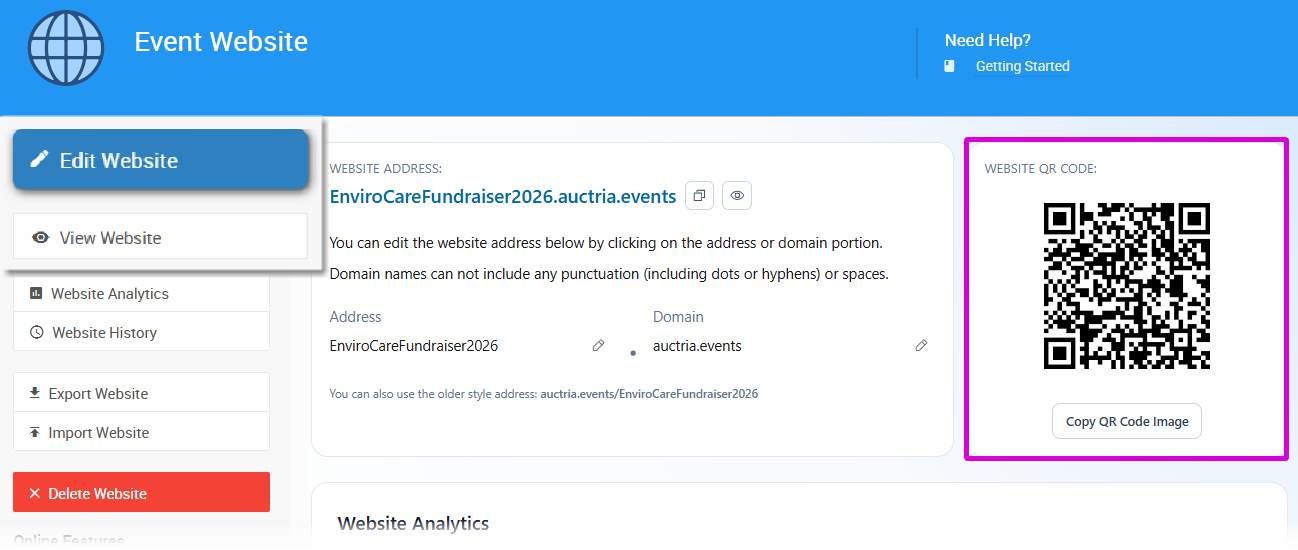
An example QR Code from a demonstration event.
Click the Copy QR Code Image button to copy the QR code to your clipboard and paste it into printed materials, emails, or other promotional content.
QR Code for a Specific Website Page
To generate a QR code for a specific page on your event website, navigate to that page as a guest (not logged in as an organizer) and use the URL shown in your browser's address bar.
Sign out before capturing the URL
To make sure you're viewing the page as a guest, use this link to fully sign out of Auctria first: https://app.auctria.com/Az/Account/SignIn?signout=True. Then navigate to your event website and go to the page you want to share.
Use the full URL from the address bar — not a shortened or "pretty" link — to ensure visitors always reach the correct page.
Use the app URL for long-term reliability
Using the event.auctria.com/... URL rather than your preferred domain URL ensures the QR code continues to work even if you later change your website address or domain, or rename the page.
Once you have the URL, paste it into a QR code generator. Your browser may already have one built in:
Generate a QR code directly in your browser
If you're using Google Chrome or Microsoft Edge, right-click anywhere on the page to see a context menu with a built-in QR code generator option.
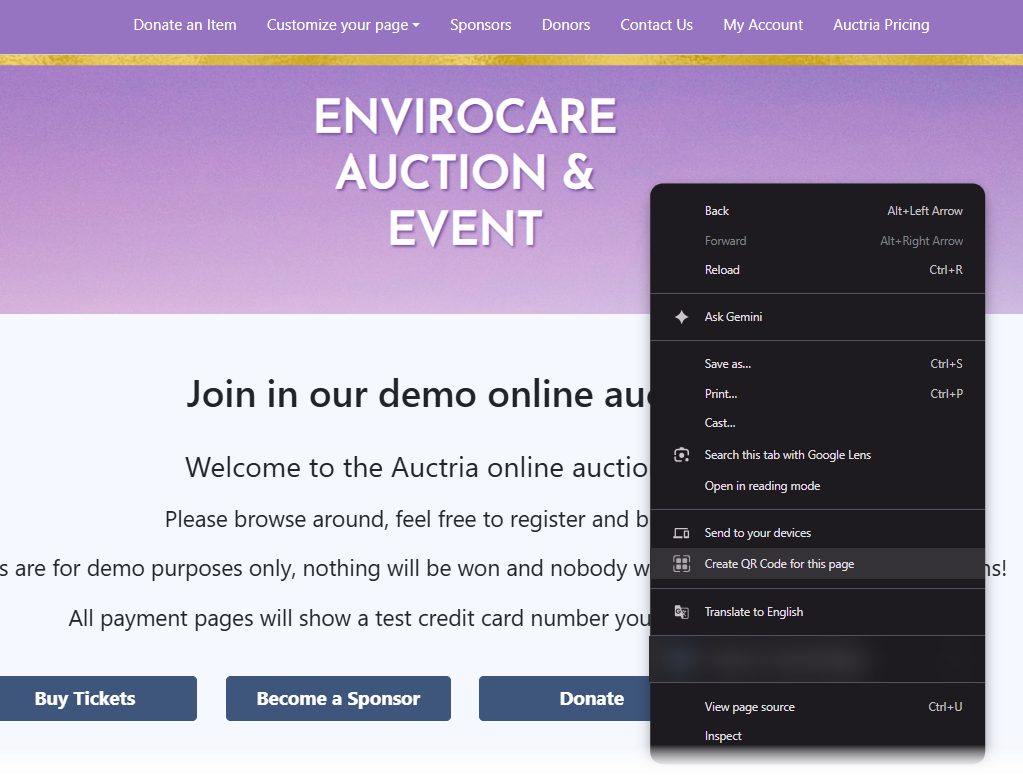
The Google Chrome browser showing its context menu and QR code generator option.
If you prefer a standalone tool, free options are available online — search for "QR code generator" to find one. Auctria does not recommend or endorse any specific third-party QR code generator.
QR Code for an Item
From the Item Details Page
To get a QR code for a specific item, open the item's Item Details page and click its QR Code button.
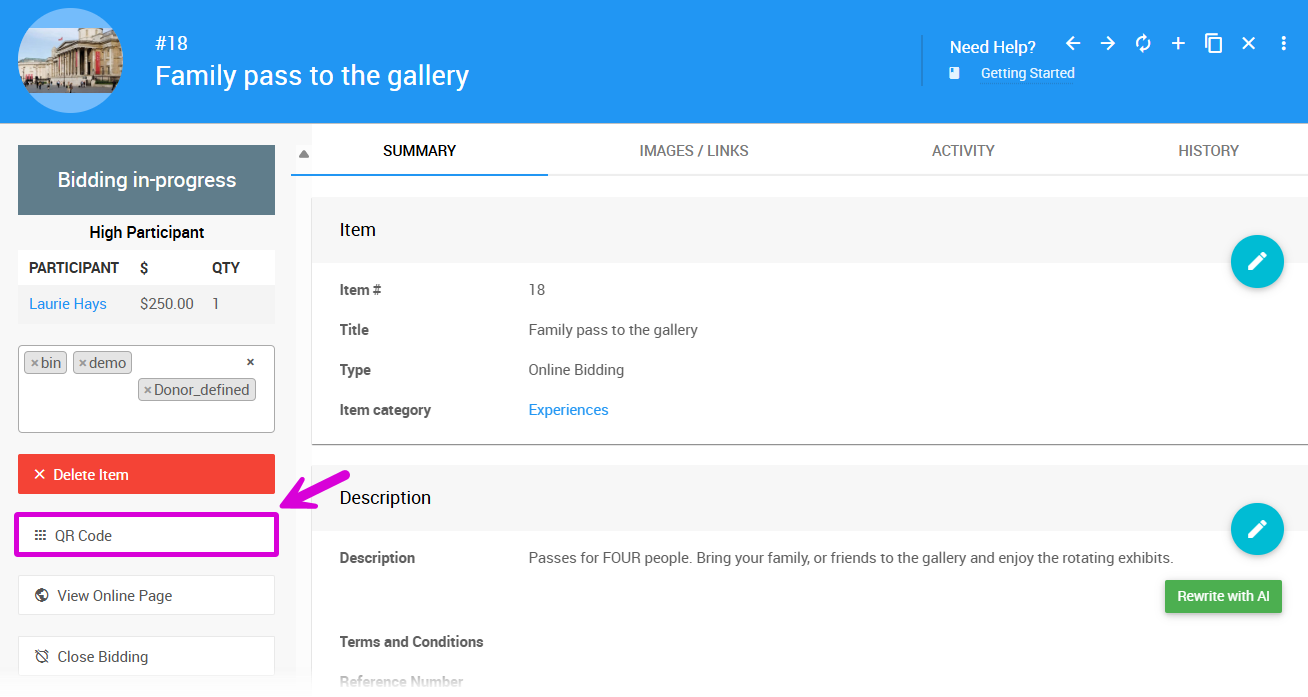
An example from a demonstration event.
This opens the Item QR Code window, where you can copy or download the QR code.
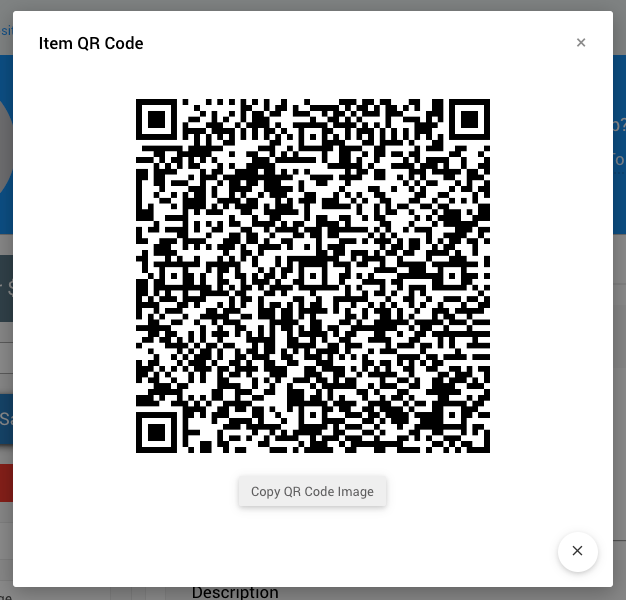
An example from a demonstration event.
From Display Pages
You can also include a QR code on an item's generated Display Page. On the Item Details page, click Printing on the left sidebar, then choose the Display Page option.
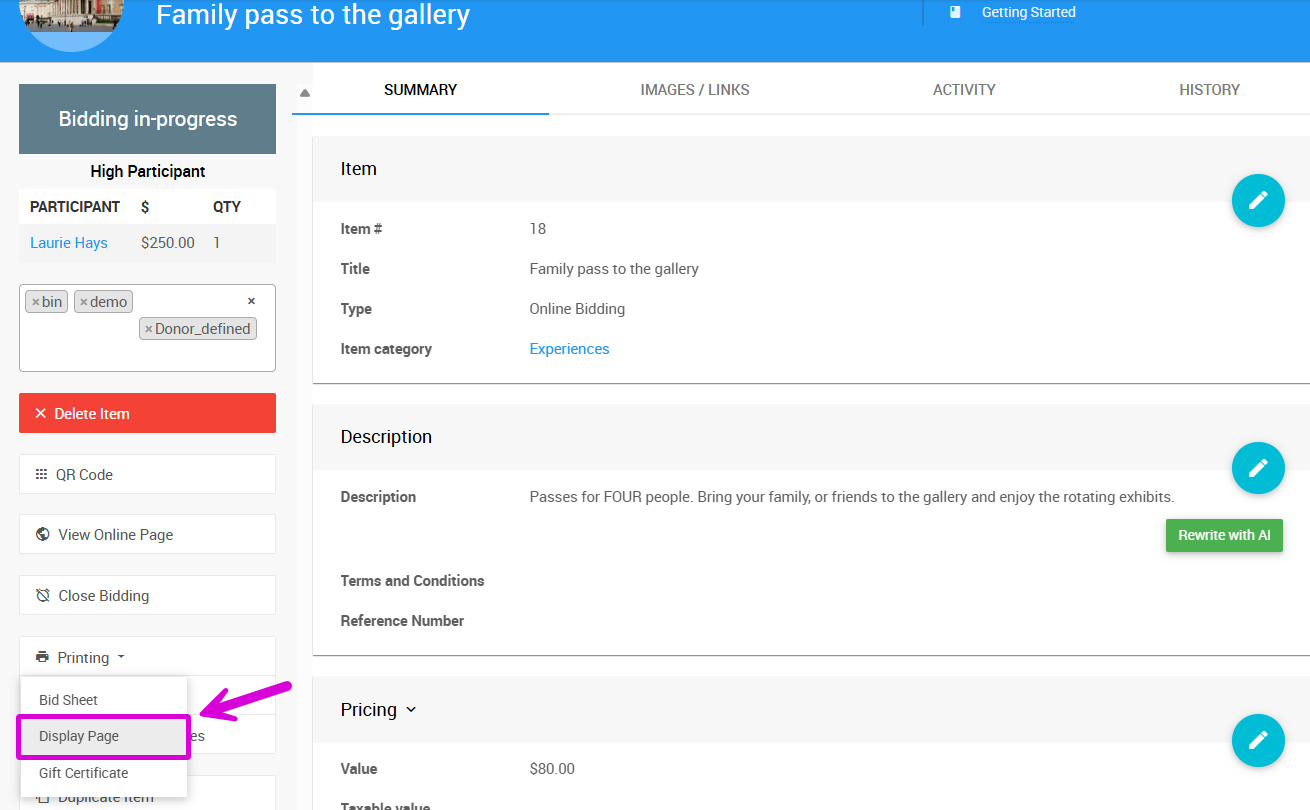
An example from a demonstration event.
Once you generate the Display Pages, open the PDF to view the item-specific page with the embedded QR code.
You can take a screenshot to extract the QR code as an image, or print the page and place it where guests can easily scan it with their mobile devices.
Where to use your QR code
Once you have your QR code, you can use it wherever it's most useful: in an email campaign, on your organization's website, in printed materials, or on another page of your Auctria event website.
Scanning QR Codes
QR codes can be scanned using a phone camera or from within the Auctria bidder app.
- Phone camera — Scanning opens your event website in a mobile browser. Guests will not be signed in and will need to sign in on first use. On iPhone, if the Auctria bidder app is installed, scanning a QR code may open the app directly instead of the browser — with some exceptions, such as password reset links, which will still open in the browser.
- Bidder app — Scanning from within the app works seamlessly as long as the guest stays within the same event.
QR scanner button on your event website
You can add a Scan QR Code button to your event website's navigation menu. When tapped on a phone, it opens the device's native camera for scanning. See Add Link To A Special Page for details on adding it to your menu.