
What Is An Organization?
In Auctria, Organizations are the top-level entity that manages your events. Think of your Organization as your nonprofit, charity, school, or group—it's the umbrella under which all your fundraising events live.
Each Organization can:
- Run multiple events (auctions, galas, fundraisers, etc.)
- Have multiple team members with different permission levels
- Store shared resources like logos and contact information
- Maintain a single license that covers all events
Accessing Your Organization Dashboard
To view and manage your Organization settings, click Organization in the left sidebar of Auctria (under Set Up).
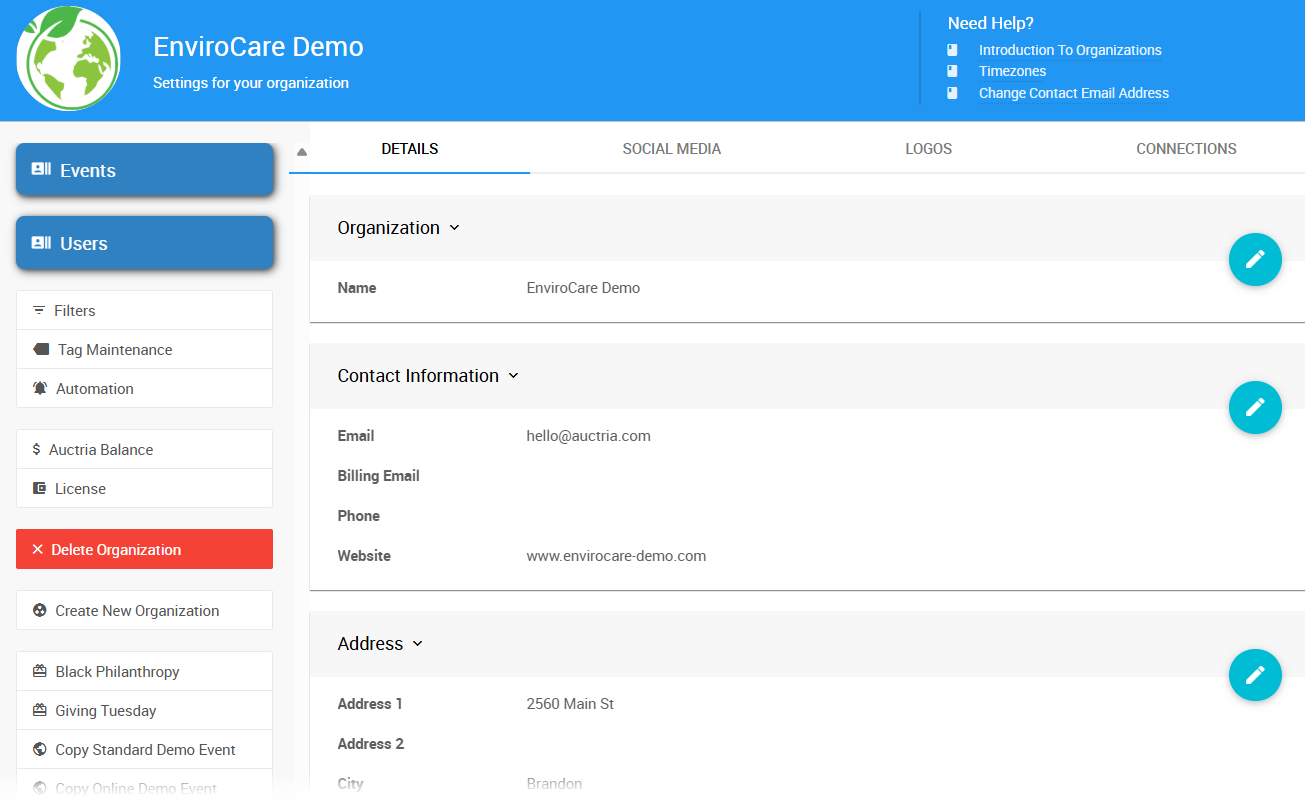
An example Organization dashboard.
From here, you can add new events, manage users, upload logos, adjust settings, and more. What you can see and do depends on your user permissions.
Organization Details
When you open the Organization dashboard, you'll see the Details tab first. This is where you manage your Organization's basic information.
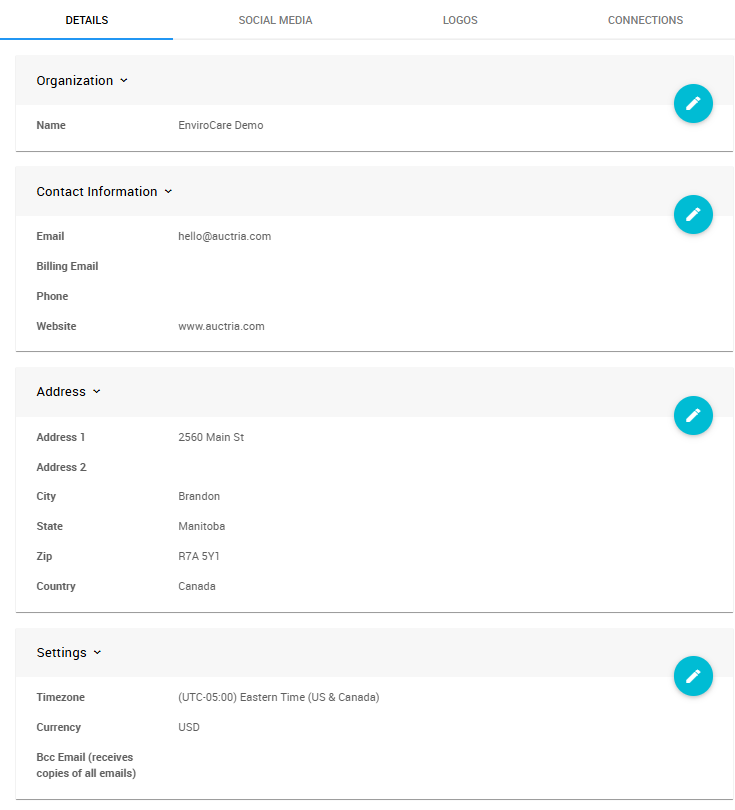
The Organization Details tab.
Basic Information
Organization Name
The name that identifies your Organization throughout Auctria.
Contact Email
Your primary contact email address. This will appear on various pages and forms, so make sure it's an address you check regularly.
Billing Email
If you want billing and license renewal notices sent to a different address (like your treasurer or finance team), enter it here. Otherwise, billing emails will go to your primary contact email.
Phone
A contact phone number for your Organization.
Website
Your Organization's website URL, if you have one.
Multiple Organization Email Addresses
Email addresses must be valid and properly formatted. Only enter one email address per field—multiple addresses will cause issues when sending emails.
Physical Address
Enter your Organization's address here. This is especially important if you use text messaging, as it should be your Organization's legal registration address.
Address and Advanced Texting
This address is shared with the Advanced Texting Profile and will appear in both places.
Settings
Timezone
Select the timezone where your events typically take place. This ensures times display correctly for you and your participants.
Currency
Choose your default currency. This will apply to all events unless you change it at the event level.
Bcc Email (receives copies of all emails)
Want someone to receive copies of all emails Auctria sends? Enter their email address here. (Note: This won't include emails containing proxy bid information for security reasons.)
Social Media Links
Use the Social Media tab to add your Organization's social media accounts. These links will appear on your event websites and in email footers.
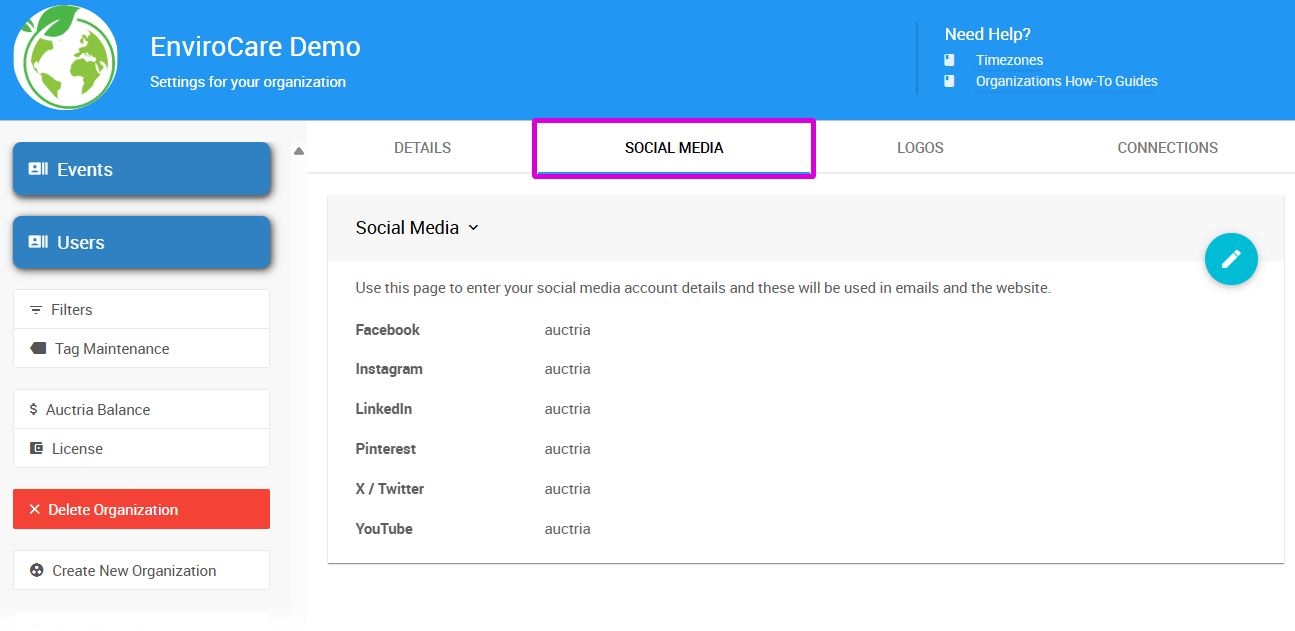
Adding social media handles to your Organization.
Social Media Account Entry
You typically only need to enter your username or profile ID—not the full URL. Auctria will automatically create the complete link for you.
Supported platforms:
- X (formerly Twitter)
- YouTube
Organization Logos
The Logos tab is where you upload your Organization's logo. This logo will be available to all your events and serves as a fallback if an event doesn't have its own logo set.
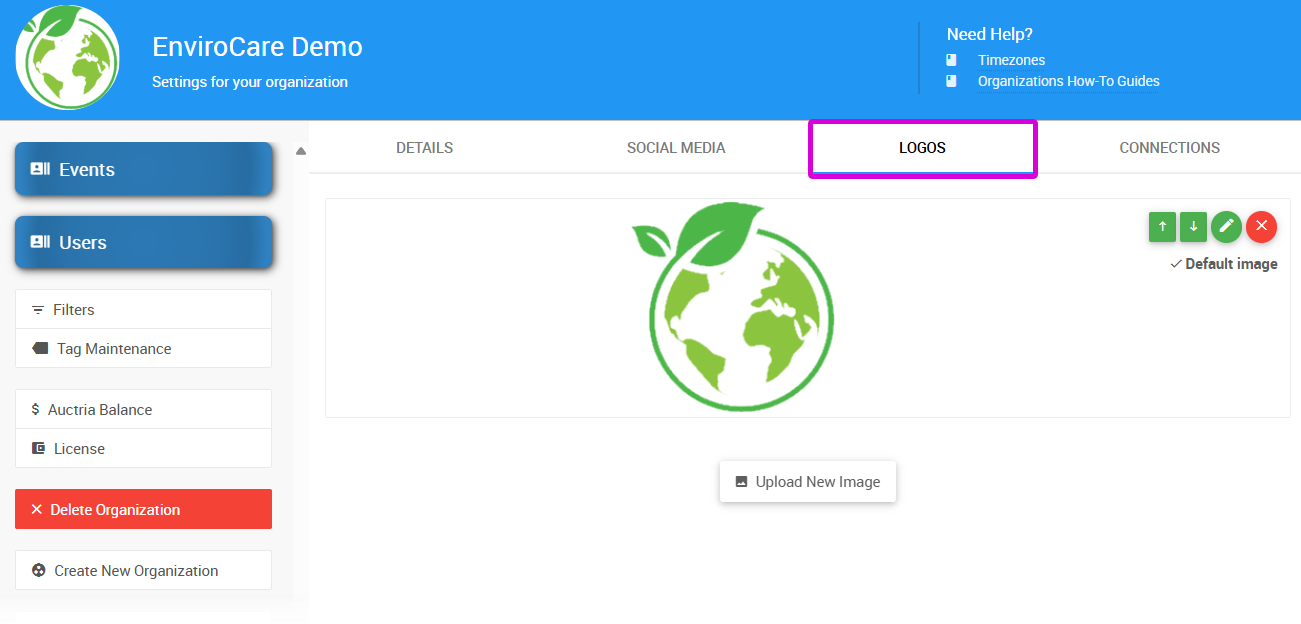
Upload and manage Organization logos.
Organization Logos and Event Logos
Your organization logo and event logo can be uploaded and edited separately.
Uploading A Logo
Click the Logos tab, then click Upload New Image to add a logo.
Image Requirements:
- File size: Less than 1MB
- Accepted formats: PNG, JPG, GIF
- Recommended width:
- Full-width images: ~1200px
- Half-width images: ~600px
- Background images: up to 1600px
See Adding And Modifying Images for more guidance on working with images.
Connections
The Connections tab shows the status of your Organization's integrations and settings.
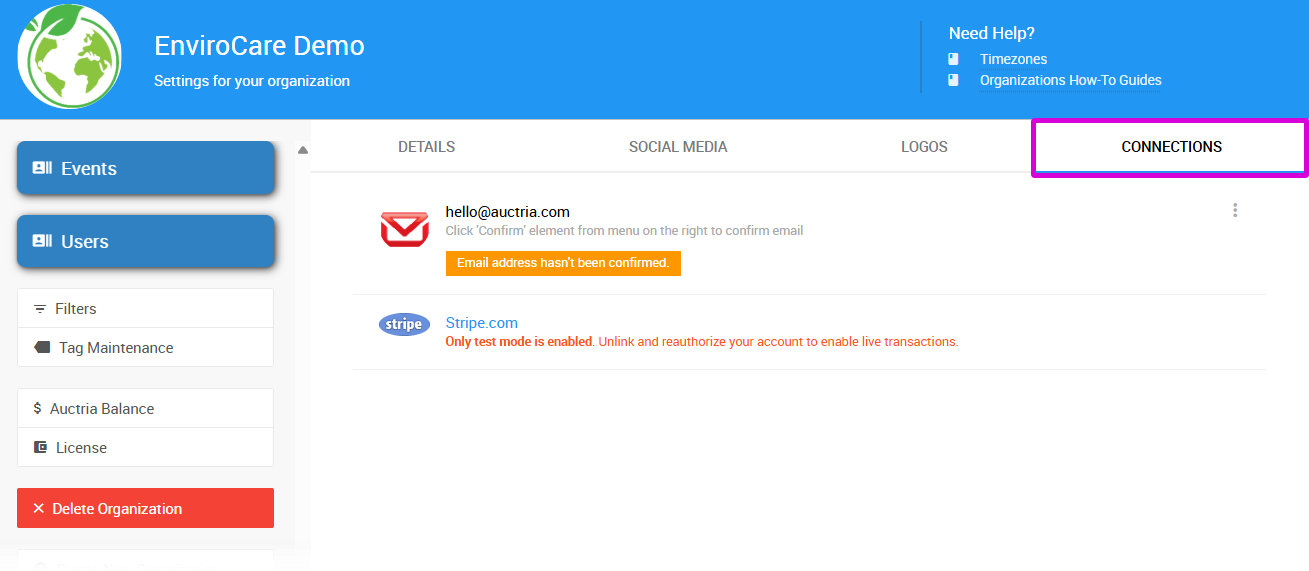
View your Organization's connections and integrations.
Here you can check:
- Email address verification status
- Payment processor connections (like Stripe.com)
- Other third-party integrations
Managing Users & Permissions
Your Organization can have multiple users, each with different permission levels. For example, you might give full access to your executive director but limit volunteers to specific tasks.
A single user can also belong to multiple Organizations, making it easy for consultants or volunteers who help several groups.
See User Accounts for details on setting up and managing team members.
License & Billing
Your Auctria license is connected to your Organization, not to individual events or user accounts. This means one license covers all events your Organization runs.
Viewing License Details
Click the License button on the Organization dashboard to:
- View your current plan and features
- See renewal dates
- Compare different Auctria editions
- Upgrade or renew your license
License Purchase is Connected to Your Organization
The license applies at the Organization level. It's not tied to a specific user's email address.
See Auctria License for more information.
Upgrading Your Subscription
If you're not on the Diamond Plan and want access to more features, you can upgrade anytime:
- Click License on the Organization dashboard
- Click Upgrade Now
- Select your new plan and complete checkout
See Upgrade License for step-by-step instructions.
Quick Actions
The Organization dashboard includes several helpful shortcuts:
Event Management
- Add Event – Create a new event for your Organization
- All Events – View all your Organization's events
Resources & Settings
- Add Logo – Upload a new Organization logo
- Tag Maintenance – Manage custom tags
- Users – Manage team members and permissions
Billing & Account
- Auctria Balance – View processing fees (for Authorize.Net users)
- License – Manage your subscription
Organization Management
- Create New Organization – Start a new Organization
- Delete Organization – Permanently remove the current Organization (requires confirmation)
Special Features
Black Philanthropy and Giving Tuesday
Access the Black Philanthropy and Giving Tuesday dashboards to set up dedicated special donation pages for these annual giving events.
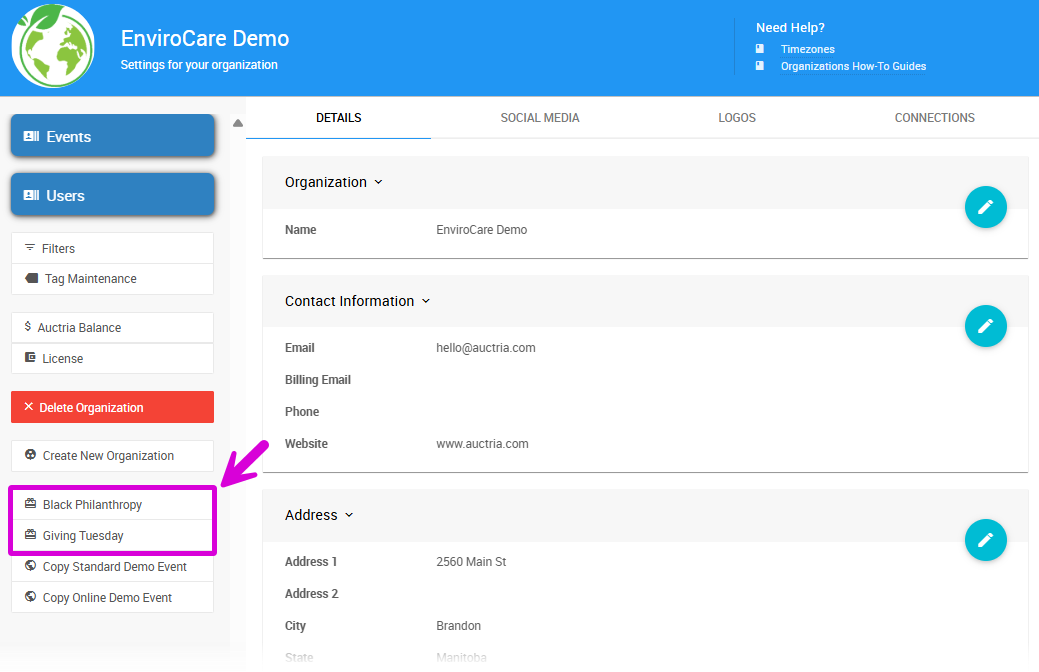
The Black Philanthropy and Giving Tuesday buttons on the Organizations page.
See Adding Purpose-Built Pages for more details.
Demo Events
Want to explore Auctria with sample data? You can copy one of our demo events to see how everything works:
- Copy Standard Demo Event
Creates a new event populated with sample items and participants from our standard in-person auction demo. - Copy Online Demo Event
Creates a new event with sample data from our online auction demo.
Both options create a new event titled with the demo name and copy date (e.g., "EnviroCare Spring Fundraiser (copied 14-Jan-2026)").
See Demo Auction for more information.
Next Steps
Now that you understand Organizations, you might want to:
- Set up your team: User Accounts
- Create your first event: How To Add A New Event
- Review what your plan includes: Auctria License