
Learn how Visibility Conditions control whether an element appears in an email.
Visibility Is an Advanced Feature
Using the Visibility property for an element is an advanced feature when Editing Emails. It gives you a lot of control over what appears in your email, so try it out and use the preview to make sure your email looks the way you expect.
Visibility Conditions use simple logic to decide whether an element appears in your email. You'll see them while editing an email, marked by an eye icon at the right side of the element.
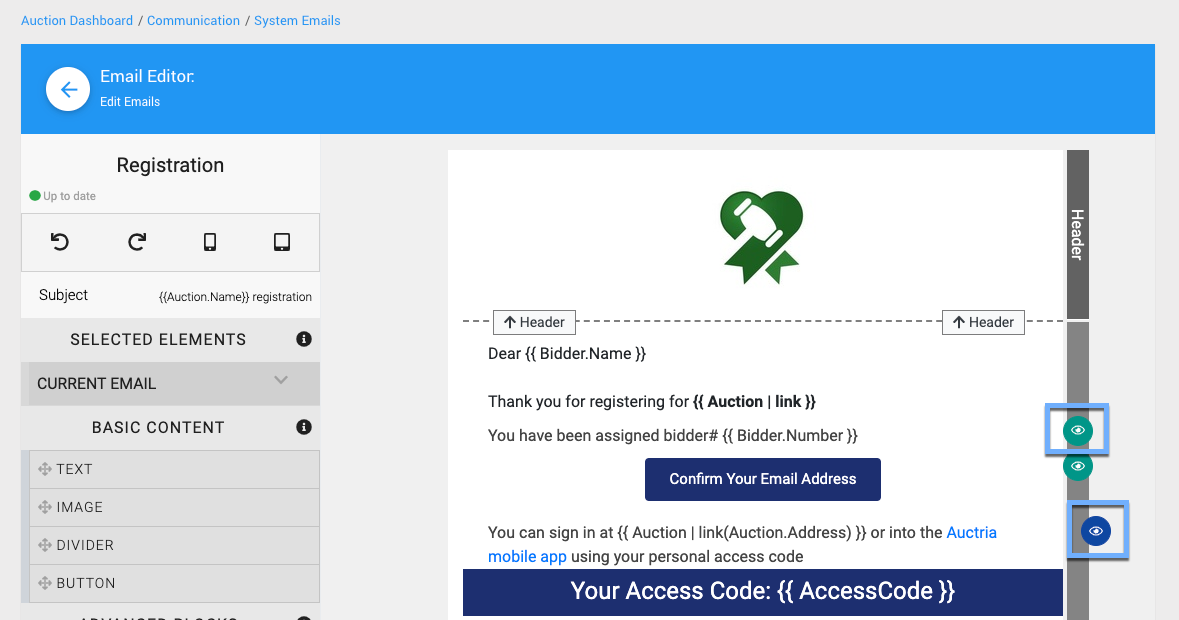
An example email showing the visibility icons in edit mode.
For website content, see Website Element Visibility under Add Behavior.
The Visibility flag (eye icon) is color-coded:
| Icon Color | What It Means |
|---|---|
| Green | The condition is editable. You can change the condition statement as needed. |
| Blue | The platform sets the condition, so you can't edit it directly. Hover over the icon to see the condition being used. |

An example showing the visibility condition when hovering over a blue eye icon.
Condition Statements
A Condition Statement works like an if statement. Auctria checks the condition, and the result is either true or false. If it's true, the element is shown.
Here are a few examples of how conditions read:
| Condition | The Element Is Shown When... |
|---|---|
HasTickets | The bidder has a ticket. |
!HasTickets | The bidder does not have a ticket. |
variable_name === 0 | The variable equals 0. |
HasTickets && HasBalance | The bidder has a ticket and has a balance. |
Variable Only Test
A Variable Only Test checks whether a variable has a value. The value itself doesn't matter, only that it isn't null (no value). If the variable has a value, the test returns true and the element is displayed.
Example: Variable Only Test
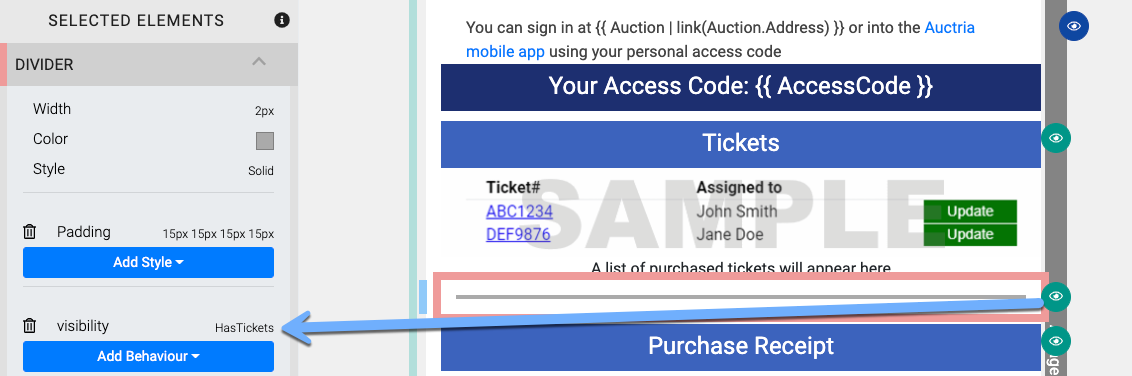
An example Visibility condition on a Divider element in the Bidder registration/purchase receipt system email.
The screen snippet above was taken from the Bidder registration/purchase receipt System Emails. The conditional test displays the Divider element on the page.
The HasTickets variable in this example tests a simple true/false condition: Does the bidder have a ticket? If the answer is yes, the Divider element is displayed. If the answer is no, the Divider element is not displayed.
Tickets and Dividers Aren't Connected
Tickets and Dividers have no specific connection. This example just shows that you can test a variable like HasTickets to control whether any element is displayed.
Test For False
By default, a condition tests for true. To test for false, put the logical not symbol ! (an exclamation mark) in front of the code-base variable. For example, !HasTickets displays the element if the bidder does not have a ticket for the event.
Variable Value Test
A Variable Value Test compares a variable to a specific value. Write the condition so it resolves to true or false. For example, to test whether a variable is 0, write variable_name === 0 or variable_name == '0', where variable_name is an accepted code-base variable (see Code-base Variables).
What do === and == mean?
===(strict equality) istrueonly when both values are equal and the same type.==(equality) istruewhen both values are equal after being converted to the same type.
For example, 0 === '0' is false, but 0 == '0' is true.
For more detail, see these MDN web docs:
Test Multiple Variables
To test more than one variable in the same condition statement, join the code-base variables with the logical and operator, && (two ampersand symbols). For example, HasTickets && HasBalance is true only when both variables are true.
Other Logic Operators
You can combine most programming logic operators with Visibility Conditions as needed.
Code-base Variables
These Code-base Variables are commonly used in Visibility Conditions, grouped by the type of email.
Bidder Emails
!HasActivityHasActivityHasBalance!HasBalanceHasDonationsHasItemsWonHasPaymentsHasPurchasesHasTicketsHasTokenNotifyBidderNumberShowPaymentLink && Token.UrlShowTaxDeductible && TaxDeductibleAmount
Sponsorship Related Emails
| Variable | Description |
|---|---|
HasSponsorshipItems | Is there a purchased sponsorship item? |
SponsorshipPurchases | A list of all sponsorships. |
Sponsorship | The first sponsorship purchased (only one). |
Online Bidding Emails
Auction.Options.IncludeItemImagesBidding(used for block visibility)HasProxyBidHasToken!Item.MultipleWinnersItem.MultipleWinners
System Notifications
CommentsCouponsHasPurchasesHasTickets!Item.MultipleWinnersItem.MultipleWinners
Ticket Emails
NotifyBidderNumber
Other
BidTotalBalanceDiscountAppliedDonation(which is any cash donation included)