
You can record your event Live Auction bids on its page view. This will give you an overview of that page.
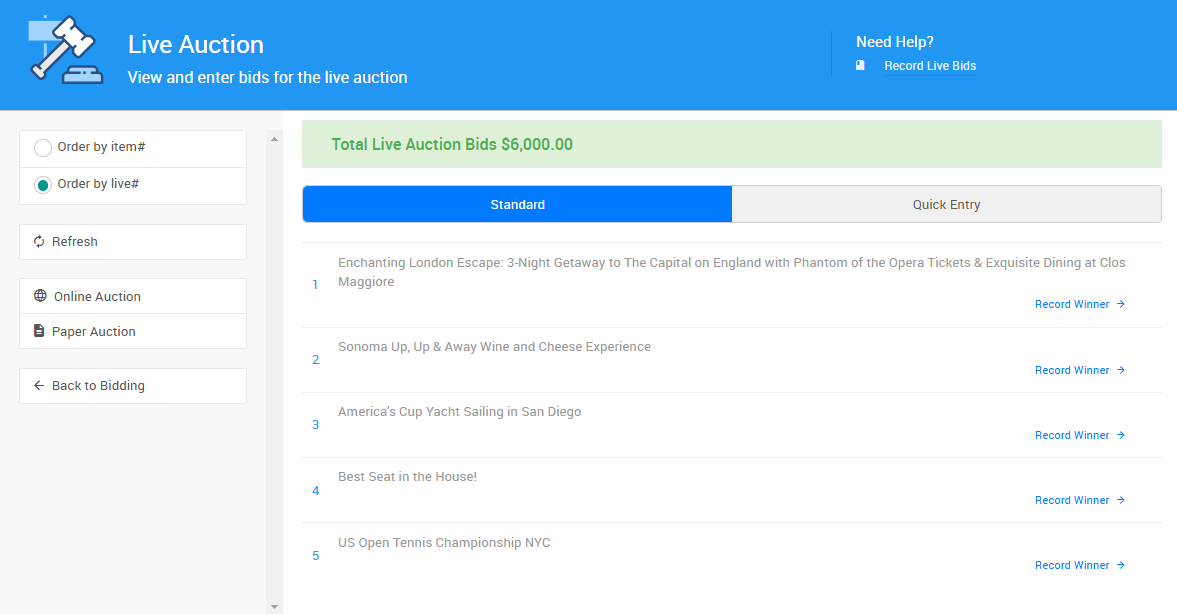
An example from a demonstration event.
Getting Where You Need To Be
To get to the Live Auction bid recording page from the main event dashboard, click under Actions Bidding Live Auction. This will open the Live Auction page.
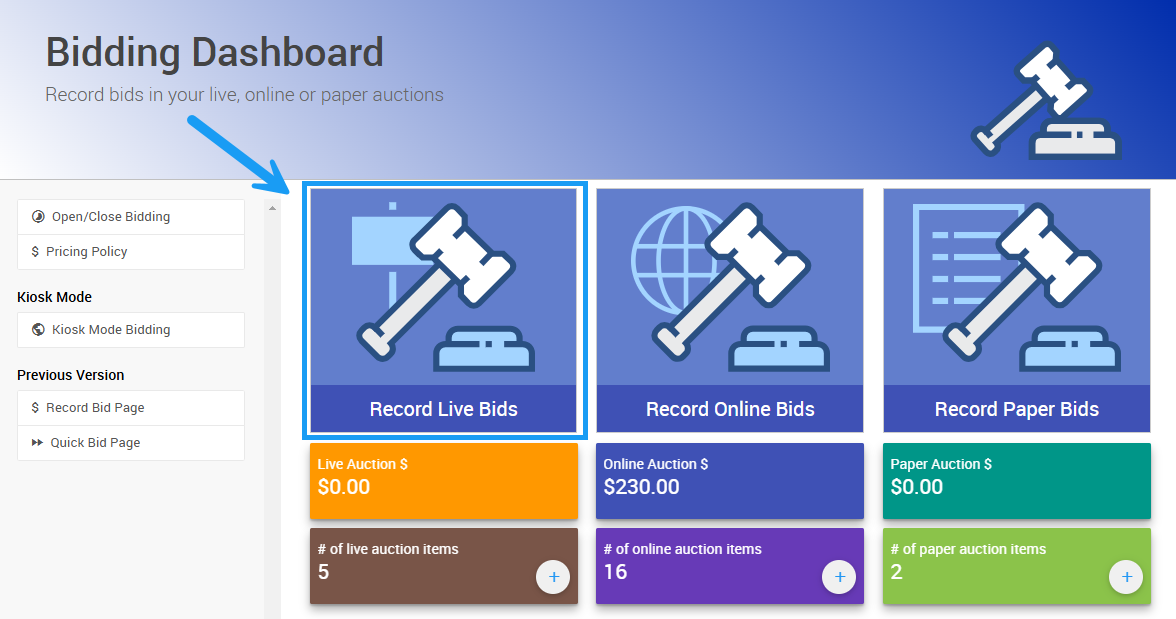
An example from a demonstration event.
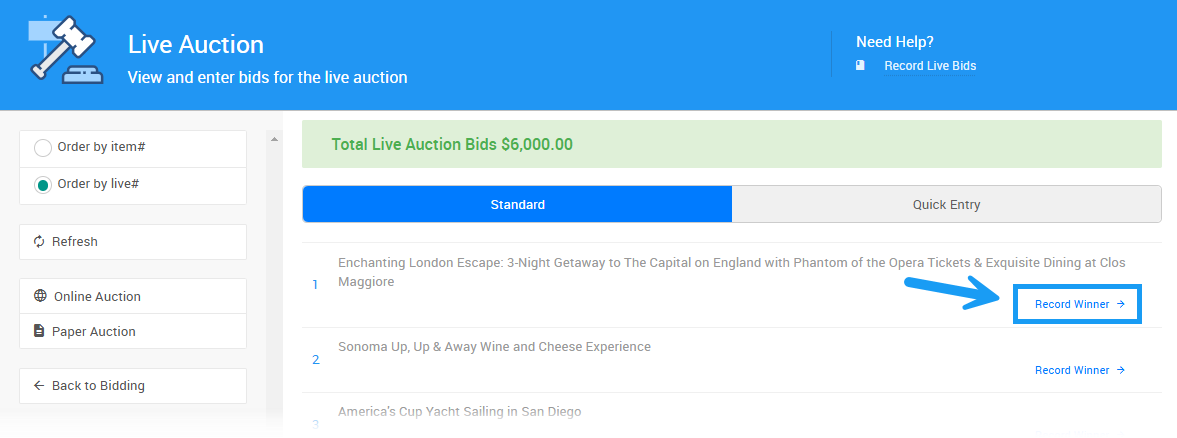
Record Winner
Clicking on the Record Winner link beside the Live Bidding type item will open the Record Live Bid window.
An example from a demonstration event.
Here, you can select your participant and the amount of their winning bid. Fill in the details and click Record Bid to save the final bid.
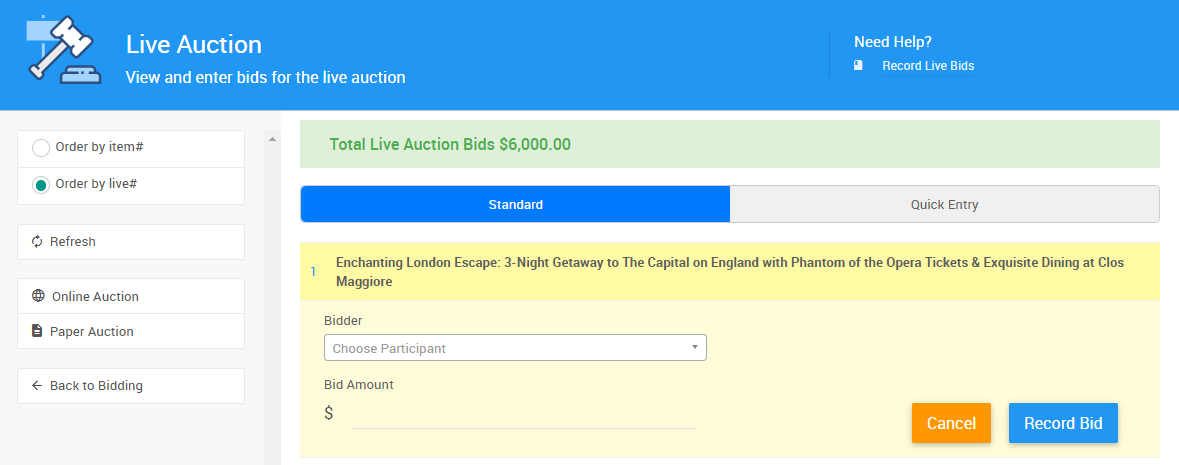
An example from a demonstration event.
A Final Bid is the winning bid recorded for Paper Bidding and Live Bidding type items. Unlike online bidding — where the winning bid is determined automatically when bidding closes — final bids for paper and live items are entered manually by the organizer.
See Record Paper Bids and Record Live Bids for more details.
Record Another Winner
If your Live Auction item has multiple winners, you can add another winner by clicking Record Another Winner beneath the previous winner on the preferred item.
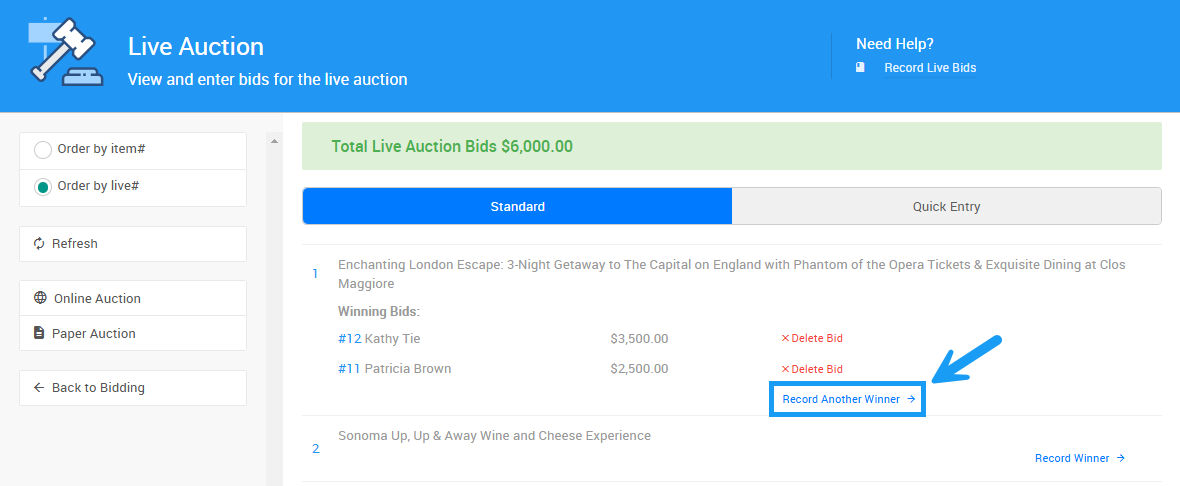
An example from a demonstration event.
Live Auction Quick Entry
You can use the Quick Entry tab to quickly record Live Auction bids by entering the guest's Paddle# and the bid amount in the appropriate fields, then clicking Record Bid. This view can be particularly helpful if you have a list of winning bids that you need to enter into the system all at once.
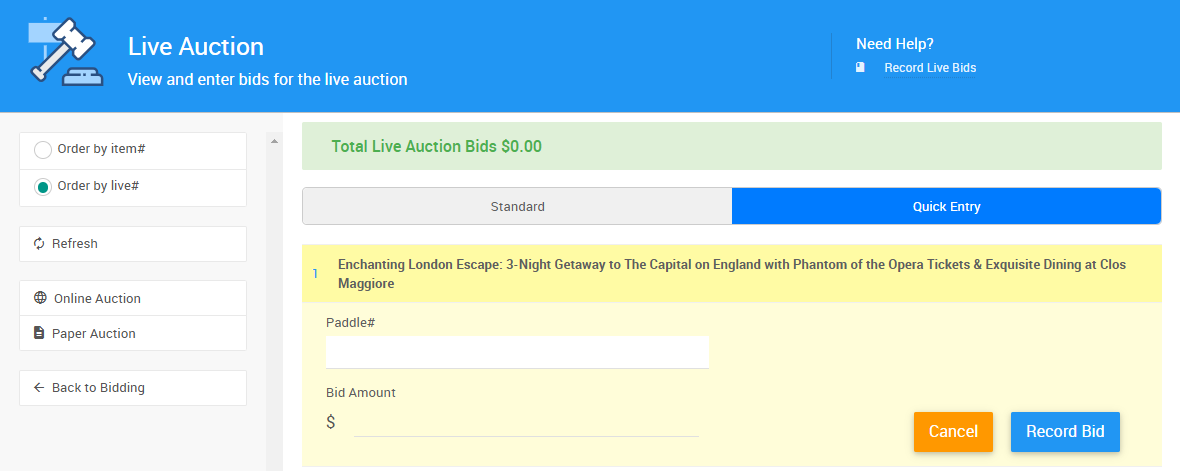
An example from a demonstration event.