
Learn how to create a new Raffle in Auctria, including adding raffle details, tickets, and prizes during setup.
Add Your First Raffle
Open the Raffles dashboard by clicking Raffles in the left sidebar under Details.
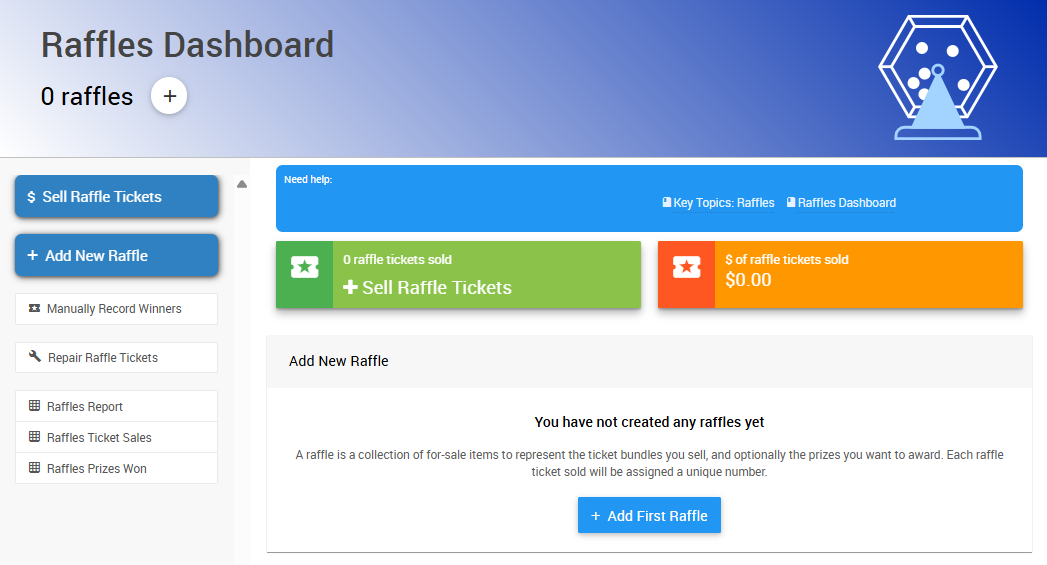
An example from a demonstration event.
Steps
- Click Raffles in the left sidebar (under Details).
- Click Add First Raffle in the center of the dashboard.
- Enter a name for the raffle in the Name field.
- If you have a maximum number of raffle tickets available, enter that amount in the Max Tickets field.
- To add a prize, click Add Prize Item in the Prize Items section.
- Enter the prize details in the Title, Description, and Value fields as needed.
- In the Ticket Items section, enter the price of a single raffle ticket in the Price field. A first raffle ticket is automatically generated when you create a new raffle.
- Click Add Raffle to add your new raffle to the event.
Need more tickets or prizes later?
See Add Raffle Tickets and Prizes to add additional ticket items or prizes to a raffle after it's created.
Adding Multiple Raffles
You can run multiple raffles at once. To add another raffle to your event, click Add New Raffle on the Raffles dashboard.
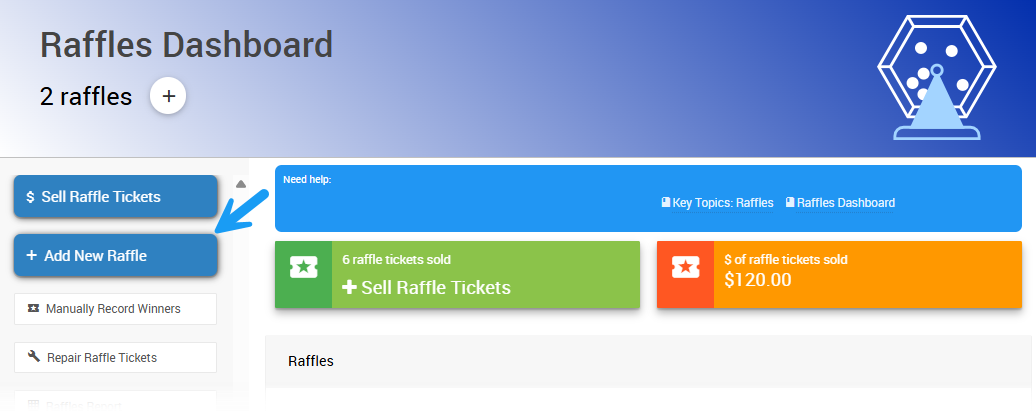
An example from a demonstration event.
Raffle Details
You can see all the raffles for your event on the Raffles dashboard.
Click the raffle's name, or the pencil icon to the right, to open its detailed view.
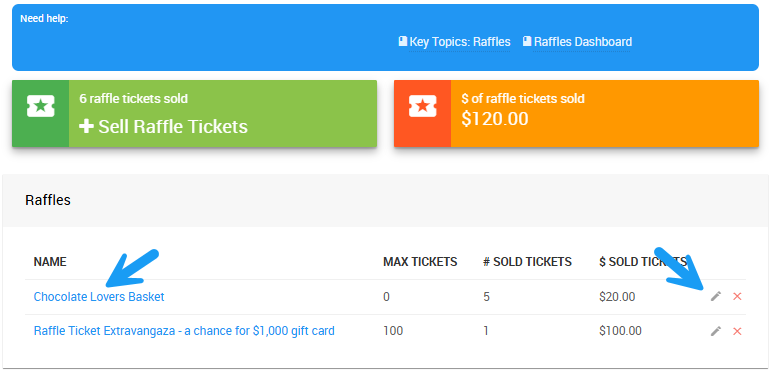
An example from a demonstration event.
Here you can see a summary of the raffle, along with its tickets, prizes, and transaction history. You can also add new tickets and prizes from this page — see Add Raffle Tickets and Prizes for the steps.
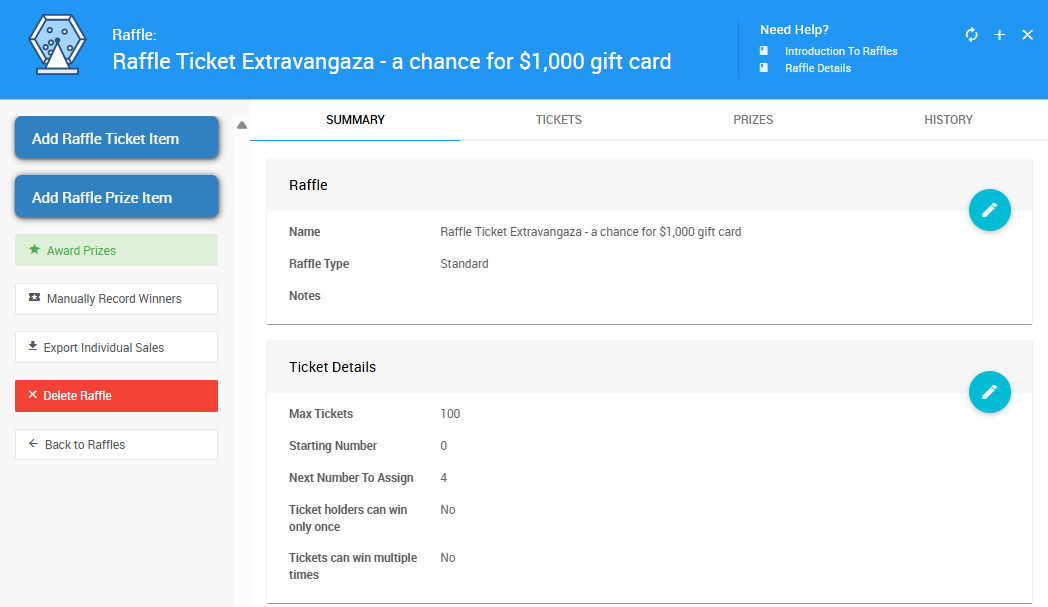
An example Raffle Details page from a demonstration event.
Ready to run your raffle on event night? See Running Raffles for more details.