
Auctria's reports show you the information you need about your event in real time, as lists you can filter, sort, customize and export.
Reports let you track and analyze everything in your event database. Each report uses the latest data entered for your event.
Opening Reports
Click Reports in the event dashboard sidebar, under Explore. The Reports page opens on the Item tab.
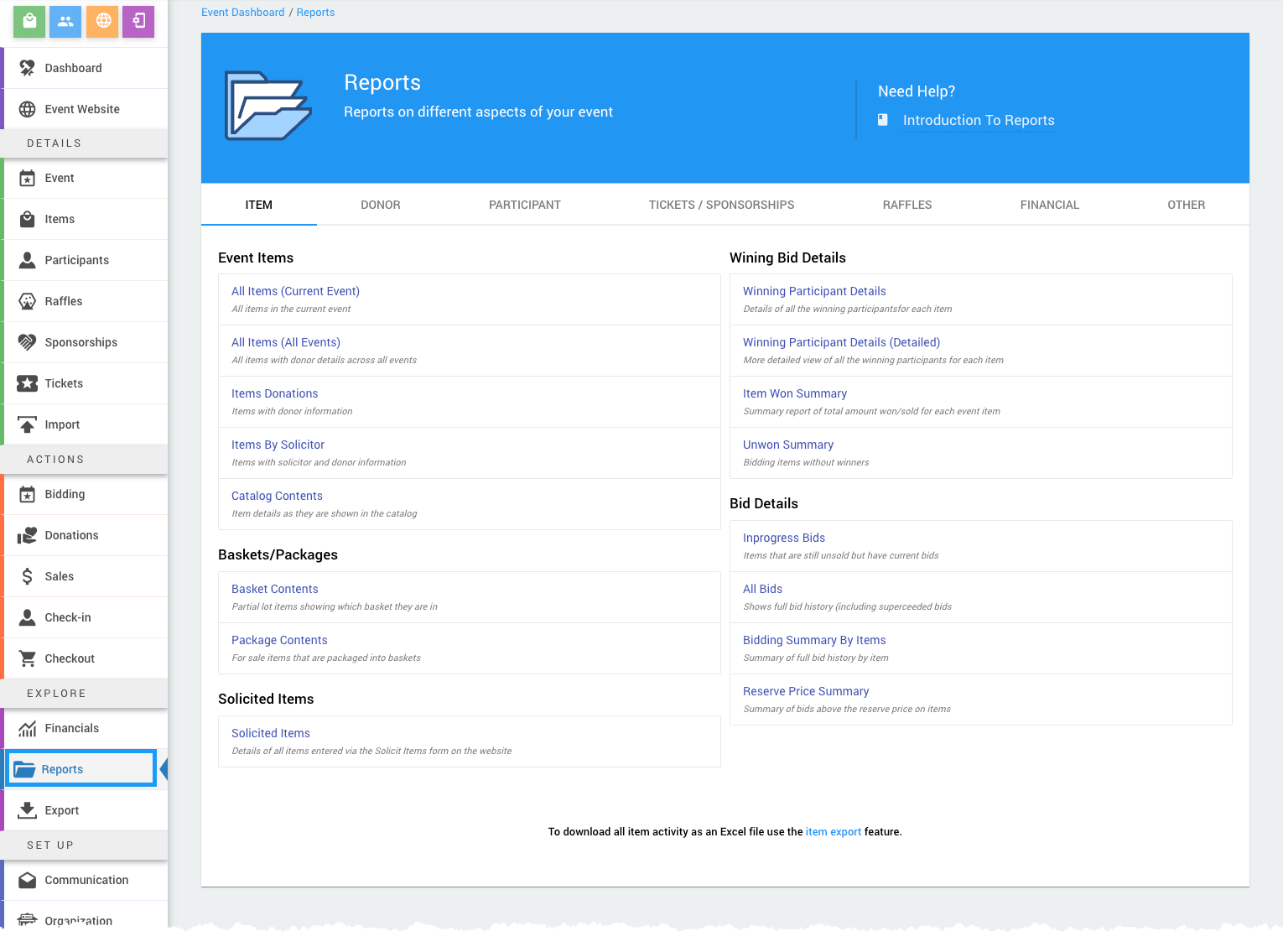
The Reports page from a demonstration event.
The Need Help? link at the top of the Reports page opens this page.
Report Tabs
Reports are grouped into tabs. Click a tab to see its reports, then click a report's name to open it.
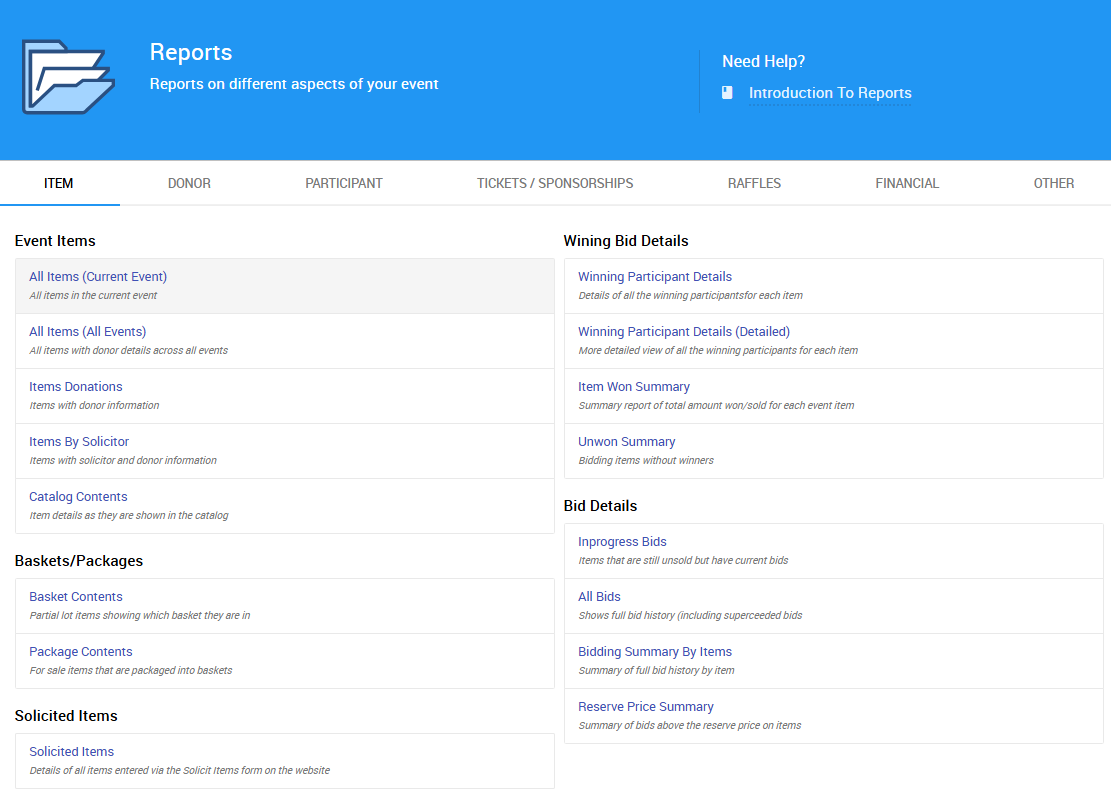
The Item tab from a demonstration event.
| Tab | What It Covers |
|---|---|
| Item | Event items, baskets and packages, solicited items, winning bids and bid history. See Item Reports. |
| Donor | Item donors, their donations and solicitors. See Donor Reports. |
| Participant | Participants, meal choices, seating, won items, accounts and text messages. See Participant Reports. |
| Tickets / Sponsorships | Ticket and sponsorship items, sales and tickets issued. See Tickets And Sponsorships Reports. |
| Raffles | Raffles, raffle ticket sales and prizes. See Raffles Reports. |
| Financial | Accounts, payments, credit cards, sales tax, expenses and income. See Financial Reports. |
| Other | Events and audit reports. See Other Reports. |
Participant or Bidder
Some report names and headings follow your event's wording settings, so you may see Bidder where this guide says Participant.
Working With Reports
Every report opens as a list of records, with a toolbar and drop-down selectors at the top. Use them to search, filter, choose columns, save views and export.
See Report Configuration.
Bulk Editing And Mass Changes
From a report, you can change a field, add or remove tags, or delete records for many records at once.