
Learn what the Website Locked message means, why it happens, and how to resolve it so you can keep editing your event website smoothly.
When you open the Website Editor while other User Accounts also have editing access, you might see a Website Locked message. This is a built-in safety feature that prevents two people from editing the website at the same time.
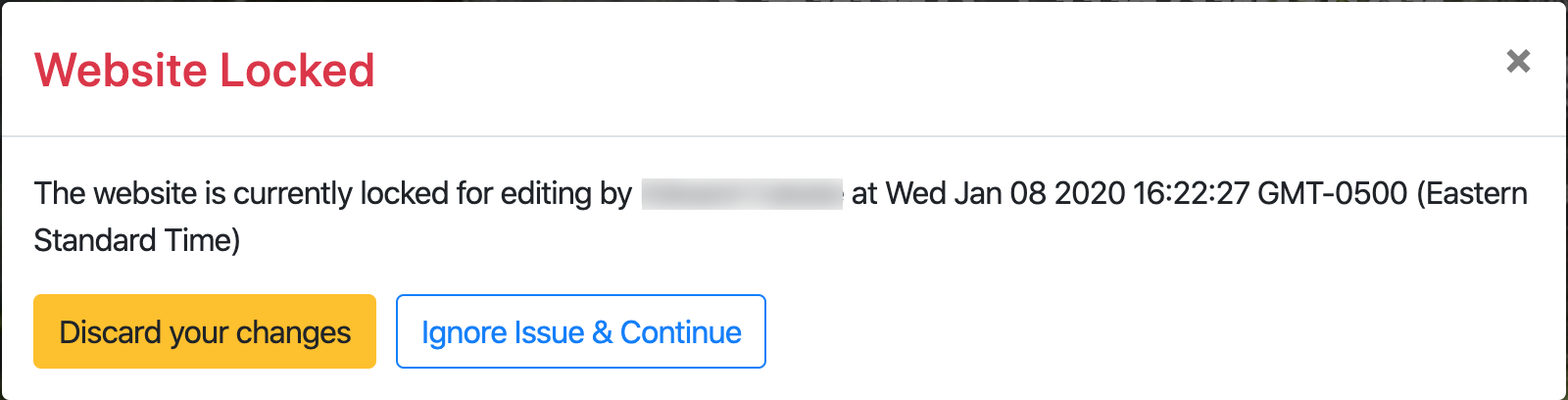
An example from a demonstration event.
The message will show the name of the user currently editing and remain visible for up to 15 minutes from the timestamp shown.
Why Does This Happen?
Website locking can occur when:
- Another user is editing the site at the same time.
- You have multiple browser tabs open with the Website Editor.
- You closed a tab without properly exiting the editor first.
The lock is tied to a specific browser tab. If you open a new tab, the system still considers the original tab to be in an active editing session.
What Are My Options?
When the message appears, you have two options:
- Discard Changes — Exit the editor and return to the page view.
- Ignore Issue & Continue — Keep editing, even though another session may still be active.
Best Practices
- Always use the same browser tab when editing.
- Exit the editor properly before opening another session.
Release the edit lock
If you need to clear a lock, click Release Edit Lock in the Website Editor Sidebar. This switches the current tab out of edit mode and releases the lock for other users.

An example from a demonstration event.