
Learn how to rename, merge, and delete tags across all events in your organization.
The Tag Maintenance page helps you keep your tags organized. Use it to clean up old tags, combine similar tags, or remove tags you no longer need.
Changes Apply to Every Event
Tag Maintenance changes apply to all events in your organization, not just one.
Opening Tag Maintenance
- Click Organization in the left sidebar.
- Click Tag Maintenance in the organization sidebar.
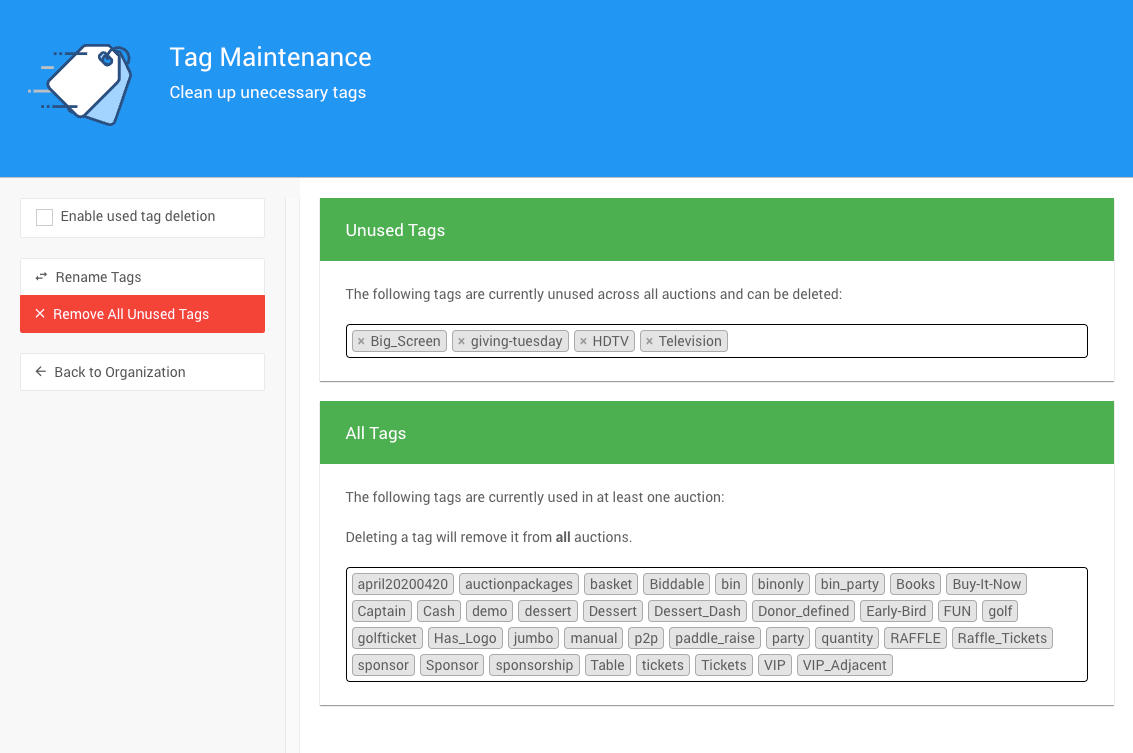
An example Tag Maintenance page.
Tag Maintenance Sections
Unused Tags
Tags that exist in your organization but aren't used in any event. You can delete them without affecting any records.
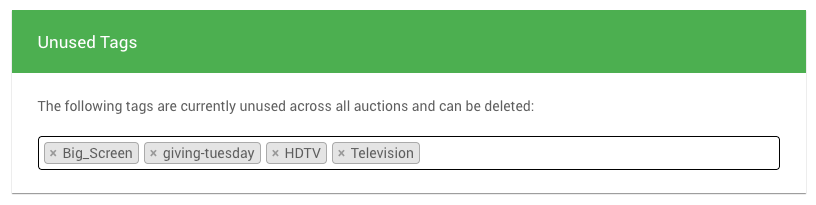
The Unused Tags section.
To delete one unused tag, click the X next to it.
All Tags
Every tag used in at least one event in your organization.
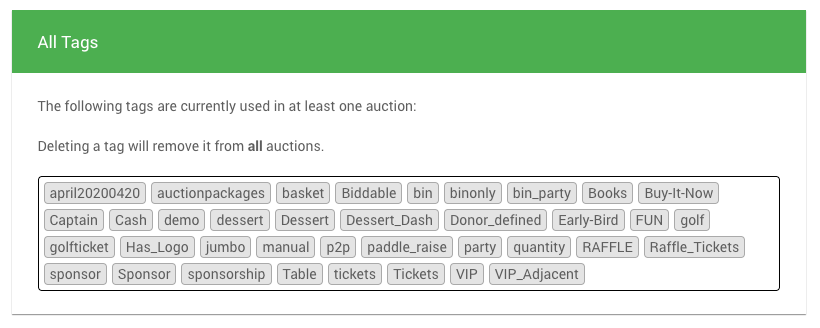
The All Tags section.
You can't delete these tags unless you turn on Enable used tag deletion (see Deleting Used Tags).
Tag Maintenance Sidebar
| Action | Description |
|---|---|
| Rename Tags | Renames one or more tags, or merges them into one. Admin-only. |
| Remove All Unused Tags | Deletes every tag in the Unused Tags section. Admin-only. |
| Enable used tag deletion | Shows an X next to each tag in All Tags so you can delete tags that are in use. |
Renaming or Merging Tags
Use Rename Tags to change a tag's name, or to combine several tags into one.
Steps
- Click Rename Tags in the sidebar.
- Under Enter one or more tags to rename, add the tags you want to rename.
- Under Enter a single tag to rename the above tags to, add the new tag.
- Click Rename Tags.
- Confirm in the Confirm Merge box.
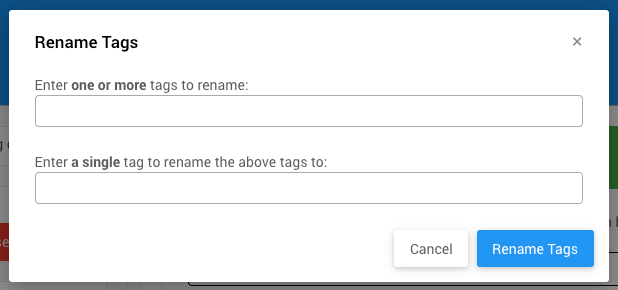
The Rename Tags window.
Both fields use the tag editor, so add each tag the same way you add tags to a record, rather than typing a comma-separated list.
Every record that had one of the old tags now has the new tag instead, in every event in your organization.
Old Tags Are Removed
The Confirm Merge box warns that all the source tags will be lost. Only the new tag remains after you confirm.
Merging Tags
Use Rename Tags to merge variations of the same tag. For example, rename both "VIP" and "vip" to "VIP" to combine them into one tag.
Deleting Used Tags
You can't delete tags that are in use unless you turn on deletion first.
- Tick Enable used tag deletion in the sidebar.
- An X appears next to each tag in All Tags.
- Click the X next to the tag you want to delete.
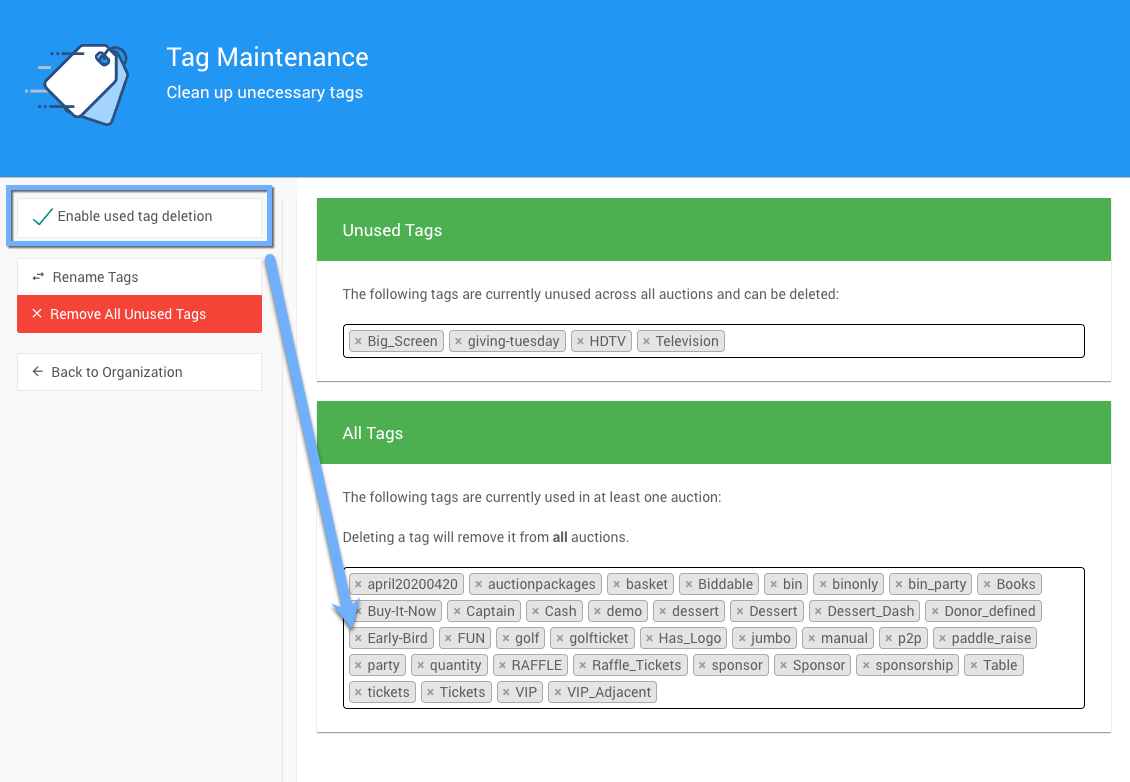
The All Tags section with Enable used tag deletion turned on.
No Confirmation
Deleting a tag removes it from every record in every event, right away. There's no confirmation, and it can't be undone.
Removing All Unused Tags
Click Remove All Unused Tags in the sidebar. Every tag in the Unused Tags section is deleted.
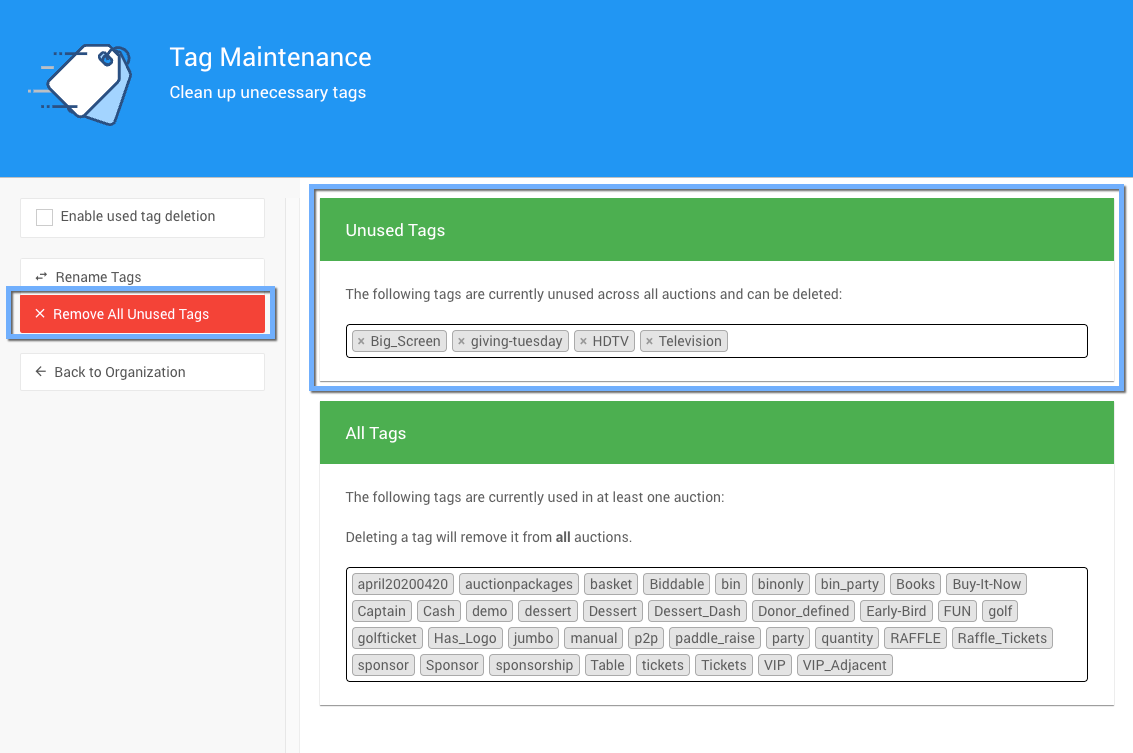
The Remove All Unused Tags option.
No Confirmation
This happens right away, with no confirmation, and can't be undone.
This is useful after an event ends, or after you've merged tags and want to remove leftovers.
Best Practices
Check before deleting. Look at what a tag is used for before you delete it, especially if it's used in several events.
Rename instead of deleting. To change a tag's name, use Rename Tags rather than deleting and recreating it, so records keep their tag.
Merge similar tags. If you have variations such as "VIP", "vip", and "V.I.P.", rename them into one tag.
Clean up regularly. Remove unused tags from time to time to keep your tag list manageable.