
Learn how to reopen items for online bidding after your Online Bidding Period has ended.
You might need to reopen bidding if:
- You want to offer unsold items again after bidding has ended.
- Items closed early because the wrong end time was entered.
Reopening only clears an item's "bidding closed" status. It doesn't change any times, so you need to update the end time first.
For Sale and Donation items
Opening or closing bidding doesn't affect For Sale or Donation items. To reopen them, change their end times. See For Sale And Donation Items.
Step 1: Update the Online Bidding End Time
Change the end time first. Open/Close Bidding skips any Online item whose end time has already passed.
- Go to Settings → Online Bidding.
- In the Online Bidding Period section, click the pencil icon.
- Set Online bidding end to a time in the future, and save your changes.
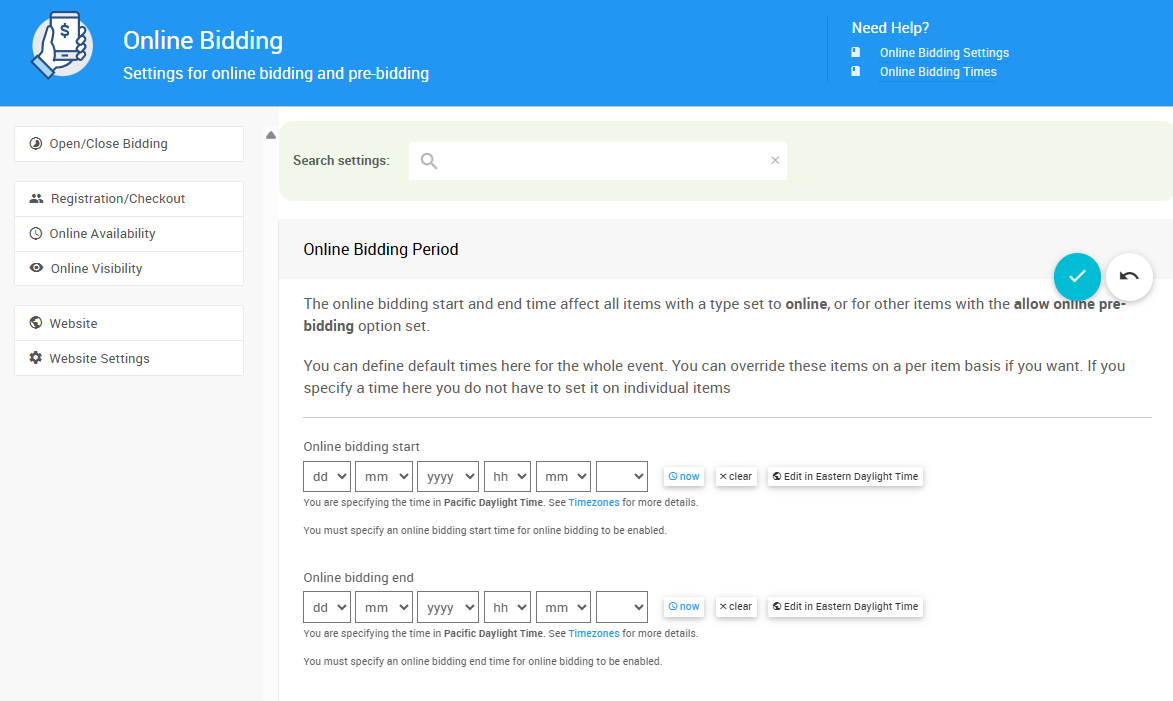
The Online Bidding Period on the Online Bidding page.
The Online Bidding Period applies to Online items, and to Paper and Live items with Participate in online bidding turned on.
Items with their own times
Items with their own override end times don't use the Online Bidding Period. Update those times in each item's Online Availability section. See Override Times On An Item.
A Paper or Live item whose online bidding time has passed can be reopened for bids you enter on the dashboard, but it stays closed online until its times are changed.
Step 2: Open the Open/Close Bidding Page
On the Online Bidding page, click Open/Close Bidding in the sidebar.
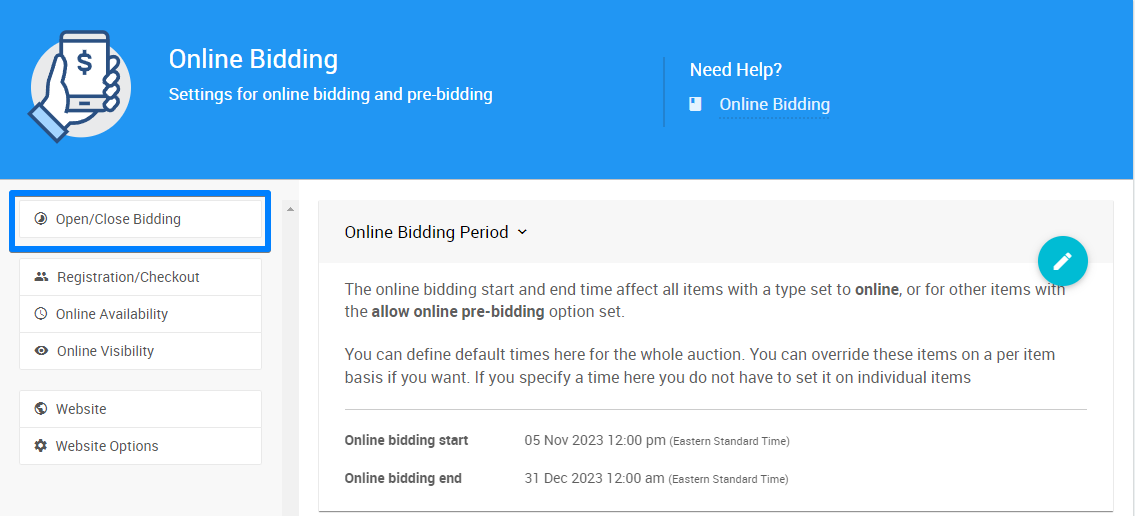
The Open/Close Bidding option on the Online Bidding page.
Step 3: Choose the Items to Reopen
Reopen Selected Items
- In the Choose Items box, choose the items you want to reopen.
- Click Open Selected Items in the sidebar. Auctria opens every item in the list.
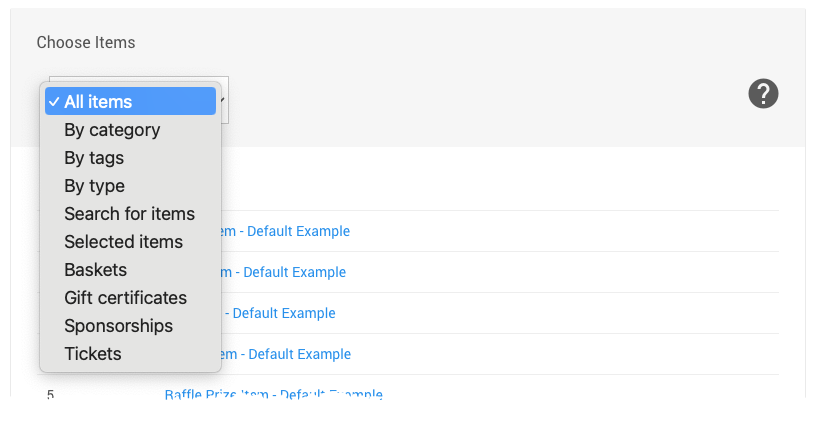
The Choose Items menu.
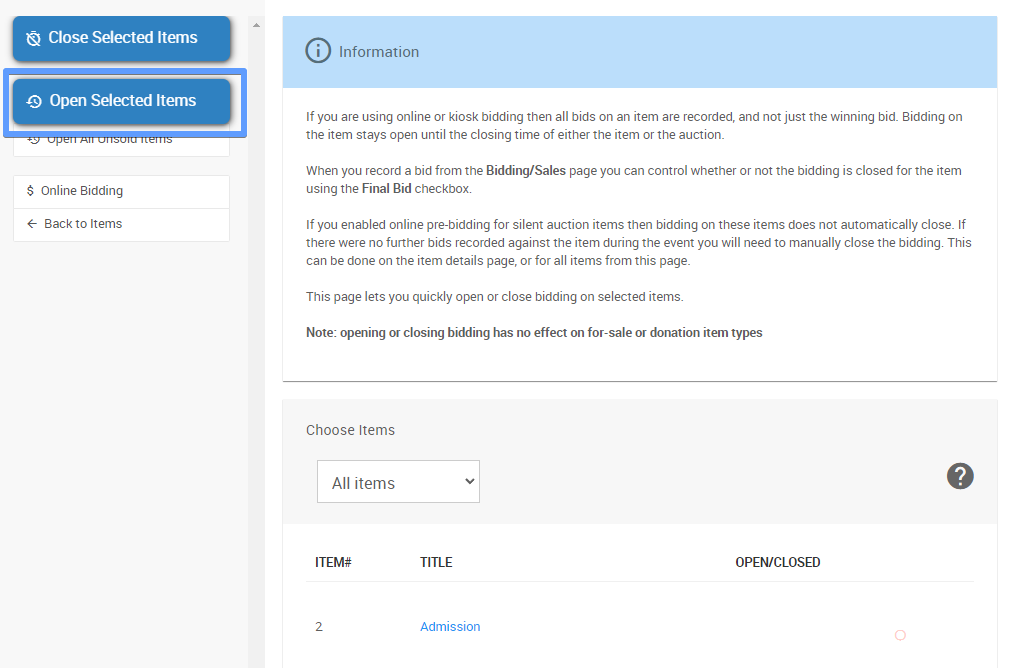
The Open Selected Items option from a demonstration event.
| Choose Items Options | |
|---|---|
| By group | All items, By category, By tags, By type |
| By search | Search for items, Selected items, Custom filter |
| By kind | Baskets, Gift certificates, Sponsorships, Tickets, Event items, Items with no bids |
Items that are sold out or already open are skipped.
Reopen All Unsold Items
To reopen every item without a winning bid, click Open All Unsold Items. This option doesn't use the Choose Items list.
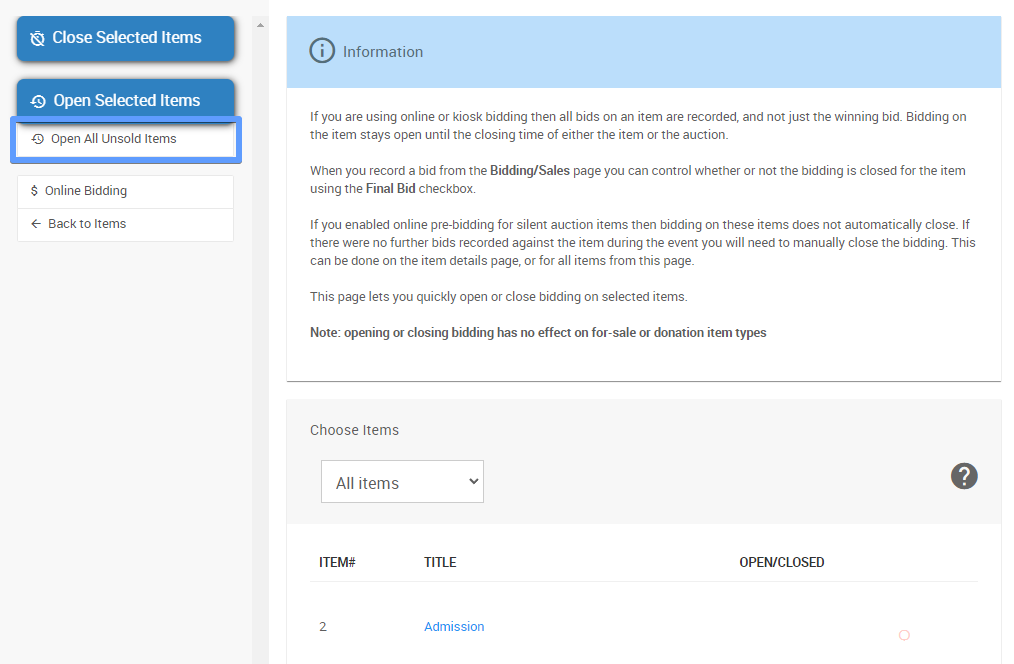
The Open All Unsold Items option on the Open/Close Bidding page.
See Open/Close Bidding for more options.