
Learn how to email your participants that have an outstanding balance.
One of the more common Communications you might send is a Participant Statement to your Participants With A Balance. Follow the steps below to send statements to the participants who still owe a balance.
Step 1: Open the Participants Dashboard
Click Participants on the left sidebar to open the Participants dashboard.
Step 2: Open Participant Statements
On the Participants page, click the Statements button under the Communication sidebar menu.
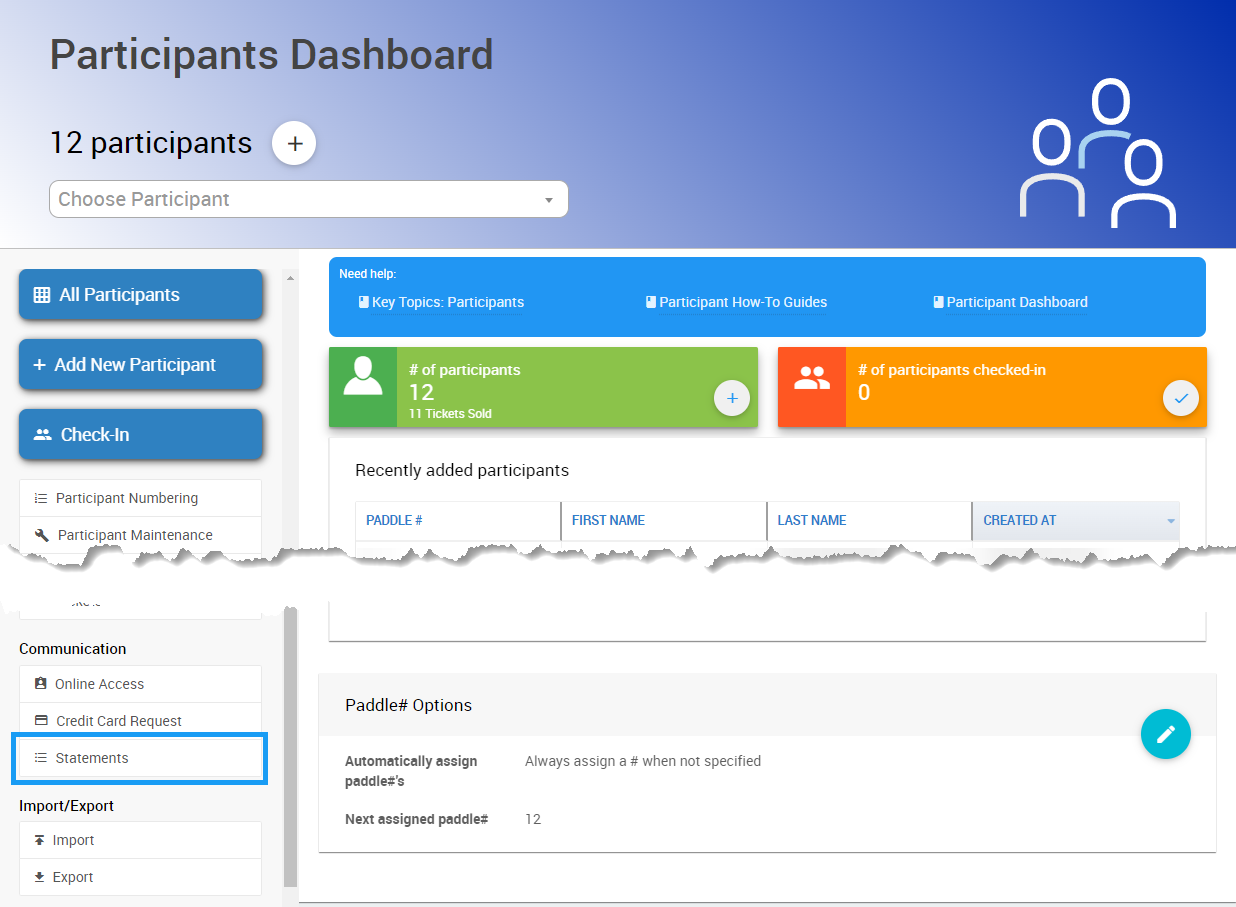
The Statements button in the Communication sidebar menu.
Step 3: Click Email Statements
On the Participant Statements page, click the Email Statements button on the left sidebar.
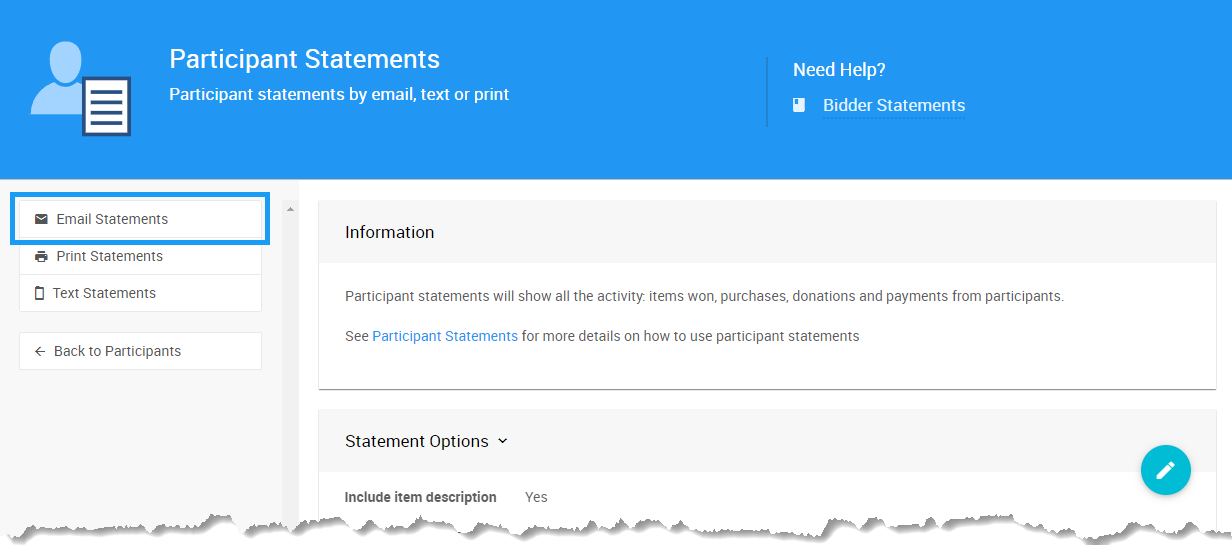
The Participant Statements page from a demonstration event.
Step 4: Set the Email Recipients
On the Statements page, click the Recipients drop-down selector to choose the filter that matches who you want to email, such as Participants With A Balance.
By default, the Recipients filter is set to Participants With Activity. The participants who will receive the email are listed below the filter.
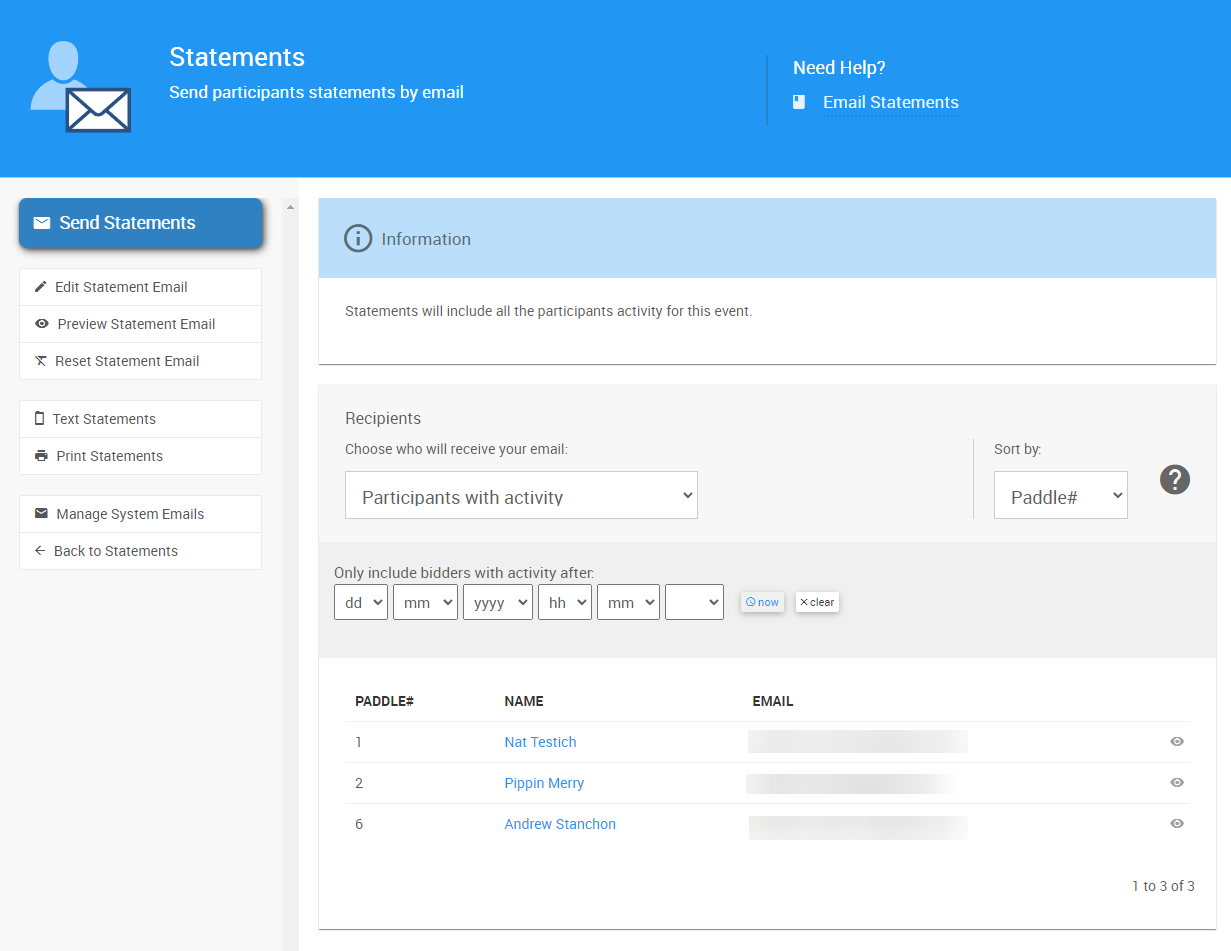
The Statements page from a demonstration event.
When you change the Recipients filter, the list of participants updates automatically.
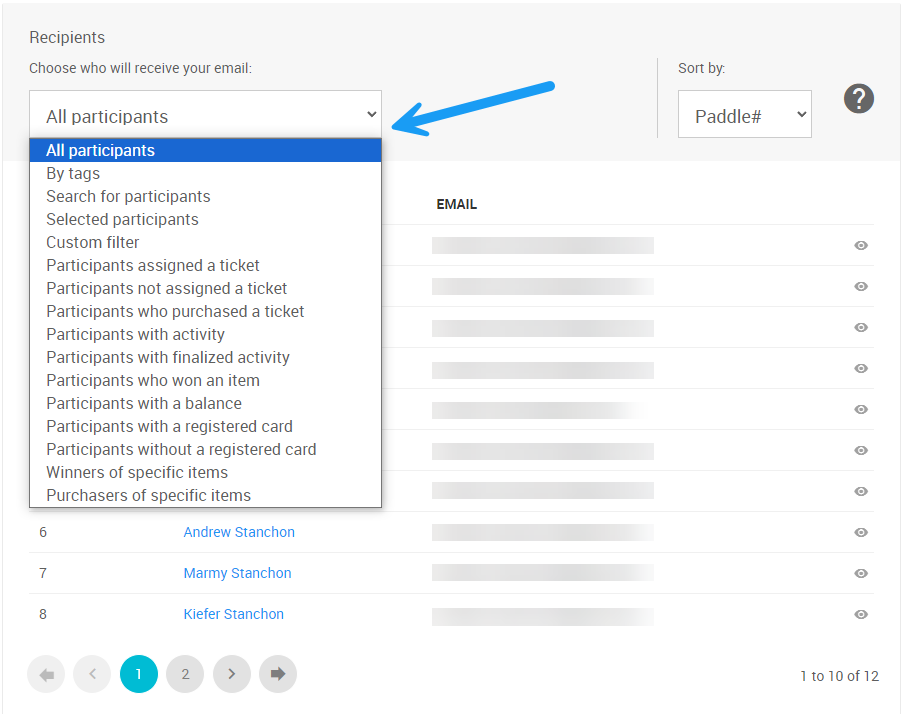
The Recipients filter from a demonstration event.
Use Recipients Filters Anywhere
The Recipients filter is used in many places. It works with other System Emails and with Custom Emails, for example, to send "Thank You" notes to your fundraiser participants. See Custom Emails for more.
Step 5: Send the Statements
Once your Recipients filter is set, click the Send Statements button under the Actions sidebar menu. A confirmation window opens and shows how many participants will be emailed.
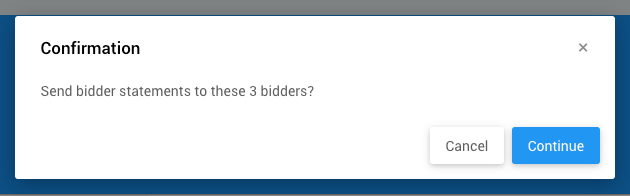
The confirmation window showing how many participants will be emailed.
Click Continue to send the email statements.
More About Statements
- See Participant Statements for more details on this specific System Email.
- See System Emails Summary for an overview of each of the System Emails.