
Assign live numbers to your Live Bidding type items to control the order they are auctioned during the live portion of your event.
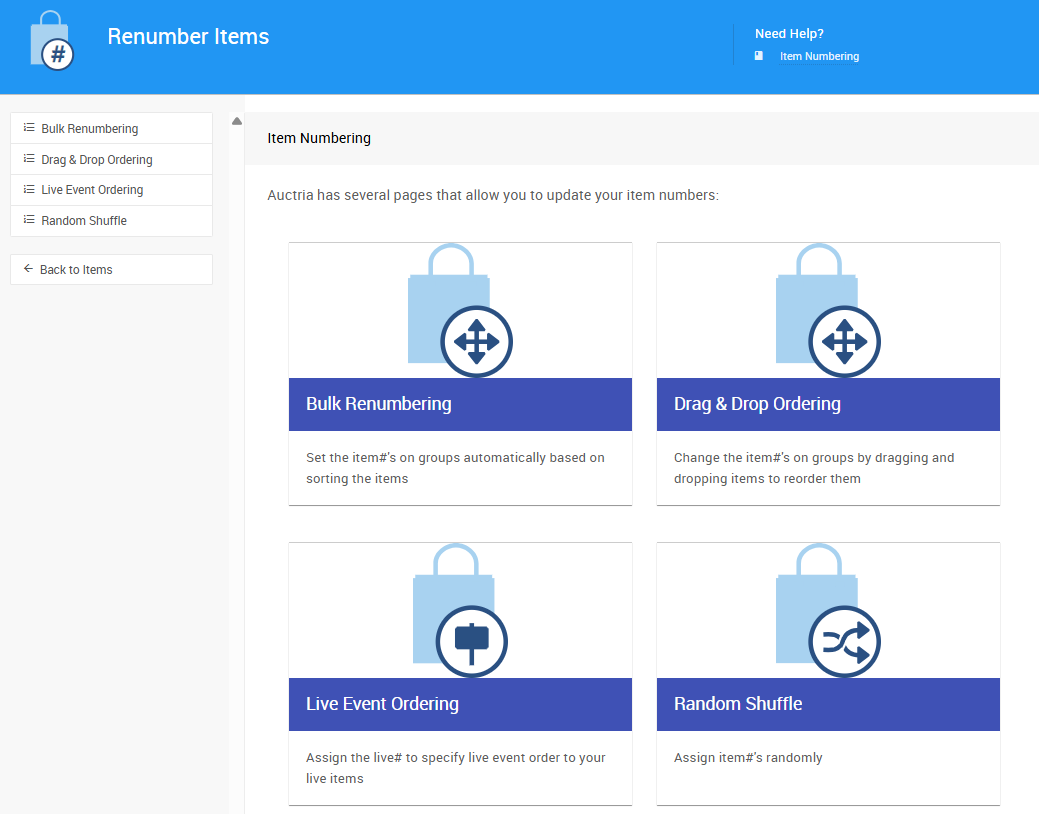
The Live Auction Ordering function works exclusively with Live Bidding type items. To open it, click Items (left sidebar, Details) Numbering Live Auction Ordering (tile or left side).
The page displays all your Live Bidding items in their current order, ready to be reordered.
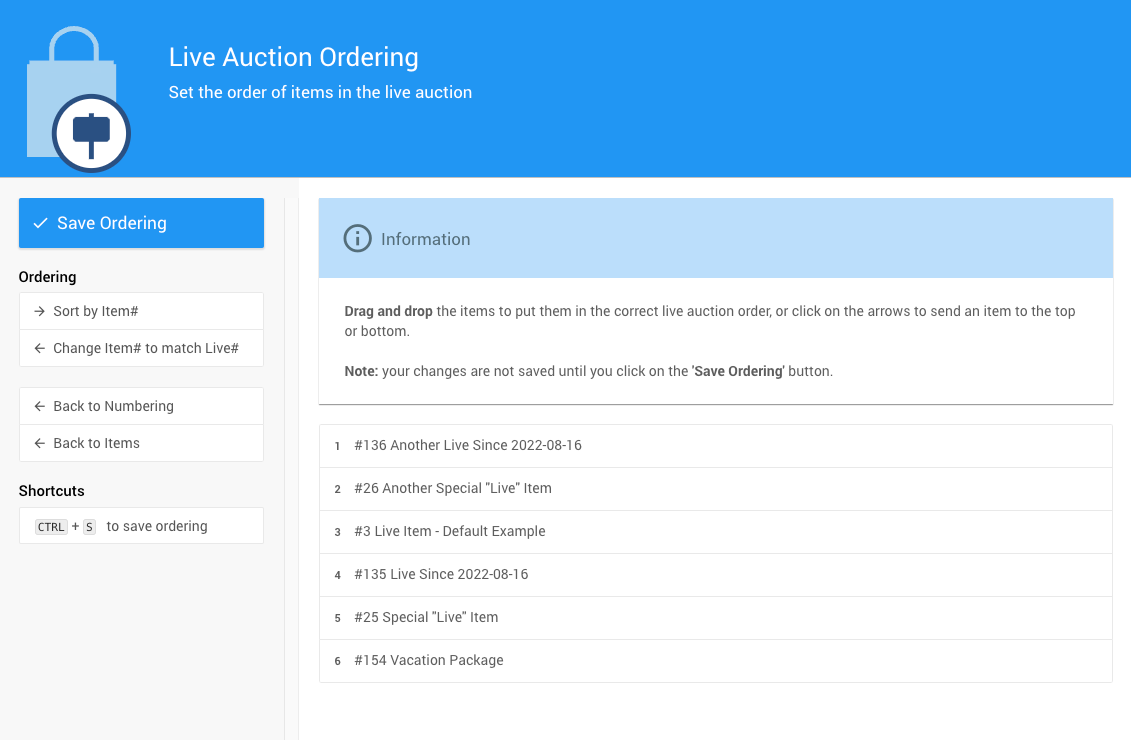
An example of a list of Live items in a demonstration event.
Reordering Live Items
Drag and Drop
You can reorder items manually by dragging and dropping rows into the sequence you want. When hovering over an item row, up and down arrow buttons will also appear, letting you send the item directly to the top or bottom of the list.
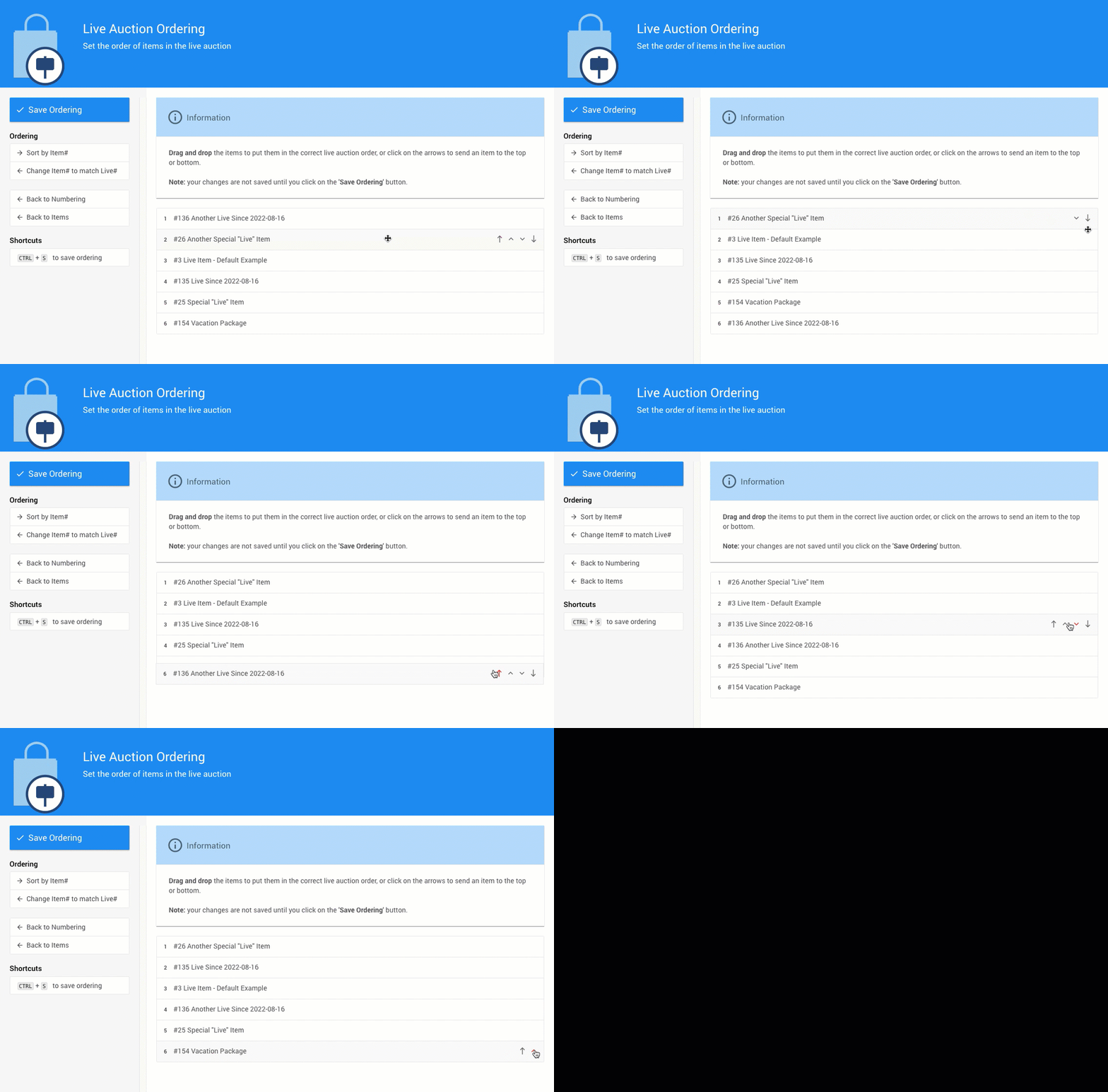
An example of items being manually reordered.
Unsaved Changes
Live number values update dynamically on screen as you reorder items, but changes are not saved until you click Save Ordering.
Sidebar Ordering Options
Two additional ordering options are available in the sidebar:
| Option | Description |
|---|---|
| Sort by Item# | Arranges the list in ascending item number order. |
| Change Item# to Match Live# | Updates each item's Item# to match its current Live#, moving Live items to the top of the general items list for easier access. |
Change Item# to Match Live#
This option will renumber any items whose item numbers conflict with the newly assigned Live item numbers. Conflicting items will be renumbered in their existing order to immediately follow the newly numbered Live items.
See Item Numbering for additional methods to reorder and renumber items.
Saving Your Order
Once you're happy with the ordering, click Save Ordering in the sidebar. A confirmation message will appear at the top of the screen.
