
Learn how to create saved filters that select groups of records, such as participants or items, across your organization.
A filter is a saved condition that selects records from one table, such as "participants with an outstanding balance" or "items valued between $100 and $500". Filters belong to your organization, so you can use them in any of its events.
Saved filters can be used in reports and anywhere the dashboard offers a filtered view.
Opening the Filters Page
- Click Organization in the left sidebar.
- Click Filters in the organization sidebar.
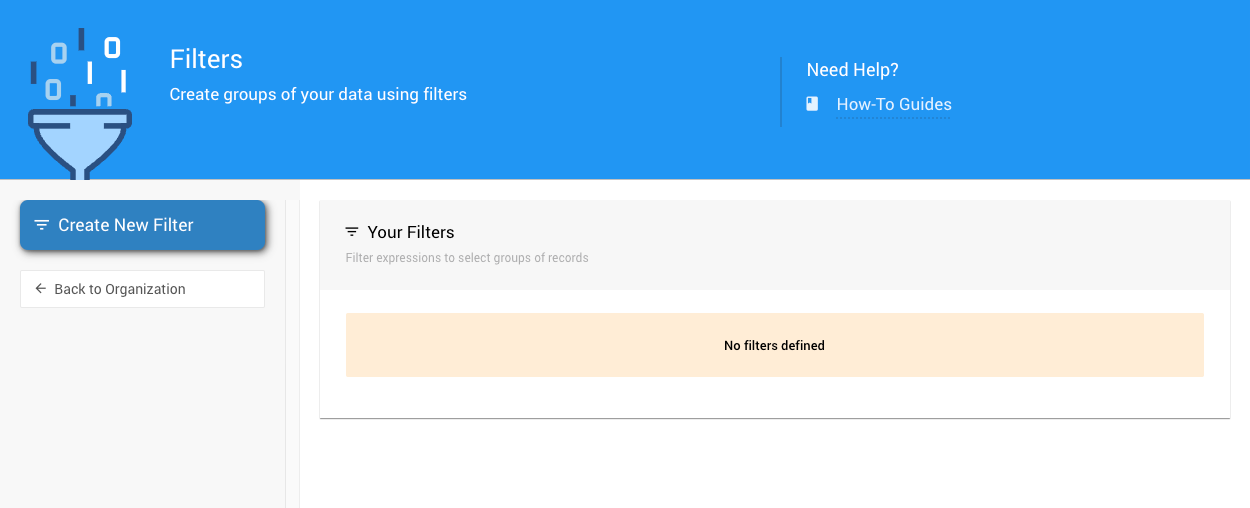
An example Filters page from a demonstration event.
Filters are grouped into one table per record type, such as Bidder Filters. Each table has these columns:
| Column | Description |
|---|---|
| Name | The filter's name. |
| Description | An optional note about what the filter selects. |
| Expression | The condition the filter checks. |
Each filter also has edit and delete buttons.
If you haven't created any filters yet, the page shows No filters defined and a Create your first filter button.
Creating a Filter
Steps
- Click Create New Filter in the Filters page sidebar. If you don't have any filters yet, you can also click Create your first filter.
- Fill in the Add Filter window (see the fields below).
- Click Create Filter.
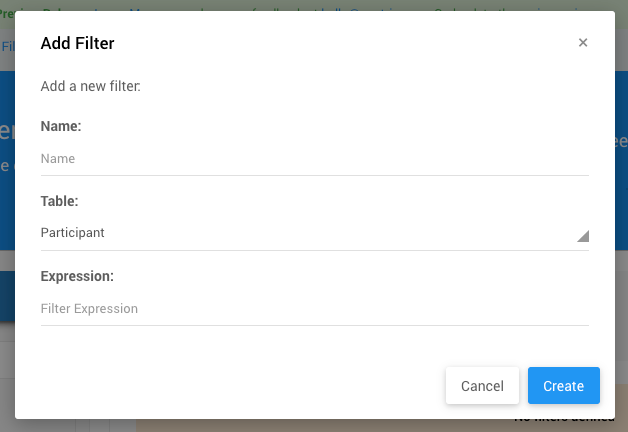
The Add Filter window.
Add Filter Fields
| Field | Description |
|---|---|
| Name | Required. Use only letters, digits, and spaces. Each name must be unique. Choose a name that makes the filter easy to recognize, such as High Value Items or VIP Ticket Holders. |
| Table | The type of record the filter selects: Bidder, Item, Donor, Bid History, or Ticket. You can't change the table after the filter is saved. |
| Description | Optional. A note about what the filter selects. |
| Visual builder | Where you define the condition. It opens in text mode, where you type the expression. Use the switch to change to the visual builder. |
Editing a Filter
Click the edit button on a filter's row to open it. Make your changes, then click Save Filter.
Renaming a Filter
"Any slide, filter or report that references this filter by name will stop working." Update anything that uses the old name after you rename a filter.
Deleting a Filter
Click the delete button on a filter's row, then confirm in the Delete Filter box.
Deleting a Filter Can't Be Undone
Once you confirm, the filter is permanently deleted.
Writing Filter Expressions
In text mode, you type the expression that decides which records match the filter. Think of it as a question: "Which records meet this condition?" For example, value > 100 means "which items have a value greater than 100?"
Comparison Operators
| Operator | Meaning |
|---|---|
= | Equals |
> | Greater than |
< | Less than |
>= | Greater than or equal to |
<= | Less than or equal to |
Logical Operators
and,&&, or&: both conditions must be true.or,||, or|: at least one condition must be true.notor!: the opposite of the condition.
Item Examples
| To Find | Expression |
|---|---|
| A specific item by title | title = 'Best Seat in the House!' |
| High-value items | value > 1250 |
| Items in a price range | value > 100 and value < 400 |
| A specific item type | type = 'Online' |
| More than one item type | type = 'Online' or type = 'forSale' |
| Items that require receipts | receiptRequired |
| Items with no description | description = '' |
Participant Examples
| To Find | Expression |
|---|---|
| Participants with a balance due | outstandingBalance > 0 |
| Participants who won at least one item | itemsWon |
| Participants with tickets but no meal choice | HasAssignedTicket & MealChoice = '' |
| Participants with a specific tag | tags = 'VIP' |
| Participants with two specific tags | Tags = 'GOLF' & Tags = 'SPONSOR-GUEST' |
| Participants who bid but didn't win | ItemsBidOn and no Transactions |
Invite Participants Who Didn't Win to Donate
Use the bid but didn't win filter to send a custom email to participants who bid but didn't win an item or make a donation, inviting them to donate.
Filtering Through Related Records
Use square brackets ([ ]) to check records related to the one you're filtering:
| To Find | Expression |
|---|---|
| Participants who won item number 19 | itemsWon[item.number = '19'] |
| Participants who won an item with a specific ticket type | ItemsWon[Item.TicketType = 'Admission'] |
| Participants who won event items | ItemsWon[Item.isEvent] |
| Ticket purchasers who haven't specified guests | purchasedTickets[not isSpecifiedGuest] |
No Arithmetic
Filters don't support calculations. An expression such as startingBid + bidIncrement > 1000 won't work. Compare fields directly to values instead.
Tips for Effective Filters
Start simple. Begin with basic filters and build up to more complex ones as you get comfortable with the syntax.
Test your filters. After creating a filter, check that it returns the records you expect.
Use descriptive names. Names like Items Over 500 are easier for your team to find than Filter 3.
Combine conditions carefully. When you use and and or together, the order matters. Think through your logic before you save a complex filter.