
Learn how to change your bid sheet's column layout, column headers, item details, and wording, and how to add a summary page, with examples of each.
How Did I Get Here?
From the main event dashboard, click Printing → Bid Sheets, then click the Options tab.
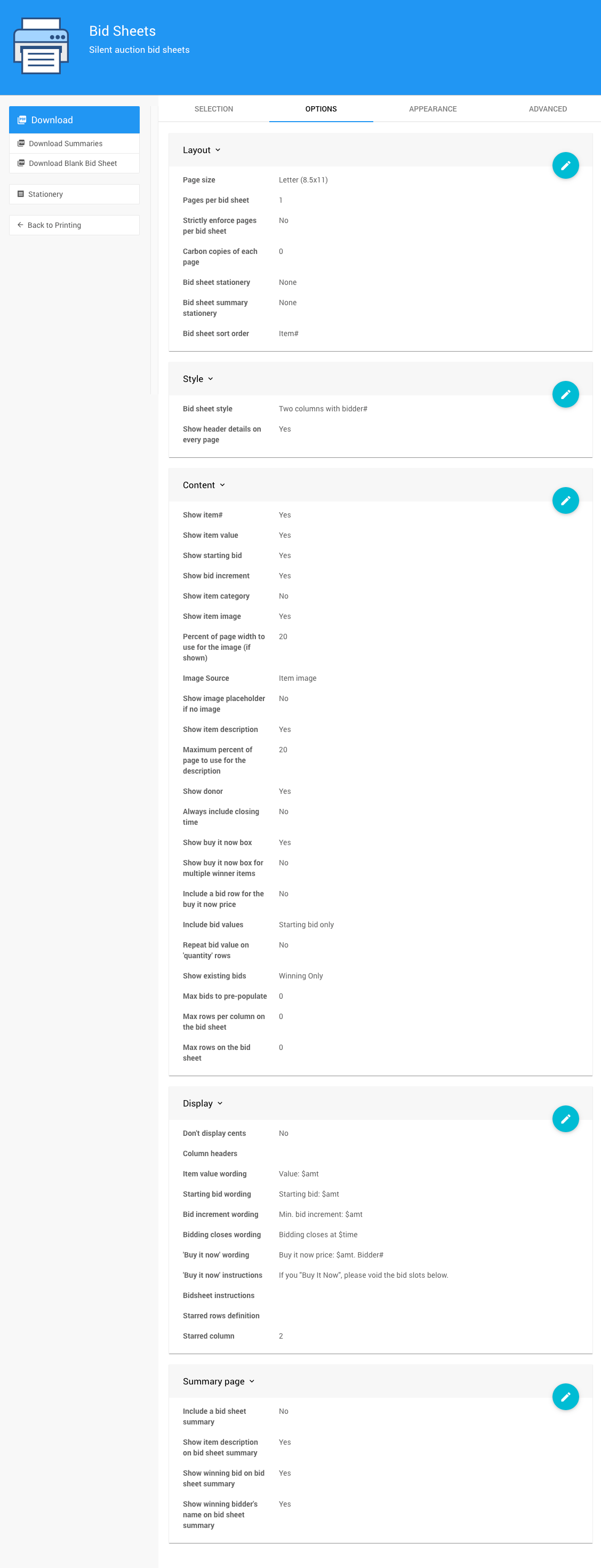
An example Options tab from a demonstration event.
How To Edit Dashboard Panel Settings
You can edit panel settings by clicking on the pencil icon to open the panel for editing.

Panel in "saved" mode.
Once you have made your changes, click the checkmark icon to save these changes. If you have opened multiple panels in a dashboard, you must click each checkmark to keep their settings.

Panel in "edit" mode.
You can click the return arrow icon if you do not want to save your changes.
To see how your changes look, click Download in the sidebar and open the PDF. For a description of every setting, see Bid Sheets.
Choose a Bid Sheet Style
The Bid sheet style setting in the Style panel sets the column layout of your bid sheets.
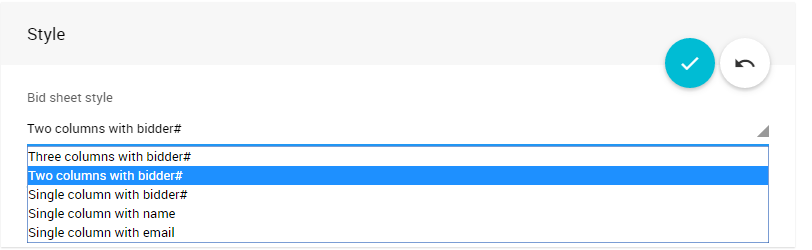
An example from a demonstration event.
| Style | Description |
|---|---|
| Three columns with ID# | Three groups of bid columns, where participants write their Paddle#. |
| Two columns with ID# | Two groups of bid columns, where participants write their Paddle#. This is the default. |
| Single column with ID# | One group of bid columns, where participants write their Paddle#. |
| Single column with name | One group of bid columns, where participants write their name. |
| Single column with email | One group of bid columns, where participants write their email address. |
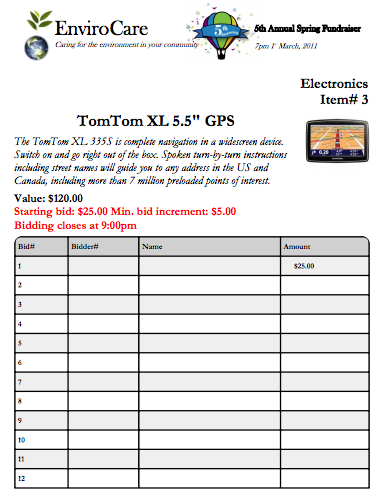
A single-column bid sheet.
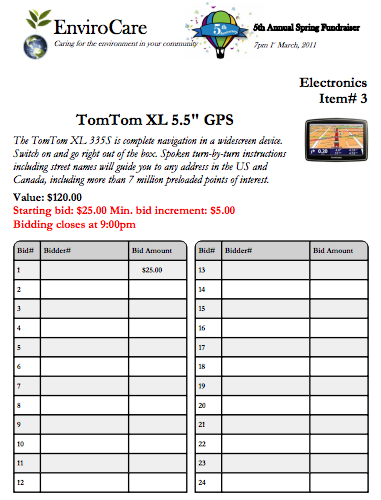
A two-column bid sheet.
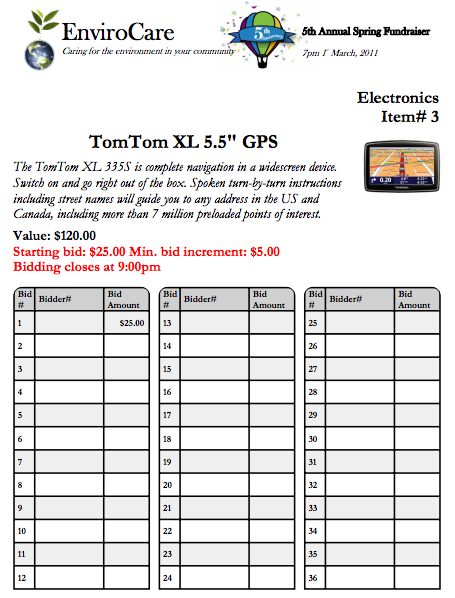
A three-column bid sheet.
Customize the Column Headers
Choose your style first, then change the headers with the Column headers setting in the Display panel.
Enter the headers as a comma-separated list, for example Name,Phone,Amount. To set the width of each column, add a number in square brackets after the header. The number is a percentage of the page width.
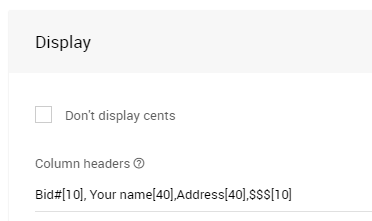
An example from a demonstration event.
In this example, the bid# column uses 10% of the page width, the Your name and Address columns use 40% each, and the $$$ column uses 10%.
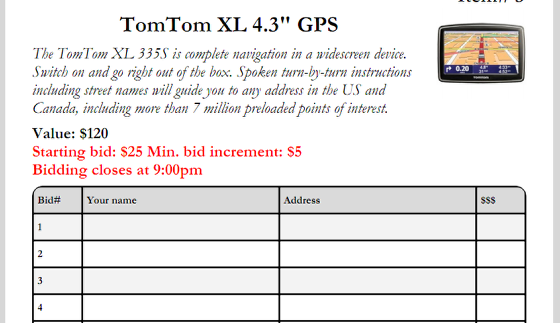
The bid sheet created by the example above.
Special Column Headers
Some headers tell Auctria to fill in the column for you.
| Header | Fills the Column With |
|---|---|
bid#, row#, or line# | The row number (1, 2, 3, ...). |
amount, amt, $, or £ | The bid amount. The word can appear anywhere in the header, for example Bid Amount. |
first, last, name, email, phone, or table | The matching participant detail for any existing bids. |
# | The Paddle# for any existing bids. |
To remove the Paddle# column, leave # out of your headers. For example, enter Name,Phone,Bid Amount($).
Show or Hide Item Details
The Content panel controls which item details appear on each bid sheet. For example, to remove the item number from the header, uncheck Show item#.
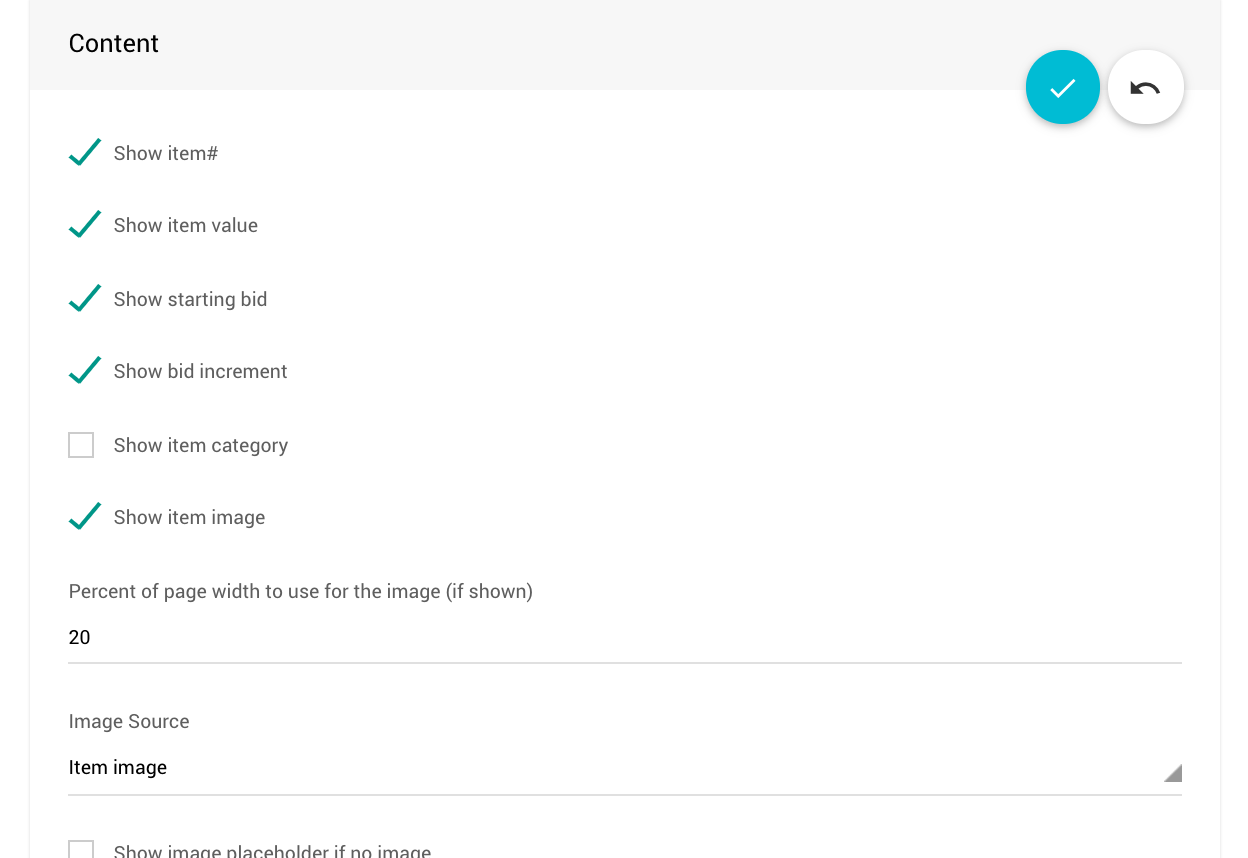
An example from a demonstration event.
Limit Pre-Filled Bid Amounts
When Include bid values is set to All bids, Max bids to pre-populate limits how many rows get a bid amount. A value of 0 fills all rows. See How To Pre-Populate Bid Sheet Values.
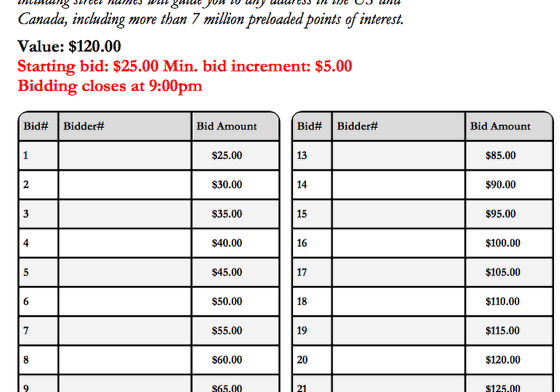
An example from a demonstration event.
Change the Wording
The Display panel controls the wording on your bid sheets.
Keep the $ Codes
Words that start with $, such as $amt and $time, are codes that Auctria replaces with the item's details. Keep them when you change the wording. If you change one by mistake, click the undo arrow before you save.
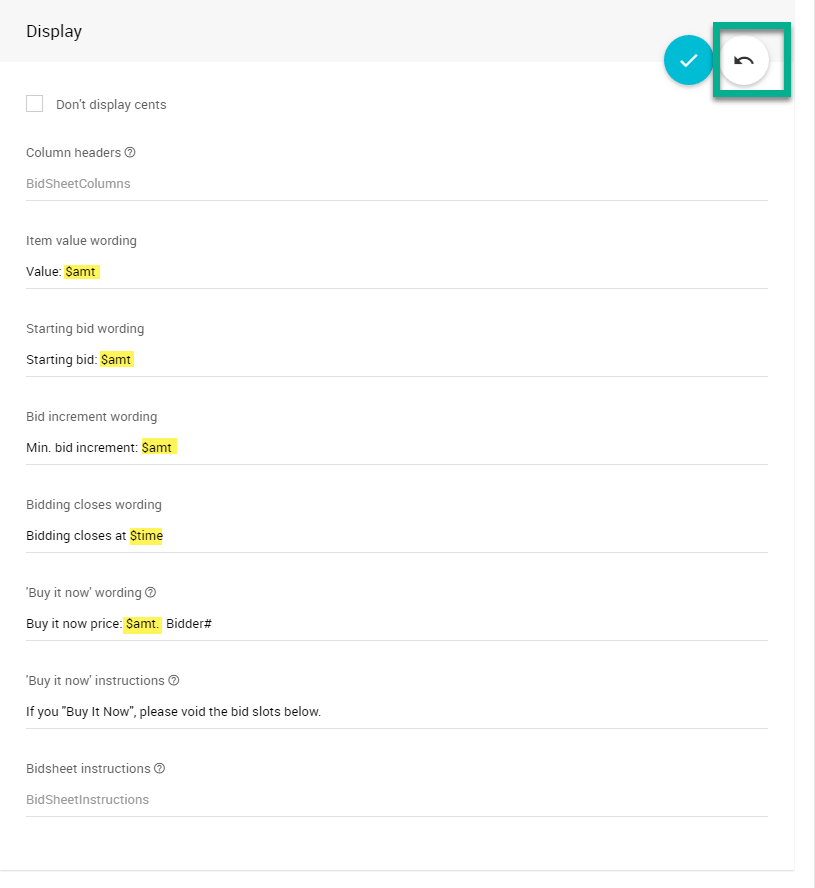
An example from a demonstration event.
Hide Cents
Check Don't display cents to show $99 instead of $99.00. This saves space on your bid sheets.
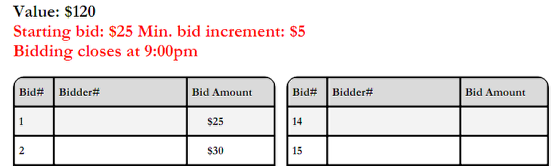
An example from a demonstration event.
Buy-It-Now Wording
If an item has a Buy-It-Now price, the bid sheet shows a Buy-It-Now box. Use 'Buy it now' wording to change the text inside the box. $amt is replaced with the item's Buy-It-Now price.

An example from a demonstration event.
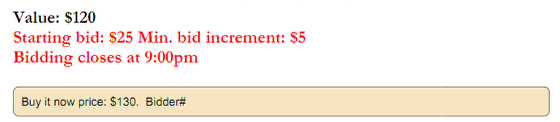
An example from a demonstration event.
Add a Summary Page
A summary page is an extra page for each item, with space to record the winner and the winning bid. Use it for data entry at the end of the auction, while the bid sheets stay at the item tables for participants to see the results.
To add summary pages, check Include a bid sheet summary in the Summary page panel. Then click Download Summaries in the sidebar.
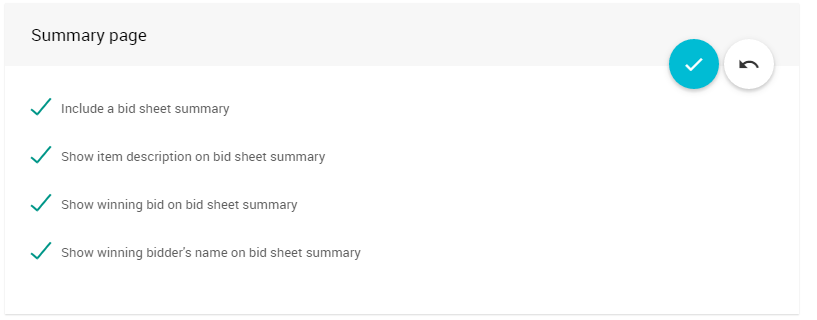
An example from a demonstration event.
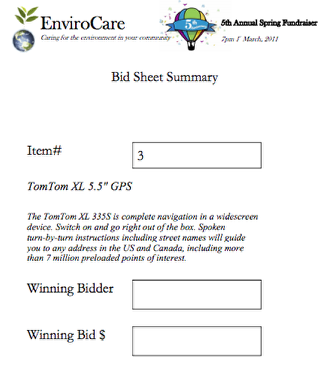
An example summary page.