
Learn how event archiving works, how to set an archive date, and what happens when an event is archived.
Archiving an event hides it from participants once it's over. Your event data stays in Auctria, and you can still view the event from your dashboard.
How Archiving Works
Each event has an Archive Date. When that date passes, the event is archived.
- Default date: New and copied events get an Archive Date six months after the Event Date, or six months after the event was created, whichever is later. You can find both dates on the Event Details page.
- Custom date: You can change the Archive Date to any date in the past or future. If you set it to a past date, the event is archived right away. See Set the Archive Date.
- Event Date changes: Once the Archive Date is set, changing the Event Date doesn't change the Archive Date.
Online bidding keeps your event live
If your Online Bidding Settings End Time is later than the Archive Date, Auctria keeps the event live until two days after online bidding ends.
Before You Archive
Auctria doesn't check any of these before archiving your event. We recommend completing them before your Archive Date:
- Close online bidding. See Closing Online Bidding.
- Clear all Outstanding Accounts. See Reports → Financial → Accounts.
- Pay any outstanding organization fees.
Set the Archive Date
- Click Event in the left sidebar.
- On the Summary tab, set the Archive Date.
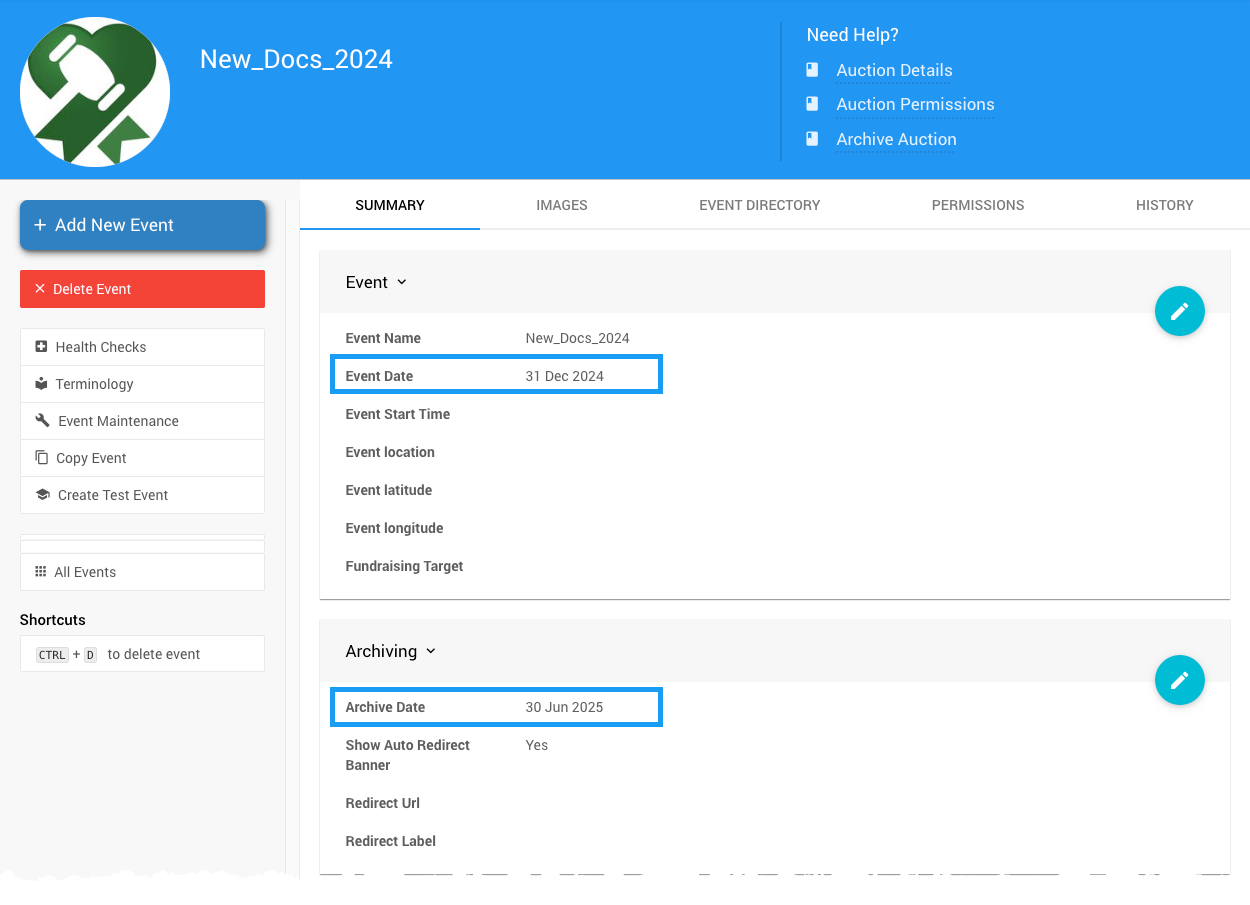
The Archive Date field from a demonstration event.
What Happens When an Event Is Archived
Participants
An archived event is hidden from participants on your event website and in the mobile app. Participants can't sign in to the event or see it in their participant profile.
Where a link to an archived event takes participants depends on the type of link:
| Link Type | Where It Goes |
|---|---|
| Event website address | The Auctria Missing Event? page. |
| Other links to the event | Your event's Redirect Url. If no Redirect Url is set, participants go to your organization's latest active event. |
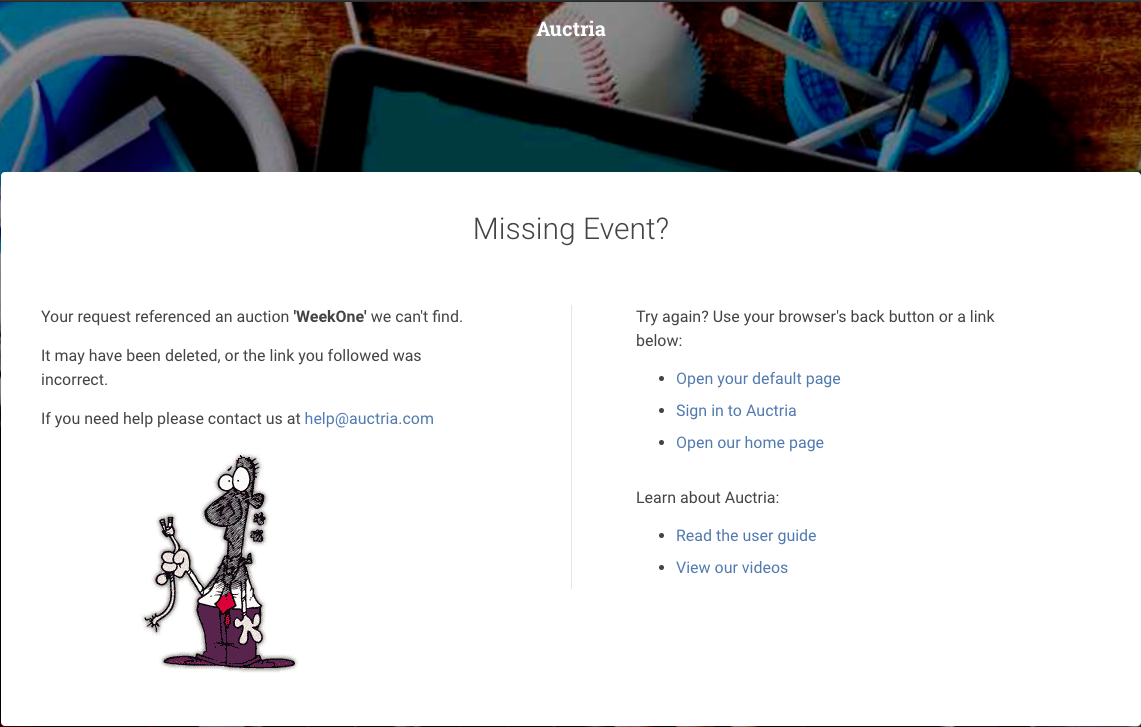
The Missing Event? page participants see for an archived event.
Send participants somewhere useful
Set a Redirect Url in the Event Archiving settings to choose where participants land after your event is archived, such as your organization's website or next year's event.
Redirect exceptions
- Test events don't redirect.
- A custom Redirect Url isn't supported on Explorer licenses.
Organizers
Organizers with at least read-only access can still open an archived event from the dashboard and view its website from Event Website → View Website.
When you open an archived event, an Archived banner appears at the top of the dashboard. The banner uses your organization's event term, such as Event Archived or Auction Archived.
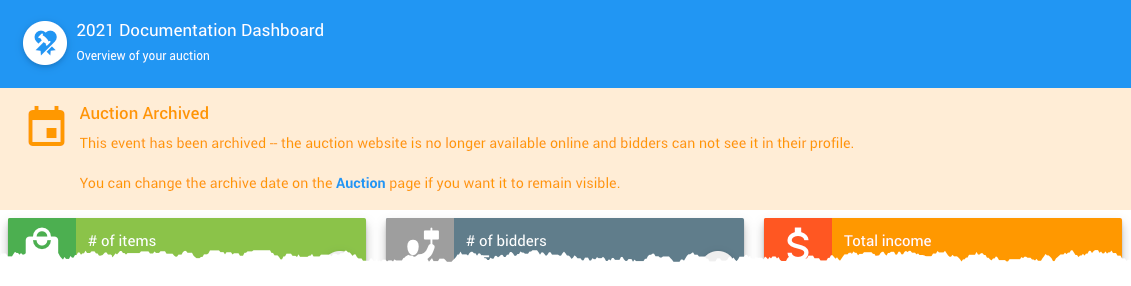
The Event Archived banner from a demonstration event.