
Change the text displayed on an individual component or label of a website element.
Like Add Style and Add Behavior, Edit Localization is available from the edit controls of some website elements. Clicking it shows a list of the components available on the selected element — for example, the button that buys the selected ticket on a Raffle Catalog. Hovering over an option highlights the corresponding component on the website preview with a contrasting border.
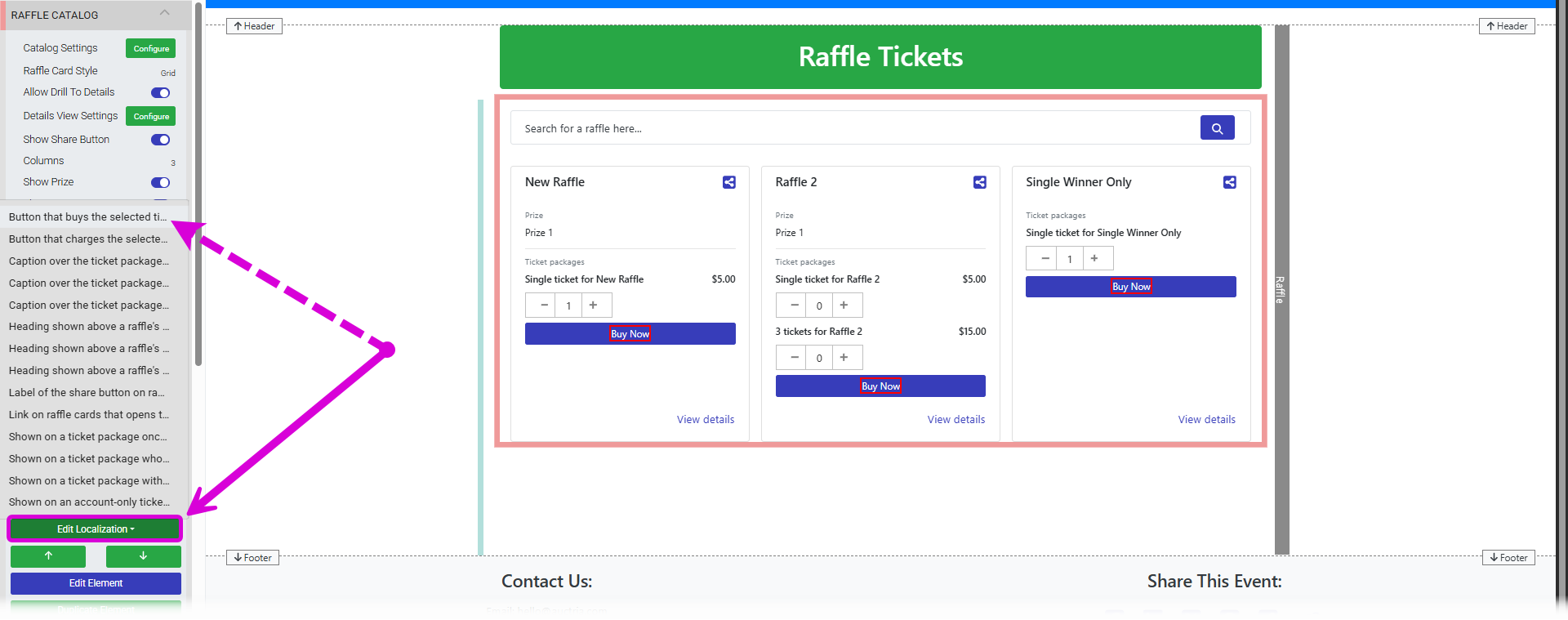
An example of the Edit Localization list and component highlight from a demonstration event.
Selecting a component opens the Edit Localization window, where you can change the text that appears for that component — for example, changing a button's label from Buy Now to Purchase Raffle Ticket.
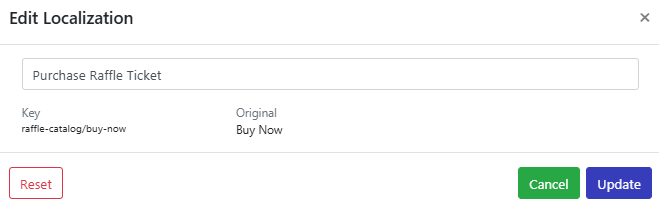
The Edit Localization window.
The window displays:
| Field | Description |
|---|---|
| Key | The internal identifier for the component being localized. |
| Original | The default system label. The text that displays for this component if no custom label has been set. |
See Common Element Actions for more details on managing website elements.