
The Item Details Activity tab is where the item bids and/or purchase transactions are recorded.
This is also where you can manage those bids and purchases. New items have no activity by default.
Activity Differs By Item Type
The information displayed on the Activity tab varies depending on the item's type.
Bid History
Biddable items — Paper Bidding Type, Live Bidding Type, and Online Bidding Type — display a Bid History showing all bids recorded against the item.
Purchase History
Items that are sold at a fixed price, such as For Sale Items, display a Purchase History showing all completed purchases.
Managing Activity
Each activity entry has a context menu (three vertical dots) at its far right for managing that specific entry. The options available depend on whether the entry is part of a Bid History or a Purchase History.
Bid History Controls
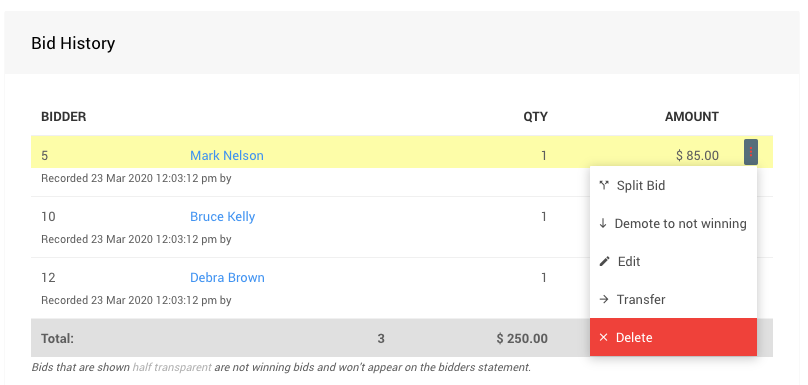
An example from a demonstration event.
The following actions are available for bid entries:
| Action | Description |
|---|---|
| Split | Splits the bid into separate entries. See Splitting Bids for more details. |
| Promote / Demote | Promotes or demotes a bid's winning status. See How To Promote Or Demote Bids for more details. |
| Edit | Opens the bid for editing. See Edit Bids for more details. |
| Transfer | Transfers the bid to another item or participant. See Editing Transactions for more details. |
| Delete | Removes the bid entry after confirmation. See Delete Activity below. |
Purchase History Controls
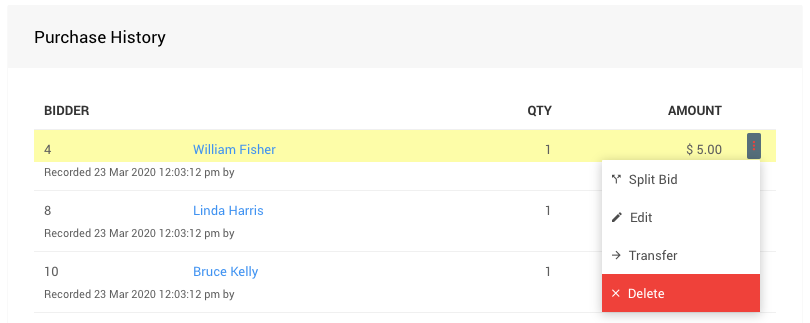
An example from a demonstration event.
Purchase History controls are the same as Bid History controls, with the exception that Promote / Demote is not available for purchase entries.
Delete Activity
Selecting Delete from either control menu will open a confirmation window before proceeding.
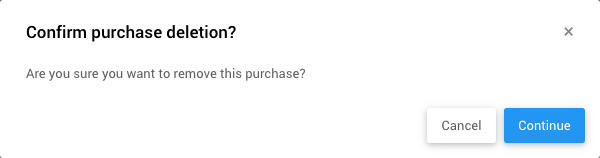
An example from a demonstration event.
Deleting Activity
Clicking Continue will permanently delete the entry. This cannot be undone.
Export Individual Sales
For Sale Items have an additional export option available under Exporting & Printing in the sidebar, allowing you to download a list of individual sales for the item as an XLS file.
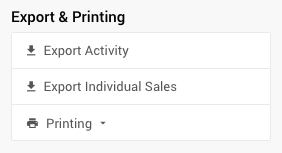
An example from a demonstration event.
Clicking the button immediately downloads the file to your browser's default download location.
Using Export Individual Sales with Raffle Tickets
Exporting individual sales for a Raffle Ticket item produces a list of all buyers of that ticket. This can be useful if you are conducting the raffle draw using an external tool outside of Auctria.