
Learn more about the details required for Advanced Texting in Auctria.
Before you can use Advanced Texting, you need to complete and submit your Advanced Texting Profile. This page walks you through each section of the profile and the information you need to provide.
Before You Begin
Have these details ready so you can complete the profile in one sitting:
- Your organization's legal name, exactly as it appears on its legal registration.
- The full address shown on your organization's legal registration.
- Contact details for the person who represents your organization.
- Your organization's registration number (for example, your EIN).
Approval Takes Time
Your profile is reviewed externally. The approval process usually takes about a week, but can take a month or longer. Submit your profile well ahead of your event.
Open the Advanced Texting Profile
- From the main Auctria dashboard, click Communication → Texting.
- In the sidebar, click Advanced Text Profile.
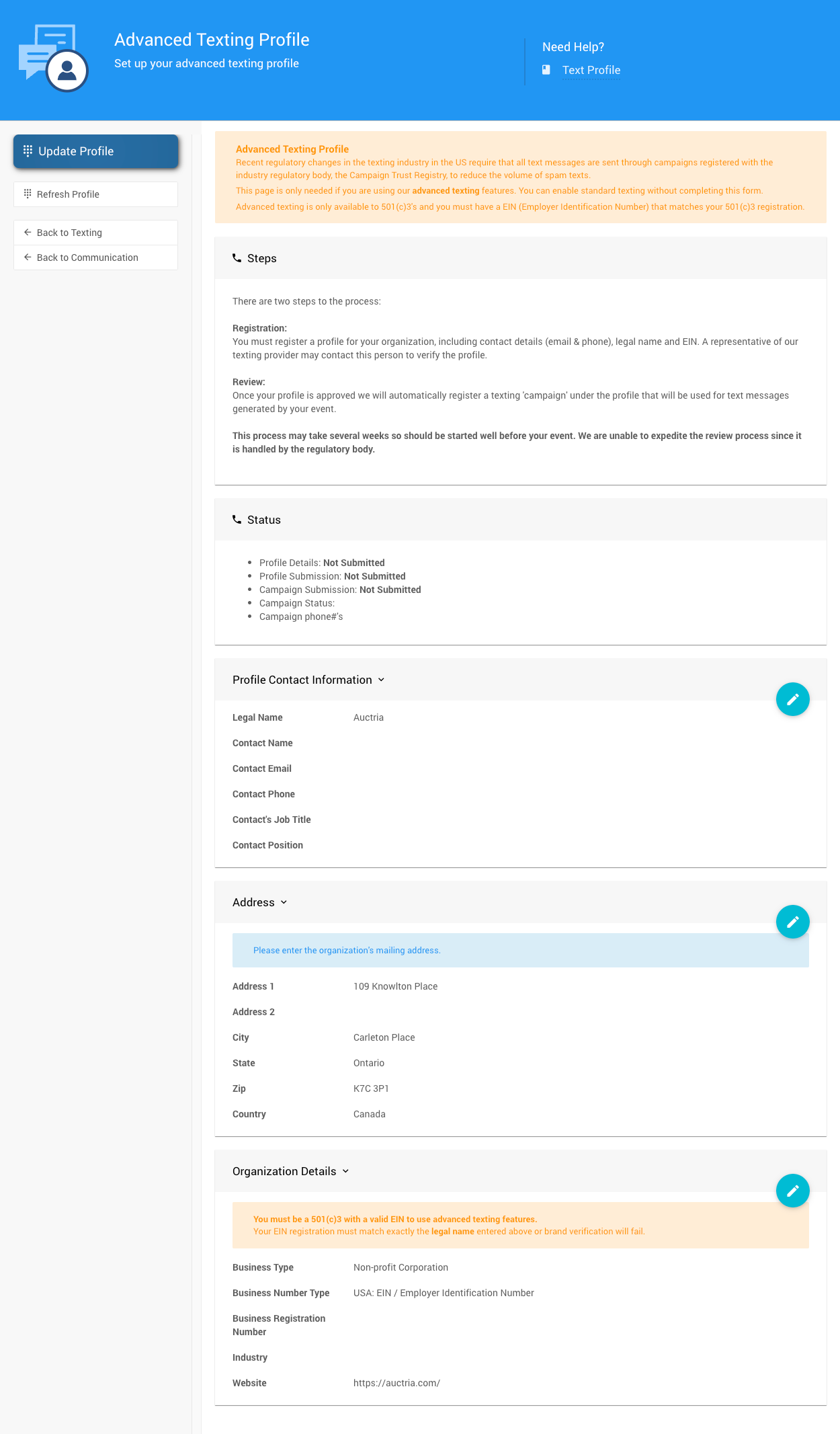
The Advanced Texting Profile page before it has been completed.
Status
The Status section shows the current status of your profile.
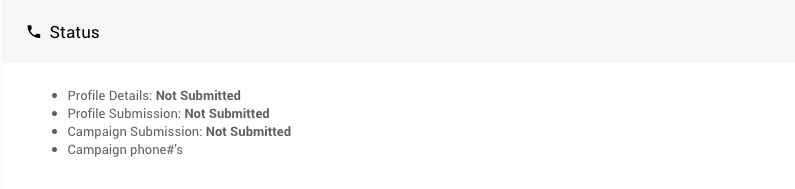
The Status section of the Advanced Texting Profile page.
Profile Contact Information
Use this section to enter the contact information for this texting profile. This information is required to submit the profile.
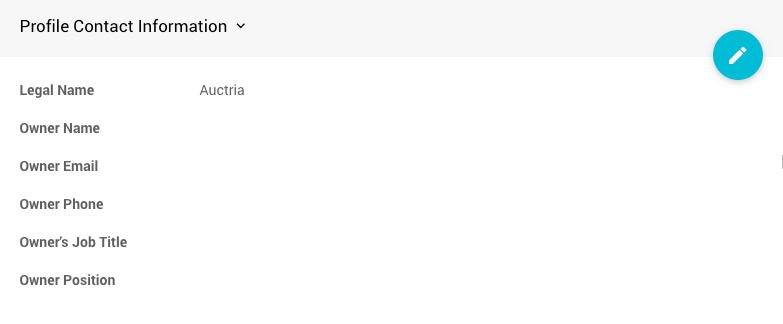
The Profile Contact Information section of the Advanced Texting Profile page.
| Field | What to enter |
|---|---|
| Legal Name | The exact registered name of the organization. |
| Owner details | The direct contact details for the person representing the organization. |
Address
Enter the address for your organization. This information is required to submit the profile.
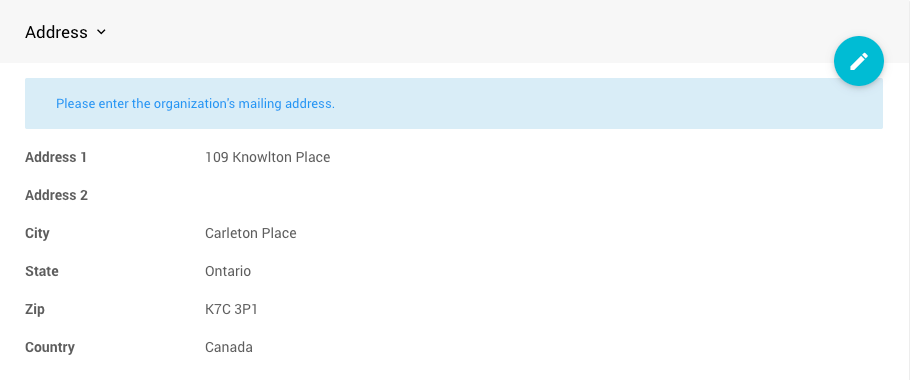
The Address section of the Advanced Texting Profile page.
Use Your Legal Registration Address
This is not the in-person event address or the local organization address. Enter the full address found on the organization's legal registration.
Address Is Shared with Your Organization
The address you enter here is copied to the Address section of the Organization dashboard, since both use the same reference data.
Organization Details
This section identifies your organization's Type, Registration Number, Industry, and Website address.
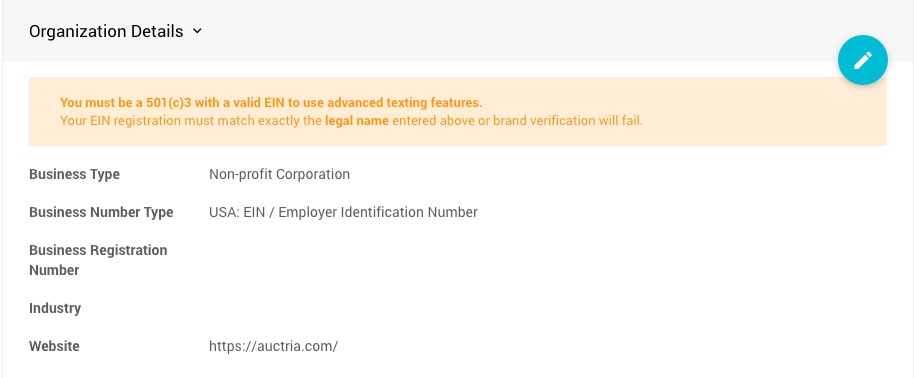
The Organization Details section from a demonstration event.
Website Fills in Automatically
The Website address is filled in automatically from your Organization → Contact details.
Update Profile
Once all of the fields are filled in, click the Update Profile button in the Actions sidebar on the dashboard.
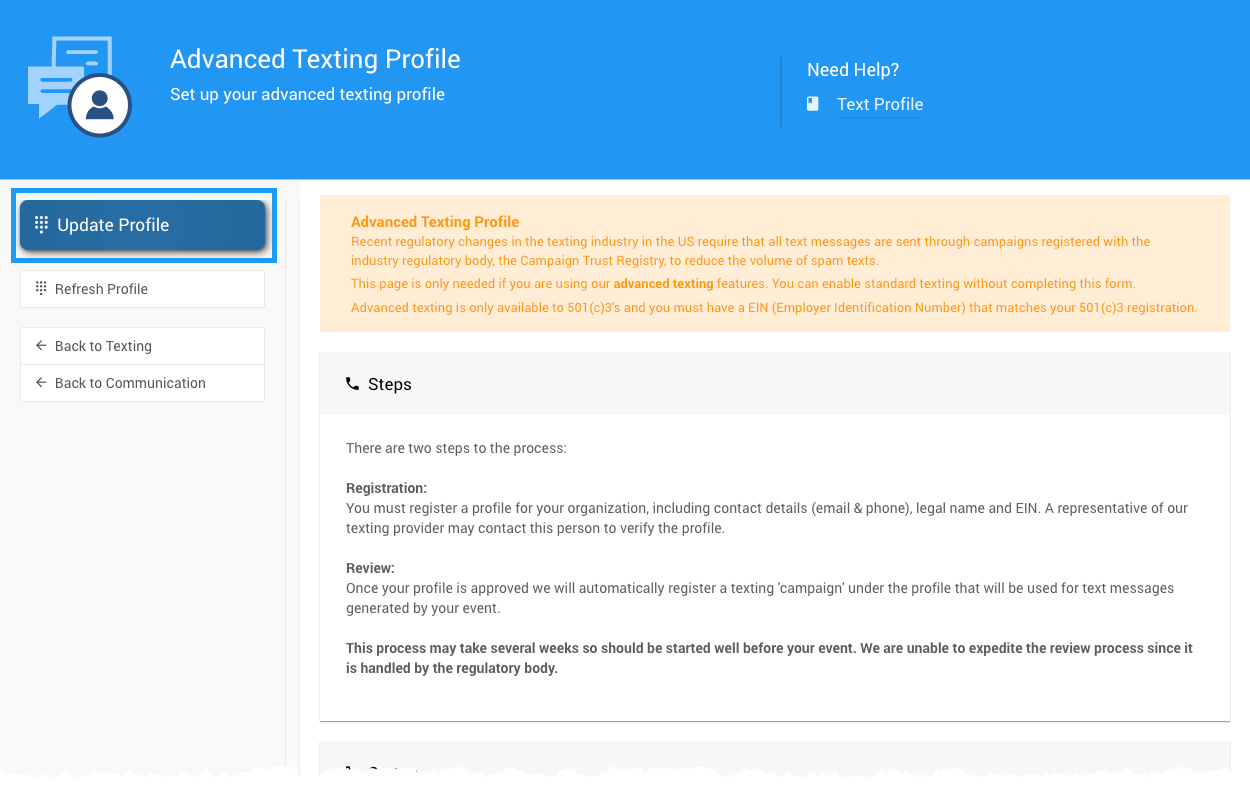
The Update Profile button in the Actions sidebar.
What Happens Next
Once the profile is submitted, Auctria automatically registers it with the Campaign Trust Registry through Twilio.
For more about these requirements, see A2P 10DLC.