
This dashboard is part of the Tickets feature set and used for styling e-tickets.
The Ticket Styling dashboard shows all of the options available for styling the e-Tickets available to your guests.
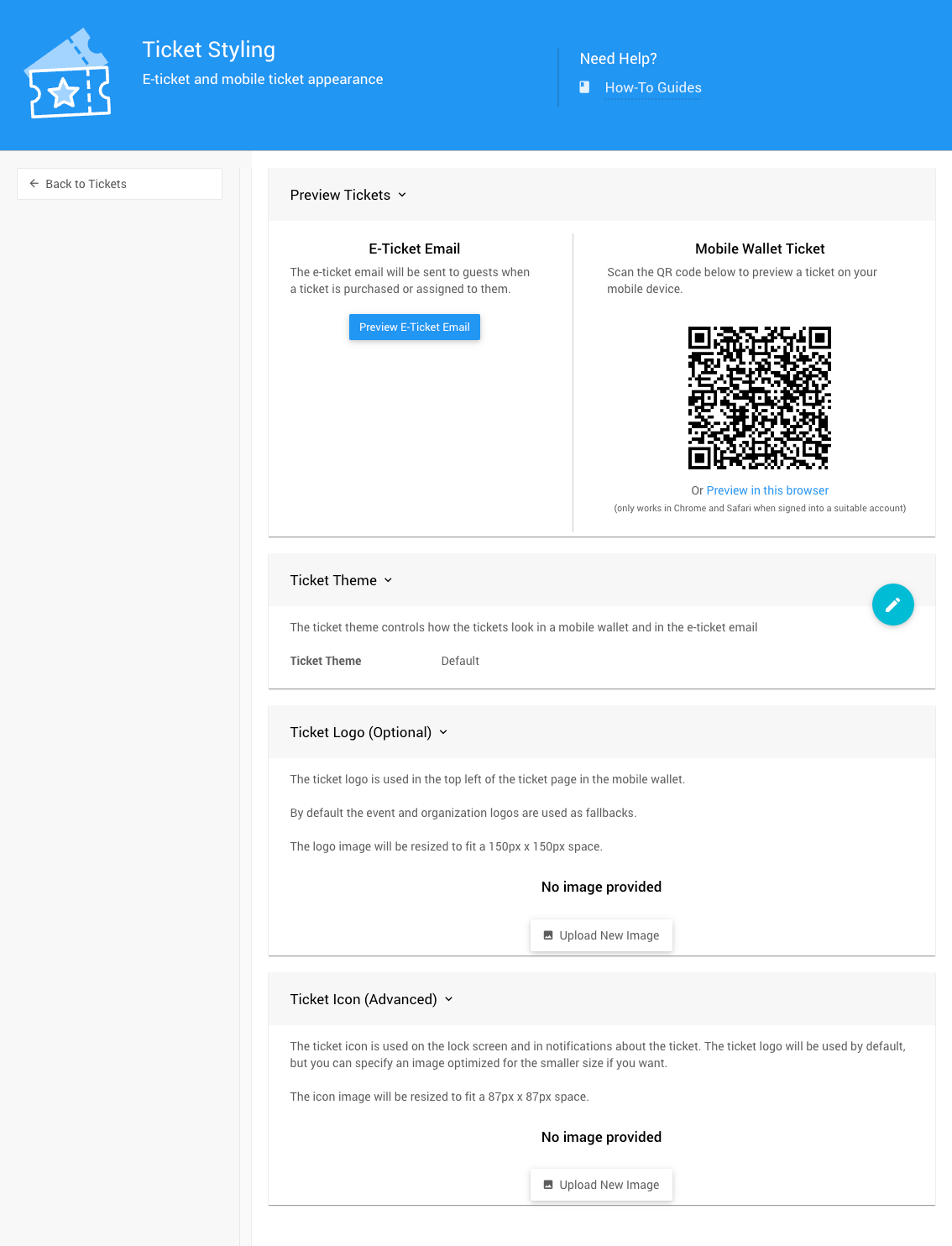
An example Ticket Styling dashboard from a demonstration event.
Preview Tickets
An example from a demonstration event.
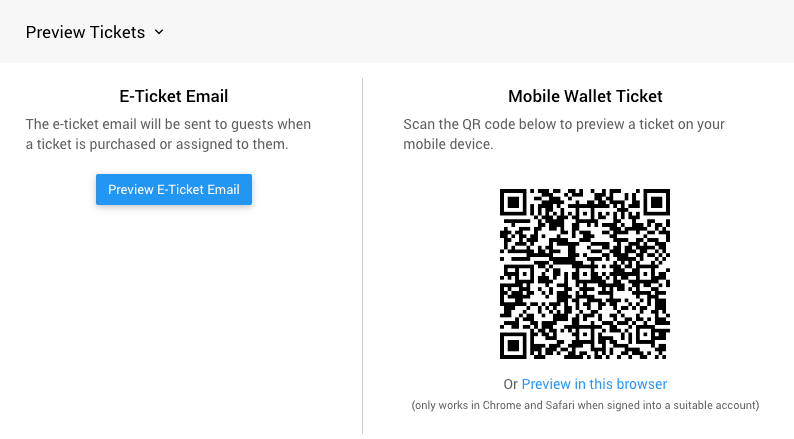
The Preview Tickets panel shows the various previews available for the guest E-Ticket.
E-Ticket Email
Clicking Preview E-Ticket Email generates a preview of the E-Ticket using the current event information and a demonstration data guest record.
Mobile Wallet Ticket
Scanning the QR code, or clicking Preview in this browser, displays a page showing the E-Ticket's mobile wallet view.
Ticket Theme
An example from a demonstration event.
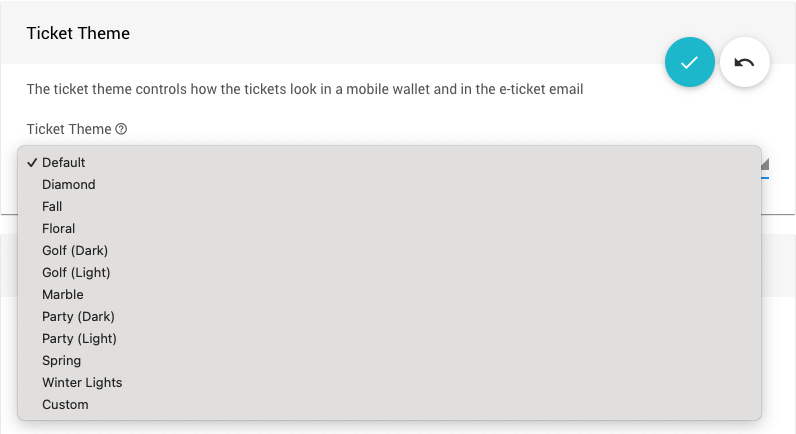
A number of themes are available to choose from for your e-Tickets.
Ticket Appearance
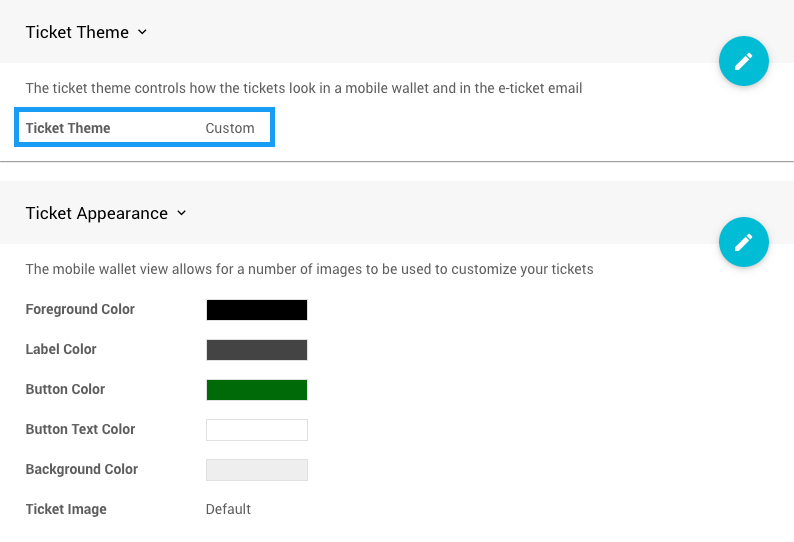
An example Ticket Appearance panel from a demonstration event.
Choosing the Custom ticket theme opens the Ticket Appearance panel, where you can adjust the colors and image used with your e-Ticket.
The Ticket Image option provides several choices, including a custom upload option.
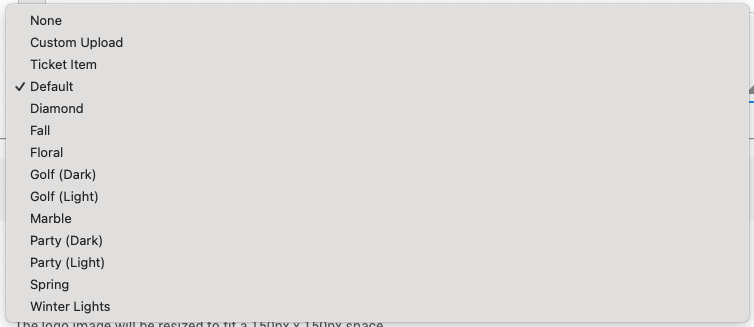
An example from a demonstration event.
Ticket Logo (Optional)
An example from a demonstration event.
The ticket logo is used in the top left of the e-Ticket in the mobile wallet. By default, the event and organization logos are used as fallbacks. The logo image is resized to fit a 150px x 150px space.
See Image Dimensions And Sizes for more information about image sizes in Auctria.
Ticket Icon (Advanced)
An example from a demonstration event.
The ticket icon is used on the lock screen and in notifications about the ticket. The ticket logo is used by default, but you can specify an image optimized for the smaller size if you prefer.
The icon image is resized to fit an 87px x 87px space.