
Learn more about issuing partially refunded credit card payments.
Occasionally, mistakes may occur when charging credit cards, and you must issue a refund.
For example, a bidder may have their credit card charged twice or for the wrong amount because a purchase was recorded more than once.
Please see the steps in this how-to to help refund credit card charges.
You can issue a partial refund for a credit card charge from within Auctria. This is the most straightforward approach.
You will need to refer to your agreement with your payment processor for details on how their fees are handled in the case of refunds.
Step 1: Locate The Charge
Navigate to the Participant Details page and click the Activity tab.
Scroll down to Payments.
Locate the Credit Card payment you want to be refunded and click Refund on the same line.
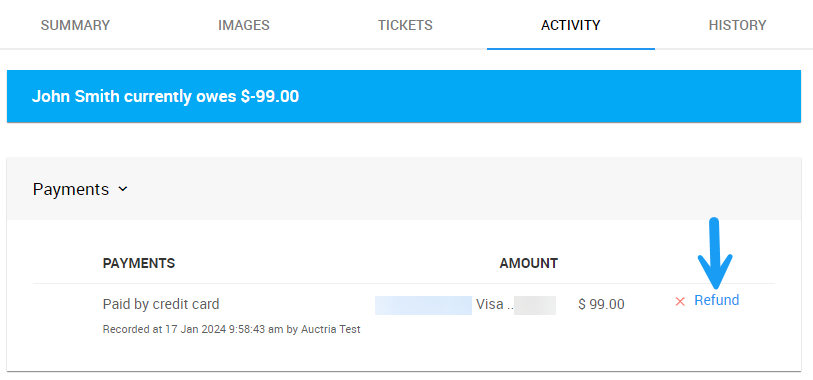
An example from a demonstration event.
Step 2: Refund A Partial Amount
A popup Confirm charge refund window will appear asking if you want to refund the full charge or a partial amount.
Select the Refund only a partial amount option, and enter the partial refund amount.
When ready, type YES in the text box and click the check mark icon to save the transaction.
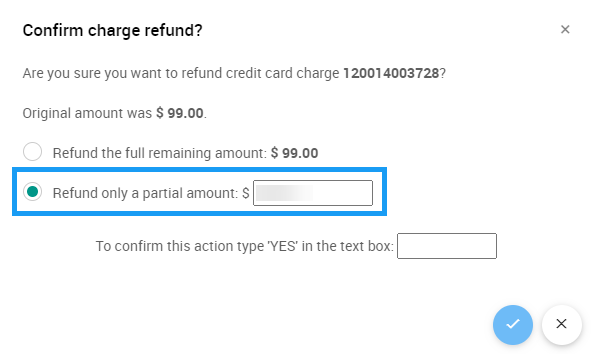
An example from a demonstration event.
Step 3: Refund Processed
When the refund has been successfully processed, the participant's Activity tab will show a negative fee charge under purchases and a refund payment. The original payment will show as Refund and will be available for any additional refunds that need to be made.
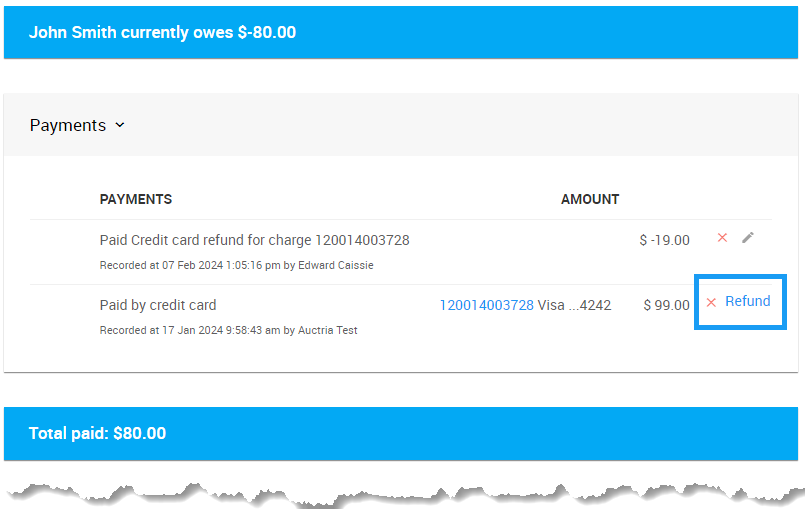
An example from a demonstration event.
The refund will appear on the participant's credit card account in a few business days.
Refunds Don't Affect What's Owed
It is important to note that refunding affects the participant's payment only; it does not affect what they owe.