
Learn how to re-open items that have yet to be sold for another auction.
When your auction closes, you may have items that didn't sell. This page walks through how to re-open those items to give bidders another chance — perhaps at reduced starting bids.
Step 1 — Adjust Starting Bids (Optional)
Since nobody bid on these items at the previous starting bid level, you may want to lower them before re-opening. You can do this in any of the following ways:
- From the Item Details page for an individual item.
- From the item list using the mass edit control to update multiple items at once.
- From Items > Pricing Policy. See Pricing Policy for more details.
Tip
Adjusting the starting bid on an already-sold item won't cause any issues — it simply won't affect the existing sale. However, if it's easier to update all items at once rather than filtering to unsold items only, be aware that reviewing future starting bids may be slightly confusing with mixed sold and unsold items in the list.
Step 2 — Update the Online Bidding End Time
Before re-opening items, set a new online bidding end time so your items don't close again immediately after being re-opened.
Go to Online Settings > Online Bidding and update the Online Bidding End Time to your new end time.
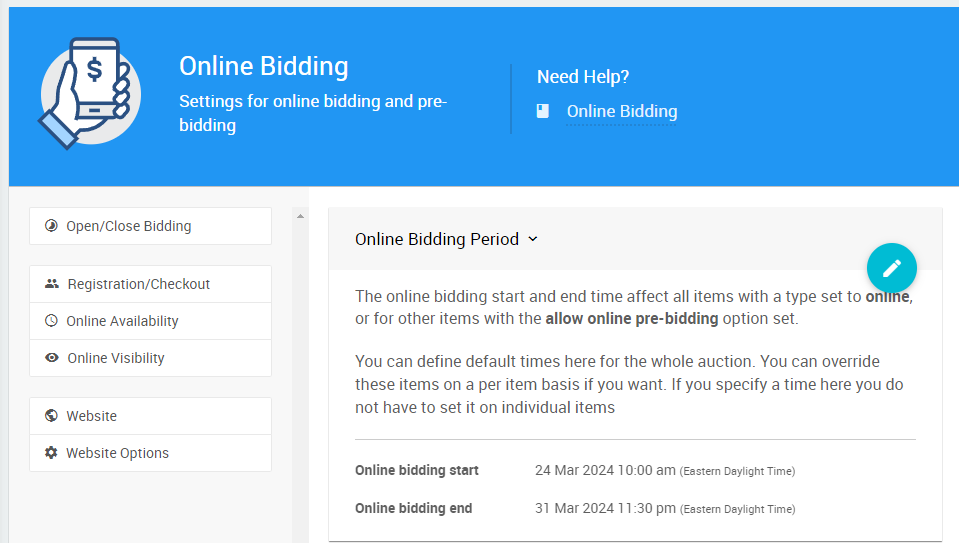
If any items have individual Override online bidding end time values set, you'll need to clear these via the mass edit control on the item list for the new default end time to take effect.
End Time Must Be Updated First
Adjusting the bidding end time alone will not re-open closed items — the items will remain closed until you explicitly re-open them in the next step. However, if the end time is not updated before re-opening, items will close again immediately.
Step 3 — Re-Open the Unsold Items
Go to Items > Open/Close Bidding.
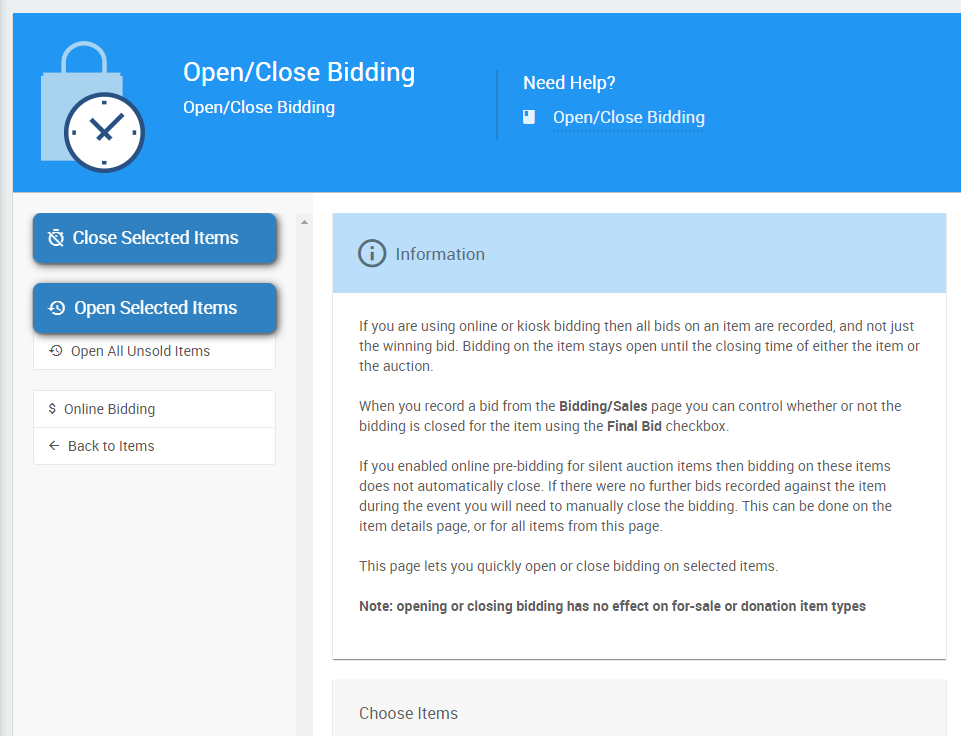
Click Open All Unsold Items to re-open all unsold items at once. To re-open a specific selection, use the Choose Items control to filter and select the items you want to open. See Open/Close Bidding for more details.
Step 4 — Update the Website Catalog (Optional)
At this point your event website catalog is likely showing all bidding items, including those already sold. For a post-event sale this can make available items harder to find. You can configure the catalog to show only items that are still open for bidding.
Go to Website > Edit Website and navigate to the catalog page in the website editor. Click on the catalog element to select it.
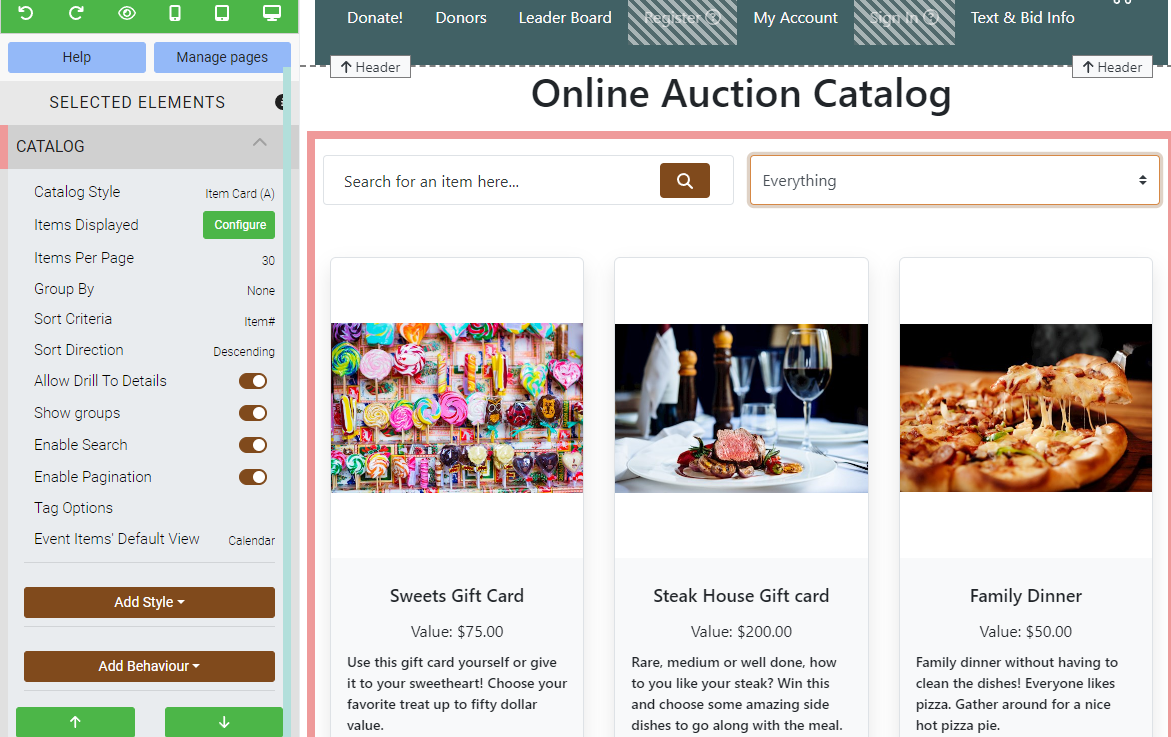
In the sidebar under Selected Elements, click Configure next to Items Displayed. Click Add Condition and select Items open for bidding.
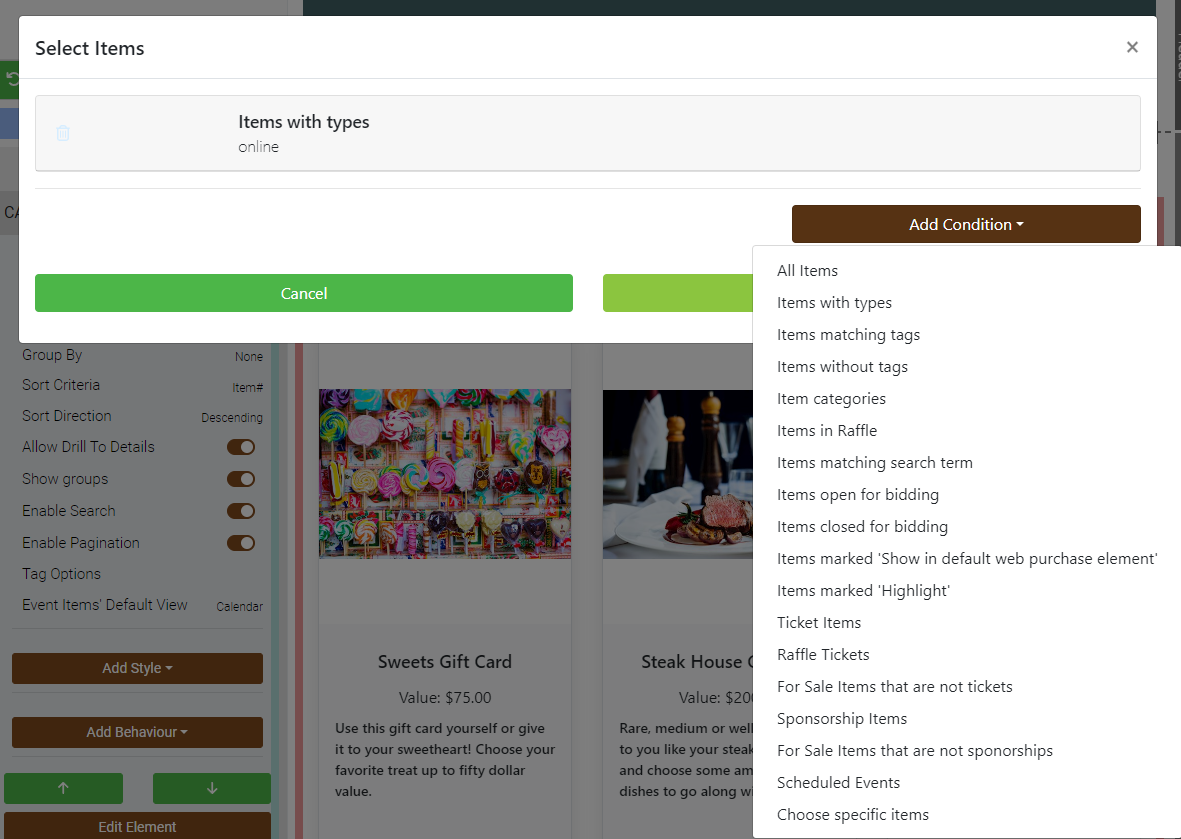
Click Save. The catalog will now display only the items that are currently open for bidding.
Multiple Winner Items
Multiple winner items require some additional consideration when re-opening. The right approach depends on the item's current state:
| Situation | What to do |
|---|---|
| No sales recorded | Re-open the same way as a single-winner item. Nothing else is needed. |
| Fully sold out | The item should not be re-opened. Nothing else is needed. |
| Buy It Now Only item, partially sold | Re-open manually using the Open Bidding button on the item's Item Details page. Keep the Buy It Now price the same — changing it means existing bids at the original price will no longer be recognized as Buy It Now bids. If you need to change the price, see the row below. |
| Partially sold with winning bids, or Buy It Now price needs to change | Do not re-open the original item — existing winners could be outbid. Instead, use Duplicate Item on the item's Item Details page. On the duplicate, adjust the quantity to the remaining amount and update the bidding options as needed. We recommend using a related item number for the duplicate — for example, if the original is item 123, name the duplicate 123B. Open bidding on the duplicate and leave the original closed. |
See Open Multiple Quantity Items and Duplicate Items for more details on these approaches.