
Learn how to add or remove columns from Auctria reports.
You can add or remove columns on any report. The columns you can choose from are the fields in the table the report is built on.
Steps
- In the report toolbar, click Columns. The Choose Visible Columns window opens.
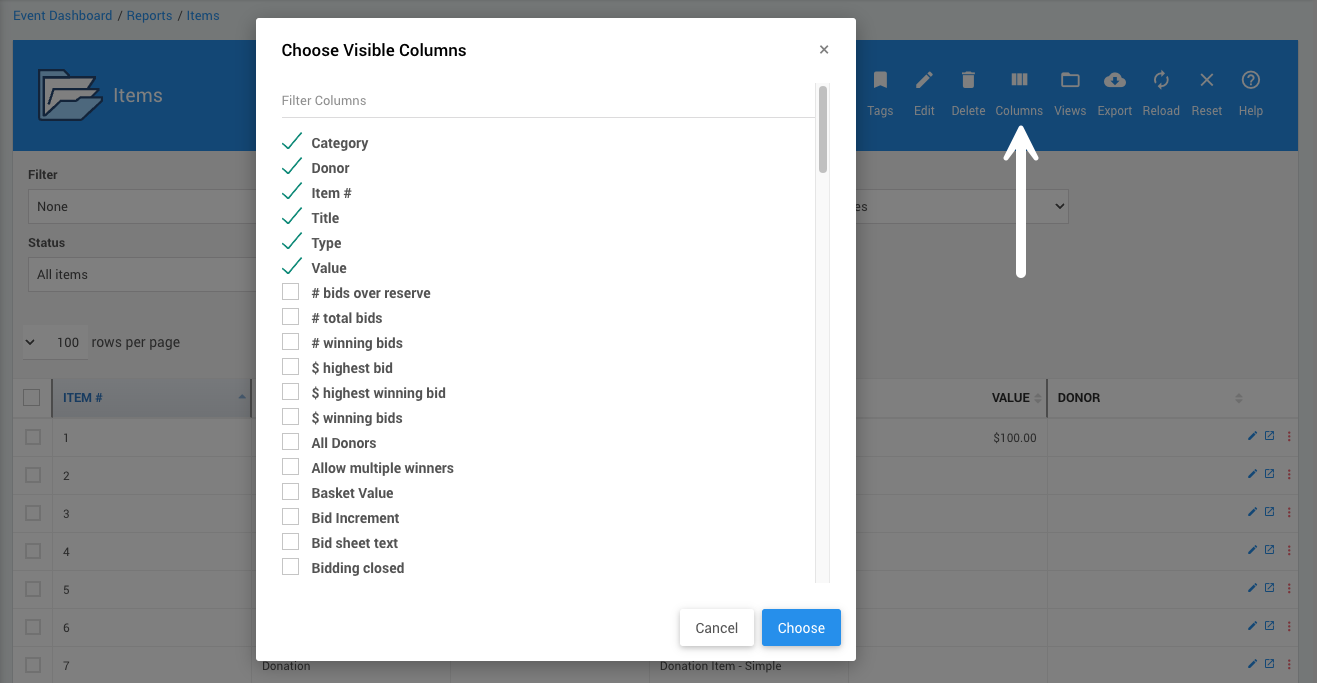
An example from a demonstration event.
- To find a column, type part of its name in Filter Columns.
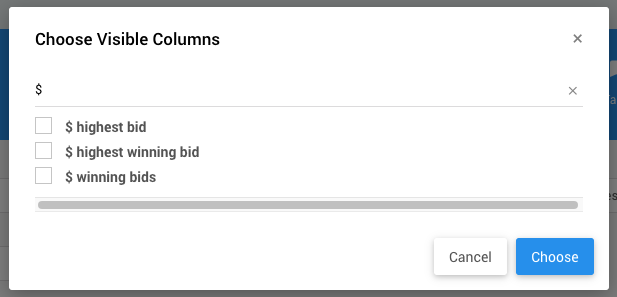
Typing $ lists only the columns with a dollar sign in their name.
- Tick the checkbox for each column you want to show. Clear the checkbox for any column you want to hide.
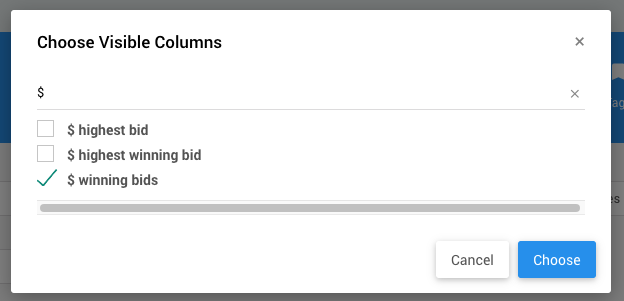
Selecting the $ winning bids column.
- Click Choose. The report reloads with your columns. To close the window without changing anything, click Cancel.
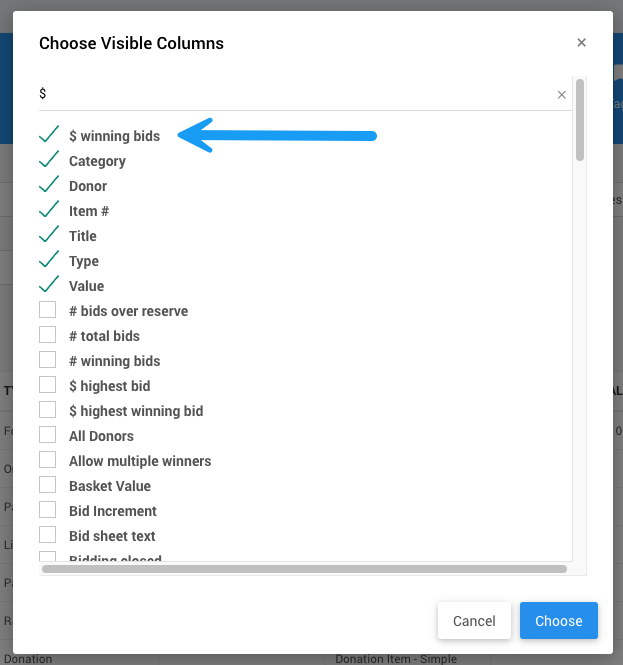
The added $ winning bids column, listed with the other visible columns.
Custom Columns
Fields you've added yourself show a Custom label in the list.
Keep Your Layout
To use the same columns again, save them as a view. See How To Change Report Views. The Reset icon in the toolbar sets the columns back to your default view.