
Learn how to print participant paddles, name tags, and labels from a Word template in Auctria.
The Participant Labels/Paddles document type creates bidding paddles, name tags, or labels for your participants. You can use one of Auctria's templates, or upload your own to match the label sheets or paddle size you print on.
Step 1: Open the Participant Labels/Paddles Templates
From the main event dashboard, click Printing → Word Templates.
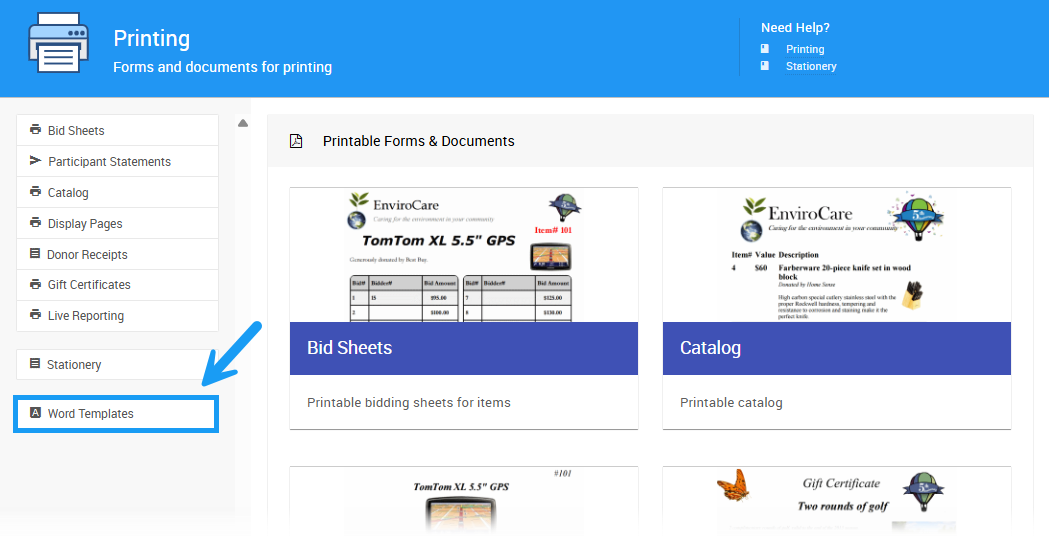
An example from a demonstration event.
In the Document type drop-down, choose Participant Labels/Paddles.
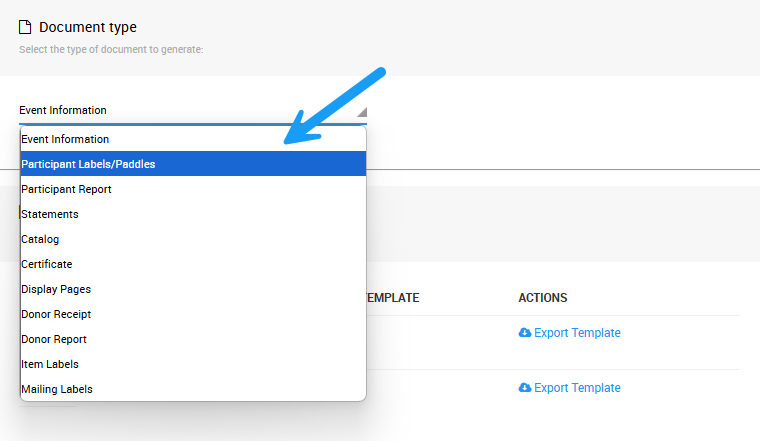
An example from a demonstration event.
The Word template section lists the templates you can use.
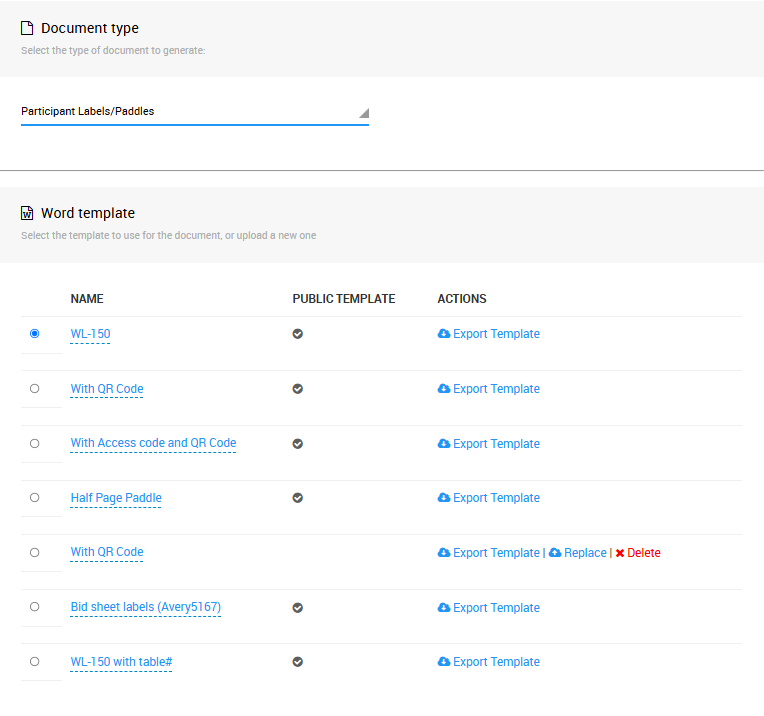
An example from a demonstration event.
To use one of these templates as it is, skip to Step 4.
Step 2: Set Up Your Template
Start with a Word document that matches the labels you print on. These are usually a full-page table with an empty cell for each label. For example, this is a blank Avery 15664 label template:
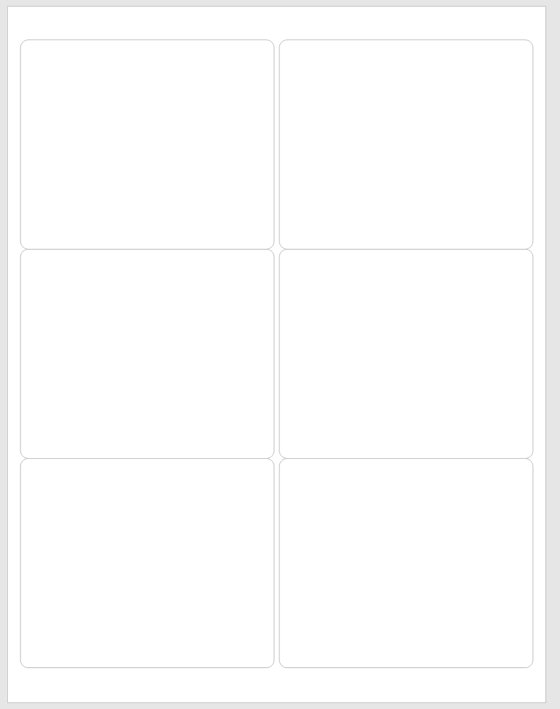
A blank label template in Word.
In each cell, add the placeholders for the participant details you want. For the fields you can use, see Participant References. To see how Auctria's templates are set up, click Export Template beside one and open it in Word.
This label shows the participant's Paddle#, name, access code, and a QR code they can scan in the mobile app:
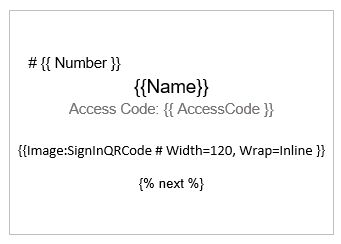
A participant label with a sign-in QR code.
A simple name tag might look like this:
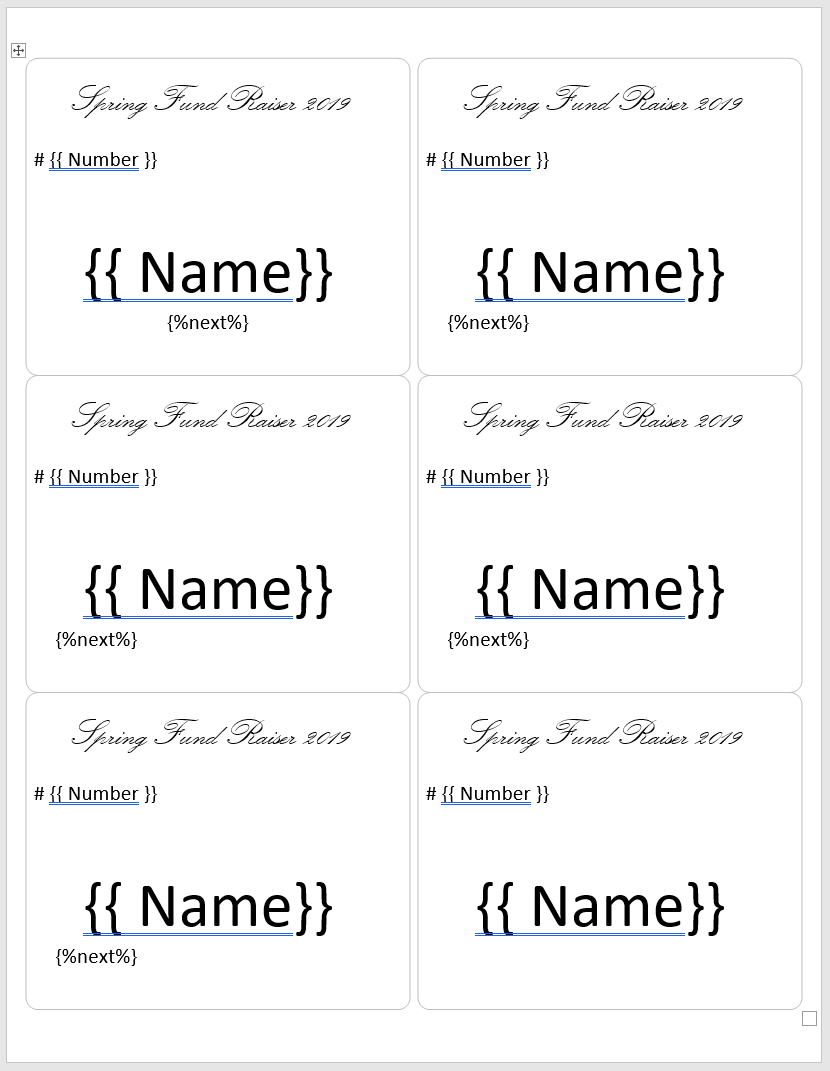
A name tag template.
End every cell except the last one on the page with {% next %}, so Auctria moves on to the next participant. The end of the page moves on automatically. See How Label Templates Work.
Step 3: Upload Your Template
- Make sure Participant Labels/Paddles is still selected as the Document type.
- Click Upload New Template in the sidebar, and select your Word document.
Your template is added to the Word template list. To change it later, edit the file on your computer, then click Replace beside the template.
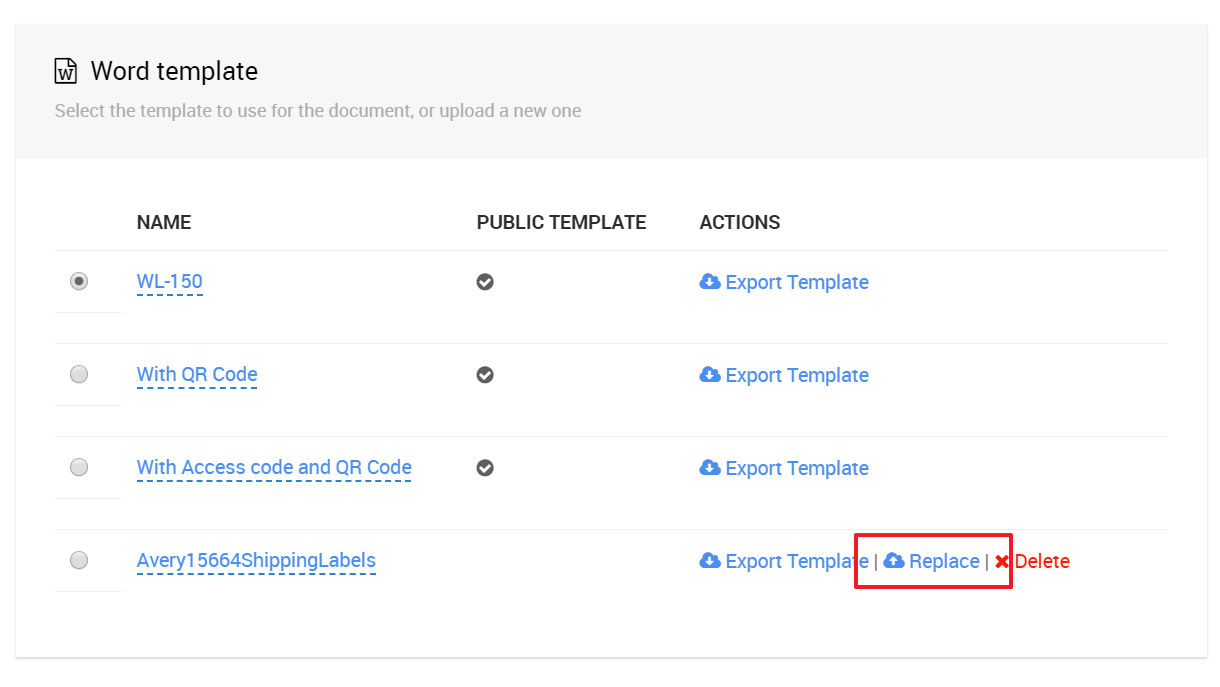
An example from a demonstration event.
Step 4: Generate the Labels
- Select the template in the Word template list.
- Choose the participants to include.
- Click Generate Document to download the Word document, then print it.
Large Paddles
For a large paddle, create a one-page Word template set to the size of your paddle. When you generate the document, it creates one page for each participant.
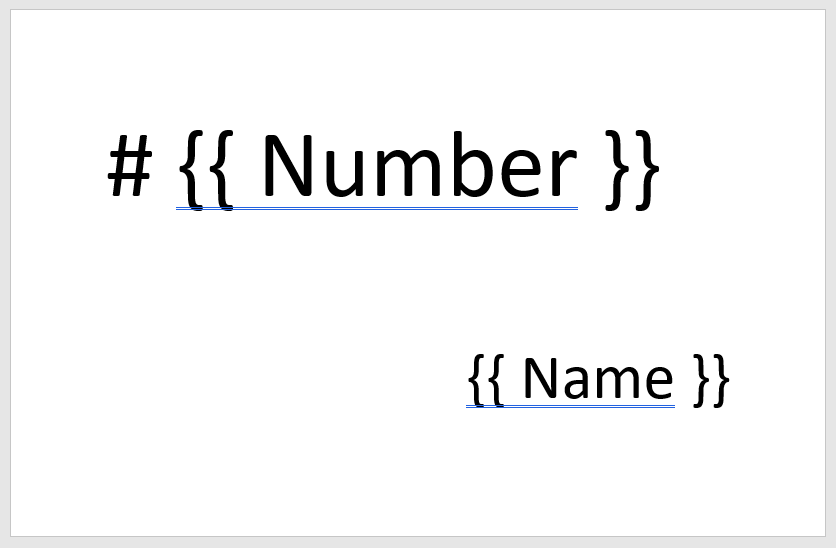
A paddle template.
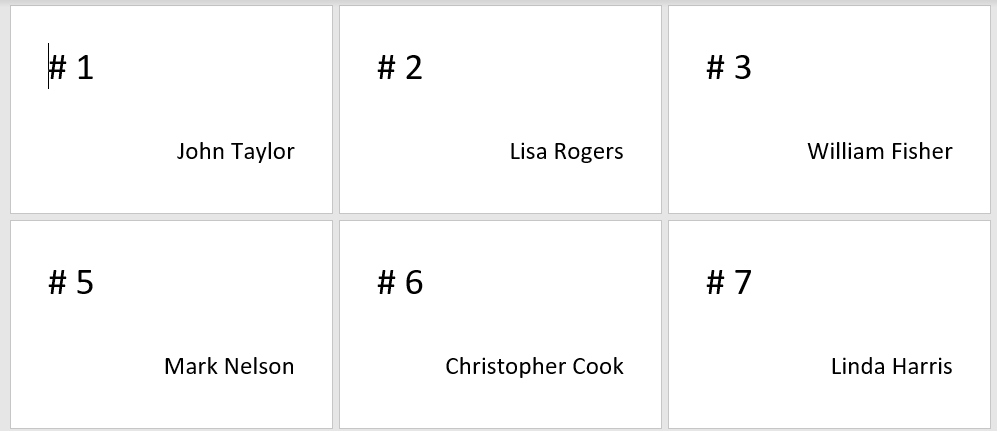
Paddles generated from the template above.
To save paper, set Word to print two pages per sheet.
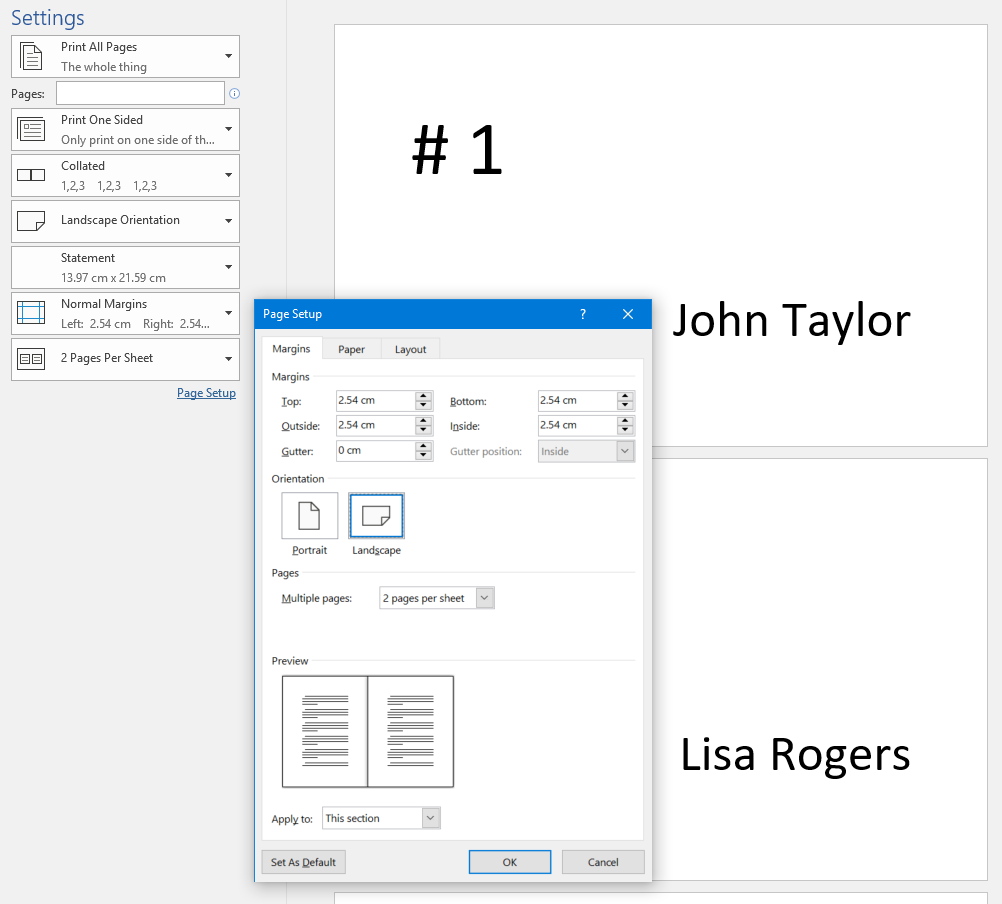
The Page Setup dialog in Microsoft Word.