
Learn how to choose, set up, and download paper bid sheets so participants can bid on items at your in-person event.
How Did I Get Here?
From the main event dashboard, click Printing, then click the Bid Sheets block in the Printable Forms & Documents section.
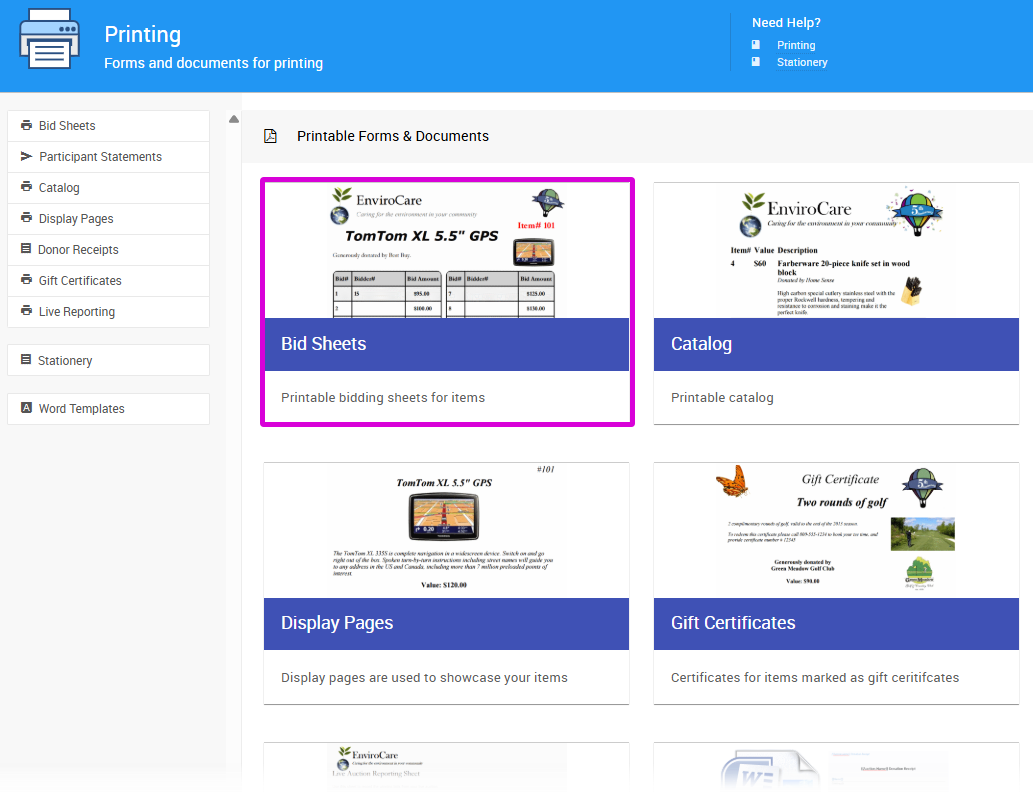
An example from a demonstration event.
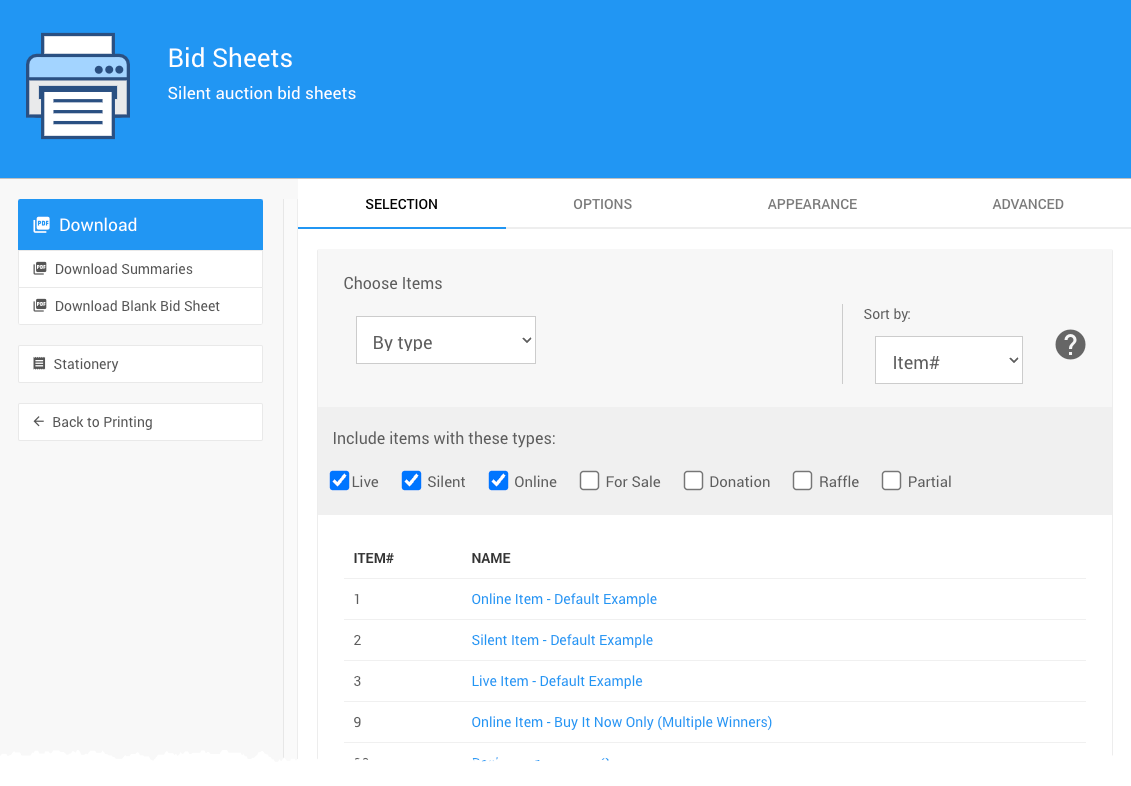
An example Bid Sheets page from a demonstration event.
For step-by-step examples of the most common changes, see How To Customize Bid Sheets.
Actions
| Action | Description |
|---|---|
| Download | Creates a PDF of the bid sheets for the items on the Selection tab. Participants write their bids on these sheets. |
| Download Summaries | Creates a matching summary page for each item, for recording the winning bid. See Summary page. |
| Download Blank Bid Sheet | Creates a bid sheet with no item details. Participants can use it while you add the item to Auctria and print its own bid sheet. |
| Stationery | Opens the Stationery page. See Stationery. |
Selection
The Selection tab lists the items that will be included when you download your bid sheets. Use the drop-down selectors to filter and sort the list. See Choose Items Filters and Choose Items Sort.
Options
The Options tab has the Layout, Style, Content, Display, and Summary page panels.
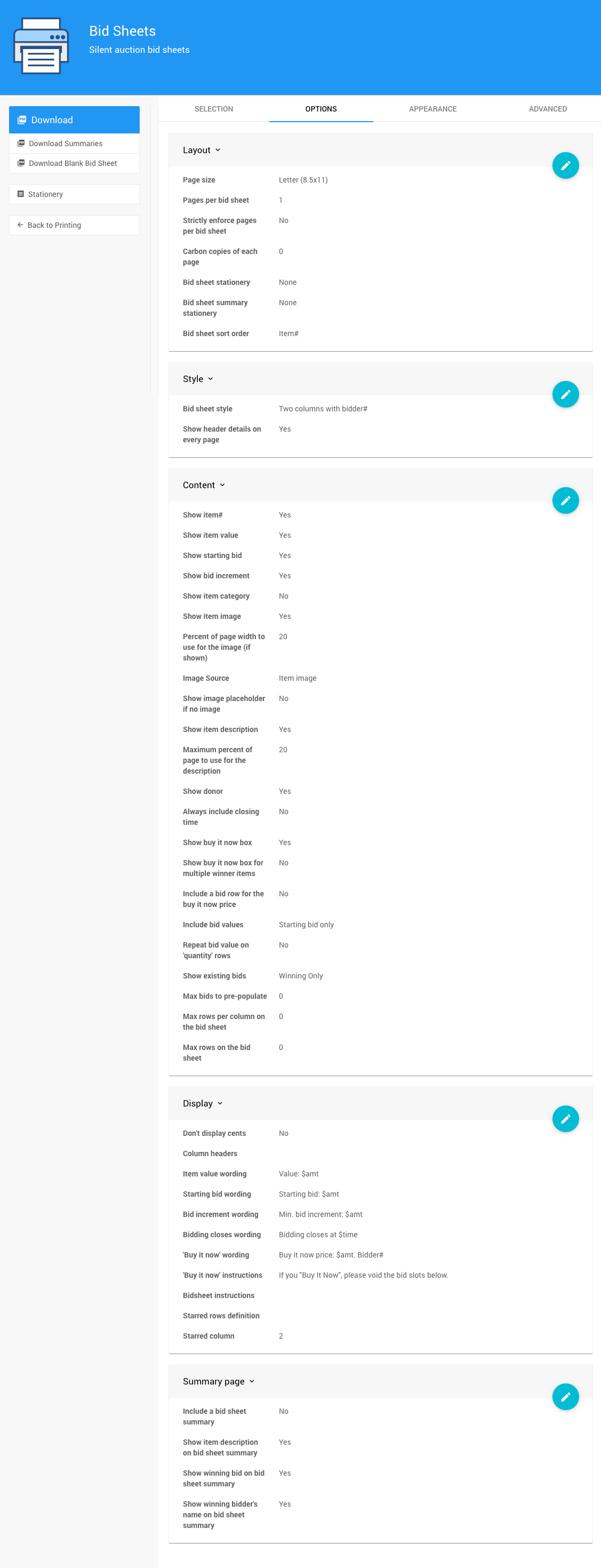
An example Options tab from a demonstration event.
How To Edit Dashboard Panel Settings
You can edit panel settings by clicking on the pencil icon to open the panel for editing.

Panel in "saved" mode.
Once you have made your changes, click the checkmark icon to save these changes. If you have opened multiple panels in a dashboard, you must click each checkmark to keep their settings.

Panel in "edit" mode.
You can click the return arrow icon if you do not want to save your changes.
Layout
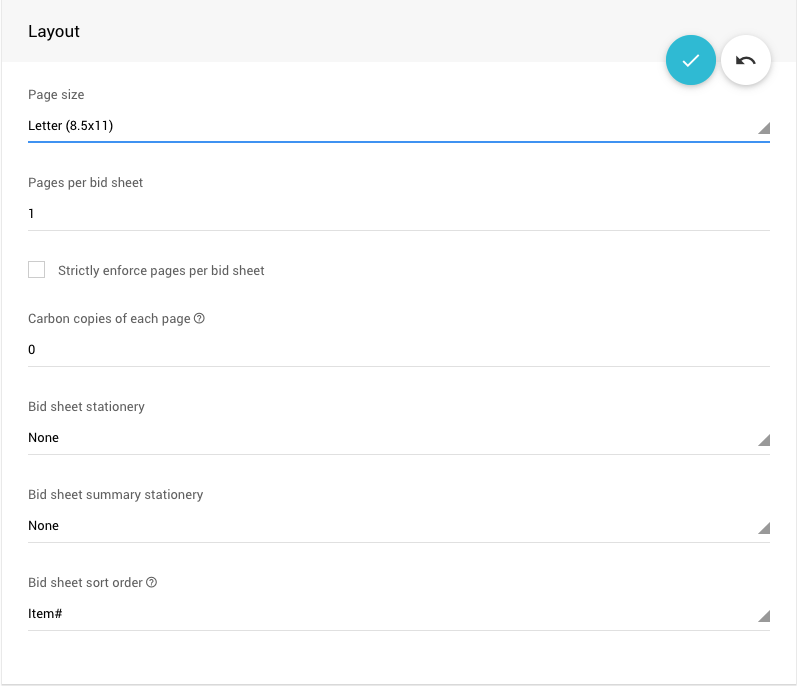
An example from a demonstration event.
| Setting | Description |
|---|---|
| Page size | The paper size for your bid sheets. |
| Pages per bid sheet | How many pages to print for each item. |
| Strictly enforce pages per bid sheet | Never print more than Pages per bid sheet for an item, even when a Buy-It-Now or For Sale item would need more rows. |
| Carbon copies of each page | How many extra copies of each page to include. Useful if you print on carbonless copy paper. |
| Bid sheet stationery | The stationery the bid sheets are printed on. See Stationery. |
| Bid sheet summary stationery | The stationery the summary pages are printed on. |
| Bid sheet sort order | The order of the bid sheets in the PDF: Item# (default), Item Category, Location, Closing Time, or Value. |
Style
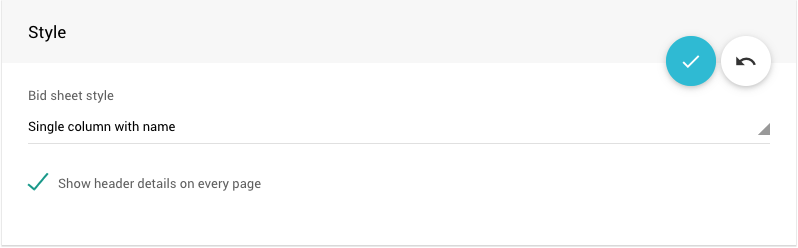
An example from a demonstration event.
| Setting | Description |
|---|---|
| Bid sheet style | The column layout: Three columns with ID#, Two columns with ID# (default), Single column with ID#, Single column with name, or Single column with email. See Choose A Bid Sheet Style. |
| Show header details on every page | Repeats the item header when a bid sheet runs to more than one page. |
Content
The Content panel controls what appears in the body of each bid sheet.
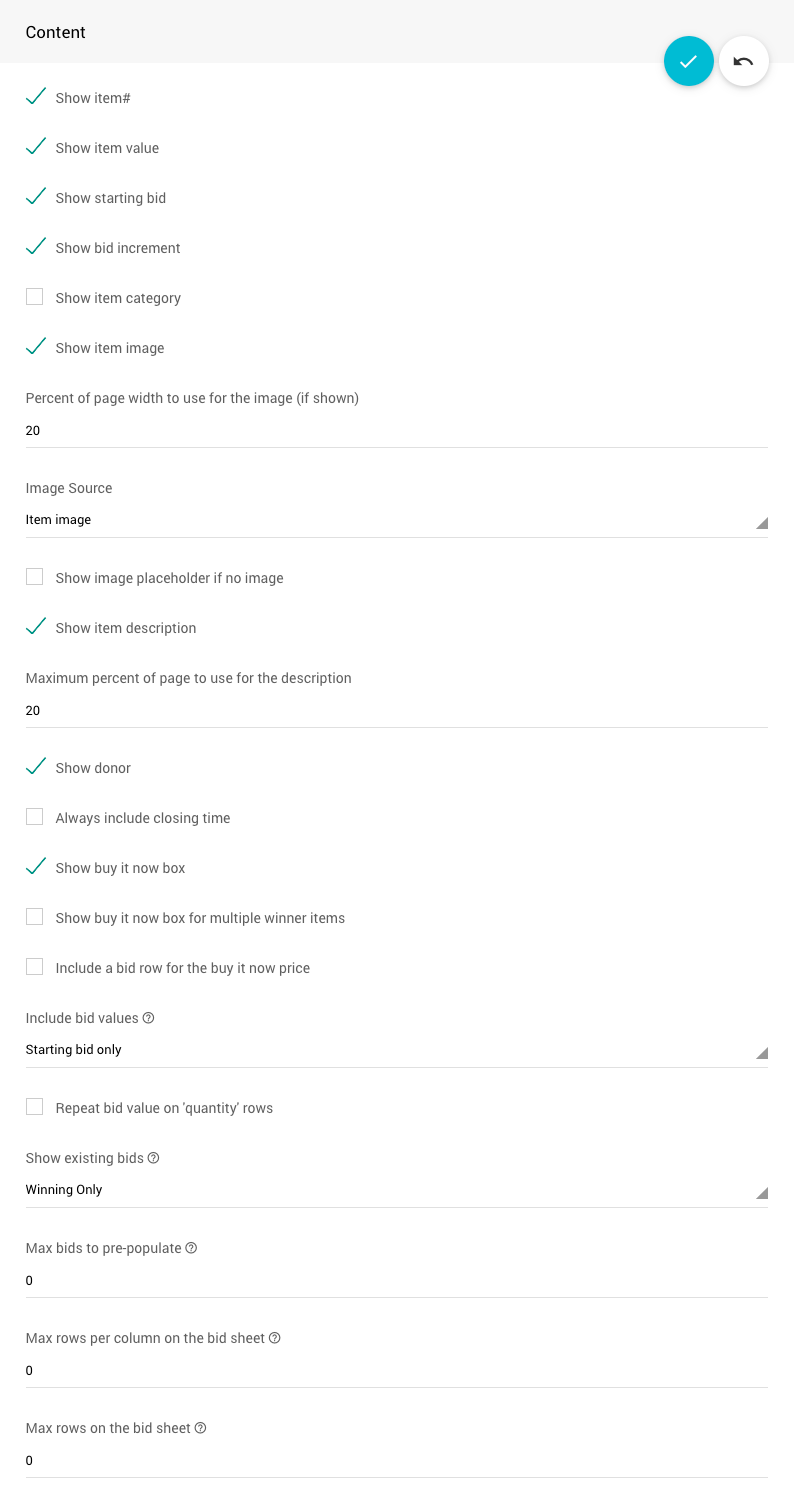
An example from a demonstration event.
| Setting | Description |
|---|---|
| Show item# | Shows the item number in the header. |
| Show item value | Shows the item's value. |
| Show starting bid | Shows the item's starting bid. |
| Show bid increment | Shows the item's minimum bid increment. |
| Show item category | Shows the item's category. |
| Show item image | Shows the item's image. |
| Percent of page width to use for the image (if shown) | How wide the image can be. |
| Image Source | Which image to use. |
| Show image placeholder if no image | Leaves space for an image when the item doesn't have one. |
| Show item description | Shows the item's description. See How To Customize the Item Description Format. |
| Maximum percent of page to use for the description | How much of the page the description can use. |
| Show item donor | Shows the item's donor. |
| Always include closing time | Shows the event closing time when the item has no closing time of its own. |
| Show buy it now box | Shows a Buy-It-Now box for items with a Buy-It-Now price. |
| Show buy it now box for multiple winner items | Shows the Buy-It-Now box on items that can have more than one winner. |
| Include a bid row for the buy it now price | Adds a bid row for the Buy-It-Now price. |
| Include bid values | Pre-fills bid amounts on the rows: Starting bid only (default), All bids, or None. See How To Pre-Populate Bid Sheet Values. |
| Repeat bid value on 'quantity' rows | For items with a quantity, repeats each bid value 'quantity' times. Include bid values must also be on. |
| Show existing bids | Prints any bids already recorded for the item. |
| Max bids to pre-populate | Limits how many rows get a pre-filled bid amount. 0 fills all rows. |
| Max rows per column on the bid sheet | 0 fills the column. |
| Max rows on the bid sheet | The most bid rows to print on a bid sheet. |
Display
The Display panel controls the wording on your bid sheets. See Change The Wording for examples.
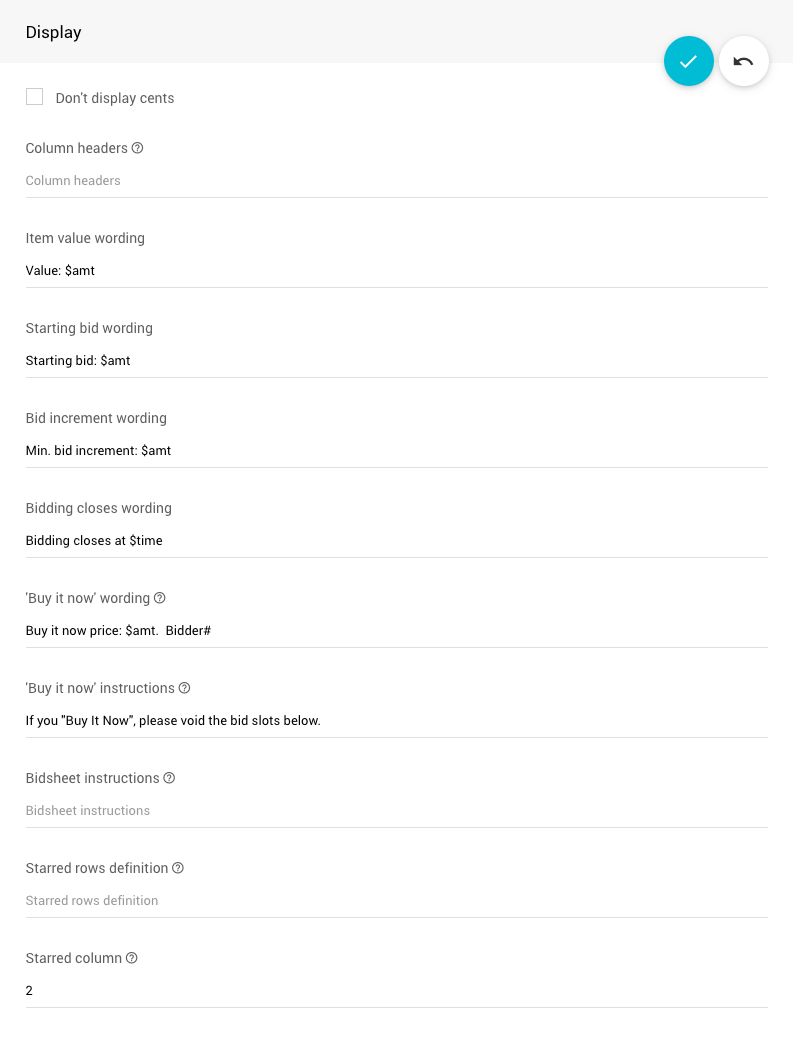
An example from a demonstration event.
Keep the $ Codes
Keep codes such as $amt and $time when you change the wording. Auctria replaces them with the item's values.
| Setting | Description |
|---|---|
| Don't display cents | Shows $99 instead of $99.00. |
| Column headers | The text at the top of each bid column. See Customize The Column Headers. |
| Item value wording | Default: Value: $amt |
| Starting bid wording | Default: Starting bid: $amt |
| Bid increment wording | Default: Min. bid increment: $amt |
| Bidding closes wording | Default: Bidding closes at $time |
| 'Buy it now' wording | The text inside the Buy-It-Now box. |
| 'Buy it now' instructions | The text below the Buy-It-Now box. |
| Bidsheet instructions | Text shown just above the bid rows. |
| Starred rows definition | Which rows show a star, as a comma-separated list. A plain number stars that bid row (for example, 5,10). A percentage stars the first row whose amount reaches that percentage of the item's value (for example, 50%,100%). |
| Starred column | Which column the stars appear in. Default: 2 |
Summary page
A summary page is an extra page for each item, with space to record the winner and the winning bid. You can collect the summary pages at the end of the auction for data entry, and leave the bid sheets at the item tables for participants to see the results.
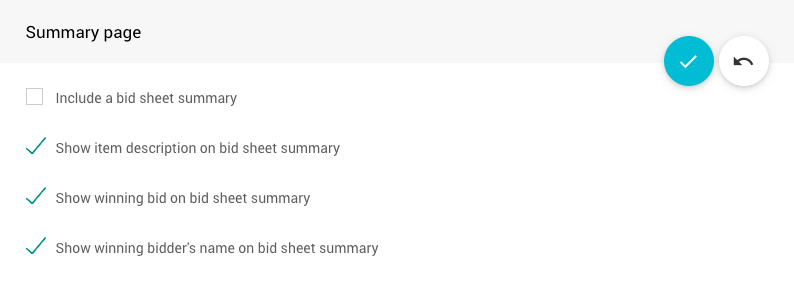
An example from a demonstration event.
| Setting | Description |
|---|---|
| Include a bid sheet summary | Creates the summary pages. The other summary options only work when this is on. |
| Show item description | Shows the item's description on the summary page. |
| Show winning bid | Shows the winning bid, if one is recorded. |
| Show winner's name | Shows the winner's name, if one is recorded. |
Appearance
The Appearance tab has the Appearance, Colors, and Fonts panels.
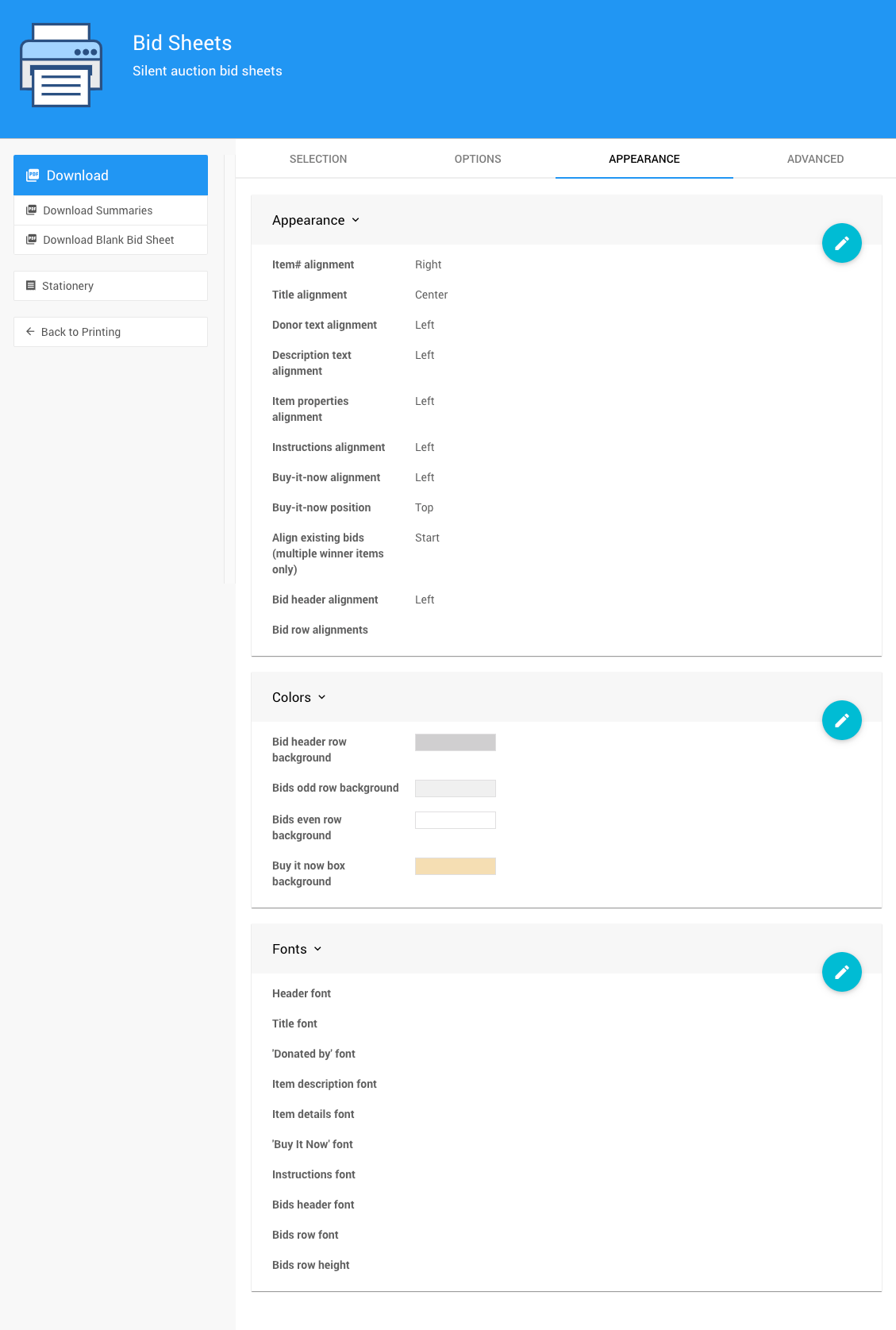
An example Appearance tab from a demonstration event.
Alignment
The Appearance panel sets the alignment of each part of the bid sheet. Most settings offer Left, Center, or Right.
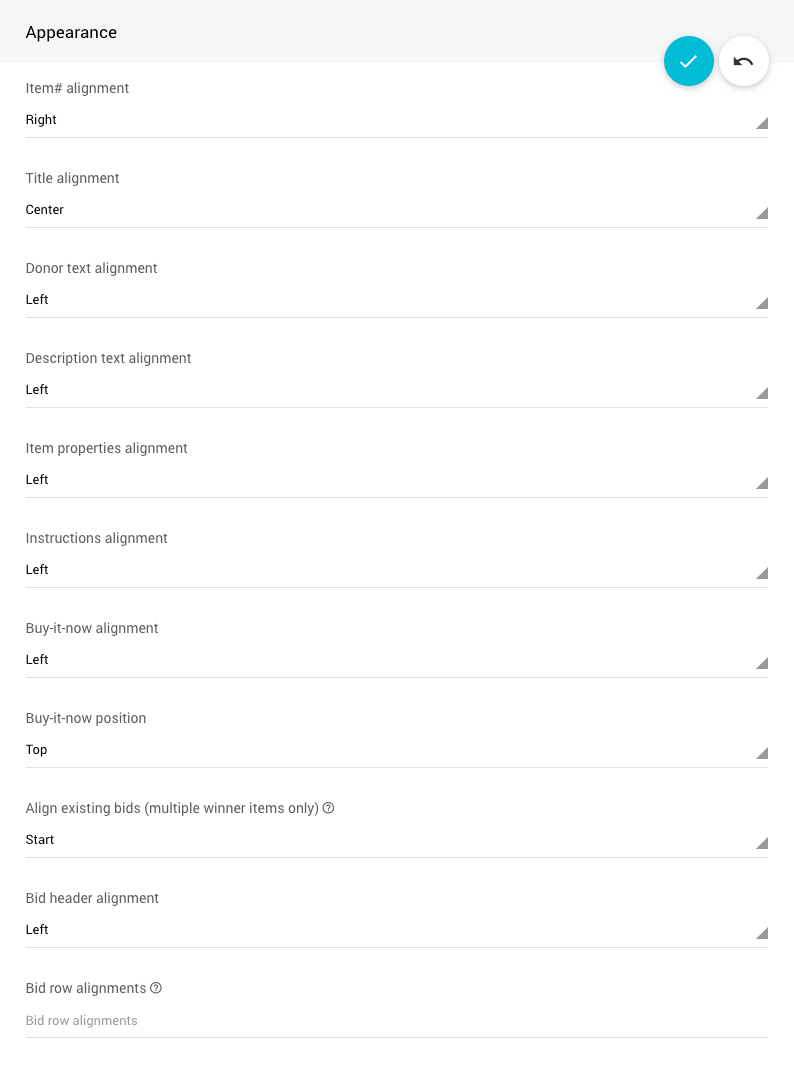
An example from a demonstration event.
| Setting | Description |
|---|---|
| Item# alignment | Alignment of the item number. |
| Title alignment | Alignment of the item title. |
| Donor text alignment | Alignment of the donor line. |
| Description text alignment | Alignment of the item description. |
| Item properties alignment | Alignment of the item value, starting bid, and other details. |
| Instructions alignment | Alignment of the bid sheet instructions. |
| Buy-it-now alignment | Alignment of the Buy-It-Now box. |
| Buy-it-now position | Shows the Buy-It-Now box at the Top or Bottom of the bid sheet. |
| Align existing bids (multiple winner items only) | When several rows have the same amount, shows existing bids at the start or end of each group. |
| Bid header alignment | Alignment of the column headers. |
| Bid row alignments | Alignment of each column in the bid rows, as a comma-separated list of left, center, or right in column order. |
Colors
The Colors panel sets background colors. Click a setting to choose a color with the color picker.
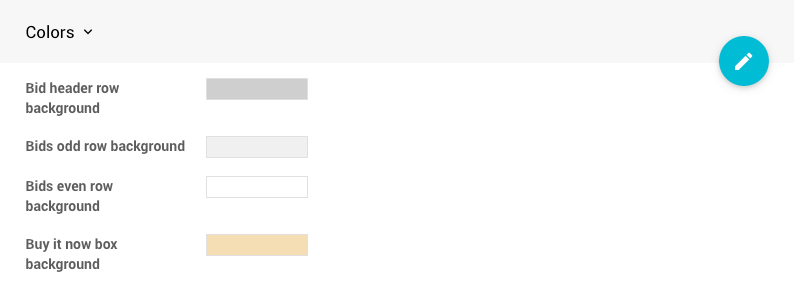
An example from a demonstration event.
| Setting | Description |
|---|---|
| Bid header row background | Background of the column header row. |
| Bids odd row background | Background of odd-numbered bid rows. |
| Bids even row background | Background of even-numbered bid rows. |
| Buy it now box background | Background of the Buy-It-Now box. |
Fonts
The Fonts panel sets the font family, size, and color for each part of the bid sheet. Sizes are in points (pt). Leave a size blank, or 0, to use the default.
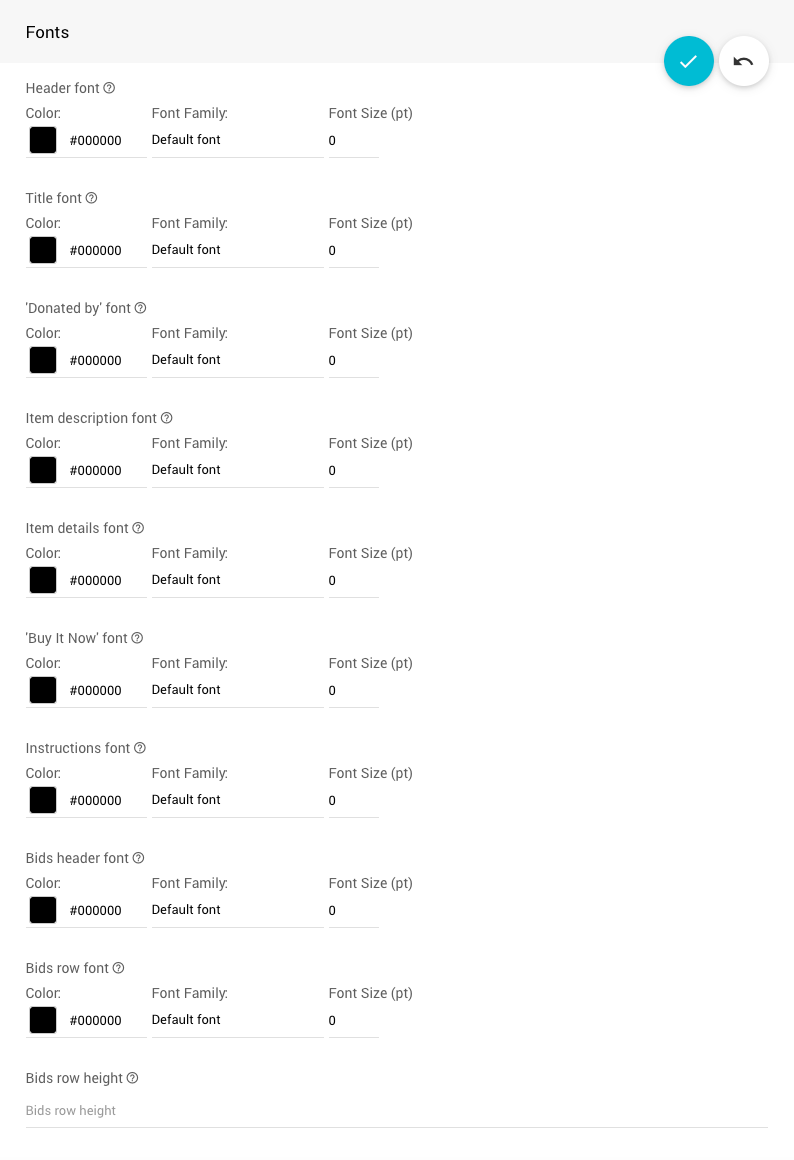
An example from a demonstration event.
| Setting | Description |
|---|---|
| Header font | The item number and category. |
| Title font | The item title. |
| 'Donated by' font | The "donated by" line. |
| Item description font | The item description. |
| Item details font | The item pricing details. |
| 'Buy It Now' font | The Buy-It-Now details. |
| Instructions font | The instructions text. |
| Bids header font | The column headers. |
| Bids row font | The text in the bid rows. |
| Bids row height | The height of the bid rows, separate from the text size. |
Advanced
The Advanced tab gives you full control over some of the text on your bid sheets, using template placeholders.
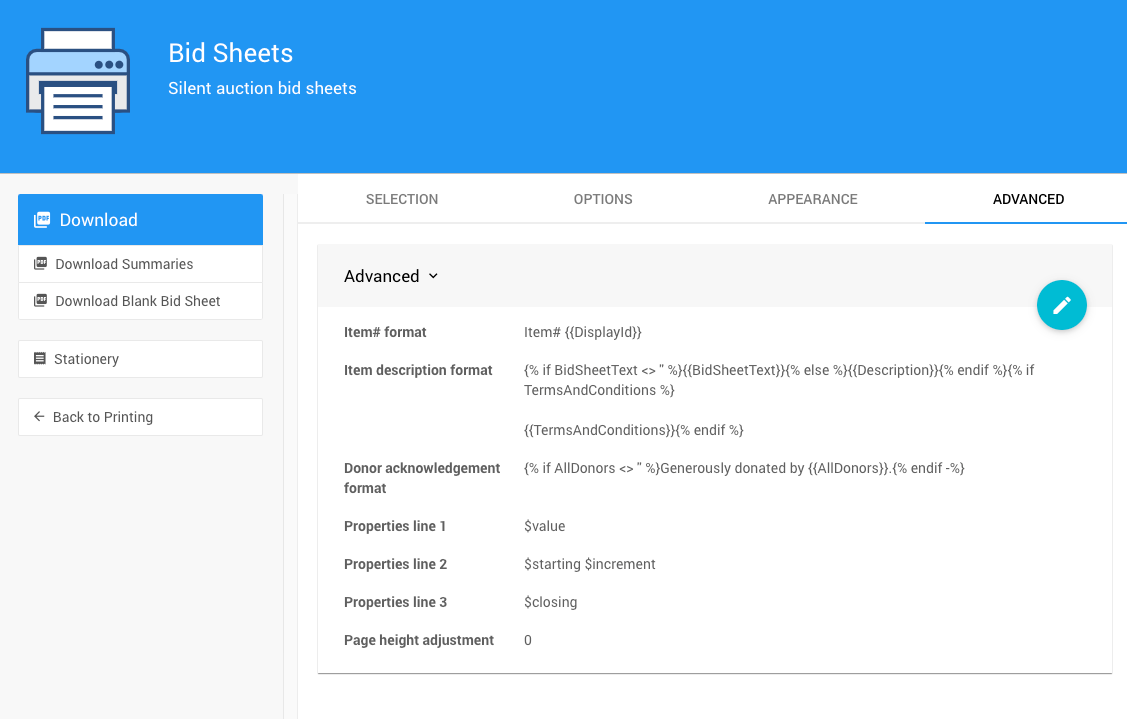
An example Advanced tab from a demonstration event.
| Setting | Description |
|---|---|
| Item# format | The item number line. Default: Item# {{DisplayId}} |
| Item description format | The item description. By default, it shows the item's bid sheet text (or its description, if that's blank), followed by its terms and conditions. See How To Customize the Item Description Format. |
| Donor acknowledgement format | The "Generously donated by" line. |
| Properties line 1, 2 and 3 | Which item details appear on each line under the description, using the codes $value, $starting, $increment, and $closing. Defaults: $value, $starting $increment, and $closing. |
| Page height adjustment | Fine-tunes the page height if bid rows flow onto the next page. |