
Learn why some display pages print blank and how to fix them, and what to check when items are missing from your printed catalog.
Why Display Pages Print Blank
A blank display page usually means the item's content is too long to fit on one page. This happens most often when the item has a long Description plus Terms and Conditions, and the page also includes both the item image and the item QR code.
Auctria makes small font size adjustments to help the text fit. If the text and images still don't fit, the page prints blank.
Some Trial and Error May Be Needed
There's no single fix that works every time. You may need to try more than one of the options below to find what works for your items.
Shorten the Description
Try one or more of these:
- Shorten the item's Description.
- Enter a shorter description in the Display page text field, in the Form Wording section of the item's details.
- Shorten the item's Terms and Conditions, if you can.
Note
The Display page text is only used on display pages.
See Item Description & Terms and Conditions and Form Wording.
Make the Image Smaller or Remove It
From the main event dashboard, click Printing → Display Pages, then click the Options tab.
Click the pencil icon on the Item Information panel.
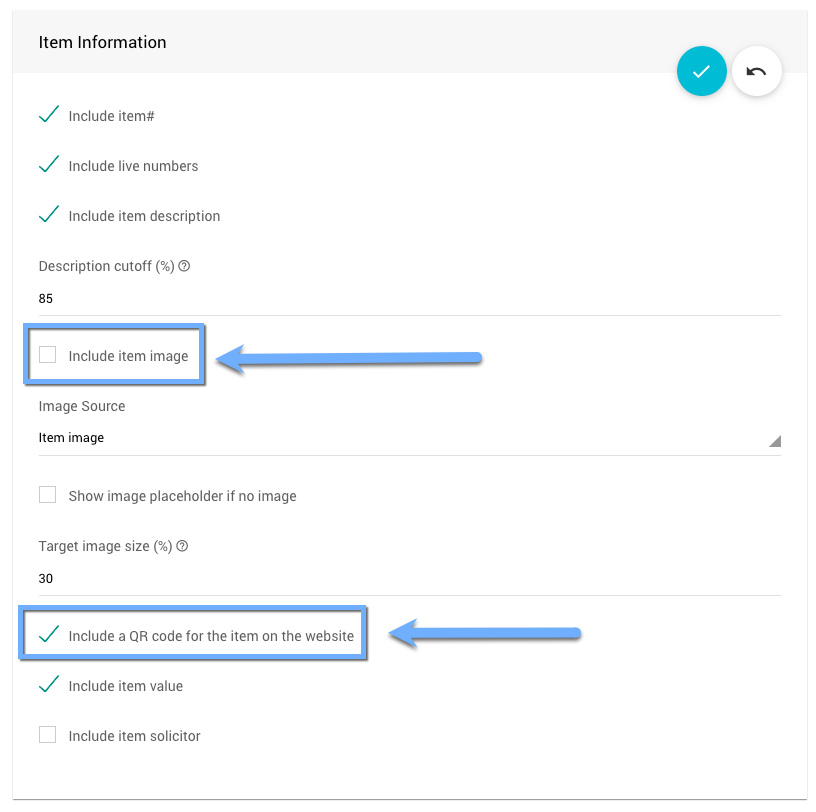
An example Item Information panel from a demonstration event.
Lower the Target image size (%). The default is
30.Or, uncheck Include item image to leave the image out.
Click the checkmark to save.
It's hard to fit both a QR code and an image on a display page. If both are on, try turning one of them off.
If you place each display page beside its item at the event, you may not need the image. Turning off the image and keeping only the QR code often fixes blank pages.
Note
You can't change the size of the QR code. It's kept large enough to scan easily.
Items Missing From the Catalog
If items are missing from the printed Printed Event Catalog, rather than printing blank, check these two settings. They only affect the printed catalog. They don't remove items from display pages or bid sheets.
The item's category: From the main event dashboard, click Items → All Categories. A green dot in the Printed Catalog? column means items in that category are included in the printed catalog.
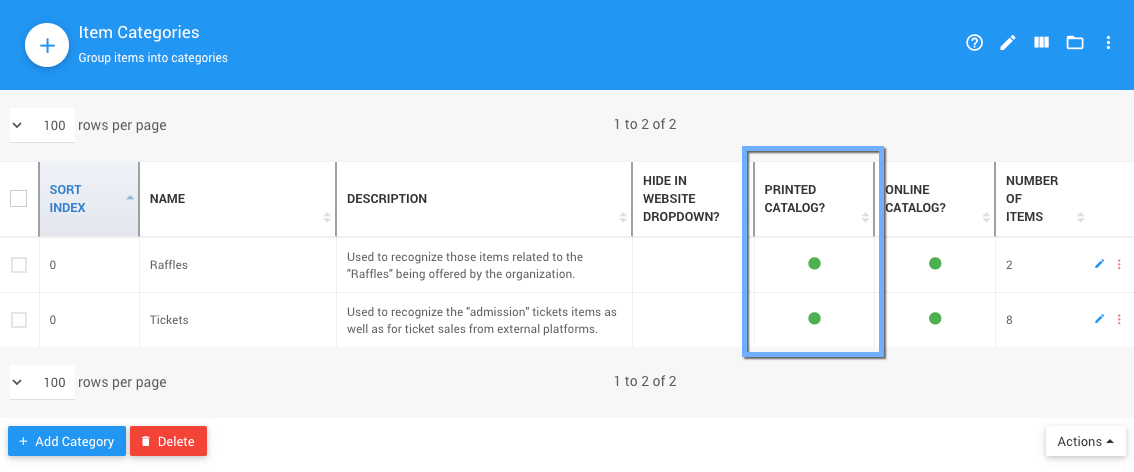
An example All Categories list from a demonstration event.
The item's options: On the item's Options, Exclude from website & catalog removes the item from your event website and the printed catalog. It's off by default.
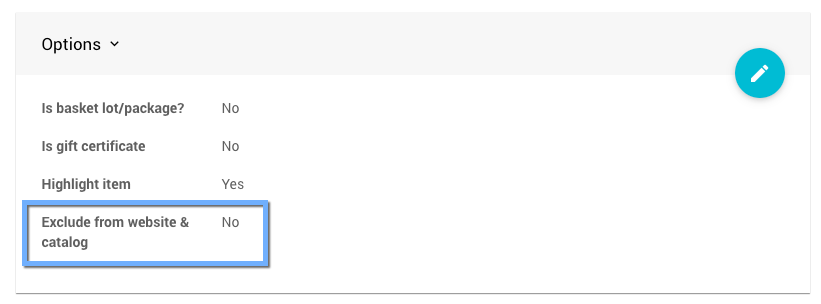
An example from a demonstration event.