
Learn how to display a rotating selection of event sponsors using the Sponsors Row element.
The Sponsors Row displays a randomly selected set of event sponsors that refreshes at a set interval. It is similar to the Sponsors Catalog but is designed for a compact, rotating display rather than a full browsable catalog.
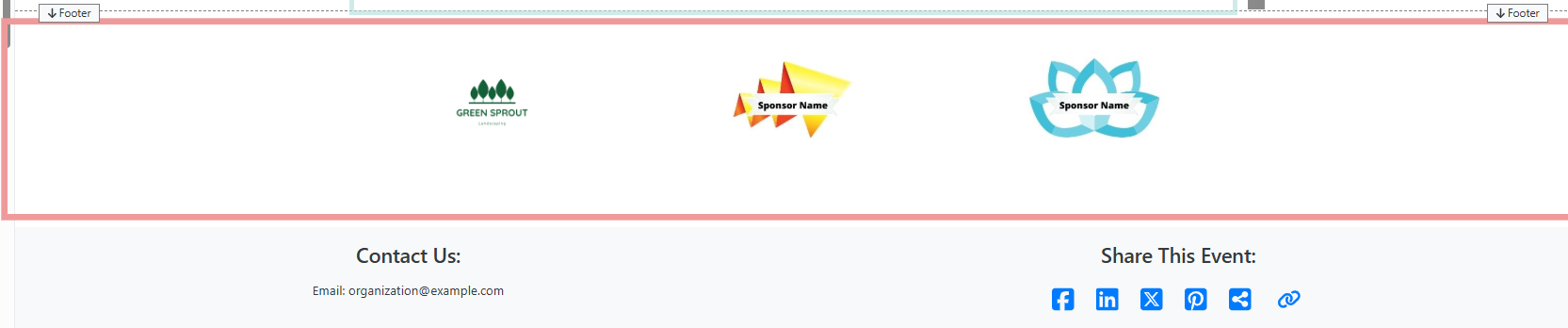
The Sponsors Row element in the Footer of an event website in Edit mode.
Adding the Sponsors Row to a page
Drag the Sponsors Row element from the Website Editor Sidebar into a row, or drag More Row Content onto the page and select Sponsors Row from the Choose Row window.
Sponsors Row Settings
Selecting the Sponsors Row element on the page in the Website Editor opens the Sponsor Row settings panel in the Editor sidebar.
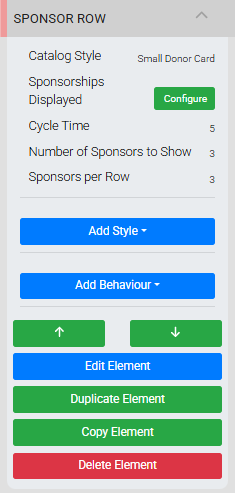
The Sponsor Row settings panel in the Editor sidebar.
Catalog Style
Sets the card layout style used for the sponsor cards. Select from the available options in the drop-down.
Sponsorships Displayed
Clicking Configure opens the Select Sponsorships window, where you set conditions to filter which sponsors appear.
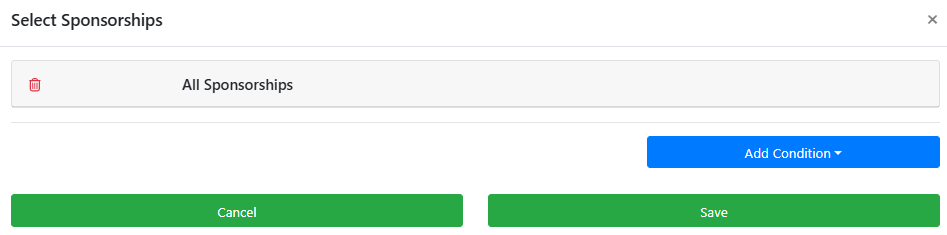
An example from a demonstration event.
Conditions can be combined and some have additional properties that open when selected.
Cycle Time
The number of seconds before the displayed sponsors refresh with a new randomized selection. Set this to control how frequently the sponsors rotate.
Number of Sponsors to Show
The total number of sponsors displayed in the element at one time. If the row width cannot fit all selected sponsors in a single row, additional rows are added within the element as needed.
Sponsors per Row
Sets how many sponsors appear on each row within the element. This is a single value (not a comma-separated list) and is applied alongside the Number of Sponsors to Show setting. For example, setting Number of Sponsors to Show to 6 and Sponsors per Row to 4 results in two rows — one with four sponsors and one with two. Sponsors are always centered within the element. The maximum value is 4.
Donor Card
Clicking an individual sponsor (or the blue target icon visible when hovering over a sponsor) selects the Donor Card element, which controls how each sponsor logo and name appears.
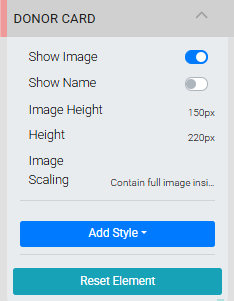
The Donor Card settings panel in the Editor sidebar.
Editing affects all donor cards
Changes made to the Donor Card settings apply to every sponsor card in the element, not just the one selected.
| Setting | Description |
|---|---|
| Show Image | Toggles the display of the sponsor's logo or image. |
| Show Name | Toggles the display of the sponsor's name. If a Company name is set on the sponsor record, it will be used instead of the bidder name fields. |
| Image Height | Sets the height of the image container. Requires a unit of measure. |
| Image Scaling | Controls how the image is scaled within the container. Options are Contain full image inside (default) and Enlarge image to cover. |
Example: Adding a Sponsors Row to the Footer
A common use of the Sponsors Row is placing it in the footer zone to give prominent, site-wide visibility to top-tier sponsors.
- Open the Website Editor.
- Drag More Row Content into the Footer zone.
- Select Sponsors Row from the Choose Row window.
- Select the Sponsors Row element and click Configure to set which sponsors are displayed and adjust the layout as needed.
See Common Element Actions for more details on managing the Sponsors Row element.