
Learn how to open, save, reset and set default views for Auctria reports.
A view is a saved layout of a report, with its own columns and sort order. Auctria includes system views for most reports, and you can save your own.
Click Views in the report toolbar to open the Views menu.
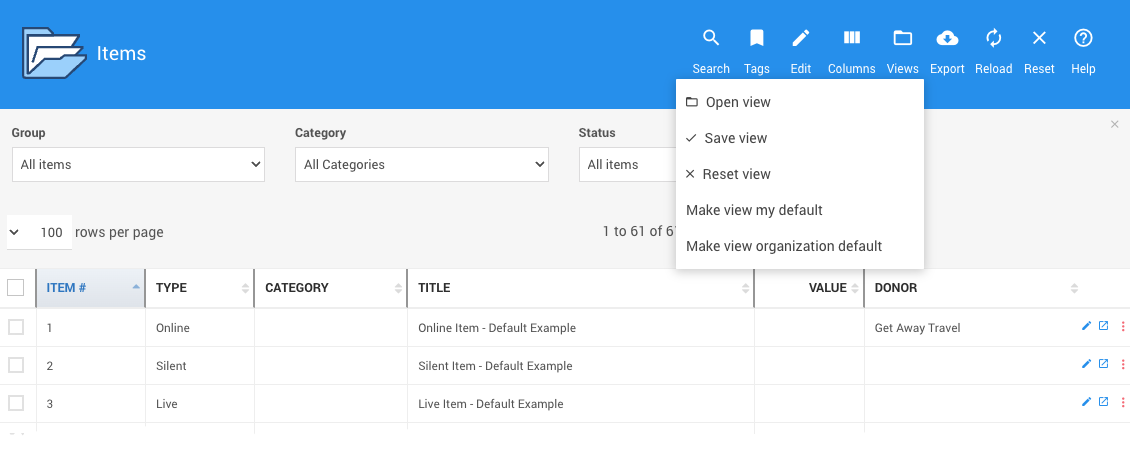
The Views menu on an Items report from a demonstration event.
| Option | What It Does |
|---|---|
| Open view | Lists the views for this report, so you can switch to one. |
| Save view | Saves the current layout as one of your user views. |
| Reset view | Returns the report to your default view. |
| Make view my default | Makes the current view your default for this report. |
| Make view organization default | Makes the current view the default for everyone in your organization. |
Open a View
- Click Views → Open view. The Open View window lists your User Views, if you've saved any, and the System Views.
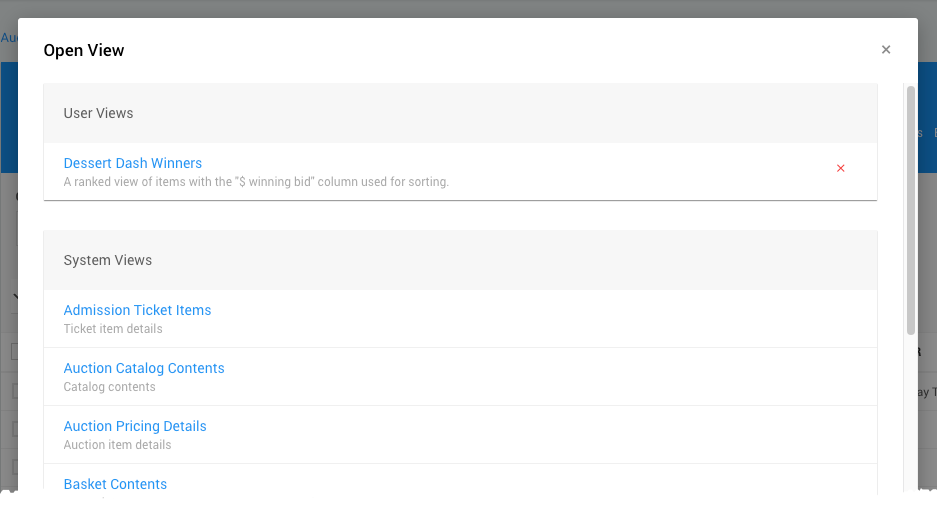
An example from a demonstration event.
- Click a view's name. The report reloads with that view.
Save a View
- Set up the report the way you want it, such as its columns and sort order.
- Click Views → Save view. The Save View window opens.
- Enter a name and a description for the view.
- Click Save.
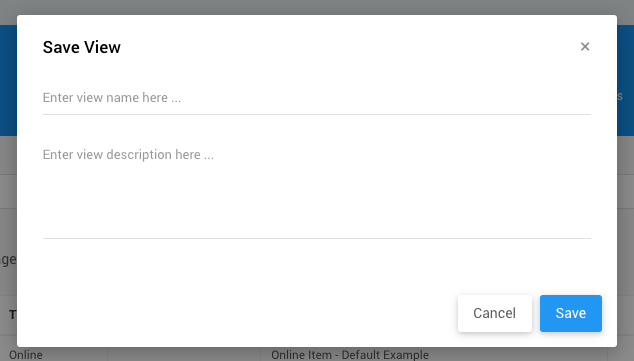
An example from a demonstration event.
Your view is listed under User Views in the Open View window. To delete a user view, click the red × beside it.
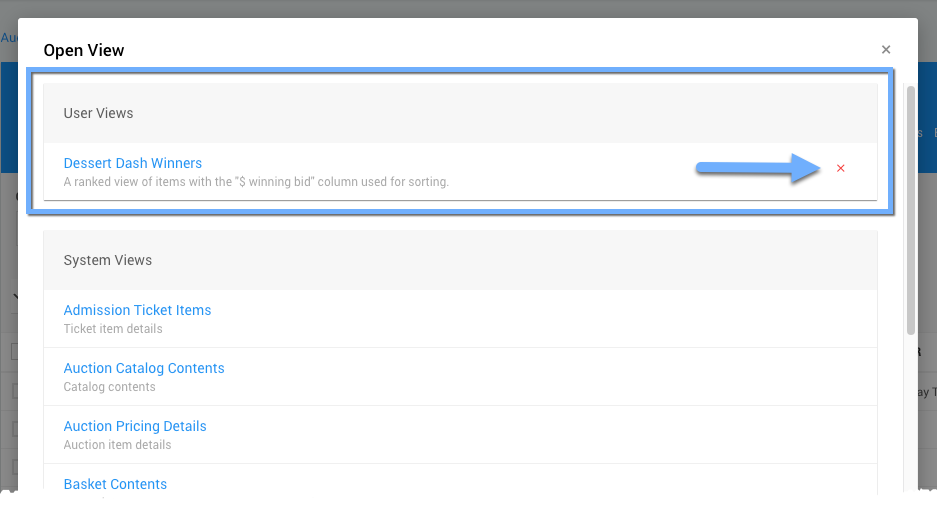
Deleting a user view.
Reset a View
Click Views → Reset view to return the report to your default view. If you or your organization have set a default view for the report, the report resets to that view.
The Reset icon in the report toolbar does the same thing.
Set a Default View
Open the view you want, then click one of these options in the Views menu:
- Make view my default makes the current view your default for this report. It only affects you.
- Make view organization default makes the current view the default for everyone in your organization, replacing any personal default views that have been saved.
No Confirmation
Both options take effect right away, without asking you to confirm. A success message appears at the top of the screen.