
Learn how to add, edit, and delete Consignment Categories, and how Auctria uses them to work out what you owe a consignor.
A Consignment Category holds the rules for what you owe a consignor when a consigned item sells. When the item sells, Auctria uses these rules to create the expense automatically. See Introduction To Consignments for an overview of consignments.
A category can be general and apply to many items, or specific to a single item. It depends on the agreements you've made with your consignors.
Licenses
Consignment Categories aren't available on the Explorer license.
Consignment Page
To view your Consignment Categories, click Items → Consignment Categories. This opens the Consignment page.
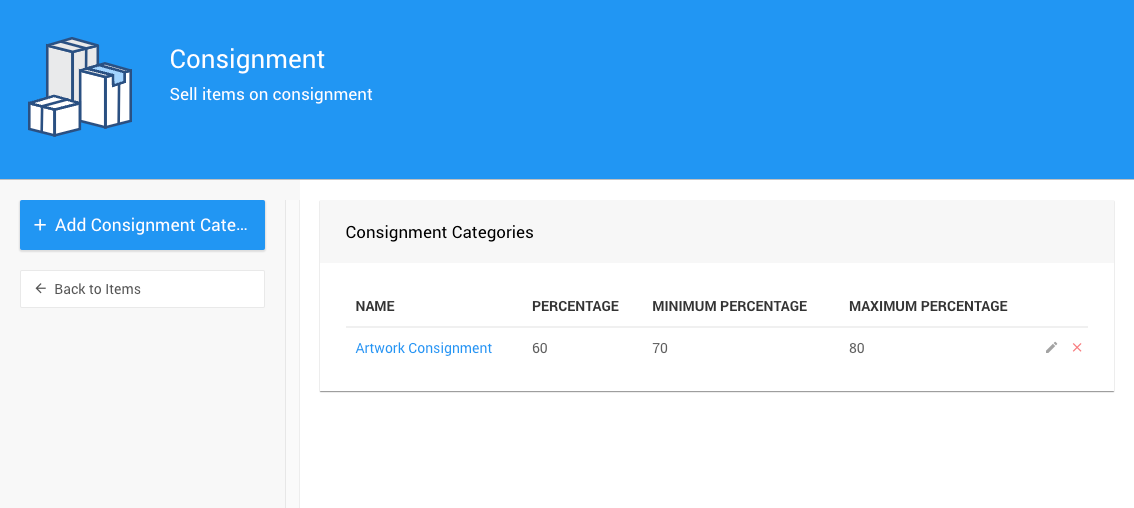
An example Consignment page from a demonstration event.
The Consignment Categories list shows each category's Name, Percentage (of the winning bid), Minimum Percentage, and Maximum Percentage.
Add A Consignment Category
- Click Items → Consignment Categories.
- Click Add Consignment Category. This opens the add form, which is also titled Consignment.
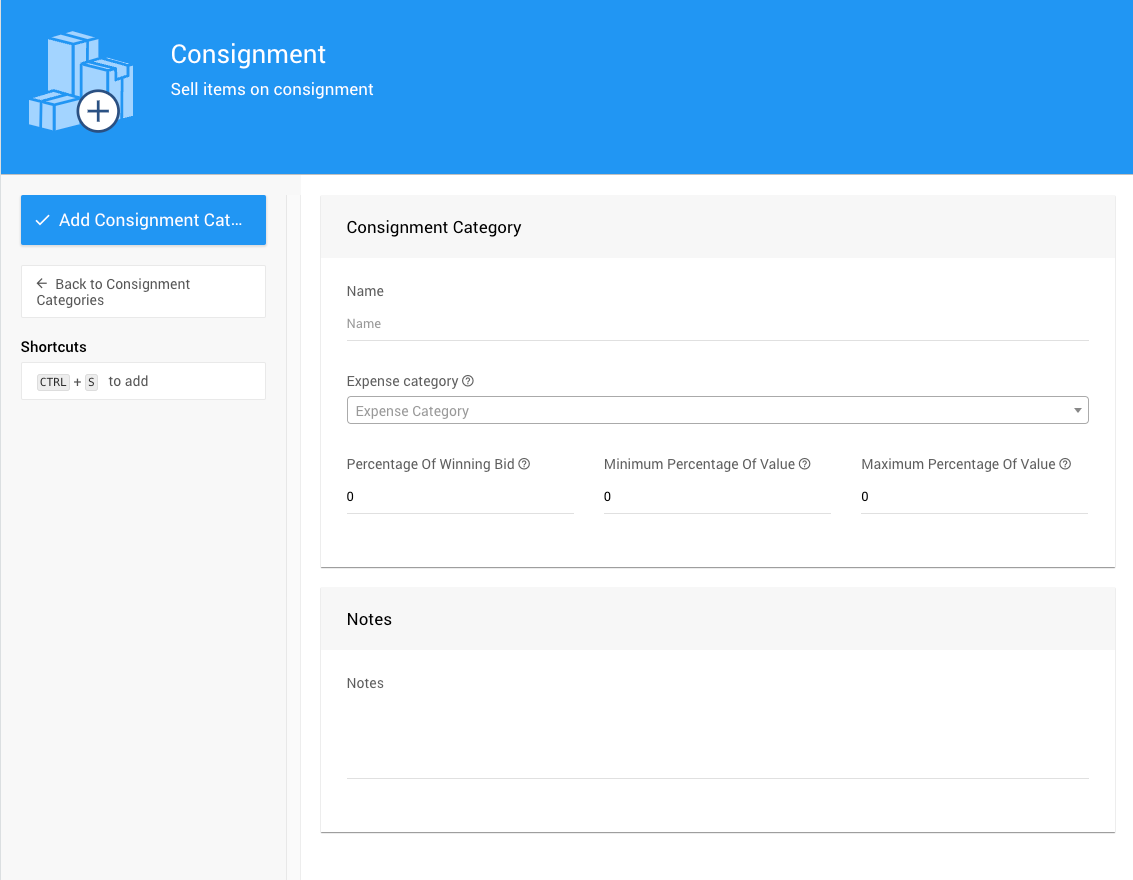
An example Consignment add form from a demonstration event.
- Fill in the fields. Only Name is required.
| Field | Description |
|---|---|
| Name | The category's name. Required. |
| Expense category | Optional. The Expense Category the automatically created expenses are assigned to. If you leave it blank, the expenses are still created, just without a category. |
| Percentage Of Winning Bid | The percentage of the winning bid you owe the consignor. |
| Minimum Percentage Of Value | The least you owe, as a percentage of the item's Value. If the winning bid percentage works out lower, you owe this amount instead. |
| Maximum Percentage Of Value | The most you owe, as a percentage of the item's Value. If the winning bid percentage works out higher, you owe this amount instead. |
| Notes | Optional. Notes for your own reference. |
Enter percentages as whole numbers. For example, enter 75 for 75%.
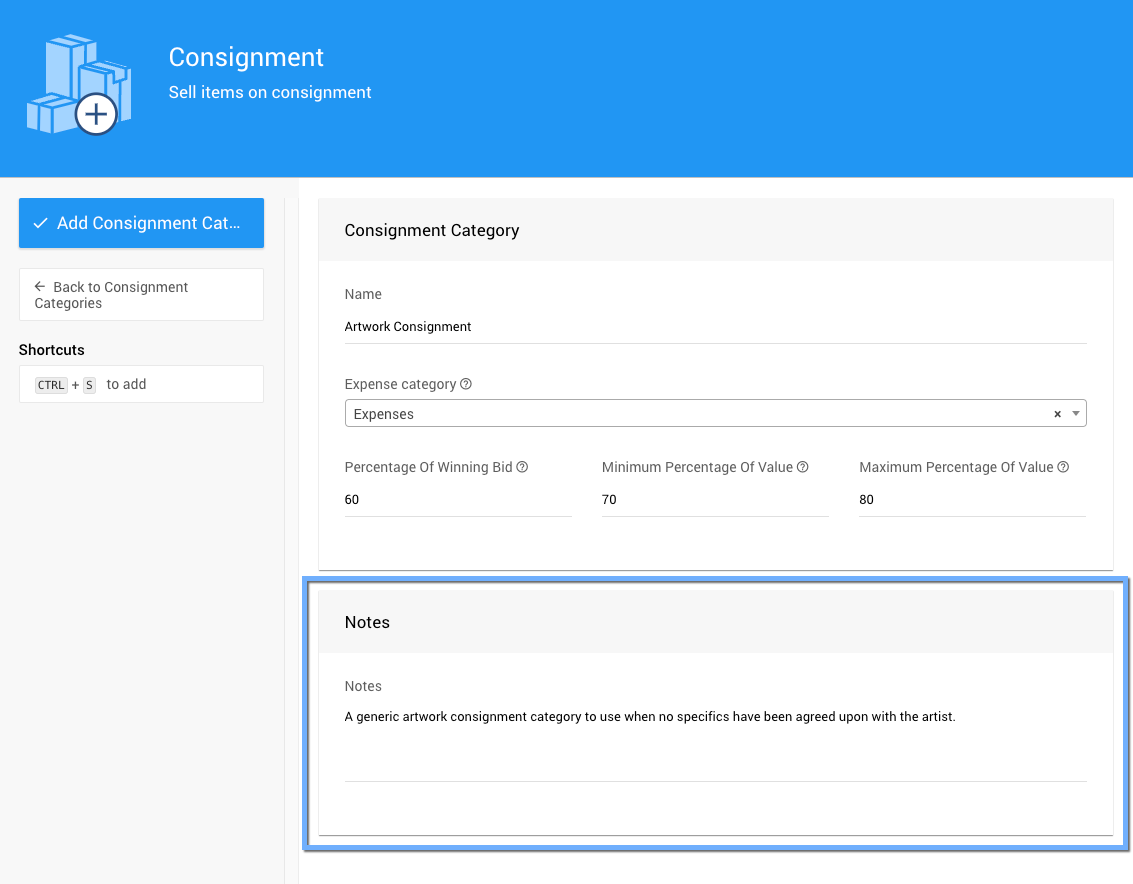
An example Consignment Category with a note, from a demonstration event.
- Click Add Consignment Category.
Auctria saves the category and returns you to the Consignment page.
To use the category, select it in the Consignment category field on a consigned item's Item Details page.
How The Expense Is Worked Out
When a consigned item sells, Auctria works out the expense like this:
- It takes the Percentage Of Winning Bid of the winning bid.
- If that's less than the Minimum Percentage Of Value of the item's value, it uses the minimum instead.
- If that's more than the Maximum Percentage Of Value of the item's value, it uses the maximum instead.
- If the item has its own Consignment Minimum or Consignment Maximum dollar amount, those are applied next, after the category's percentages.
Things to know:
- The minimum and maximum percentages only apply when they're above
0and the item has a Value. - The amount is worked out per unit, then multiplied by the quantity bought.
Example
This example uses an item with a Value of $100 and a category set to:
| Percentage Of Winning Bid | Minimum Percentage Of Value | Maximum Percentage Of Value |
|---|---|---|
| 60% | 70% | 80% |
| Winning Bid | 60% Of Winning Bid | Minimum (70% Of Value) | Maximum (80% Of Value) | Expense |
|---|---|---|---|---|
| $150 | $90 | $70 | $80 | $80 (maximum applies) |
| $120 | $72 | $70 | $80 | $72 |
| $100 | $60 | $70 | $80 | $70 (minimum applies) |
| $80 | $48 | $70 | $80 | $70 (minimum applies) |
Protect Your Organization
If the winning bid could fall below the minimum you owe, set a Starting Bid or Reserve Price on the item. In the last row above, you owe $70 on an $80 winning bid, which leaves your organization only $10.
Edit A Consignment Category
On the Consignment page, click the pencil icon at the right end of the category's row. This opens the category's own page, with the Consignment Category, Rules, and Notes sections and a History tab.
Delete A Consignment Category
On the Consignment page, click the red x at the right end of the category's row, then click Continue to confirm.
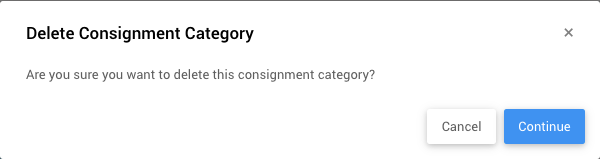
The Delete Consignment Category confirmation window, from a demonstration event.
Expenses Aren't Deleted
Deleting a Consignment Category removes it from the items it was assigned to. It doesn't delete the items or the expenses already created for them. Those expenses are linked to the winning bid, not the category, so they stay until that bid stops winning.