
Learn how to generate Word documents such as participant paddles, labels, and thank-you letters, and how to download, customize, and upload your own Word templates.
A Word template is a Word document with placeholders, such as {{Name}}, that Auctria fills in with your event's details. Auctria includes default templates for each type of document, and you can upload your own.
How Did I Get Here?
From the main event dashboard, click Printing, then click the Word Templates block in the Printable Forms & Documents section.

An example from a demonstration event.
Word Templates Page
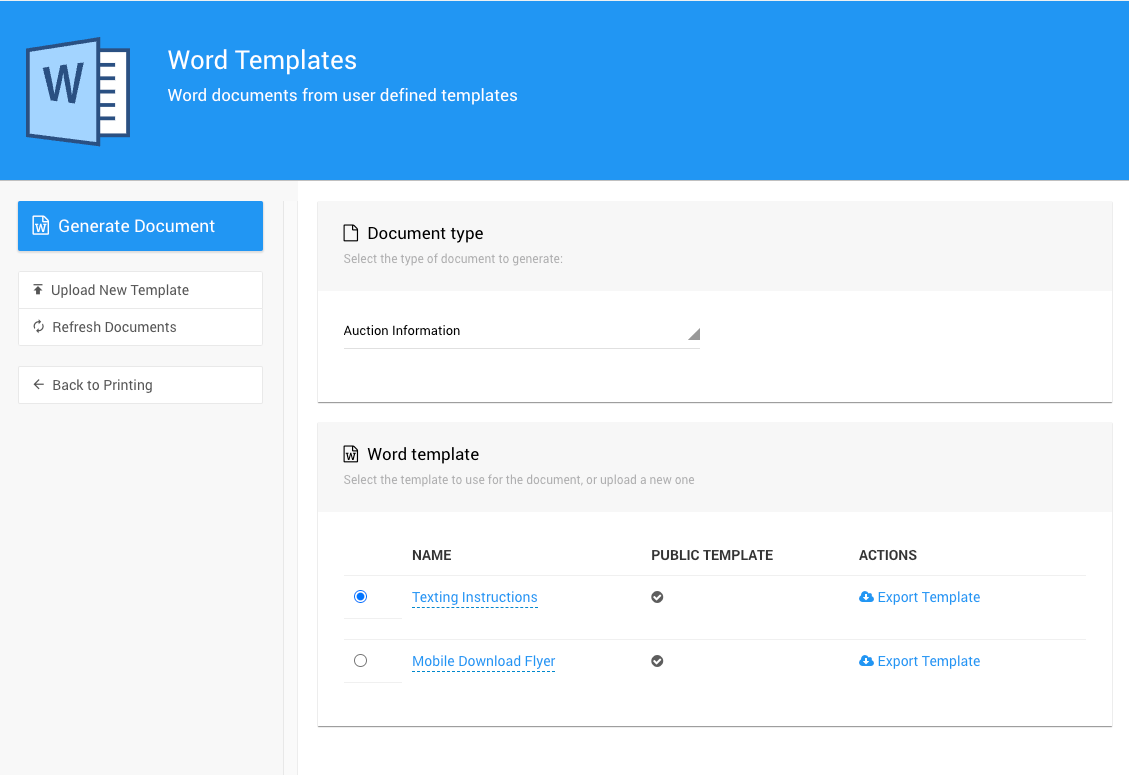
An example Word Templates page from a demonstration event.
| Area | Description |
|---|---|
| Document type | The type of document to generate. |
| Word template | The templates available for the document type, including any you've uploaded. |
| Records | The participants, items, or donors to include. This section depends on the document type. |
| Action | Description |
|---|---|
| Generate Document | Creates a Word document from the selected template and records. |
| Upload New Template | Uploads your own template for the selected document type. |
| Refresh Documents | Reloads the template list. |
| Back to Printing | Returns to the Printing page. |
Document Types
| Document Type | Description |
|---|---|
| Event Information | A document about the event itself. |
| Participant Labels/Paddles | Paddles, name tags, and labels for participants. See Participant Labels/Paddles. |
| Participant Report | One document listing the selected participants. |
| Statements | Statements for the selected participants. See Participant Statements. |
| Catalog | A catalog of the selected items. See Printed Event Catalog. |
| Certificate | Gift certificates. See How To Create Gift Certificates. |
| Display Pages | Display pages for the selected items. |
| Donor Receipt | Receipts and thank-you letters for Item Donors. See Item Donor Receipts and How To Generate Thank You Letters. |
| Donor Report | One document listing the selected donors. |
| Item Labels | Labels for items. See Item Labels. |
| Mailing Labels | Mailing labels for Donors or Participants. See Mailing Labels. |
Note
Document type names follow your event's terminology settings. For example, you may see "Bidder" instead of "Participant", or "Auction" instead of "Event".
Generate a Word Document
Choose a Document type.
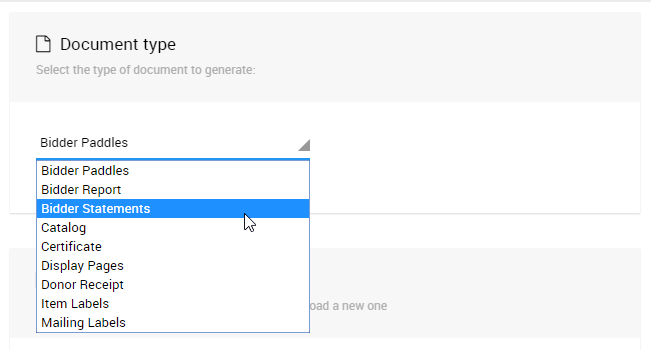
An example from a demonstration event.
In the Word template section, select a template.
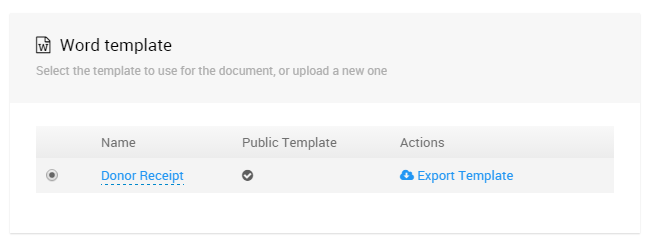
An example from a demonstration event.
In the records section, choose the records to include. The options depend on the document type.
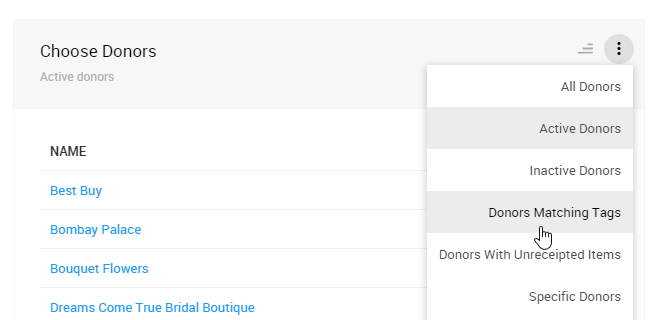
The records section for a donor document type.
Click Generate Document in the sidebar. The Word document downloads to your computer.
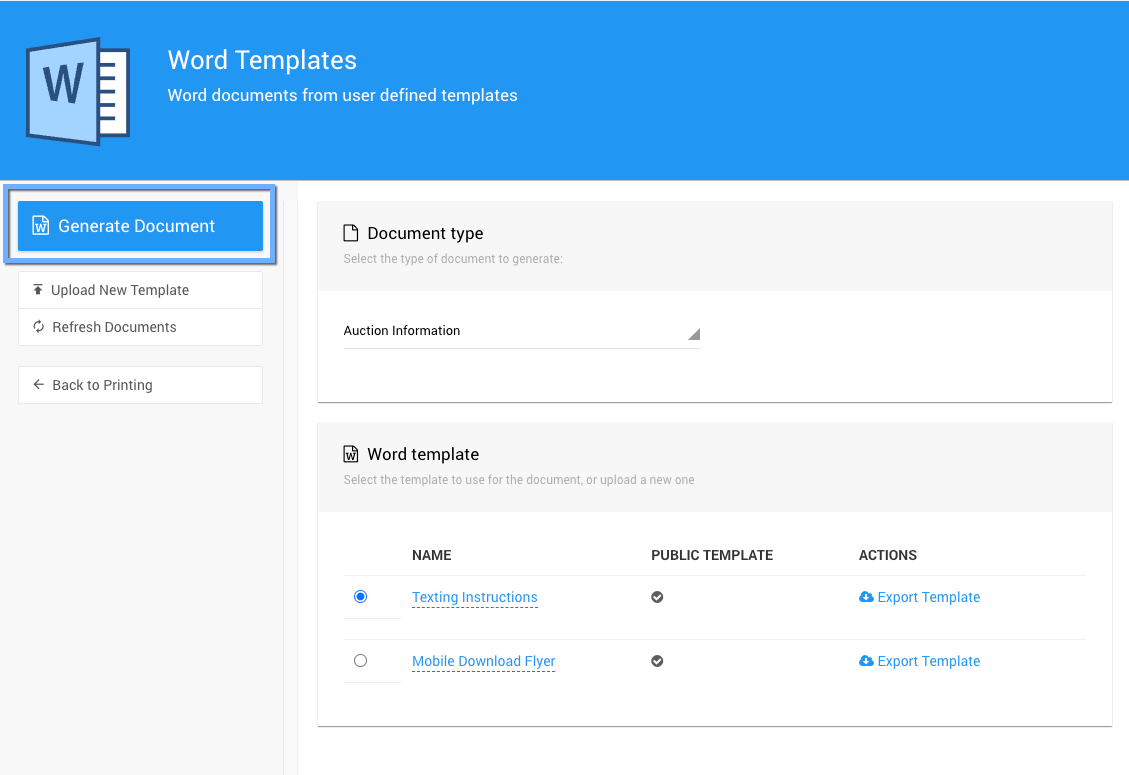
An example from a demonstration event.
Customize a Template
It's usually easiest to start from one of Auctria's templates and change it, rather than starting with a blank Word document.
Download a Template
Choose the Document type.
Click Export Template beside the template you want to change. A copy of the Word document downloads to your computer.
Open the document in Word. Because it was downloaded from the internet, Word opens it in Protected View. Click Enable Editing to edit it.

The Protected View bar in Microsoft Word.
Edit the Template
Edit the document as you would any other Word document. Text in double curly brackets, such as {{Name}} or {{Address}}, is a placeholder that Auctria replaces with each record's details. Keep the placeholders you need, and add your own text around them. For the fields you can use, see Using References.
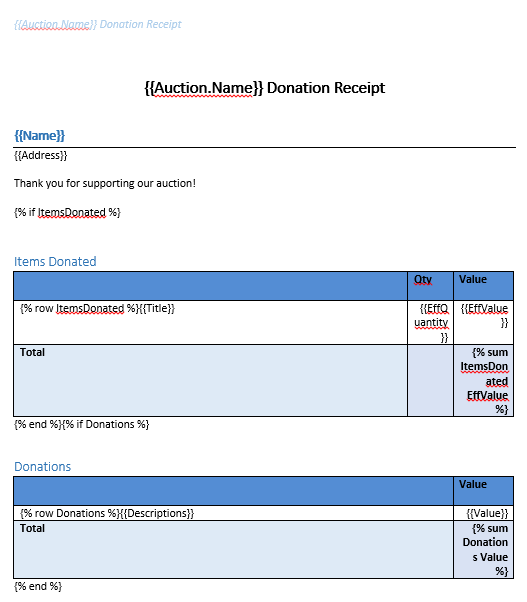
The default Donor Receipt template.
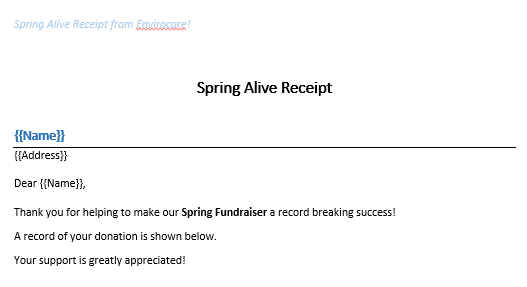
A customized version of the same template.
Save the document as a Word file (.docx).
Upload a Template
Choose the Document type the template is for.
Click Upload New Template in the sidebar, and select your saved
.docxfile.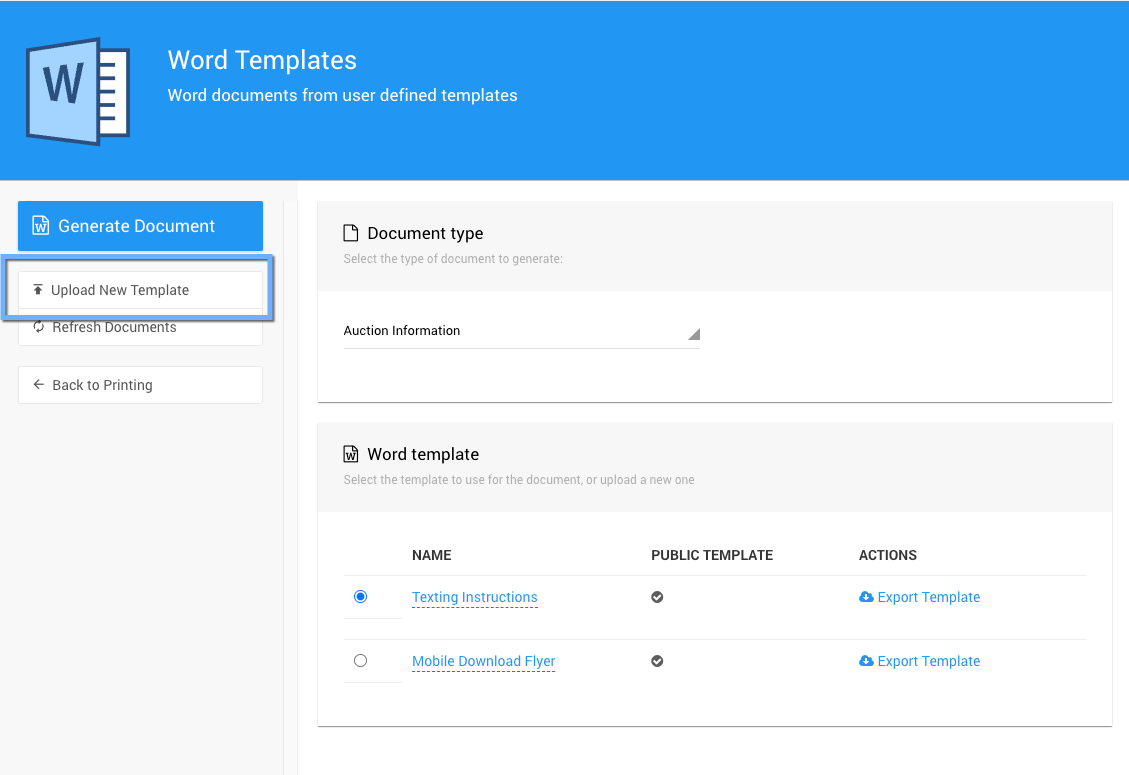
An example from a demonstration event.
Your template appears in the Word template list. If you don't see it, click Refresh Documents.
Replace or Delete a Template
Templates you upload have Replace and Delete links. Auctria's default templates show a check mark in the Public Template column and can't be replaced or deleted.
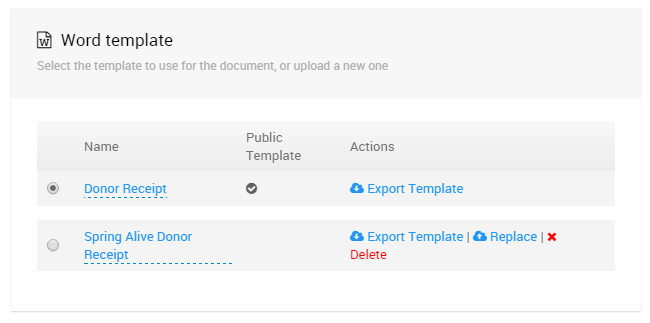
An example from a demonstration event.
| Action | Description |
|---|---|
| Export Template | Downloads a copy of the template. |
| Replace | Uploads a new version of the template from your computer, replacing the current one. |
| Delete | Deletes the template. |