
Learn about the ways to check in participants at your event, from organizer check-in on a computer to the Admin App and guest self check-in.
Checking in participants tells you who has arrived at your event. At check-in, you can confirm guests' contact details, assign Paddle#s and tables, and register credit cards, so checkout goes smoothly at the end of the event.
Video: Auctria Training - Check-In
Ways to Check In
| Method | Who Checks In | Where | Learn More |
|---|---|---|---|
| Organizer Check-In | An organizer or volunteer | The Check-In page, on a computer | Check-In By Organizer |
| Admin App Check-In | An organizer or volunteer | The Auctria Admin App, on a phone or tablet | Admin App Check-In |
| Self Check-In | The guest | A self check-in page on your event website, opened from a link you send by email or text | Self Check-In Request |
You can use more than one method at the same event. For example, you can ask guests to check themselves in before the event, then check in the rest at the door.
Organizer Check-In
An organizer or volunteer checks in guests on a computer as they arrive. This is the most common way to check in guests at an in-person event.
To open the Check-In page, click Check-In under Actions in the left sidebar.
You can also go to Participants → Check-In.
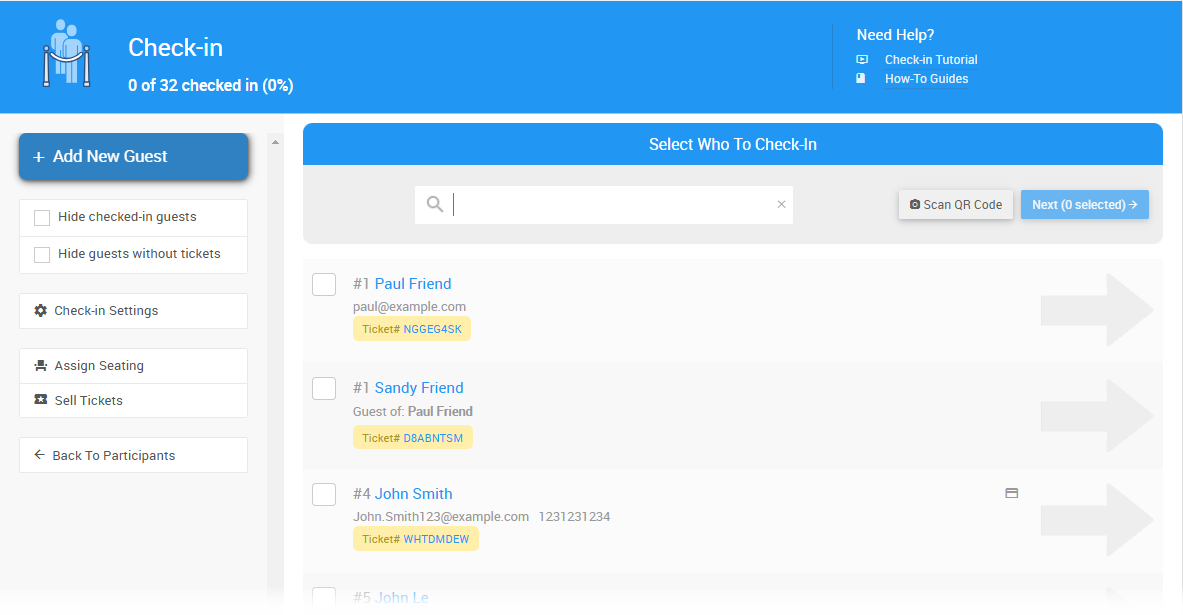
An example Check-In page from a demonstration event.
See Check-In By Organizer for step-by-step instructions.
Admin App Check-In
Organizers and volunteers can also check in guests from a phone or tablet using the Auctria Admin App. The app is available from the Apple App Store and the Google Play Store.
The Auctria Admin app provides an overview of your fundraising events and allows you to check in and check out your participants right from your mobile device.

Scan the QR Code above to install the app for your mobile device.
See Admin App Check-In for more information.
Participant Self Check-In
Guests can check themselves in from a self check-in page on your event website. They open the page from a personalized link that you send by email or text from the Self Check-In Request page.
Self Check-In Request link
The Self Check-In Request link on the Participants page only appears when the advanced email editor is turned on for your event.
- See Self Check-In Request to send guests their self check-in link.
- See Participant Self Check-In for what guests see when they check themselves in.
Check-In Settings
Review your check-in settings before your event. They control:
- What information guests must provide before they can be checked in.
- Which email and text guests receive when they check in.
- Whether guests are told their Paddle# and table#.
See Check-In Settings.
Participant Access
Each participant has a personal access link and access code that sign them in to your event website without a password. The check-in email and text include both. See Participant Online Access And Tokens.
Getting Started
- Check-In Settings — Choose what information is required at check-in and what guests receive afterward.
- Check-In By Organizer — Check in guests at the door from the Check-In page.
- Self Check-In Request — Send guests a link so they can check themselves in.
- Participant Online Access And Tokens — Send participants their access link and code to sign in to your event website.