
Learn how to use the Auctria Website Editor to build and customize your event website pages.
The Website Editor is the tool you use to build and design your event website's pages. It opens in edit mode alongside your event website, with a sidebar on the left providing controls for adding and arranging content, managing pages, and customizing your site's appearance.
Tip
Opening and editing the Website Editor requires being logged into Auctria as a User with a minimum permission level of Power User.
Opening the Website Editor
There are two ways to open the Website Editor.
From the Website Dashboard
- From your event dashboard, click Event Website in the left sidebar (or the Event Website block on the main dashboard).
- Click Edit Website.
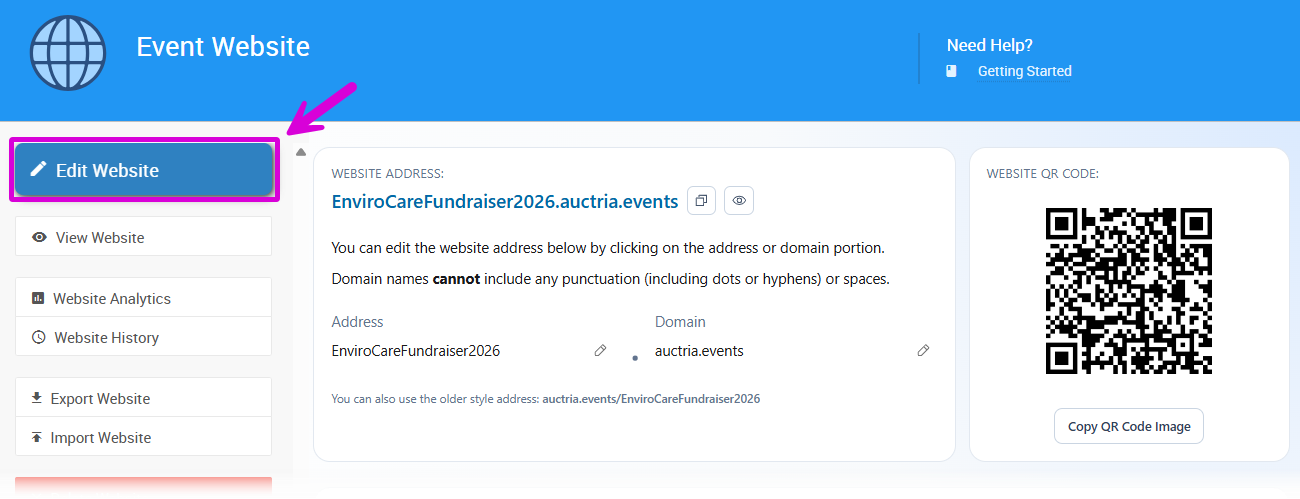
An example from a demonstration event.
The Website Editor will open with the sidebar visible on the left side of the screen.
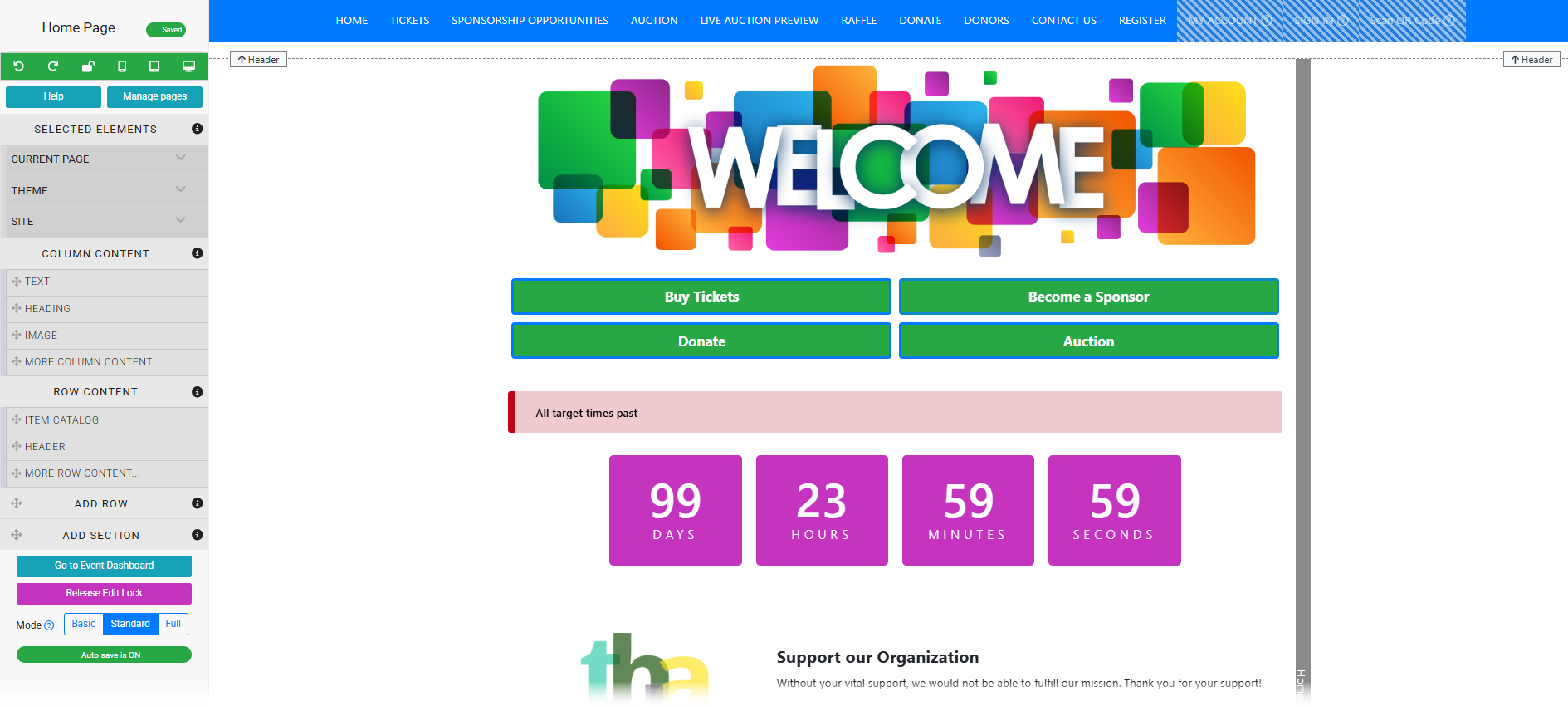
An example view in edit mode from a demonstration event.
From the Event Website
If you are already viewing your event website while logged into Auctria with the appropriate permissions, you can enter edit mode directly from the website. Click the Edit icon in the lower-left corner of the screen to open the Website Editor sidebar.
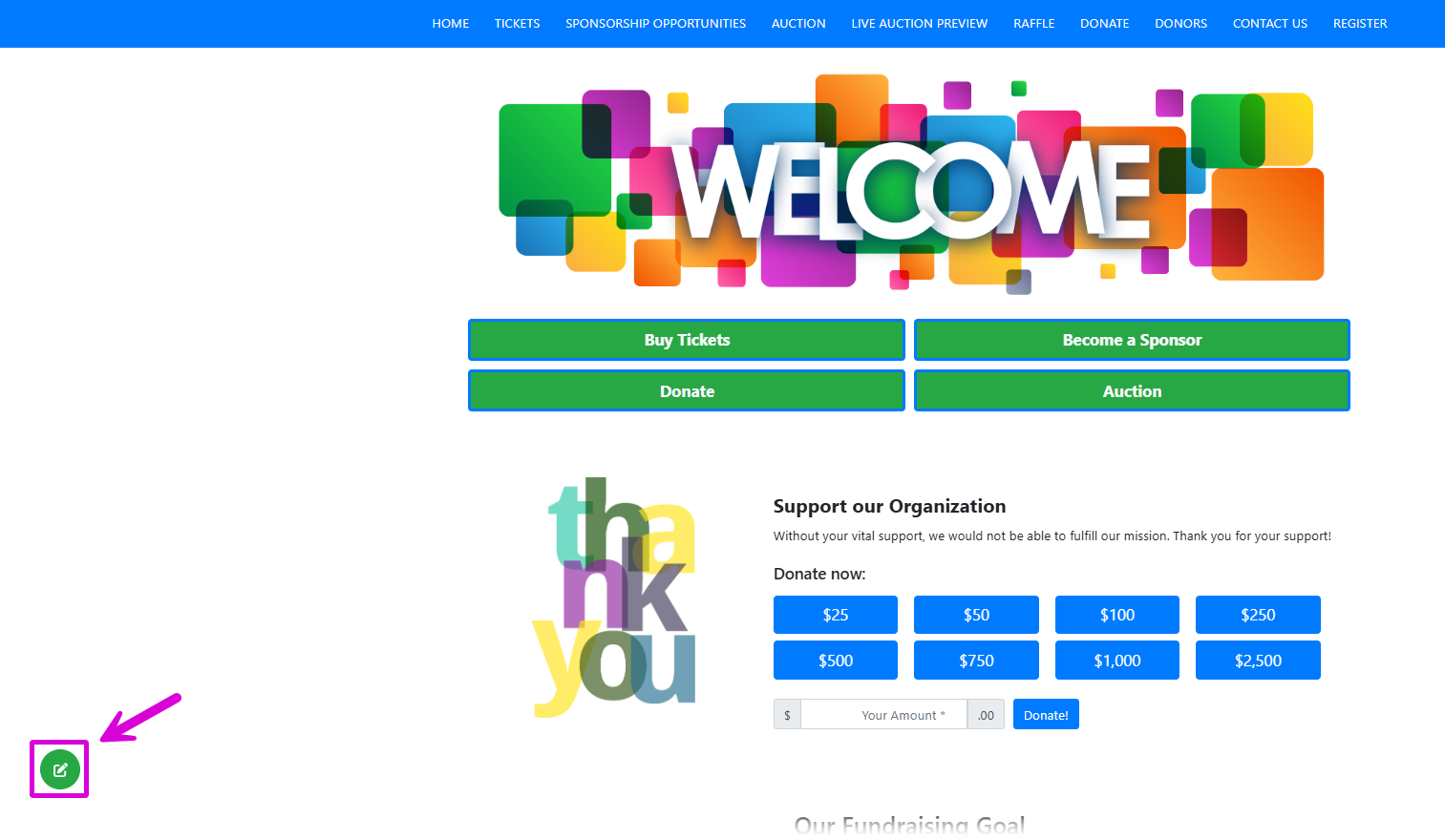
An example event website when logged in with appropriate permissions to edit.
Working in the Website Editor
Once in edit mode, the Website Editor sidebar appears on the left side of the screen. From here you can:
- Add and edit content — insert rows, columns, and content elements onto any page
- Manage pages — create, reorder, rename, and delete website pages
- Customize menus — configure the navigation menu entries and links
- Preview your site — toggle between edit view and a live preview of your website
See Website Editor Sidebar for a full guide to the sidebar controls.
Saving Your Work
The Website Editor includes an AutoSave feature that automatically saves changes as you make them.
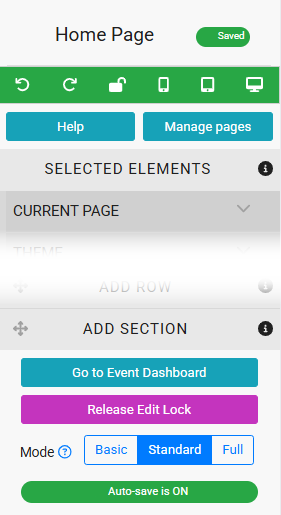
AutoSave can be toggled off if needed. When AutoSave is off, the status will change to Save Needed and a Save Now link will appear, requiring you to save manually.

Website Locked
If your organization has multiple Users who can edit the website, opening the editor while another user is already editing will trigger a Website Locked warning. This built-in safety mechanism prevents two people from editing the website at the same time.
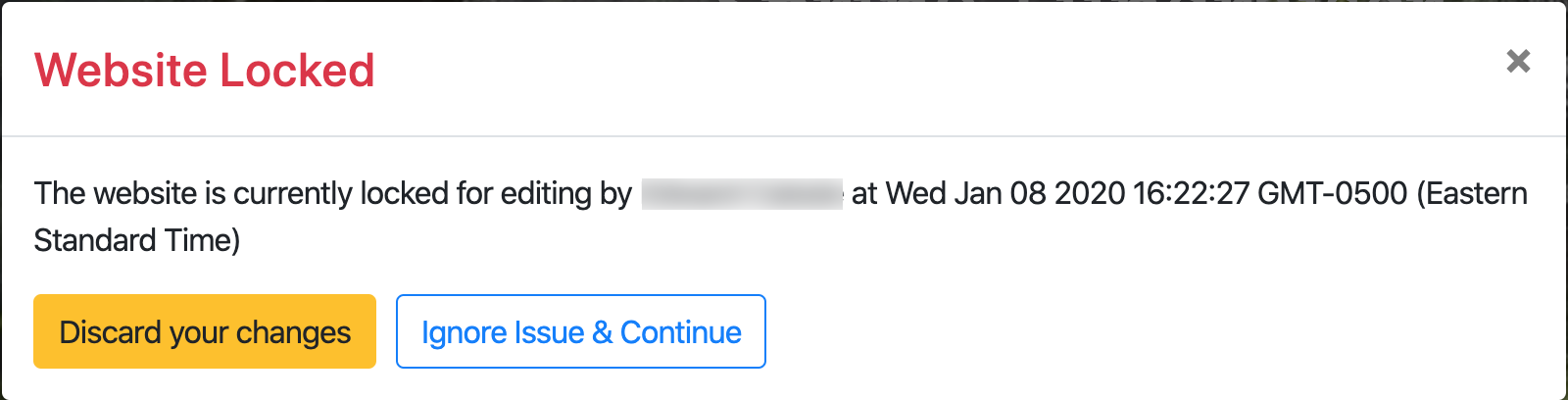
The warning identifies the user currently editing and will continue to appear for 15 minutes from the timestamp shown in the message. Website Locking can also be triggered if you close a browser tab and start editing in a different tab, since the lock is associated with the browser tab.
From this message you can:
- Discard your changes — closes the editor and returns you to the website page view
- Ignore Issue & Continue — proceeds with your editing session
Tip
To avoid Website Locking, keep and use the same browser tab open for editing. You can also release the lock by clicking Release Edit Lock in the Website Editor Sidebar to exit edit mode in the current tab.

An example from a demonstration event.
Save Error
If you continue editing after receiving the Website Locked warning, you may also see a Save Error message. This typically occurs because the dynamic AutoSave function conflicts with the locked status.
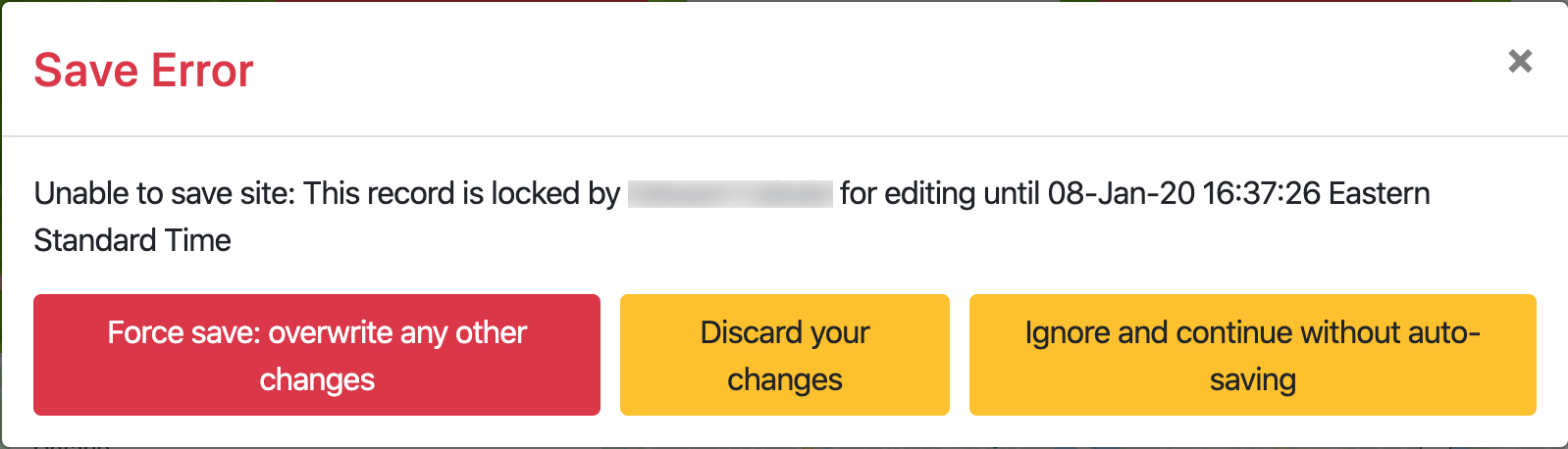
The Save Error message identifies the user who was editing and will continue to appear for 15 minutes from the timestamp shown. From this message you can:
- Force save: overwrite any other changes — saves the current version in your browser tab
- Discard your changes — closes the editor and returns you to the website page view, losing any unsaved changes
- Ignore and continue without auto-saving — allows you to continue your editing session with AutoSave disabled
Warning
Selecting Ignore and continue without auto-saving will turn off AutoSave. Remember to save your changes manually and turn AutoSave back on when you're ready to continue using it.
Closing the Website Editor
To close the Website Editor, click the "eye" icon in the preview bar below the page title in the editor sidebar. See Preview Website Pages for more details.
Tip
Closing the Website Editor using the eye icon also releases the website lock after you have saved your edits. The edit icon will remain visible in the lower-left corner of the screen so you can re-enter edit mode at any time.