
Learn how to create a Basket item and combine Partial items into it as a lot or package.
A Basket or package is made up of individual Partial items combined under a single basket item. Each Partial item can have its own donor information and value, which will roll up to the basket.
Step 1 — Set Up Your Partial Items
Each item to be included in the basket should have its item type set to Partial. You can set this when creating the item, or update an existing item's type from its Item Details page.
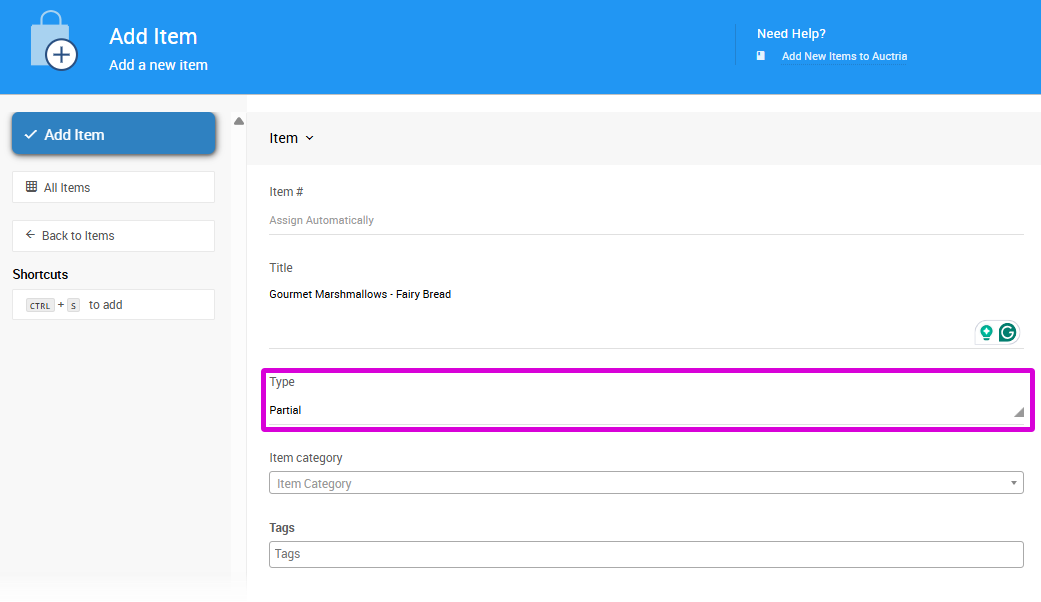
An example from a demonstration event.
To view all existing Partial items, open the Items list and under Group select Partial lot items. You can further refine the list by Category or Status as needed.
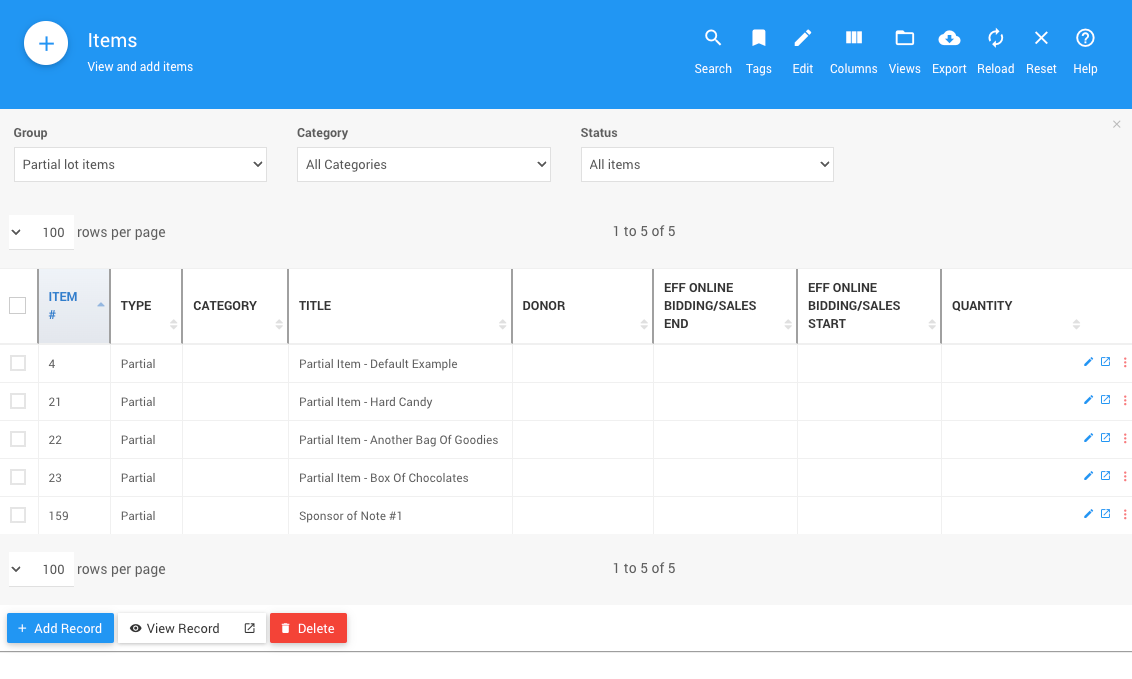
An example from a demonstration event.
Step 2 — Create the Basket Item
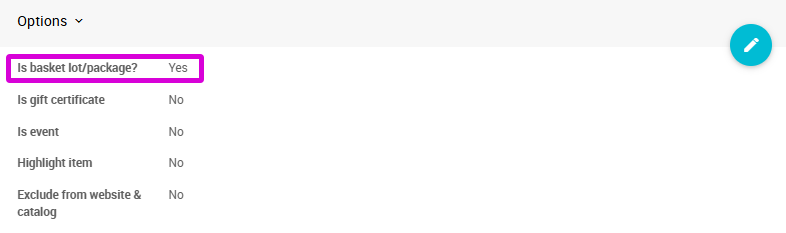
Add a new item with an appropriate title for the basket or package. In the Options section, enable Is basket lot/package and save the item.
Donor Information
You don't need to enter donor information on the basket item itself — donor details will be pulled automatically from the Partial items added to its contents.
Step 3 — Add Partial Items to the Basket
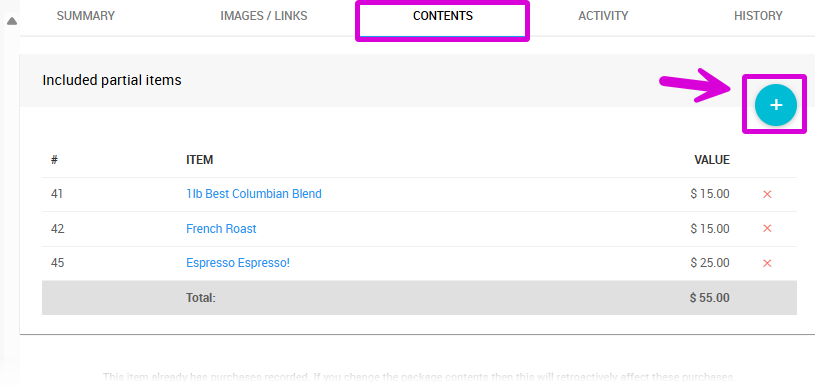
Open the basket item's Contents tab.
Contents Tab Not Visible?
If the Contents tab isn't showing, the Is basket lot/package option may not have been saved correctly. Go back to the Summary tab, confirm the option is enabled, and save the item again.
In the Included partial items section, click the Add (+) icon.
A pop-up window will appear listing all available Partial type items.
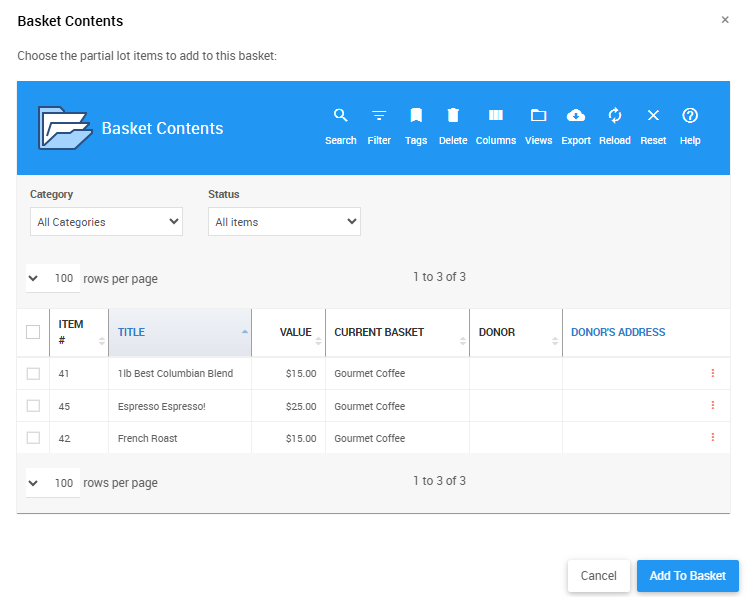
An example from a demonstration event. The pop-up list is restricted to Partial type items only.
Check the box next to each item you want to include. To deselect an item, click its check mark to clear it. All rows with a green check mark will be added.
Click Add To Basket to add the selected items. The Contents tab will update to show the items and their combined total value.
Step 4 — Review the Basket Value
The basket value is automatically calculated from the combined values of its Partial items. See Basket Value for more information on how basket values work and how to override the calculated total if needed.