
Learn how to display a real-time list of bids and donations on your event website using the Leaderboard row element.
The Leaderboard element displays a real-time list of bids and donations made during an event, helping to drive engagement and friendly competition among guests.
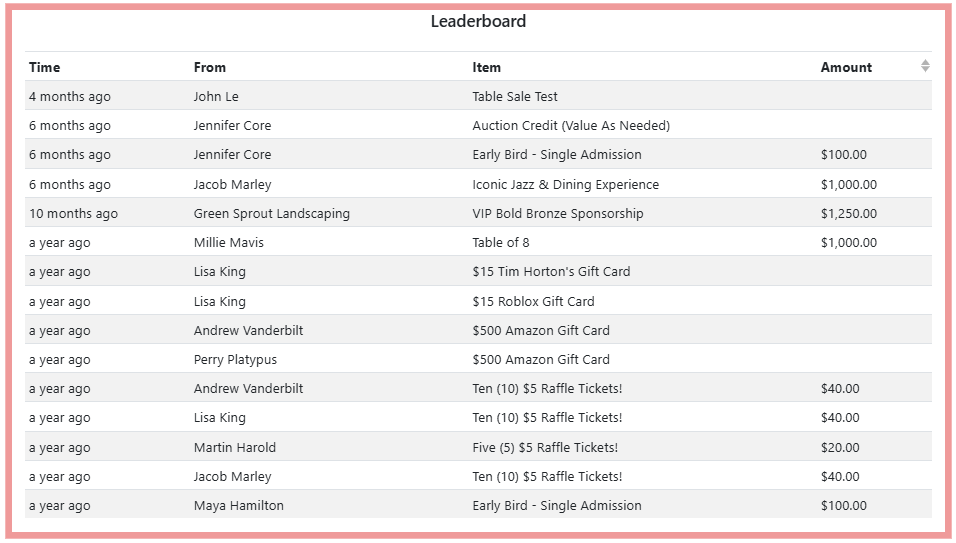
An example of a Leaderboard element on the event website in Edit mode.
Adding the Leaderboard to a page
Drag the Leaderboard element from the Website Editor Sidebar into a row, or drag More Row Content onto the page and select Leaderboard from the Choose Row window.
Auto-refreshing
The Leaderboard automatically picks up new activity after a few seconds. Guests don't need to refresh the page to see updates.
Leaderboard Settings
Selecting the Leaderboard element on the page will open the Leaderboard settings panel in the Website Editor sidebar.
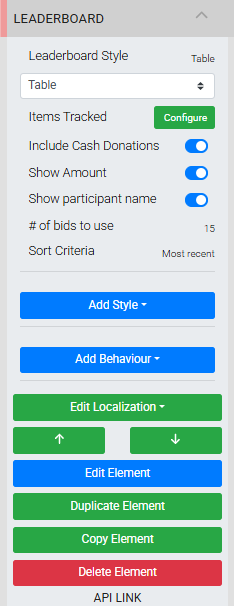
The Leaderboard settings panel in the Editor sidebar.
| Setting | Description |
|---|---|
| Leaderboard Style | Sets the display style: Table shows bids and donations in a structured list. Ticker displays them as a scrolling horizontal band. |
| Items Tracked | Filters which items appear in the Leaderboard. Default is All Items. Click Configure to set conditions. See Configure Items Displayed for details. |
| Include Cash Donations | Toggles the inclusion of general donations in the Leaderboard. Enabled by default. |
| Show Amount | Toggles the display of bid or donation amounts. Enabled by default. |
| # of bids to show | Sets the maximum number of entries displayed. Default is 15. |
| Sort Criteria | Sets the order entries appear. Most recent (default) or Highest amount. |
Leaderboard Table
When the Table style is selected, click the Leaderboard or its target icon to open the Leaderboard Table settings panel.
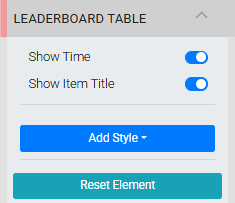
The Leaderboard Table settings panel in the Editor sidebar.
| Setting | Description |
|---|---|
| Show Participant Name | Toggles the display of the participant name (bidder or donor) column. |
| Show Time | Toggles the display of the time column, which shows when each bid or donation was made. |
| Show Item Title | Toggles the display of the item title column. |
Leaderboard Ticker
When the Ticker style is selected, click the Leaderboard or its target icon to open the Leaderboard Ticker settings panel. Most settings control the appearance of the scrolling text.
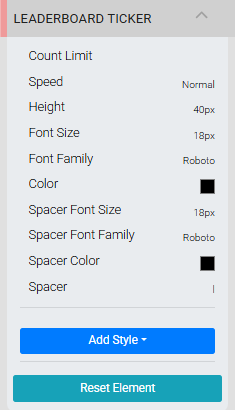
The Leaderboard Ticker settings panel in the Editor sidebar.
| Setting | Description |
|---|---|
| Count Limit | Limits the number of entries displayed in the ticker. Leave blank to show all available entries. |
| Speed | Controls how fast the ticker scrolls. |
| Height | Sets the vertical height of the ticker band. Text is always vertically centered within this space. |
| Font Size | Sets the font size for guest names and bid information. |
| Font Family | Sets the font family for guest names and bid information. |
| Color | Sets the text color for guest names and bid information. |
| Spacer Font Size | Sets the font size for the spacer character. |
| Spacer Font Family | Sets the font family for the spacer character. |
| Spacer Color | Sets the color of the spacer character. |
| Spacer | The character or characters used to separate entries in the ticker. Default is +++. Spaces are recognized and can be included. |
See Fonts for additional reference on font controls.
Force Updates
The Leaderboard automatically updates when activity occurs on the event website. To ensure that transactions recorded from the Auction Dashboard — such as manually entered bids, purchases, or donations — also trigger Leaderboard updates, enable the Push website notification option when recording those transactions.
API Link
Advanced feature — limited support
The API Link at the bottom of the Leaderboard element opens a view of the parseable data available for the element. This is intended for programmatic use. Auctria support cannot provide guidance on how to use this data.
See Common Element Actions for more details on managing the Leaderboard element.