
Learn how to remove a maximum (or proxy) bid from an item.
There may be cases where a participant places a Maximum Bid but wants to remove it afterward.
Participants Can Change Their Own Maximum Bid
See How To Change A Maximum Bid for how participants can change their own maximum bid.
You may also need to remove one when an item will no longer use Maximum Bidding, such as when you change an Online Bidding type item to a Paper Bidding type item.
Identify Maximum Bids
An item's active Maximum Bid shows on its Activity tab. The bid has an icon with the tooltip Proxy bid present (a small blue, spiked circle with an A).
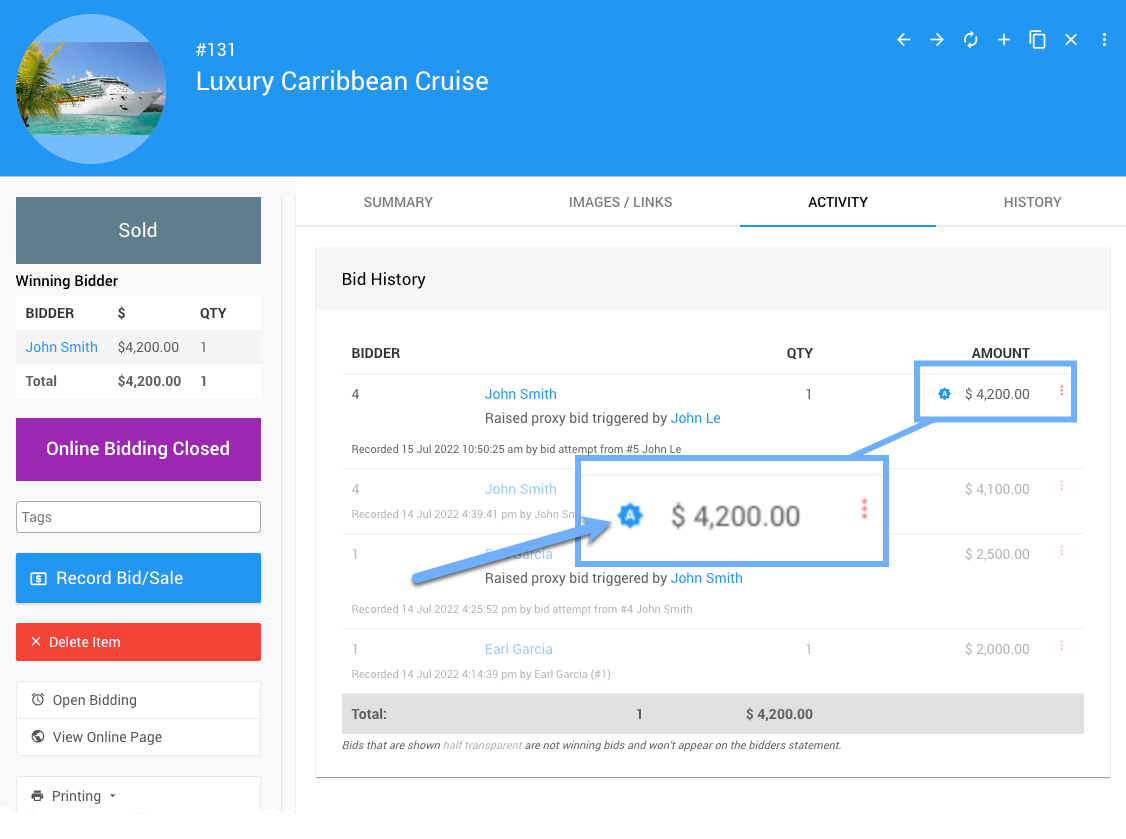
An example from a demonstration event.
Remove A Maximum Bid
Removing the Maximum Bid keeps the current winning bid and its amount.
- Click the options icon at the far right of the bid with the Maximum Bid.
- Click Remove Proxy Bid.
- Click Continue in the confirmation dialog.
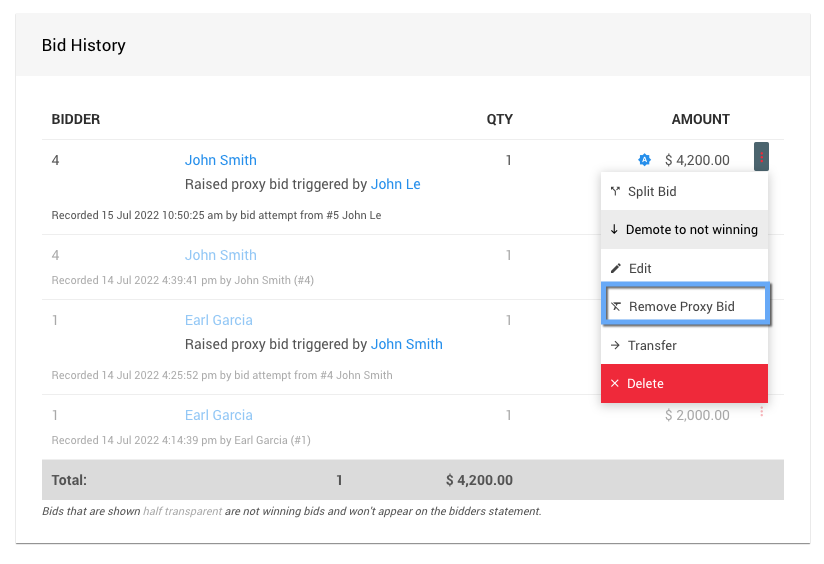
An example from a demonstration event.
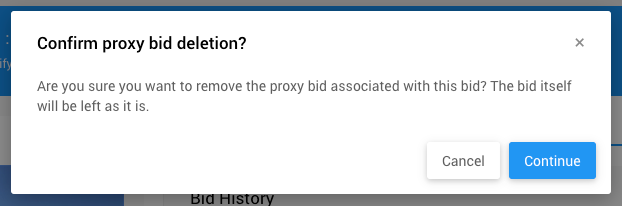
An example from a demonstration event.
Winning Bids Only
Only the current winning bid can have a Maximum Bid attached.
Let The Participant Know
The participant isn't notified automatically. If they didn't ask for the Maximum Bid to be removed, let them know it was.