
Learn how guests experience and interact with your event website — from browsing the item catalog to purchasing tickets and completing checkout.
The event website handles ticket purchases, registration, and online bidding — all from a mobile-friendly site that resizes to work on phones, tablets, and desktop browsers. The look and feel of the site will vary depending on how you have customized your website.
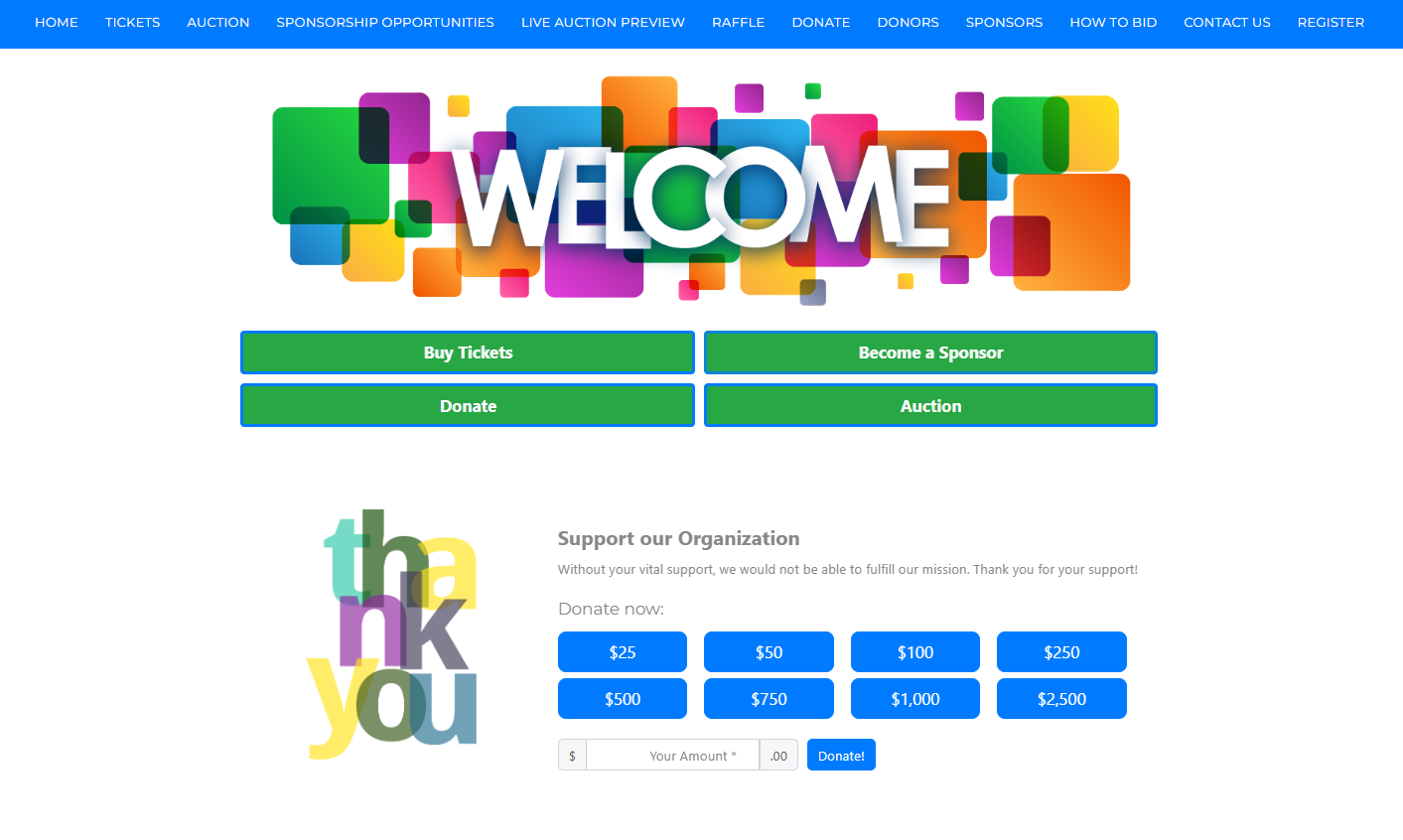
An example from a demonstration event.
Browsing the Event Catalog
Guests can browse all available auction items from the Item Catalog on the event website. The catalog is fully responsive and adapts to the guest's screen size.
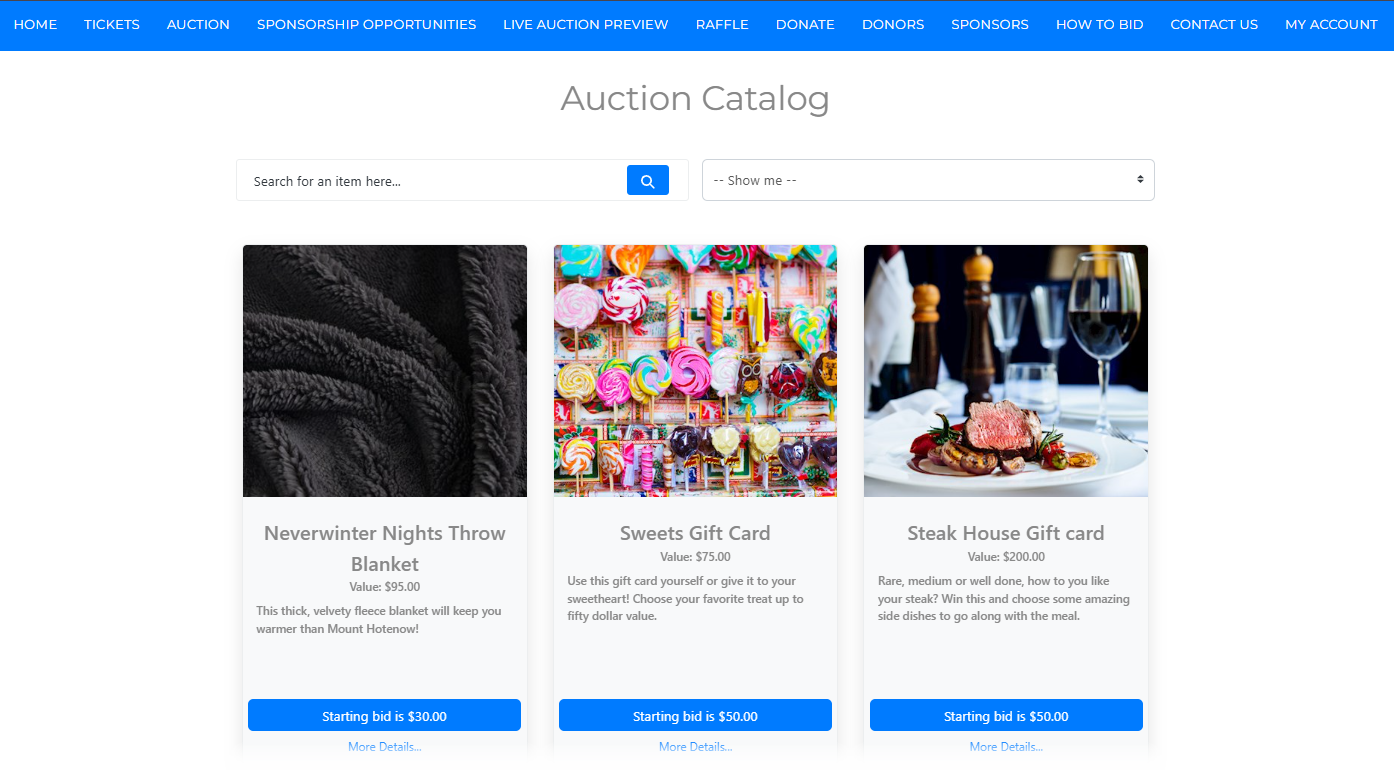
An example from a demonstration event.
Clicking on any item opens its Item Details page, where guests can read the full description and place a bid.
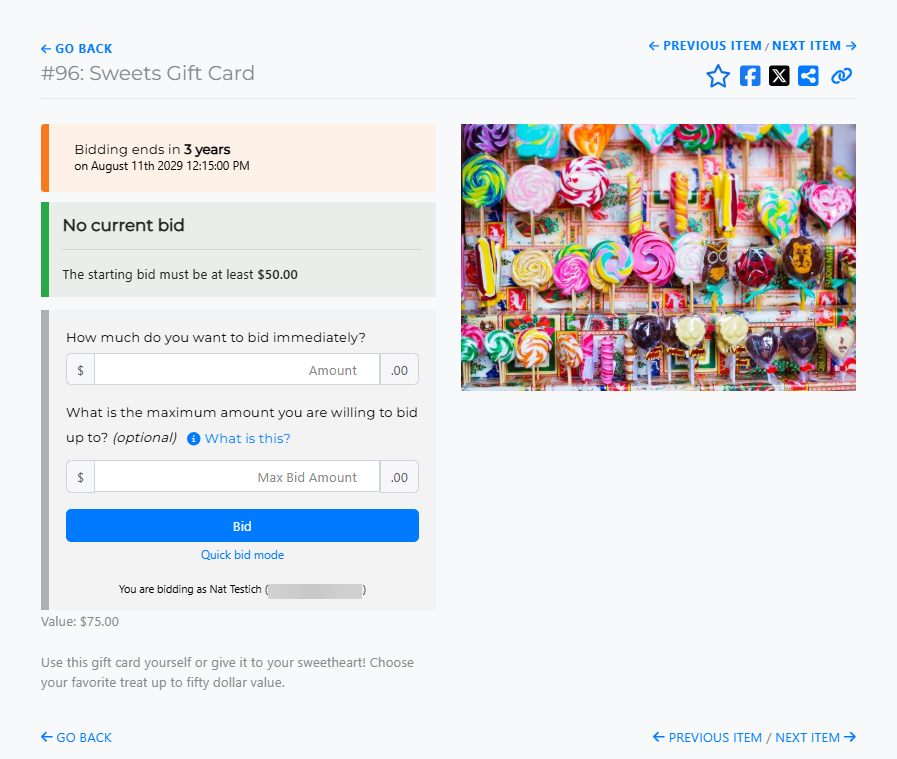
An example from a demonstration event.
See Placing Bids for details on how guests place bids on auction items.
Buying Tickets
Once a guest selects their tickets and clicks Checkout, they are taken through the following steps.
Cart Summary
The guest sees an overview of their current transaction, including any outstanding balances if they are already logged in. Clicking Continue to Contact Details moves the process forward.
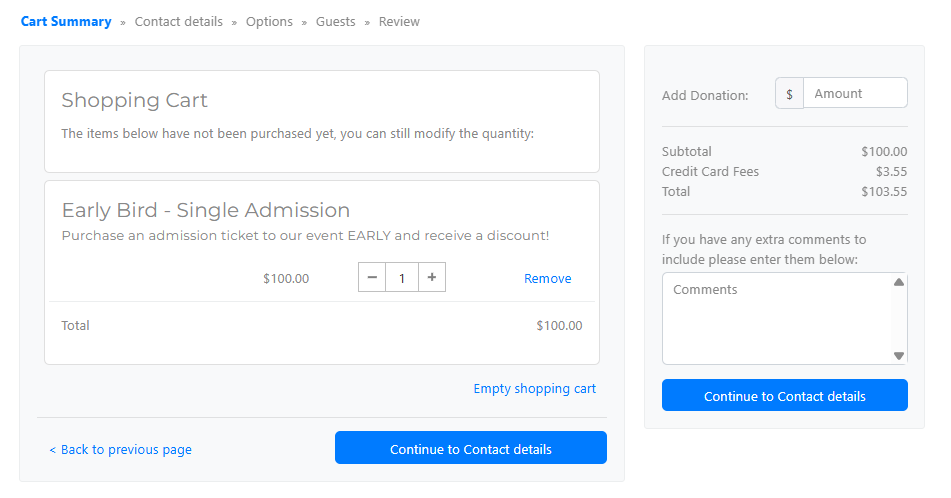
An example from a demonstration event.
Contact Details
For a logged-in guest, the First name, Last name, and Email fields are pre-filled and locked. A new guest will fill in their details here.
When purchasing multiple tickets, guests can choose to register their contact details as an Individual or as a Company.
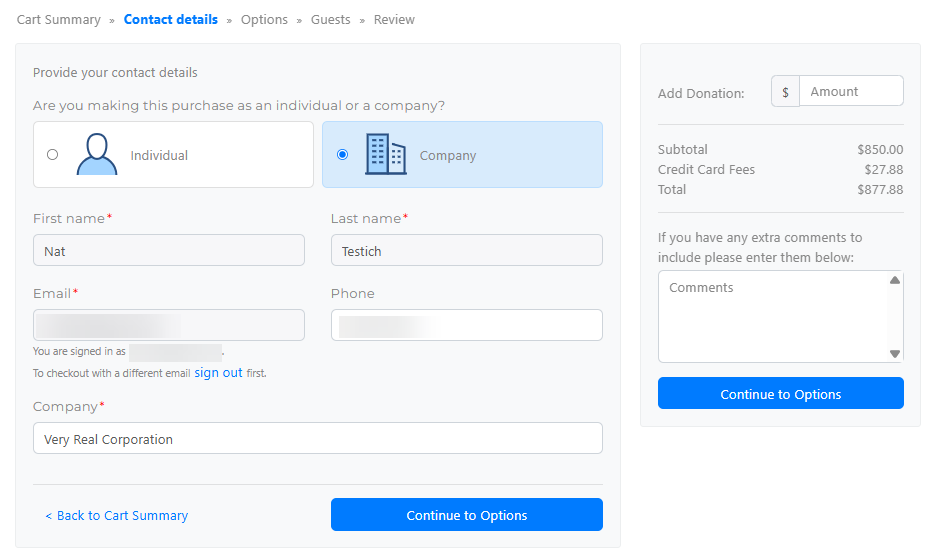
An example from a demonstration event.
Guests
Guests are prompted to assign each ticket, including if they purchase a single ticket. Each ticket can be assigned to:
- Myself — the buyer's contact details are pre-filled for the ticket.
- Another Guest — guest details can be entered or edited. This is not required at the time of purchase and can be updated later.
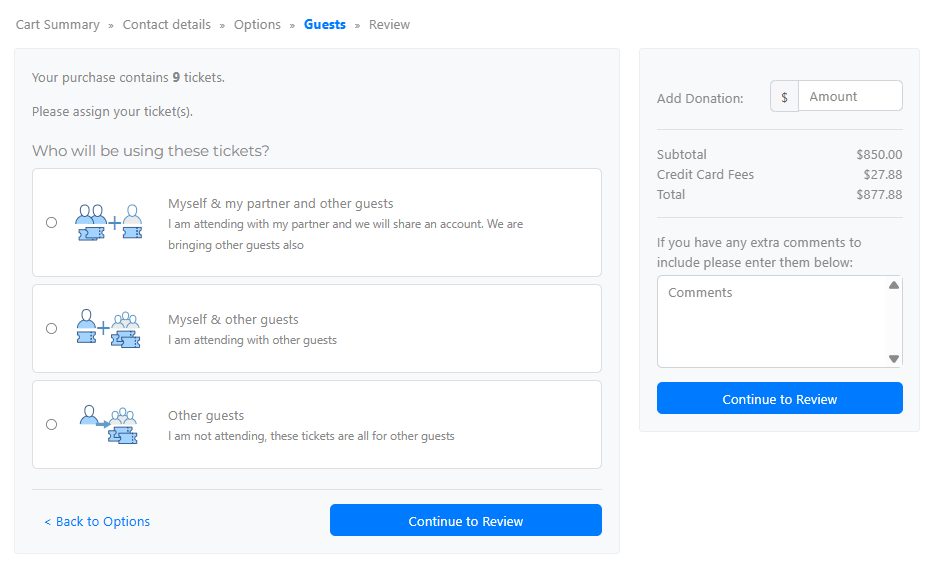
An example of Guest Assignment of a purchase containing multiple tickets.
The Meal Choice option, if available, can also be set here and updated at a later date.
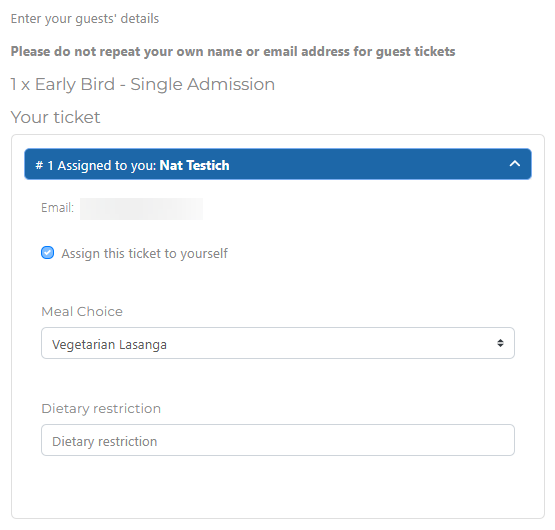
An example from a demonstration event.
Review
The Review step shows the final totals and the payment methods your organization has enabled.
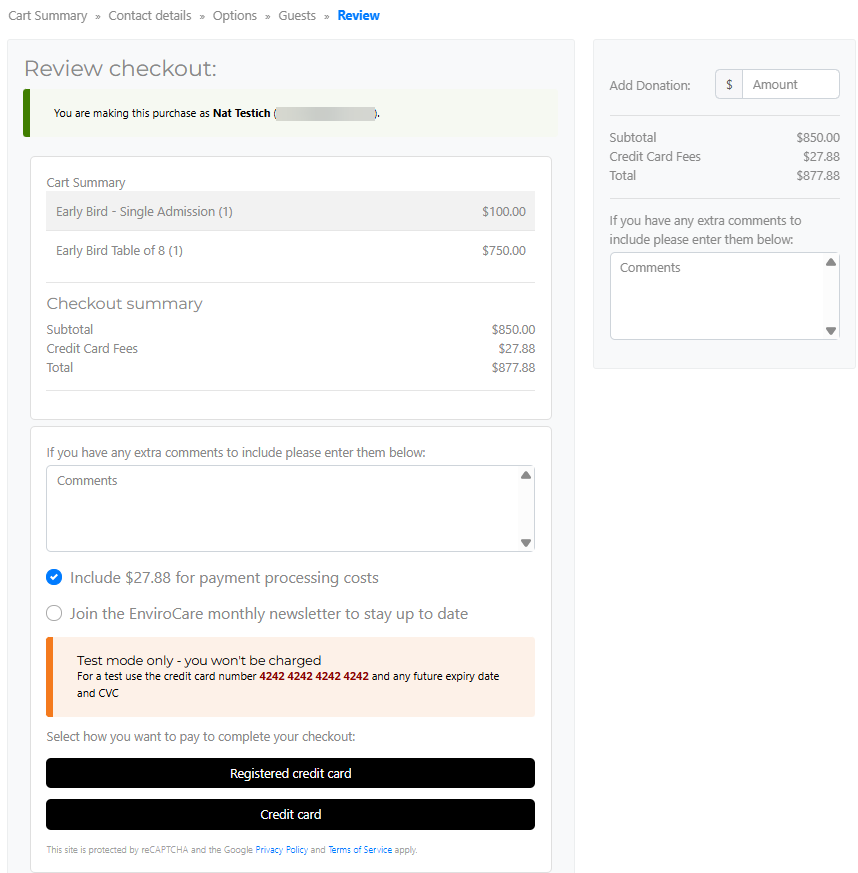
An example from a demonstration event.
Payment Completed
Once payment is complete, the guest sees a confirmation Thank you! page.
If the purchase included multiple tickets, the confirmation page will include a Guest Ticket Claim link that can be shared with their guests.
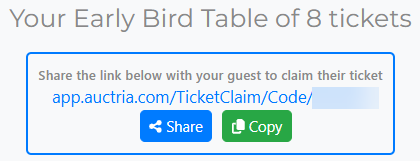
An example from a demonstration event.
This link is also available in the purchase receipt email and the Tickets Hub, which can be accessed via the My Account page when they are signed into the event website.