
Learn how to embed a document preview on your event website using the Document Preview element.
The Document Preview element embeds a document directly on a page so guests can view it without downloading it. Supported file types are Word documents, Excel spreadsheets, and PDF files.
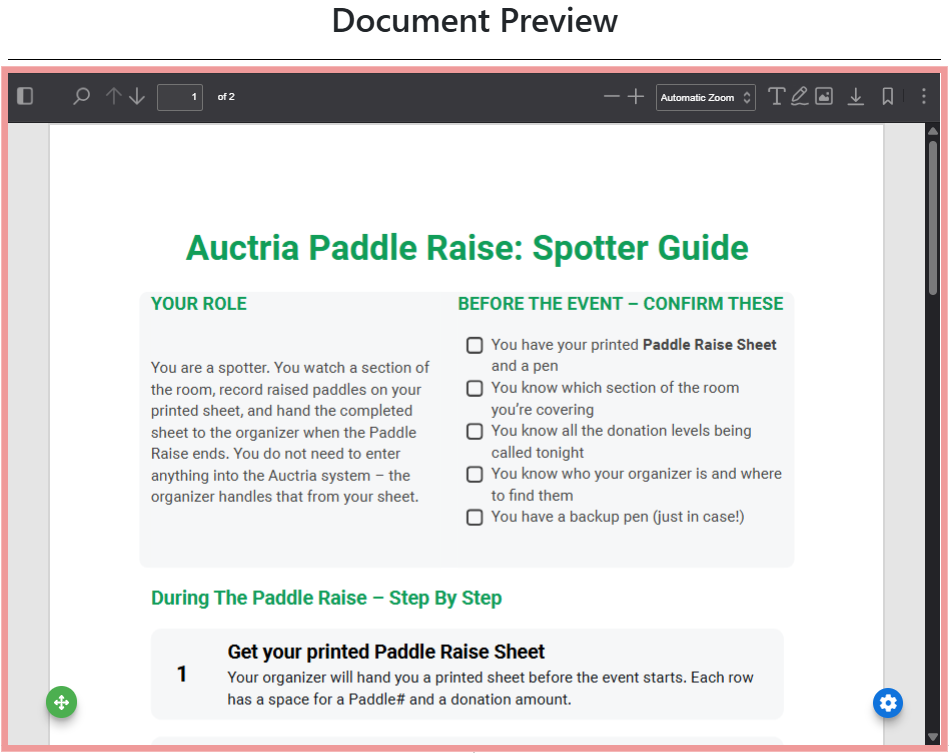
An example of a populated Document Preview element on the event website in Edit mode.
Adding a Document Preview to a page
Drag the More Column Content element from the Website Editor Sidebar into a column space, then choose Document Preview from the list.
Document Preview Settings
Clicking a Document Preview element opens its settings panel in the Website Editor Sidebar.
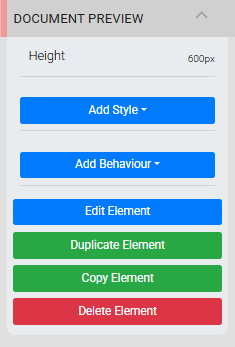
The Document Preview settings panel in the Editor sidebar.
The Height setting sets the height of the document preview area. The default value is 800px.
Double-click the element or click the pencil icon to open the Choose File window, where you can upload a file from your device, link to an online service, or use a direct URL. You can replace the document at any time by re-uploading a new file.
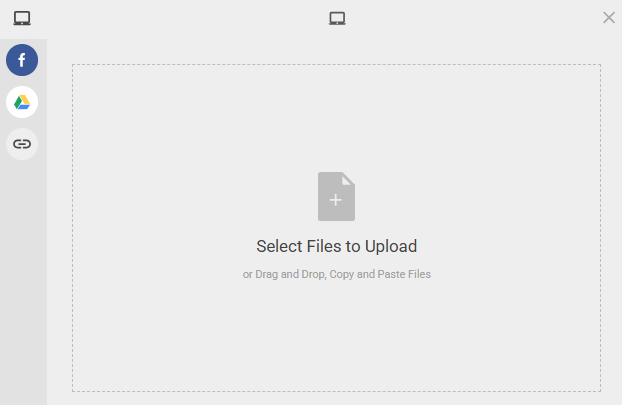
An example from a demonstration event.
Filename requirements
When uploading a file from your device, use a filename without spaces, special characters, or punctuation marks. Files with these characters in their names may not load correctly in all browsers.
See Common Element Actions for more details on managing the Document Preview element.